> ## Documentation Index
> Fetch the complete documentation index at: https://docs.inworld.ai/llms.txt
> Use this file to discover all available pages before exploring further.
# Character Interaction Node Demo
This demo uses the full graph node system to build a relatively complete single graph that combines modules including LLM, STT, TTS, and Safety.
## Run the Template
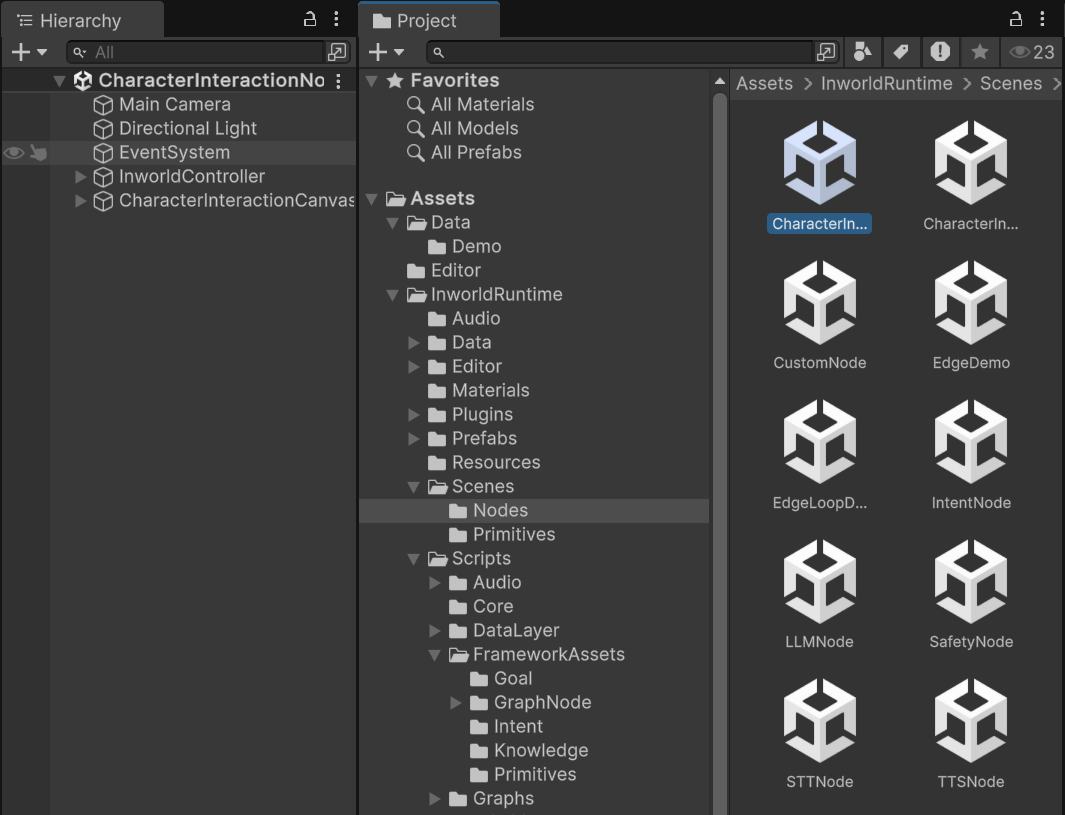
1. Go to `Assets/InworldRuntime/Scenes/Nodes` and play the `CharacterInteractionNode` scene.
 2. After the scene loads, you can enter text and press Enter or click the `SEND` button to submit.
3. You can also hold the `Record` button to record audio, then release it to send.
4. The AI agent responds with both audio and text. If you send audio, it will be transcribed to text first.
## Understanding the Graph
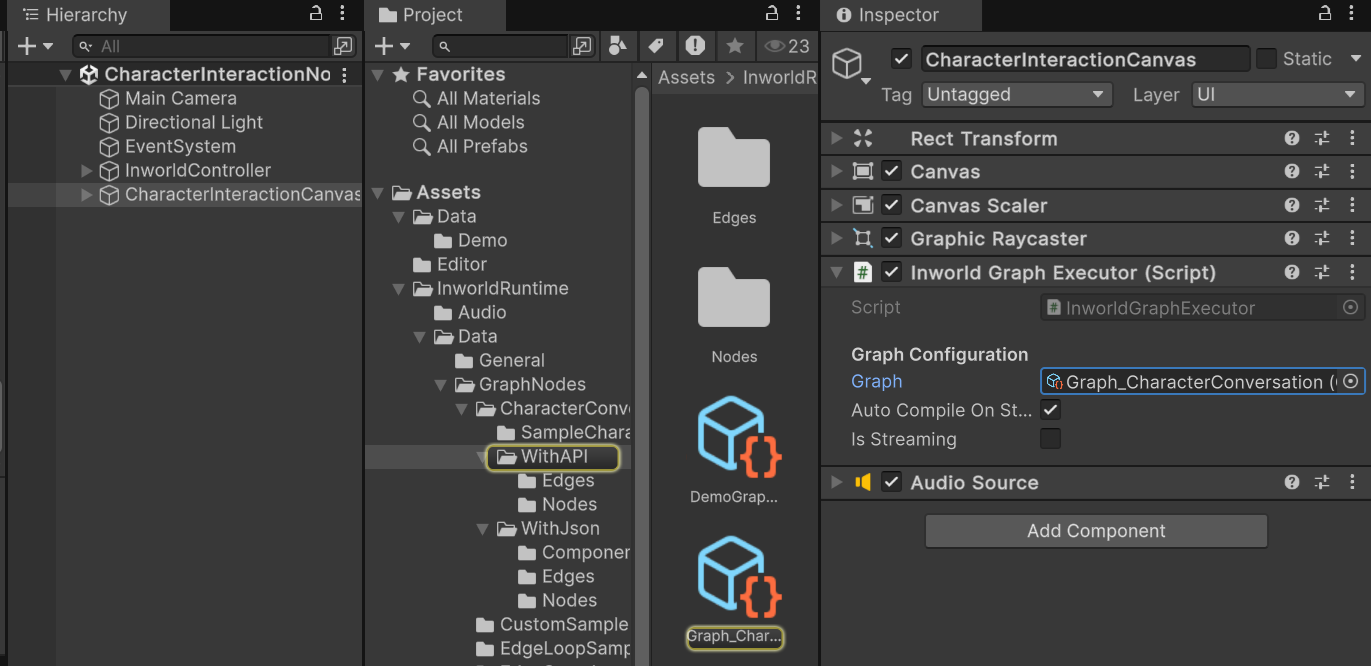
You can find the graph on the `InworldGraphExecutor` of `CharacterInteractionCanvas`.
2. After the scene loads, you can enter text and press Enter or click the `SEND` button to submit.
3. You can also hold the `Record` button to record audio, then release it to send.
4. The AI agent responds with both audio and text. If you send audio, it will be transcribed to text first.
## Understanding the Graph
You can find the graph on the `InworldGraphExecutor` of `CharacterInteractionCanvas`.
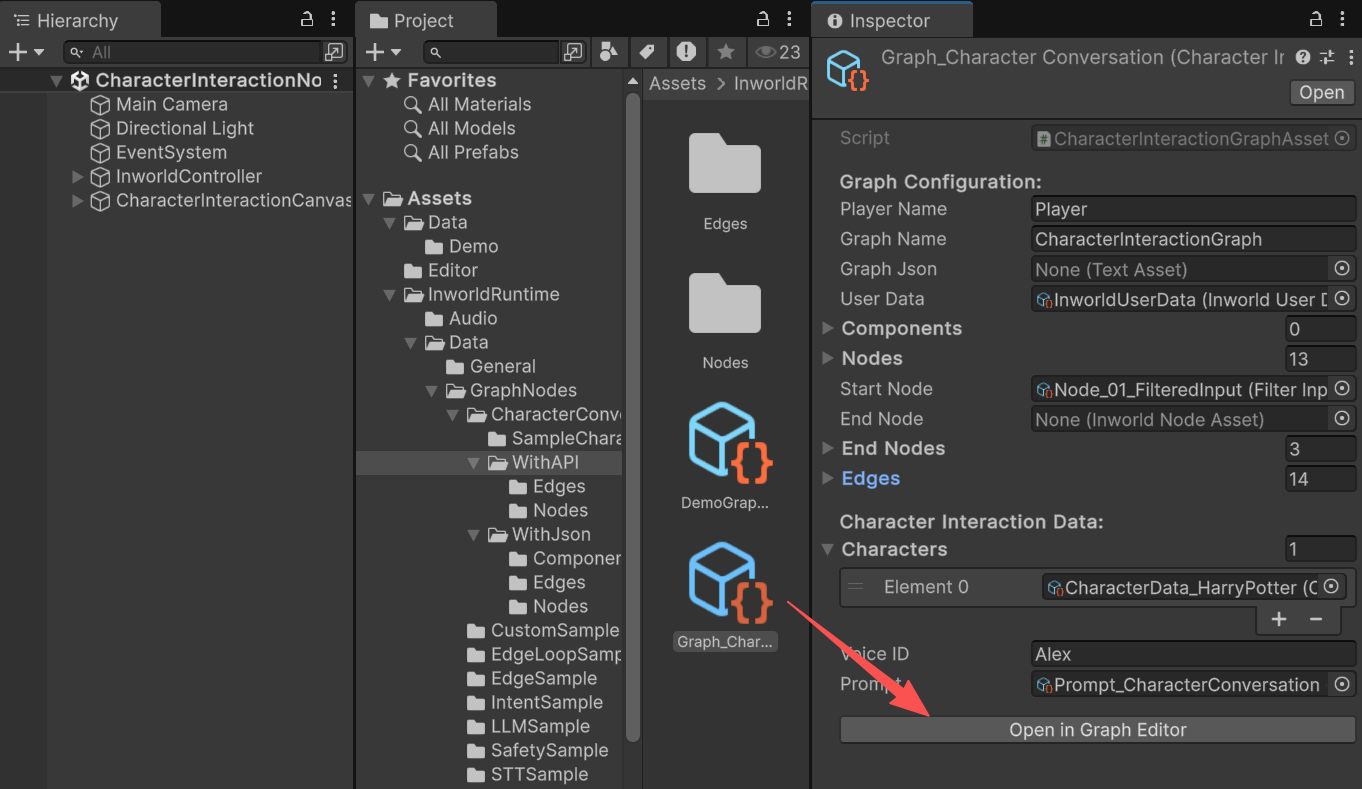
 The graph is relatively complex—let's use the graph editor to illustrate:
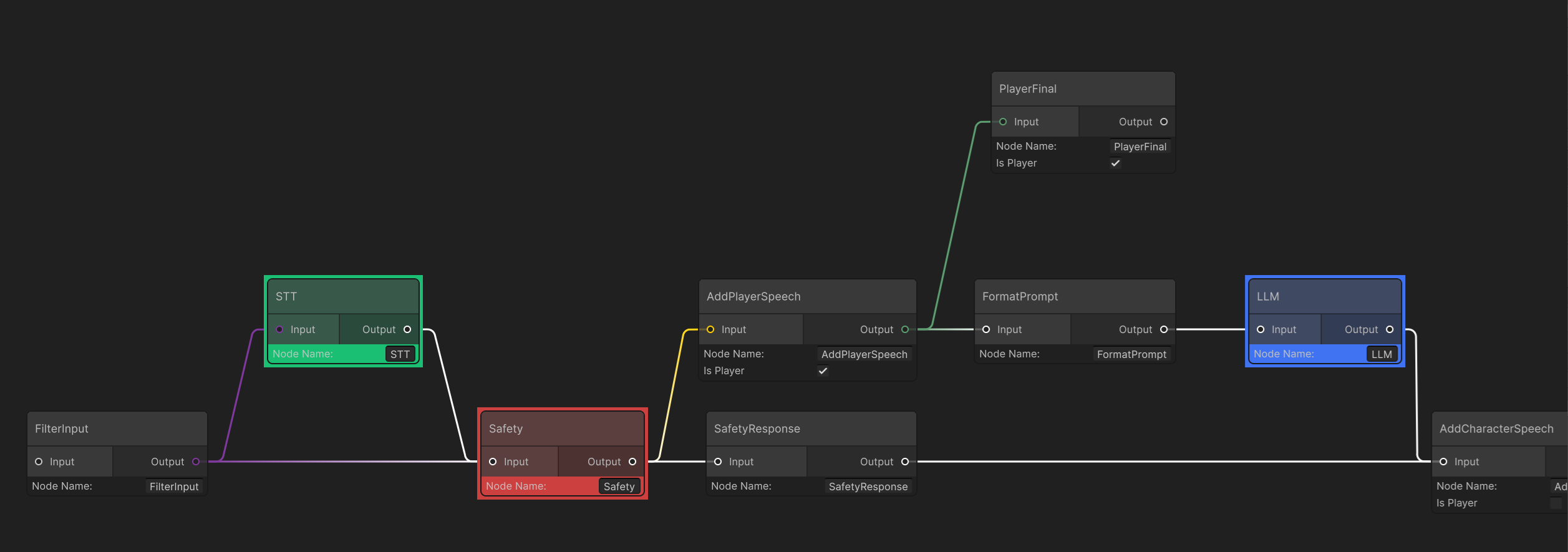 On the left, `FilterInputNode` acts as the `StartNode` and processes user input.
If the data is `InworldText` or `InworldAudio`, it passes downstream; otherwise, it returns an error and stops.
If the input is `InworldAudio`, it first goes through `STTNode` for transcription to text, then into `SafetyNode`. If it is text, it goes directly into `SafetyNode`.
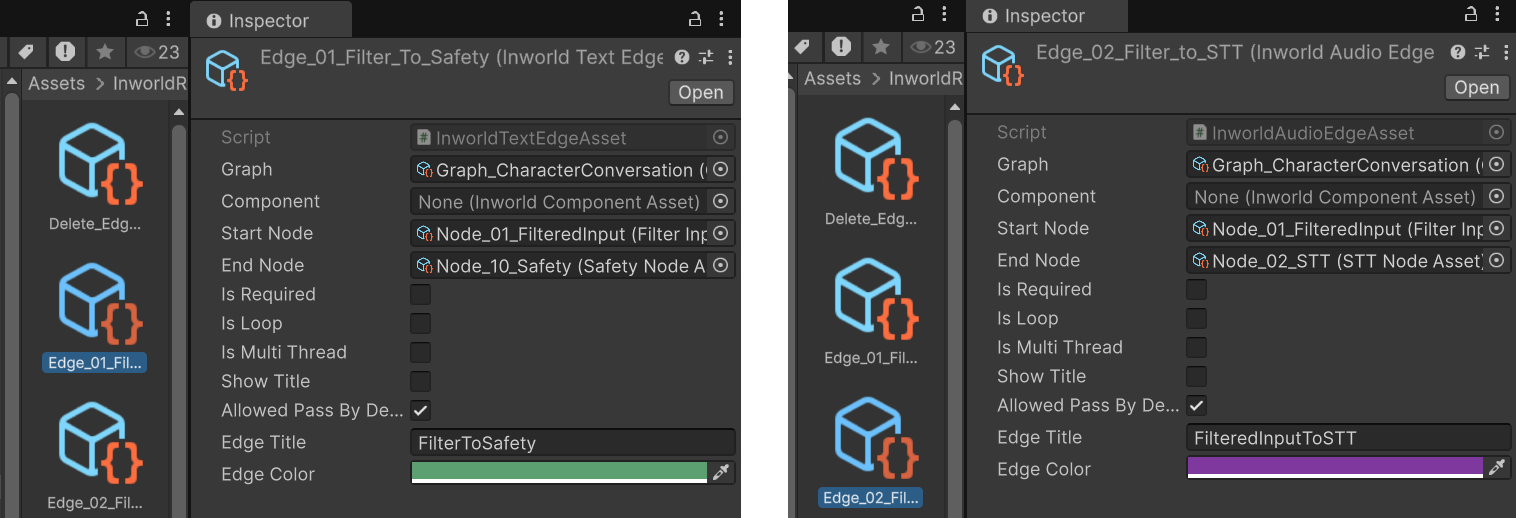
Note that the two outgoing edges from `FilterInput` are not default edges. One is `TextEdge` and the other is `AudioEdge`. Their `MeetsCondition` checks are simple: for `InworldText`, `TextEdge` passes; for `InworldAudio`, `AudioEdge` passes. Otherwise they block.
You can assume that, by default, data tries to flow forward in the graph node system. When designing:
• Add a `CustomNode` before/after to convert the data into the expected type (slower), or
• Configure a custom `Edge` to allow only the types needed by the next node and block the rest.
On the left, `FilterInputNode` acts as the `StartNode` and processes user input.
If the data is `InworldText` or `InworldAudio`, it passes downstream; otherwise, it returns an error and stops.
If the input is `InworldAudio`, it first goes through `STTNode` for transcription to text, then into `SafetyNode`. If it is text, it goes directly into `SafetyNode`.
Note that the two outgoing edges from `FilterInput` are not default edges. One is `TextEdge` and the other is `AudioEdge`. Their `MeetsCondition` checks are simple: for `InworldText`, `TextEdge` passes; for `InworldAudio`, `AudioEdge` passes. Otherwise they block.
You can assume that, by default, data tries to flow forward in the graph node system. When designing:
• Add a `CustomNode` before/after to convert the data into the expected type (slower), or
• Configure a custom `Edge` to allow only the types needed by the next node and block the rest.
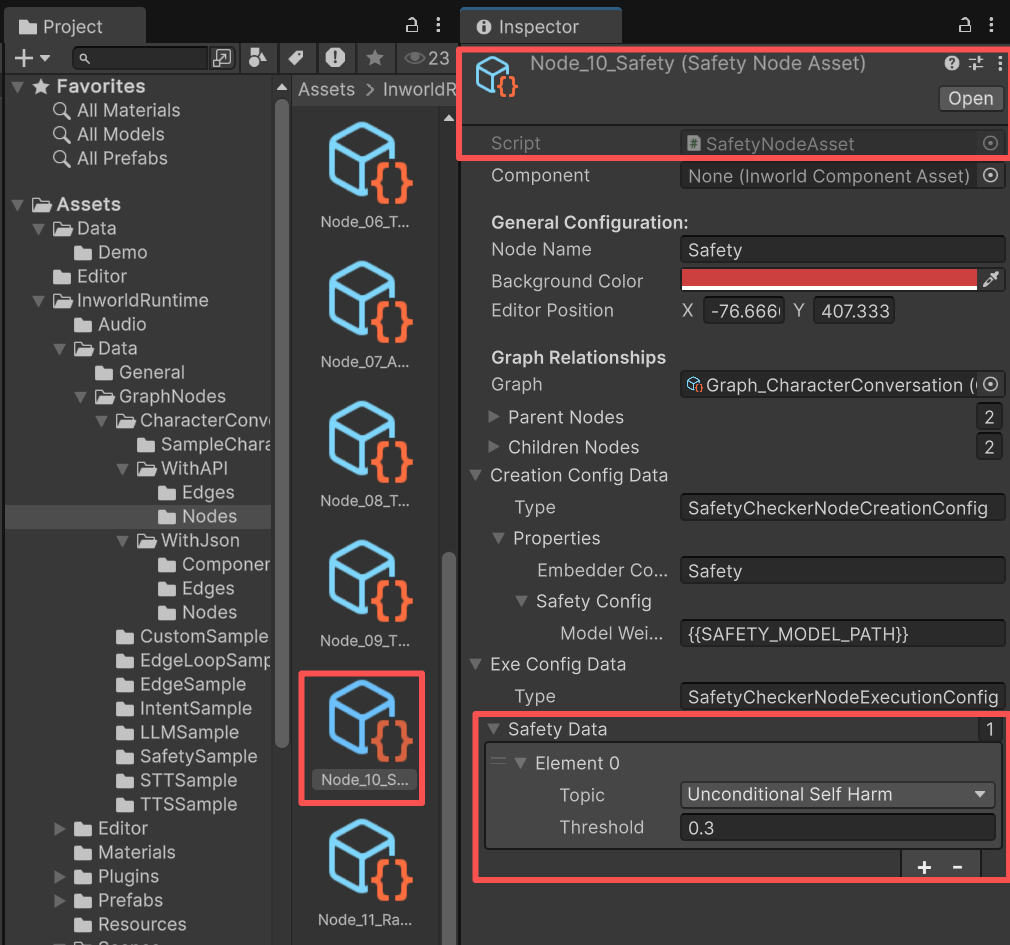
 `SafetyNode` checks input text against its `SafetyData` categories and thresholds.
If the input is safe, it proceeds to `AddPlayerSpeech`, then on through `LLM` into `AddCharacterSpeech`.
Otherwise, the user's input is ignored and the flow goes to a `SafetyResponse`, which is a `RandomCannedText` node that randomly selects one predefined message and sends it directly to `AddCharacterSpeech`.
In this demo, no `SafetyData` is configured, which means all inputs are allowed.
To change this, click `SafetyNode`.
The Inspector will highlight the node, and you can adjust `SafetyData` in the panel below.
`SafetyNode` checks input text against its `SafetyData` categories and thresholds.
If the input is safe, it proceeds to `AddPlayerSpeech`, then on through `LLM` into `AddCharacterSpeech`.
Otherwise, the user's input is ignored and the flow goes to a `SafetyResponse`, which is a `RandomCannedText` node that randomly selects one predefined message and sends it directly to `AddCharacterSpeech`.
In this demo, no `SafetyData` is configured, which means all inputs are allowed.
To change this, click `SafetyNode`.
The Inspector will highlight the node, and you can adjust `SafetyData` in the panel below.
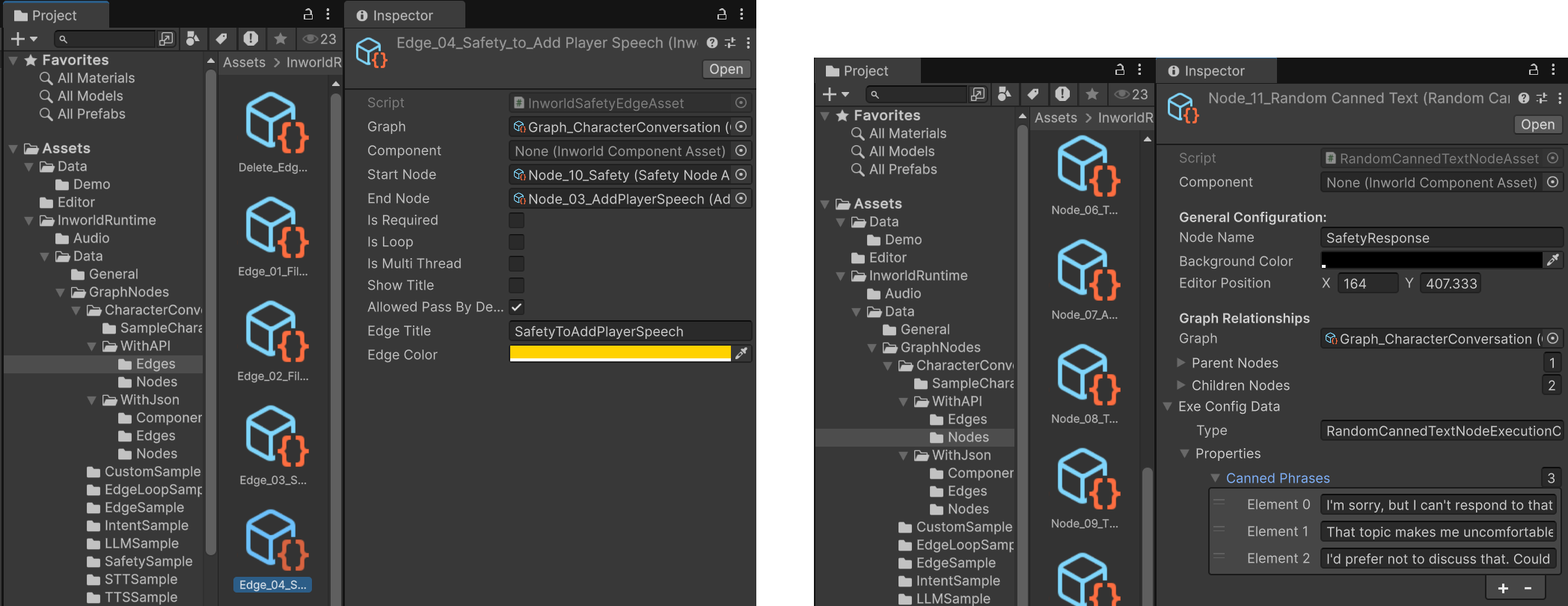
 `SafetyNode` has two outgoing edges.
The upper edge is a special `SafetyEdge` whose `MeetsCondition` simply checks whether the input is safe.
If safe, it proceeds to `AddCharacterSpeech`; otherwise, it goes to `RandomCannedText`.
`SafetyNode` has two outgoing edges.
The upper edge is a special `SafetyEdge` whose `MeetsCondition` simply checks whether the input is safe.
If safe, it proceeds to `AddCharacterSpeech`; otherwise, it goes to `RandomCannedText`.
 `AddPlayerSpeech` is an `AddSpeechEventNode` that inherits from `CustomNode`.
It converts various upstream types into text when possible.
During creation, it uses the boolean `m_IsPlayer` to obtain the player or agent name, so the final output can be tagged with the correct speaker.
In this demo, `AddPlayerSpeech` connects to an early exit `PlayerFinal` to notify Unity that the graph has the player's input portion available.
```c# AddSpeechEventNodeAsset.cs theme={"system"}
protected override InworldBaseData ProcessBaseData(InworldVector inputs)
{
if (!(m_Graph is CharacterInteractionGraphAsset charGraph))
{
return new InworldError("AddSpeechEvent Node only be used on Character Interaction Graph.", StatusCode.FailedPrecondition);
}
InworldBaseData inputData = inputs[0];
string outResult = TryProcessSafetyResult(inputData);
if (string.IsNullOrEmpty(outResult))
outResult = TryProcessTTSOutput(inputData);
if (string.IsNullOrEmpty(outResult))
outResult = TryProcessLLMResponse(inputData);
if (string.IsNullOrEmpty(outResult))
outResult = TryProcessText(inputData);
if (string.IsNullOrEmpty(outResult))
return new InworldError($"Unsupported data type {inputData.GetType()}.", StatusCode.Unimplemented);
AddUtterance(m_SpeakerName, outResult);
return new InworldText(outResult);
}
```
This node also passes its output to `FormatPrompt`, then on to `LLM` and `AddCharacterSpeech`.
This is an `EndNode`.
It emits the `PlayerSpeech` output, because sometimes we need an early return while the rest of the graph continues.
In this demo, this node lets the handler registered to the graph executor's `OnGraphResult` capture the user's own message (especially STT‑transcribed text) to render a UI bubble, etc.
This is also a `CustomNode`.
It stores the `AddSpeechEvent` result into the runtime `DialogHistory`, renders the prompt from the Jinja template, then wraps it into an `LLMChatRequest` and sends it to `LLMNode`.
`AddPlayerSpeech` is an `AddSpeechEventNode` that inherits from `CustomNode`.
It converts various upstream types into text when possible.
During creation, it uses the boolean `m_IsPlayer` to obtain the player or agent name, so the final output can be tagged with the correct speaker.
In this demo, `AddPlayerSpeech` connects to an early exit `PlayerFinal` to notify Unity that the graph has the player's input portion available.
```c# AddSpeechEventNodeAsset.cs theme={"system"}
protected override InworldBaseData ProcessBaseData(InworldVector inputs)
{
if (!(m_Graph is CharacterInteractionGraphAsset charGraph))
{
return new InworldError("AddSpeechEvent Node only be used on Character Interaction Graph.", StatusCode.FailedPrecondition);
}
InworldBaseData inputData = inputs[0];
string outResult = TryProcessSafetyResult(inputData);
if (string.IsNullOrEmpty(outResult))
outResult = TryProcessTTSOutput(inputData);
if (string.IsNullOrEmpty(outResult))
outResult = TryProcessLLMResponse(inputData);
if (string.IsNullOrEmpty(outResult))
outResult = TryProcessText(inputData);
if (string.IsNullOrEmpty(outResult))
return new InworldError($"Unsupported data type {inputData.GetType()}.", StatusCode.Unimplemented);
AddUtterance(m_SpeakerName, outResult);
return new InworldText(outResult);
}
```
This node also passes its output to `FormatPrompt`, then on to `LLM` and `AddCharacterSpeech`.
This is an `EndNode`.
It emits the `PlayerSpeech` output, because sometimes we need an early return while the rest of the graph continues.
In this demo, this node lets the handler registered to the graph executor's `OnGraphResult` capture the user's own message (especially STT‑transcribed text) to render a UI bubble, etc.
This is also a `CustomNode`.
It stores the `AddSpeechEvent` result into the runtime `DialogHistory`, renders the prompt from the Jinja template, then wraps it into an `LLMChatRequest` and sends it to `LLMNode`.
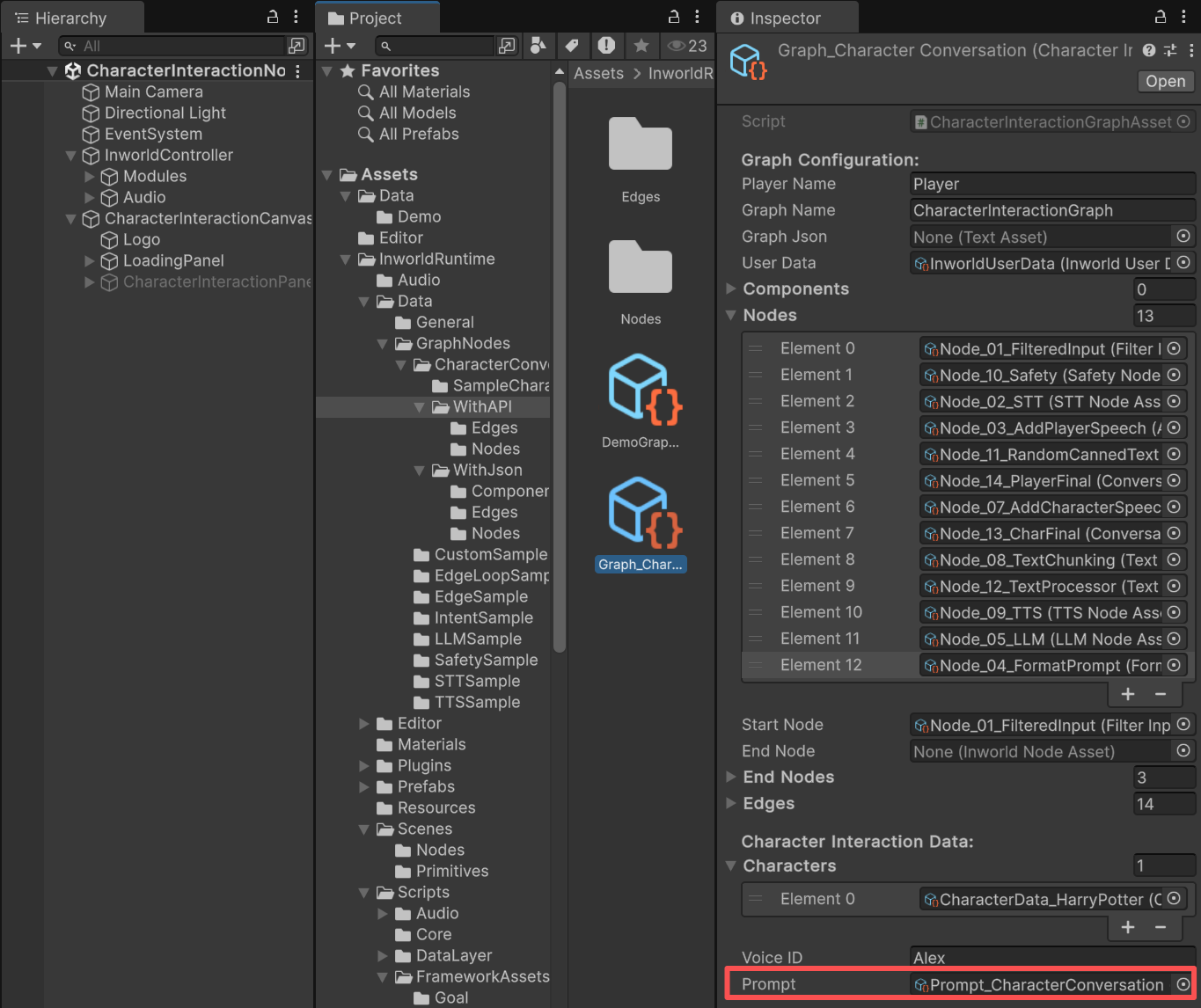 Here is the `Prompt Template` used in this demo.
```jinja Prompt Template theme={"system"}
<|begin_of_text|><|start_header_id|>system<|end_header_id|>
You are {{Character.name}}, in conversation with the user, who is pretending to be {{Player}}.
# Context for the conversation
## Overview
The conversation is a live dialogue between {{Character.name}} and {{Player}}. It should NOT include any actions, nonverbal cues, or stage directions—ONLY dialogue.
## {{Character.name}}'s Dialogue Style
Shorter, natural response lengths and styles are encouraged. {{Character.name}} should respond engagingly to {{Player}} in a natural manner.
## Profile of {{Character.name}}
Name: {{Character.name}}
Role: {{Character.role}}
Pronouns: {{Character.pronouns}}
## Personality and Background
{{Character.description}}
## Relevant Facts
{% for record in Knowledge.records %}
{{record}}
{% endfor %}
## Motivation
{{Character.motivation}}
# Response Instructions
Respond as {{Character.name}} while maintaining consistency with the provided profile and context. Use the specified dialect, tone, and style.
<|eot_id|>
{% for speechEvent in EventHistory.speechEvents %}
<|start_header_id|>{{speechEvent.agentName}}<|end_header_id|>
{{speechEvent.utterance}}
{% endfor %}
<|start_header_id|>{{Character.name}}<|end_header_id|>
```
And here is the Jinja prompt after filling it with `CharacterData`, `DialogHistory`, `PlayerData`, etc.
```jinja Jinja Prompt theme={"system"}
<|begin_of_text|><|start_header_id|>system<|end_header_id|>
You are Harry Potter, in conversation with the user, who is pretending to be Player.
# Context for the conversation
## Overview
The conversation is a live dialogue between Harry Potter and Player. It should NOT include any actions, nonverbal cues, or stage directions—ONLY dialogue.
## Harry Potter's Dialogue Style
Shorter, natural response lengths and styles are encouraged. Harry Potter should respond engagingly to Player in a natural manner.
## Profile of Harry Potter
Name: Harry Potter
Role:
Pronouns:
## Personality and Background
Harry Potter is a brave and loyal wizard known for his role in defeating the dark wizard Lord Voldemort. He has unruly black hair, green eyes, and a lightning-shaped scar on his forehead. Harry is humble despite his fame in the wizarding world, and values friendship, courage, and doing what's right over what's easy.
## Relevant Facts
## Motivation
To protect the people I care about, stand against dark magic, and ensure peace in the wizarding world.
# Response Instructions
Respond as Harry Potter while maintaining consistency with the provided profile and context. Use the specified dialect, tone, and style.
<|eot_id|>
<|start_header_id|>Player<|end_header_id|>
how much is 2+2
<|start_header_id|>Harry Potter<|end_header_id|>
Well, even in the wizarding world, 2 plus 2 is 4.
<|start_header_id|>Player<|end_header_id|>
So what's your name and what's your favorite sports?
<|start_header_id|>Harry Potter<|end_header_id|>
```
You can compare the two prompts.
Here is the `Prompt Template` used in this demo.
```jinja Prompt Template theme={"system"}
<|begin_of_text|><|start_header_id|>system<|end_header_id|>
You are {{Character.name}}, in conversation with the user, who is pretending to be {{Player}}.
# Context for the conversation
## Overview
The conversation is a live dialogue between {{Character.name}} and {{Player}}. It should NOT include any actions, nonverbal cues, or stage directions—ONLY dialogue.
## {{Character.name}}'s Dialogue Style
Shorter, natural response lengths and styles are encouraged. {{Character.name}} should respond engagingly to {{Player}} in a natural manner.
## Profile of {{Character.name}}
Name: {{Character.name}}
Role: {{Character.role}}
Pronouns: {{Character.pronouns}}
## Personality and Background
{{Character.description}}
## Relevant Facts
{% for record in Knowledge.records %}
{{record}}
{% endfor %}
## Motivation
{{Character.motivation}}
# Response Instructions
Respond as {{Character.name}} while maintaining consistency with the provided profile and context. Use the specified dialect, tone, and style.
<|eot_id|>
{% for speechEvent in EventHistory.speechEvents %}
<|start_header_id|>{{speechEvent.agentName}}<|end_header_id|>
{{speechEvent.utterance}}
{% endfor %}
<|start_header_id|>{{Character.name}}<|end_header_id|>
```
And here is the Jinja prompt after filling it with `CharacterData`, `DialogHistory`, `PlayerData`, etc.
```jinja Jinja Prompt theme={"system"}
<|begin_of_text|><|start_header_id|>system<|end_header_id|>
You are Harry Potter, in conversation with the user, who is pretending to be Player.
# Context for the conversation
## Overview
The conversation is a live dialogue between Harry Potter and Player. It should NOT include any actions, nonverbal cues, or stage directions—ONLY dialogue.
## Harry Potter's Dialogue Style
Shorter, natural response lengths and styles are encouraged. Harry Potter should respond engagingly to Player in a natural manner.
## Profile of Harry Potter
Name: Harry Potter
Role:
Pronouns:
## Personality and Background
Harry Potter is a brave and loyal wizard known for his role in defeating the dark wizard Lord Voldemort. He has unruly black hair, green eyes, and a lightning-shaped scar on his forehead. Harry is humble despite his fame in the wizarding world, and values friendship, courage, and doing what's right over what's easy.
## Relevant Facts
## Motivation
To protect the people I care about, stand against dark magic, and ensure peace in the wizarding world.
# Response Instructions
Respond as Harry Potter while maintaining consistency with the provided profile and context. Use the specified dialect, tone, and style.
<|eot_id|>
<|start_header_id|>Player<|end_header_id|>
how much is 2+2
<|start_header_id|>Harry Potter<|end_header_id|>
Well, even in the wizarding world, 2 plus 2 is 4.
<|start_header_id|>Player<|end_header_id|>
So what's your name and what's your favorite sports?
<|start_header_id|>Harry Potter<|end_header_id|>
```
You can compare the two prompts.
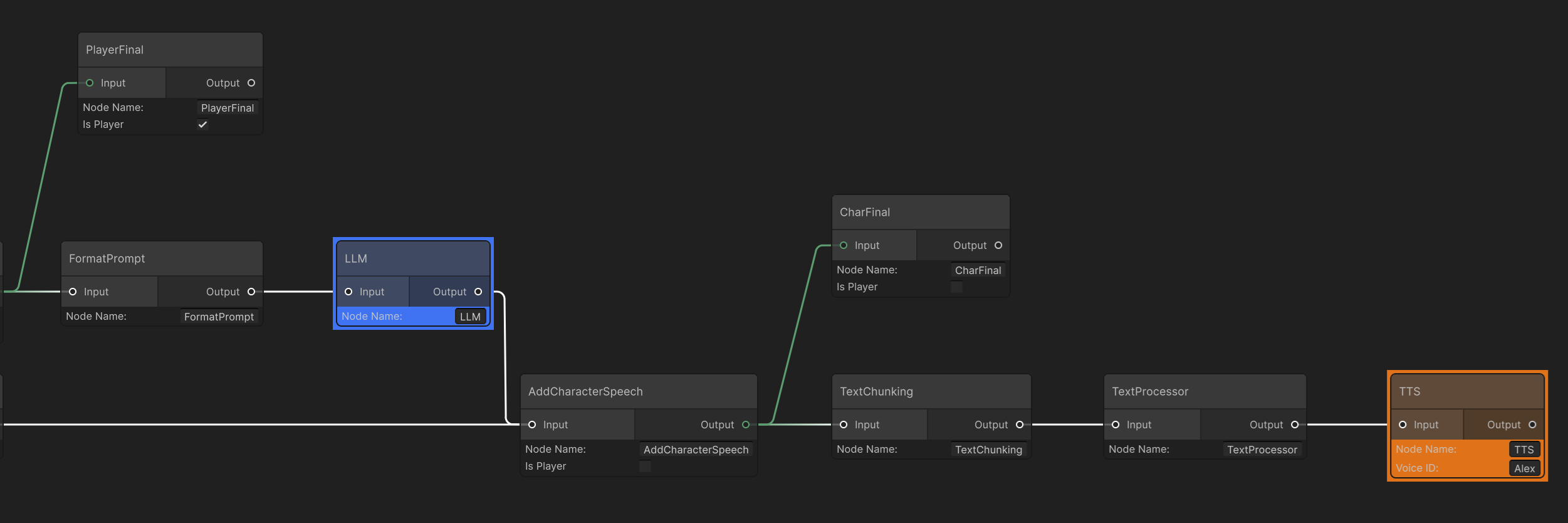 Like `AddPlayerSpeech`, `AddCharacterSpeech` is an `AddSpeechEventNode` that inherits from `CustomNode` and converts upstream types to text when possible.
During creation, it uses `m_IsPlayer` to obtain either the player's or the agent's name so the final output is tagged with the speaker.
In this demo, `AddCharacterSpeech` receives the value returned from the LLM and prefixes it with the character's name.
`AddCharacterSpeech` also connects to an early exit `CharFinal` to notify Unity that the character's output portion is available.
These two nodes trim the text generated by the LLM, because some models stream segmented output.
`TextChunking` merges those segments into a single string.
`TextProcessor` is a `CustomNode` that removes undesirable content before sending to TTS (e.g., brackets, emojis).
Some TTS models will literally read those symbols.
This is the third and final `EndNode`.
It takes text produced by either `RandomCannedText` or the LLM, processes it through the two text nodes above, and then synthesizes speech in `TTSNode`.
### InworldController
The `InworldController` contains all the primitive modules and an `InworldAudioManager`, which also contains all the audio modules.
Like `AddPlayerSpeech`, `AddCharacterSpeech` is an `AddSpeechEventNode` that inherits from `CustomNode` and converts upstream types to text when possible.
During creation, it uses `m_IsPlayer` to obtain either the player's or the agent's name so the final output is tagged with the speaker.
In this demo, `AddCharacterSpeech` receives the value returned from the LLM and prefixes it with the character's name.
`AddCharacterSpeech` also connects to an early exit `CharFinal` to notify Unity that the character's output portion is available.
These two nodes trim the text generated by the LLM, because some models stream segmented output.
`TextChunking` merges those segments into a single string.
`TextProcessor` is a `CustomNode` that removes undesirable content before sending to TTS (e.g., brackets, emojis).
Some TTS models will literally read those symbols.
This is the third and final `EndNode`.
It takes text produced by either `RandomCannedText` or the LLM, processes it through the two text nodes above, and then synthesizes speech in `TTSNode`.
### InworldController
The `InworldController` contains all the primitive modules and an `InworldAudioManager`, which also contains all the audio modules.
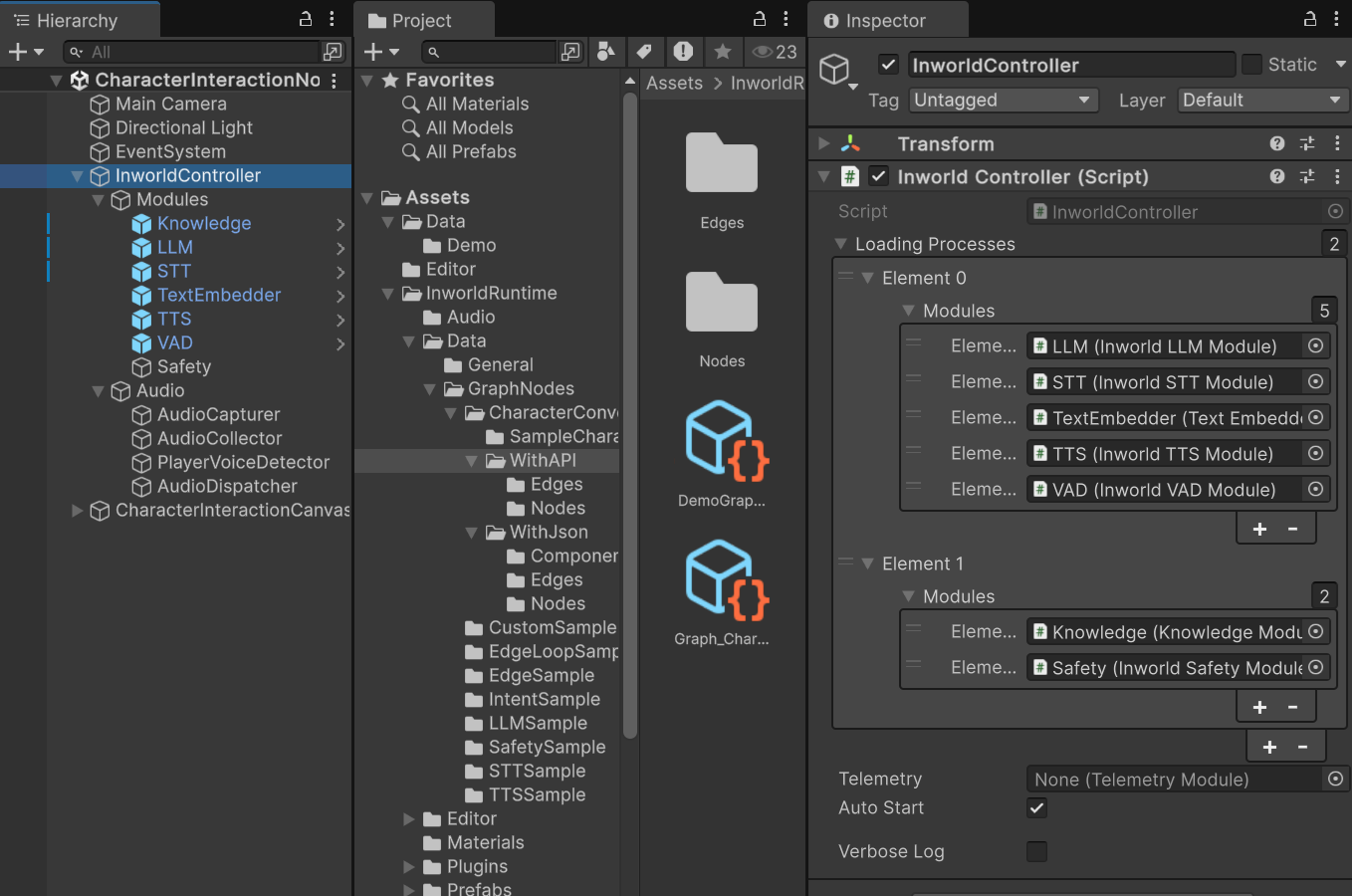 For details about the primitive module, see the [Primitive Demos](../primitives/overview).
For details about the AudioManager, see the [Speech-to-text Node Demo](./stt#inworldaudiomanager)
## Workflow
1. When the game starts, `InworldController` initializes all its primitive modules.
Each model creates a factory and then builds its interface based on the provided configs.
2. Next, `InworldGraphExecutor` initializes its graph asset by calling each component’s `CreateRuntime()`.
3. After initialization, the graph calls `Compile()` and returns the executor handle.
4. After compilation, the `OnGraphCompiled` event is invoked. In this demo, the `CharacterInteractionNodeTemplate` of the `CharacterInteractionPanel` subscribes to it and configures the prompt. Users can then interact with the graph system.
```c# CharacterInteractionNodeTemplate.cs theme={"system"}
protected override void OnGraphCompiled(InworldGraphAsset obj)
{
if (!(obj is CharacterInteractionGraphAsset charGraph))
return;
m_CharacterName = charGraph.prompt.conversationData.Character.name;
}
```
5. If the user sends text, it reaches the `Submit()` function, which converts the input into `InworldText`.
```c# CharacterInteractionNodeTemplate.cs theme={"system"}
public async void Submit()
{
string input = m_InputField.text;
if (m_InputField)
m_InputField.text = string.Empty;
await m_InworldGraphExecutor.ExecuteGraphAsync("Text", new InworldText(input));
}
```
6. If the user sends audio, the `AudioDispatchModule` of `InworldAudioManager` raises the `onAudioSent` event.
`CharacterInteractionNodeTemplate` subscribes to this event and handles it in `SendAudio()`.
```c# CharacterInteractionNodeTemplate.cs theme={"system"}
protected override void OnEnable()
{
base.OnEnable();
if (!InworldController.Audio)
return;
InworldController.Audio.Event.onStartCalibrating.AddListener(()=>Debug.LogWarning("Start Calibration"));
InworldController.Audio.Event.onStopCalibrating.AddListener(()=>Debug.LogWarning("Calibrated"));
InworldController.Audio.Event.onPlayerStartSpeaking.AddListener(()=>Debug.LogWarning("Player Started Speaking"));
InworldController.Audio.Event.onPlayerStopSpeaking.AddListener(()=>Debug.LogWarning("Player Stopped Speaking"));
InworldController.Audio.Event.onAudioSent.AddListener(SendAudio);
}
async void SendAudio(List audioData)
{
if (m_InworldGraphExecutor.Graph.IsJsonInitialized || InworldController.STT)
{
InworldVector floatArray = new InworldVector();
foreach (float data in audioData)
{
floatArray.Add(data);
}
InworldAudio audio = new InworldAudio(floatArray, 16000);
await m_InworldGraphExecutor.ExecuteGraphAsync("Audio", audio);
}
}
```
7. Calling `ExecuteGraphAsync()` eventually produces a result and invokes `OnGraphResult()`, which `CharacterInteractionNodeTemplate` subscribes to in order to receive the data.
If the result is user text (or STT‑transcribed text), a bubble is created directly.
If it is a character reply, the bubble is updated (created if not found, otherwise appended).
If the result is audio, it is converted into an `AudioClip` and played.
```c# CharacterInteractionNodeTemplate.cs theme={"system"}
protected override async void OnGraphResult(InworldBaseData obj)
{
InworldText text = new InworldText(obj);
if (text.IsValid)
{
string speech = text.Text;
string[] speechData = speech.Split(':', 2);
if (speechData.Length <= 1)
return;
if (speechData[0] == InworldFrameworkUtil.PlayerName)
PlayerSpeaks(speechData[1]);
else
LLMSpeaks(speechData[1]);
return;
}
InworldDataStream outputStream = new InworldDataStream(obj);
if (!outputStream.IsValid) return;
InworldInputStream stream = outputStream.ToInputStream();
int sampleRate = 0;
float[] finalData = null;
List buffer = new List(64 * 1024);
await Awaitable.BackgroundThreadAsync();
while (stream != null && stream.HasNext)
{
TTSOutput ttsOutput = stream.Read();
if (ttsOutput == null) continue;
InworldAudio ttsOutputAudio = ttsOutput.Audio;
sampleRate = ttsOutputAudio.SampleRate;
List wf = ttsOutputAudio.Waveform?.ToList();
if (wf != null && wf.Count > 0)
buffer.AddRange(wf);
}
await Awaitable.MainThreadAsync();
finalData = buffer.Count > 0 ? buffer.ToArray() : null;
if (sampleRate <= 0 || finalData == null || finalData.Length == 0)
return;
AudioClip clip = AudioClip.Create("TTS", finalData.Length, 1, sampleRate, false);
clip.SetData(finalData, 0);
m_AudioSource?.PlayOneShot(clip);
}
```
For details about the primitive module, see the [Primitive Demos](../primitives/overview).
For details about the AudioManager, see the [Speech-to-text Node Demo](./stt#inworldaudiomanager)
## Workflow
1. When the game starts, `InworldController` initializes all its primitive modules.
Each model creates a factory and then builds its interface based on the provided configs.
2. Next, `InworldGraphExecutor` initializes its graph asset by calling each component’s `CreateRuntime()`.
3. After initialization, the graph calls `Compile()` and returns the executor handle.
4. After compilation, the `OnGraphCompiled` event is invoked. In this demo, the `CharacterInteractionNodeTemplate` of the `CharacterInteractionPanel` subscribes to it and configures the prompt. Users can then interact with the graph system.
```c# CharacterInteractionNodeTemplate.cs theme={"system"}
protected override void OnGraphCompiled(InworldGraphAsset obj)
{
if (!(obj is CharacterInteractionGraphAsset charGraph))
return;
m_CharacterName = charGraph.prompt.conversationData.Character.name;
}
```
5. If the user sends text, it reaches the `Submit()` function, which converts the input into `InworldText`.
```c# CharacterInteractionNodeTemplate.cs theme={"system"}
public async void Submit()
{
string input = m_InputField.text;
if (m_InputField)
m_InputField.text = string.Empty;
await m_InworldGraphExecutor.ExecuteGraphAsync("Text", new InworldText(input));
}
```
6. If the user sends audio, the `AudioDispatchModule` of `InworldAudioManager` raises the `onAudioSent` event.
`CharacterInteractionNodeTemplate` subscribes to this event and handles it in `SendAudio()`.
```c# CharacterInteractionNodeTemplate.cs theme={"system"}
protected override void OnEnable()
{
base.OnEnable();
if (!InworldController.Audio)
return;
InworldController.Audio.Event.onStartCalibrating.AddListener(()=>Debug.LogWarning("Start Calibration"));
InworldController.Audio.Event.onStopCalibrating.AddListener(()=>Debug.LogWarning("Calibrated"));
InworldController.Audio.Event.onPlayerStartSpeaking.AddListener(()=>Debug.LogWarning("Player Started Speaking"));
InworldController.Audio.Event.onPlayerStopSpeaking.AddListener(()=>Debug.LogWarning("Player Stopped Speaking"));
InworldController.Audio.Event.onAudioSent.AddListener(SendAudio);
}
async void SendAudio(List audioData)
{
if (m_InworldGraphExecutor.Graph.IsJsonInitialized || InworldController.STT)
{
InworldVector floatArray = new InworldVector();
foreach (float data in audioData)
{
floatArray.Add(data);
}
InworldAudio audio = new InworldAudio(floatArray, 16000);
await m_InworldGraphExecutor.ExecuteGraphAsync("Audio", audio);
}
}
```
7. Calling `ExecuteGraphAsync()` eventually produces a result and invokes `OnGraphResult()`, which `CharacterInteractionNodeTemplate` subscribes to in order to receive the data.
If the result is user text (or STT‑transcribed text), a bubble is created directly.
If it is a character reply, the bubble is updated (created if not found, otherwise appended).
If the result is audio, it is converted into an `AudioClip` and played.
```c# CharacterInteractionNodeTemplate.cs theme={"system"}
protected override async void OnGraphResult(InworldBaseData obj)
{
InworldText text = new InworldText(obj);
if (text.IsValid)
{
string speech = text.Text;
string[] speechData = speech.Split(':', 2);
if (speechData.Length <= 1)
return;
if (speechData[0] == InworldFrameworkUtil.PlayerName)
PlayerSpeaks(speechData[1]);
else
LLMSpeaks(speechData[1]);
return;
}
InworldDataStream outputStream = new InworldDataStream(obj);
if (!outputStream.IsValid) return;
InworldInputStream stream = outputStream.ToInputStream();
int sampleRate = 0;
float[] finalData = null;
List buffer = new List(64 * 1024);
await Awaitable.BackgroundThreadAsync();
while (stream != null && stream.HasNext)
{
TTSOutput ttsOutput = stream.Read();
if (ttsOutput == null) continue;
InworldAudio ttsOutputAudio = ttsOutput.Audio;
sampleRate = ttsOutputAudio.SampleRate;
List wf = ttsOutputAudio.Waveform?.ToList();
if (wf != null && wf.Count > 0)
buffer.AddRange(wf);
}
await Awaitable.MainThreadAsync();
finalData = buffer.Count > 0 ? buffer.ToArray() : null;
if (sampleRate <= 0 || finalData == null || finalData.Length == 0)
return;
AudioClip clip = AudioClip.Create("TTS", finalData.Length, 1, sampleRate, false);
clip.SetData(finalData, 0);
m_AudioSource?.PlayOneShot(clip);
}
```