> ## Documentation Index
> Fetch the complete documentation index at: https://docs.inworld.ai/llms.txt
> Use this file to discover all available pages before exploring further.
# Custom Node Demo
This demo showcases how to create your `CustomNode` and make your own implementations.
## Run the Template
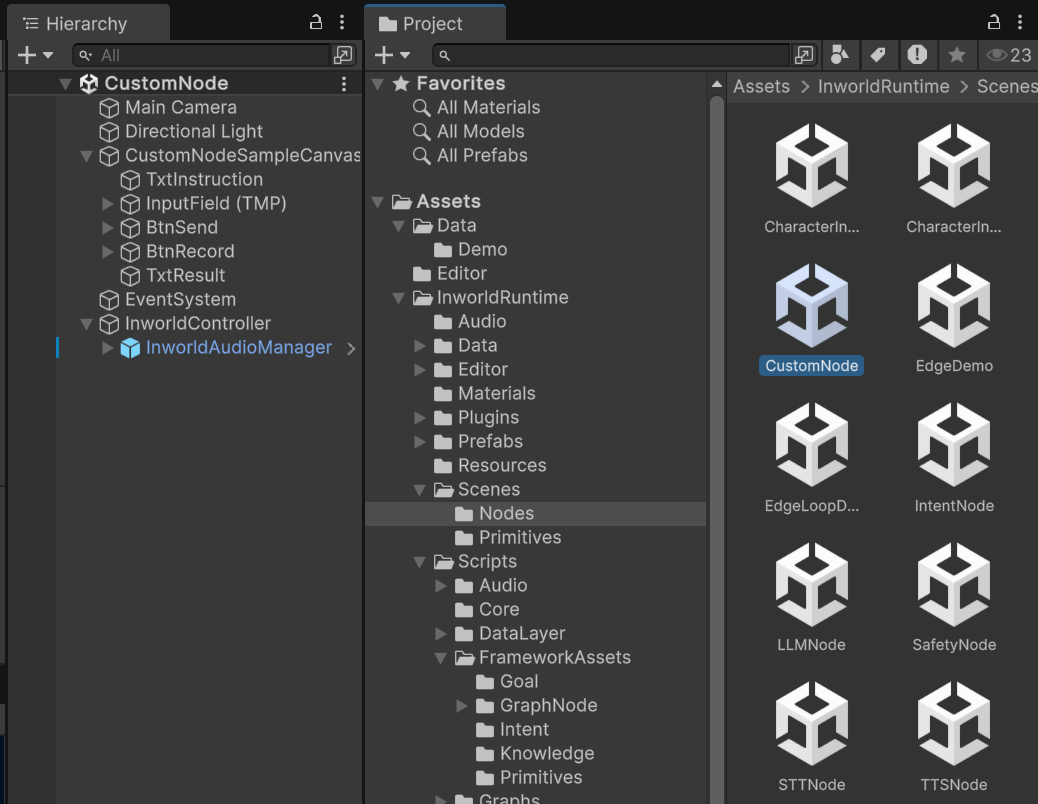
1. Go to `Assets/InworldRuntime/Scenes/Nodes` and play the `CustomNode` scene.
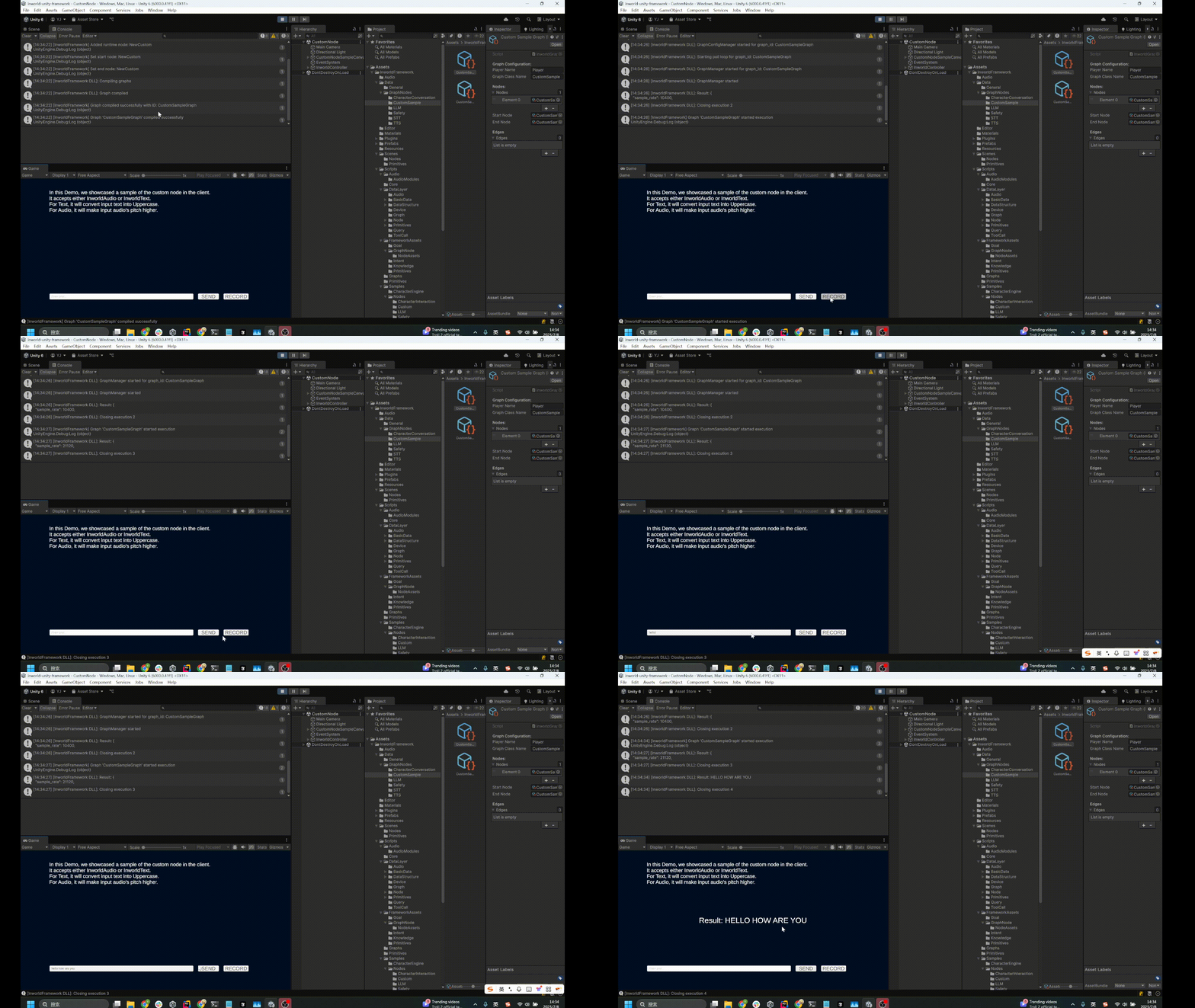
 2. Once the graph is compiled, you can either enter text or input audio by hold the record button and release the button to send the audio.
3. In this node, if you are sending text, it will make your input text uppercase.
4. If you send the audio, it will make the pitch higher.
2. Once the graph is compiled, you can either enter text or input audio by hold the record button and release the button to send the audio.
3. In this node, if you are sending text, it will make your input text uppercase.
4. If you send the audio, it will make the pitch higher.
 ## Understanding the Graph
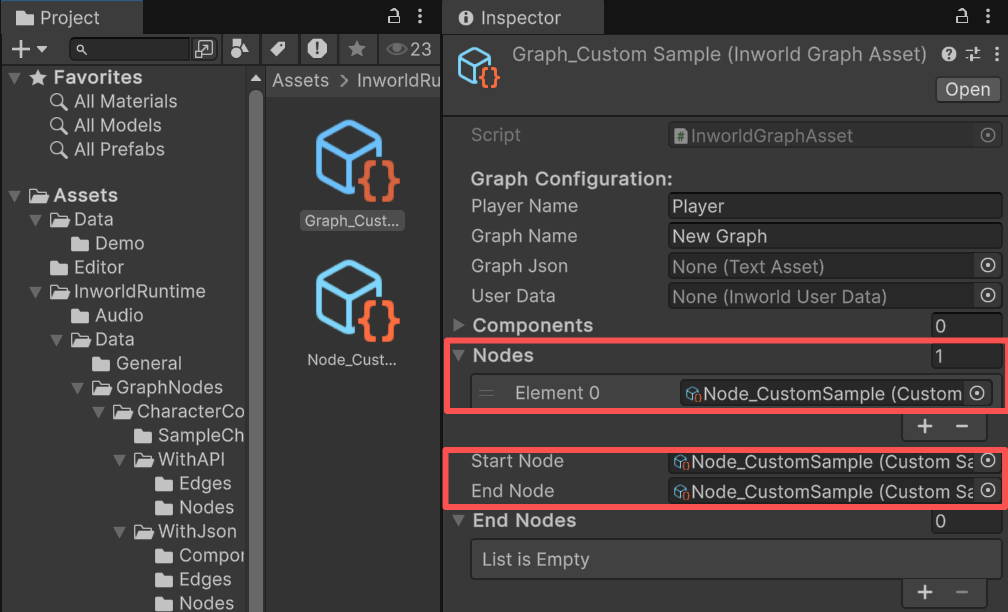
`CustomNodeSampleCanvas` contains an `InworldGraphExecutor` whose graph asset includes only a single `CustomSample`.
The graph is very simple. It contains a single node, `CustomSampleNode`, with no edges.
`CustomSampleNode` is both the `StartNode` and the `EndNode`.
## Understanding the Graph
`CustomNodeSampleCanvas` contains an `InworldGraphExecutor` whose graph asset includes only a single `CustomSample`.
The graph is very simple. It contains a single node, `CustomSampleNode`, with no edges.
`CustomSampleNode` is both the `StartNode` and the `EndNode`.
 ### CustomNode details
The node is using `CustomSampleNode`, which is written and inherited from the `CustomNodeAsset`.
In its overrided `ProcessBaseData()`, it checks the input InworldBaseData, and process that data based on its type.
```c# CustomSampleNodeAsset.cs theme={"system"}
public class CustomSampleNodeAsset : CustomNodeAsset
{
protected override InworldBaseData ProcessBaseData(InworldVector inputs)
{
if (inputs.Size == 0)
{
return new InworldError("No input data", StatusCode.DataLoss);
}
InworldBaseData inputData = inputs[0]; // YAN: Let's only process the last single input.
InworldText textResult = new InworldText(inputData);
if (textResult.IsValid)
return ProcessTextData(textResult);
InworldAudio audioResult = new InworldAudio(inputData);
if (audioResult.IsValid)
return ProcessAudioData(audioResult);
return new InworldError($"Unsupported data type: {inputData.GetType()}", StatusCode.Unimplemented);
}
...
}
```
### InworldAudioManager
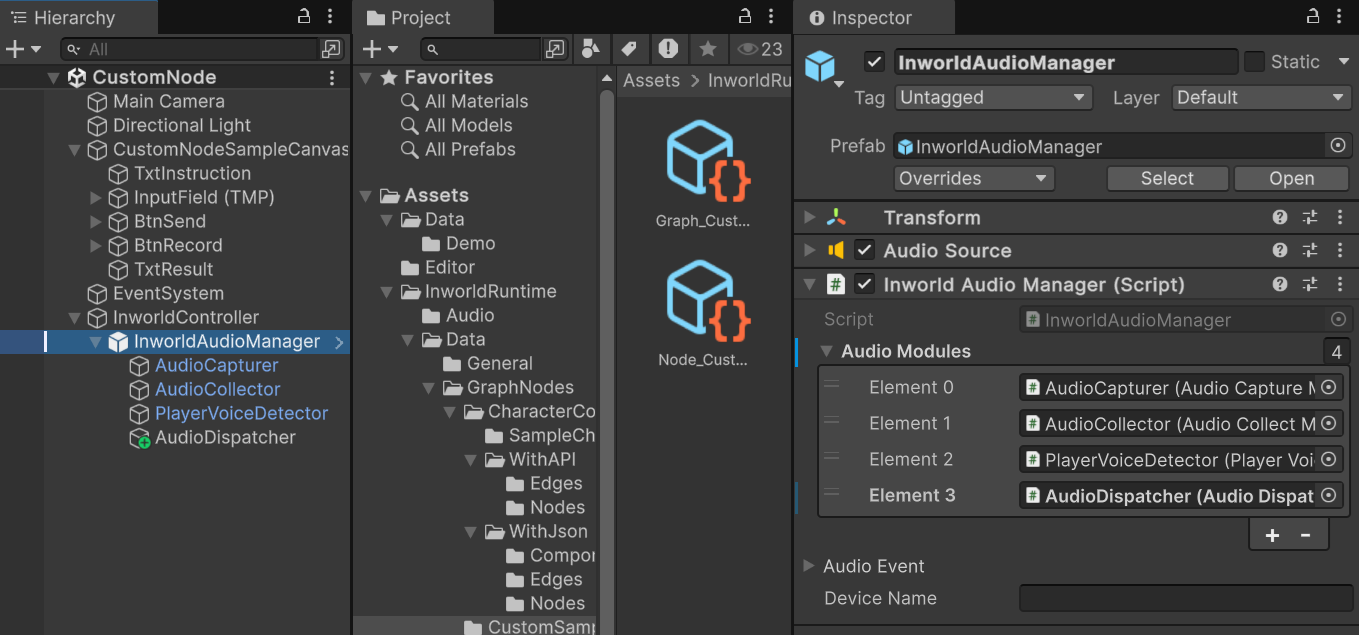
In this demo, the `InworldController` does not include any primitive modules.
It includes an `InworldAudioManager` for sampling the microphone input.
`InworldAudioManager` handles audio processing and is also modular.
In this demo, it uses four components:
* **AudioCapturer**: Manages microphone on/off and input devices. Uses Unity's `Microphone` by default, and can be extended via third‑party plugins.
* **AudioCollector**: Collects raw samples from the microphone.
* **PlayerVoiceDetector**: Implements `IPlayerAudioEventHandler` and `ICalibrateAudioHandler` to emit player audio events and decide which timestamped segments to keep from the stream.
* **AudioDispatcher**: Sends the captured microphone data for downstream processing.
### CustomNode details
The node is using `CustomSampleNode`, which is written and inherited from the `CustomNodeAsset`.
In its overrided `ProcessBaseData()`, it checks the input InworldBaseData, and process that data based on its type.
```c# CustomSampleNodeAsset.cs theme={"system"}
public class CustomSampleNodeAsset : CustomNodeAsset
{
protected override InworldBaseData ProcessBaseData(InworldVector inputs)
{
if (inputs.Size == 0)
{
return new InworldError("No input data", StatusCode.DataLoss);
}
InworldBaseData inputData = inputs[0]; // YAN: Let's only process the last single input.
InworldText textResult = new InworldText(inputData);
if (textResult.IsValid)
return ProcessTextData(textResult);
InworldAudio audioResult = new InworldAudio(inputData);
if (audioResult.IsValid)
return ProcessAudioData(audioResult);
return new InworldError($"Unsupported data type: {inputData.GetType()}", StatusCode.Unimplemented);
}
...
}
```
### InworldAudioManager
In this demo, the `InworldController` does not include any primitive modules.
It includes an `InworldAudioManager` for sampling the microphone input.
`InworldAudioManager` handles audio processing and is also modular.
In this demo, it uses four components:
* **AudioCapturer**: Manages microphone on/off and input devices. Uses Unity's `Microphone` by default, and can be extended via third‑party plugins.
* **AudioCollector**: Collects raw samples from the microphone.
* **PlayerVoiceDetector**: Implements `IPlayerAudioEventHandler` and `ICalibrateAudioHandler` to emit player audio events and decide which timestamped segments to keep from the stream.
* **AudioDispatcher**: Sends the captured microphone data for downstream processing.
 ### Workflow
1. When the game starts, `InworldController` initalized immediately and invoke `OnFrameworkInitialized` event as there is no primitive modules.
2. Then `InworldGraphExecutor` initializes its graph asset by calling each component’s `CreateRuntime()`.
In this case, CustomNode's `CreateRuntime()` is called. It's in its parent class.
```c# CustomNodeAsset.cs theme={"system"}
public override bool CreateRuntime(InworldGraphAsset graphAsset)
{
m_Graph = graphAsset;
m_Executor = new CustomNodeProcessExecutor(ProcessBaseDataIO);
Runtime = new CustomNodeWrapper(NodeName, m_Executor);
return Runtime?.IsValid ?? false;
}
protected virtual void ProcessBaseDataIO(IntPtr contextPtr)
{
try
{
// Here is the virtual ProcessBaseData for override.
CustomNodeProcessExecutor.SetLastOutput(ProcessBaseData(CustomNodeProcessExecutor.LastIntputs));
}
...
}
```
3. After compilation, the `OnGraphCompiled` event is invoked.
In this demo, `CustomNodeTemplate` subscribes to it and enables the UI components.
Users can then interact with the graph system.
```c# CustomNodeTemplate.cs theme={"system"}
protected override void OnGraphCompiled(InworldGraphAsset obj)
{
foreach (InworldUIElement element in m_UIElements)
element.Interactable = true;
}
```
4. After the UI is initialized, send the input text or audio to the graph.
5. Calling `ExecuteGraphAsync()` eventually produces a result and invokes `OnGraphResult()`, which `CustomNodeTemplate` subscribes to in order to receive the data.
```c# CustomNodeTemplate.cs theme={"system"}
protected override void OnGraphResult(InworldBaseData obj)
{
InworldText text = new InworldText(obj);
if (text.IsValid)
{
m_ResultText.text = "Result: " + text.Text;
return;
}
InworldAudio inworldAudio = new InworldAudio(obj);
if (!inworldAudio.IsValid)
return;
m_AudioSource.clip = inworldAudio.AudioClip;
m_AudioSource.Play();
}
```
### Workflow
1. When the game starts, `InworldController` initalized immediately and invoke `OnFrameworkInitialized` event as there is no primitive modules.
2. Then `InworldGraphExecutor` initializes its graph asset by calling each component’s `CreateRuntime()`.
In this case, CustomNode's `CreateRuntime()` is called. It's in its parent class.
```c# CustomNodeAsset.cs theme={"system"}
public override bool CreateRuntime(InworldGraphAsset graphAsset)
{
m_Graph = graphAsset;
m_Executor = new CustomNodeProcessExecutor(ProcessBaseDataIO);
Runtime = new CustomNodeWrapper(NodeName, m_Executor);
return Runtime?.IsValid ?? false;
}
protected virtual void ProcessBaseDataIO(IntPtr contextPtr)
{
try
{
// Here is the virtual ProcessBaseData for override.
CustomNodeProcessExecutor.SetLastOutput(ProcessBaseData(CustomNodeProcessExecutor.LastIntputs));
}
...
}
```
3. After compilation, the `OnGraphCompiled` event is invoked.
In this demo, `CustomNodeTemplate` subscribes to it and enables the UI components.
Users can then interact with the graph system.
```c# CustomNodeTemplate.cs theme={"system"}
protected override void OnGraphCompiled(InworldGraphAsset obj)
{
foreach (InworldUIElement element in m_UIElements)
element.Interactable = true;
}
```
4. After the UI is initialized, send the input text or audio to the graph.
5. Calling `ExecuteGraphAsync()` eventually produces a result and invokes `OnGraphResult()`, which `CustomNodeTemplate` subscribes to in order to receive the data.
```c# CustomNodeTemplate.cs theme={"system"}
protected override void OnGraphResult(InworldBaseData obj)
{
InworldText text = new InworldText(obj);
if (text.IsValid)
{
m_ResultText.text = "Result: " + text.Text;
return;
}
InworldAudio inworldAudio = new InworldAudio(obj);
if (!inworldAudio.IsValid)
return;
m_AudioSource.clip = inworldAudio.AudioClip;
m_AudioSource.Play();
}
```