> ## Documentation Index
> Fetch the complete documentation index at: https://docs.inworld.ai/llms.txt
> Use this file to discover all available pages before exploring further.
# LLM Node Demo
This demo showcases how to use the `LLMNode`.
## Run the Template
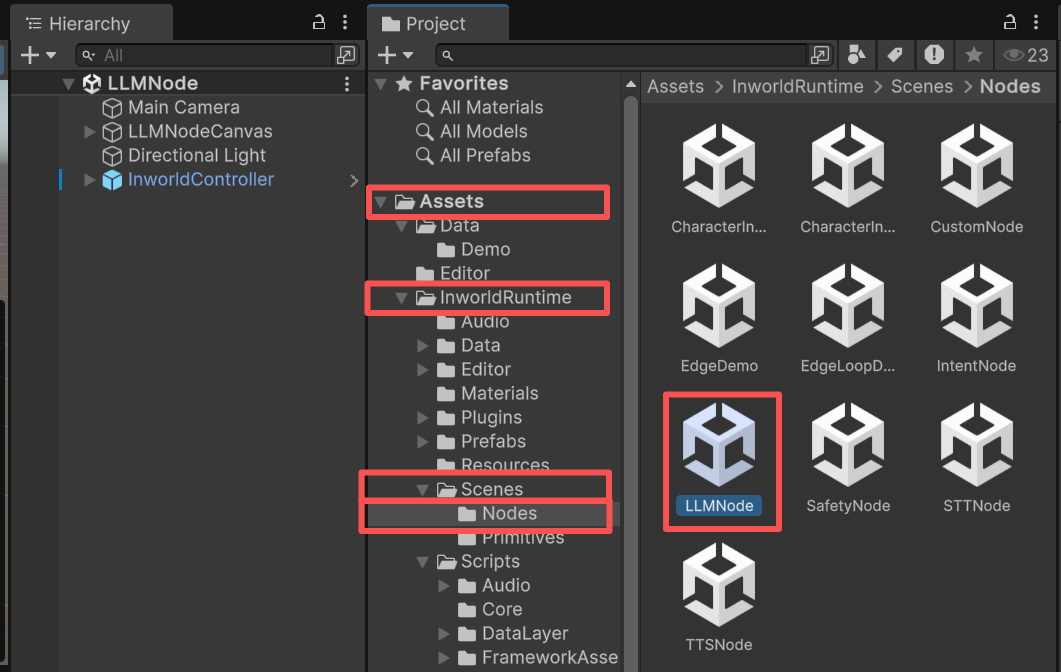
1. Go to `Assets/InworldRuntime/Scenes/Nodes` and play the `LLMNode` scene.
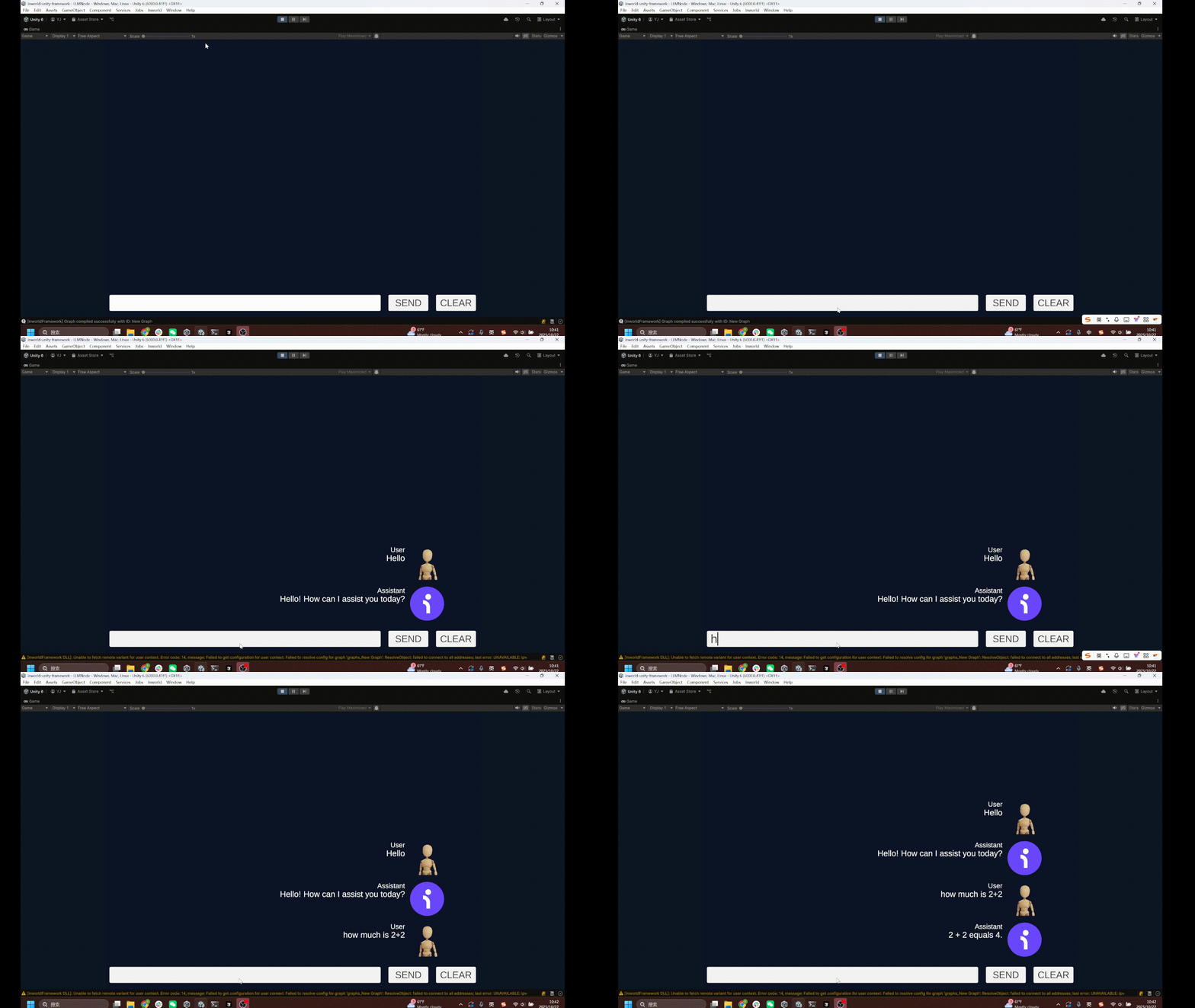
 2. Enter your request. The AI agent will respond.
 ## Understanding the Graph
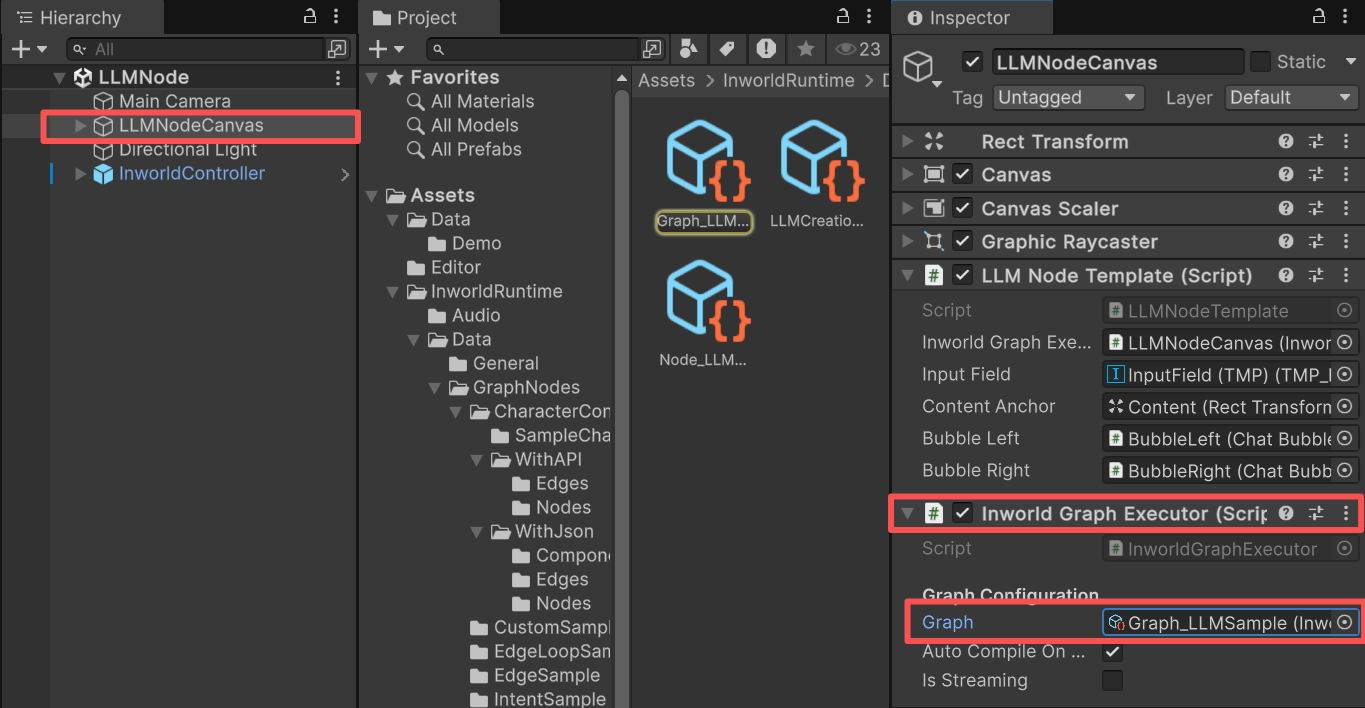
You can find the graph on the `InworldGraphExecutor` of `LLMNodeCanvas`.
## Understanding the Graph
You can find the graph on the `InworldGraphExecutor` of `LLMNodeCanvas`.
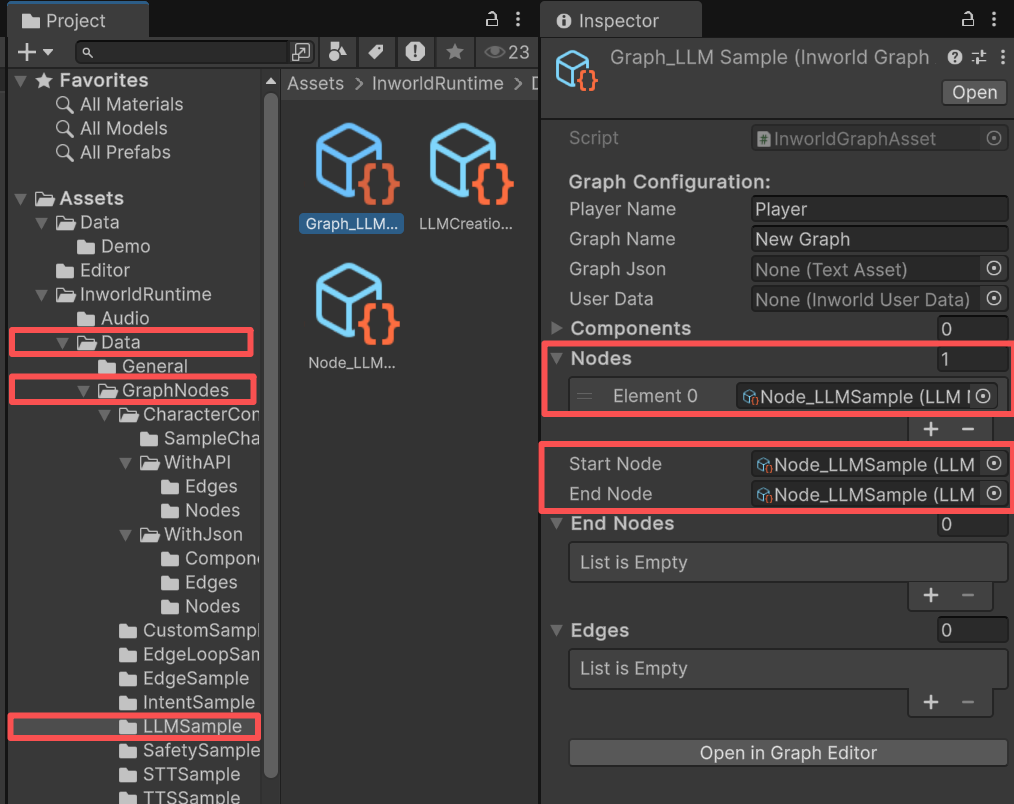
 The graph is very simple. It contains a single node, `LLMNode`, with no edges.
`LLMNode` is both the `StartNode` and the `EndNode`.
The graph is very simple. It contains a single node, `LLMNode`, with no edges.
`LLMNode` is both the `StartNode` and the `EndNode`.
 ### InworldController
The `InworldController` is also simple; it contains only one primitive module: `LLM`.
### InworldController
The `InworldController` is also simple; it contains only one primitive module: `LLM`.
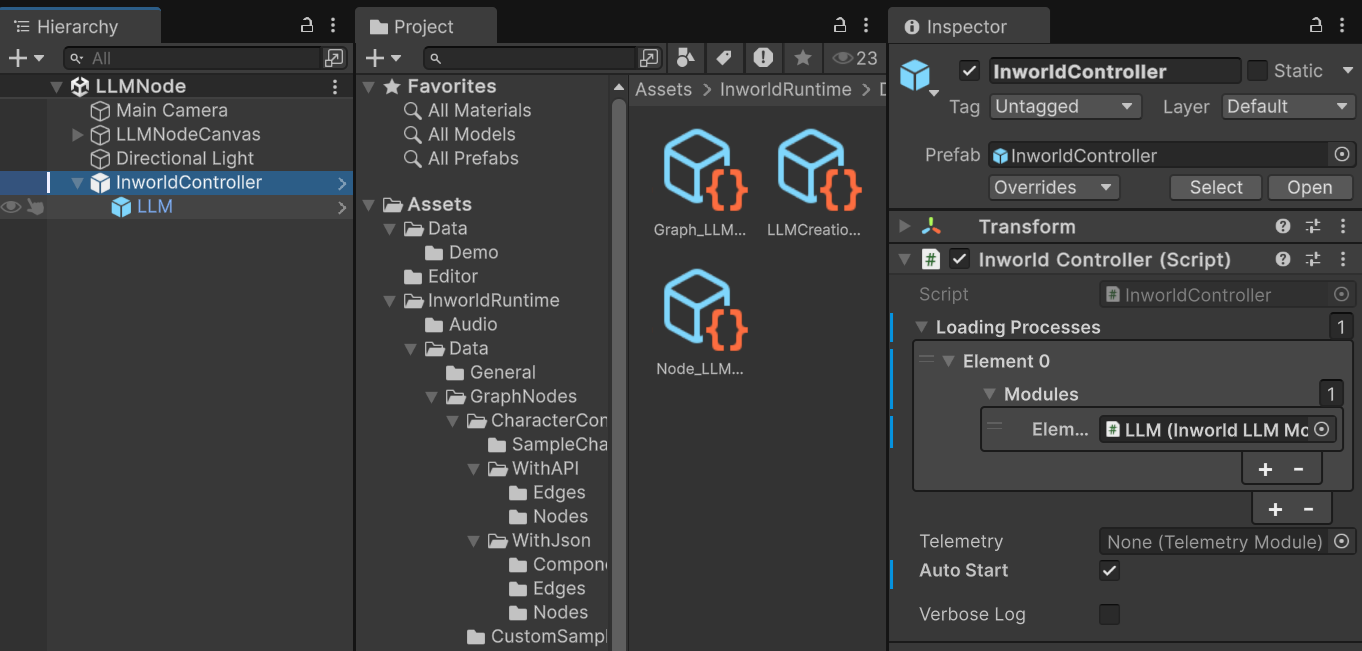 For details about the primitive module, see the [LLM Primitive Demo](../primitives/llm).
## Workflow
1. When the game starts, `InworldController` initializes its only module, `LLMModule`, which creates the `LLMInterface`.
2. Next, `InworldGraphExecutor` initializes its graph asset by calling each component’s `CreateRuntime()`. In this case, only `LLMNode.CreateRuntime()` is called, using the created `LLMInterface` as input.
3. After initialization, the graph calls `Compile()` and returns the executor handle.
4. After compilation, the `OnGraphCompiled` event is invoked. In this demo, `LLMNodeTemplate` subscribes to it and enables the UI components. Users can then interact with the graph system.
```c# LLMNodeTemplate.cs theme={"system"}
protected override void OnGraphCompiled(InworldGraphAsset obj)
{
foreach (InworldUIElement element in m_UIElements)
element.Interactable = true;
}
```
5. When the user sends text, this demo wraps the message into an `LLMChatRequest` and sends it to the LLM as raw input.
```c# LLMNodeTemplate.cs theme={"system"}
public async void SendText()
{
if (!InworldController.LLM)
{
Debug.LogError("Cannot find LLM Module!");
return;
}
// Compose the input into `LLMChatRequest`
InworldMessage message = PlayerSpeaks(m_InputField.text);
m_InputField.text = "";
LLMChatRequest llmChatRequest = new LLMChatRequest(m_Messages);
await m_InworldGraphExecutor.ExecuteGraphAsync("LLM", llmChatRequest);
}
```
6. Calling `ExecuteGraphAsync()` eventually produces a result and invokes `OnGraphResult()`, which `LLMCanvas` subscribes to in order to receive the data.
For details about the primitive module, see the [LLM Primitive Demo](../primitives/llm).
## Workflow
1. When the game starts, `InworldController` initializes its only module, `LLMModule`, which creates the `LLMInterface`.
2. Next, `InworldGraphExecutor` initializes its graph asset by calling each component’s `CreateRuntime()`. In this case, only `LLMNode.CreateRuntime()` is called, using the created `LLMInterface` as input.
3. After initialization, the graph calls `Compile()` and returns the executor handle.
4. After compilation, the `OnGraphCompiled` event is invoked. In this demo, `LLMNodeTemplate` subscribes to it and enables the UI components. Users can then interact with the graph system.
```c# LLMNodeTemplate.cs theme={"system"}
protected override void OnGraphCompiled(InworldGraphAsset obj)
{
foreach (InworldUIElement element in m_UIElements)
element.Interactable = true;
}
```
5. When the user sends text, this demo wraps the message into an `LLMChatRequest` and sends it to the LLM as raw input.
```c# LLMNodeTemplate.cs theme={"system"}
public async void SendText()
{
if (!InworldController.LLM)
{
Debug.LogError("Cannot find LLM Module!");
return;
}
// Compose the input into `LLMChatRequest`
InworldMessage message = PlayerSpeaks(m_InputField.text);
m_InputField.text = "";
LLMChatRequest llmChatRequest = new LLMChatRequest(m_Messages);
await m_InworldGraphExecutor.ExecuteGraphAsync("LLM", llmChatRequest);
}
```
6. Calling `ExecuteGraphAsync()` eventually produces a result and invokes `OnGraphResult()`, which `LLMCanvas` subscribes to in order to receive the data.