> ## Documentation Index
> Fetch the complete documentation index at: https://docs.inworld.ai/llms.txt
> Use this file to discover all available pages before exploring further.
# Safety Node Demo
This demo showcases how to use the `SafetyNode`.
## Run the Template
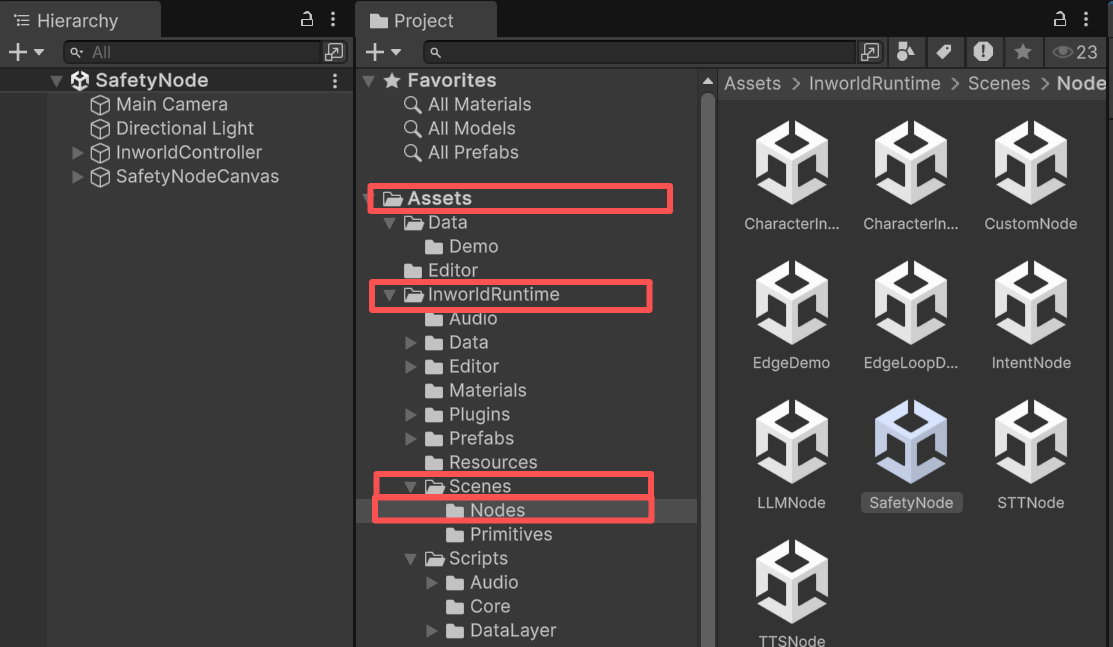
1. Go to `Assets/InworldRuntime/Scenes/Nodes` and play the `SafetyNode` scene.
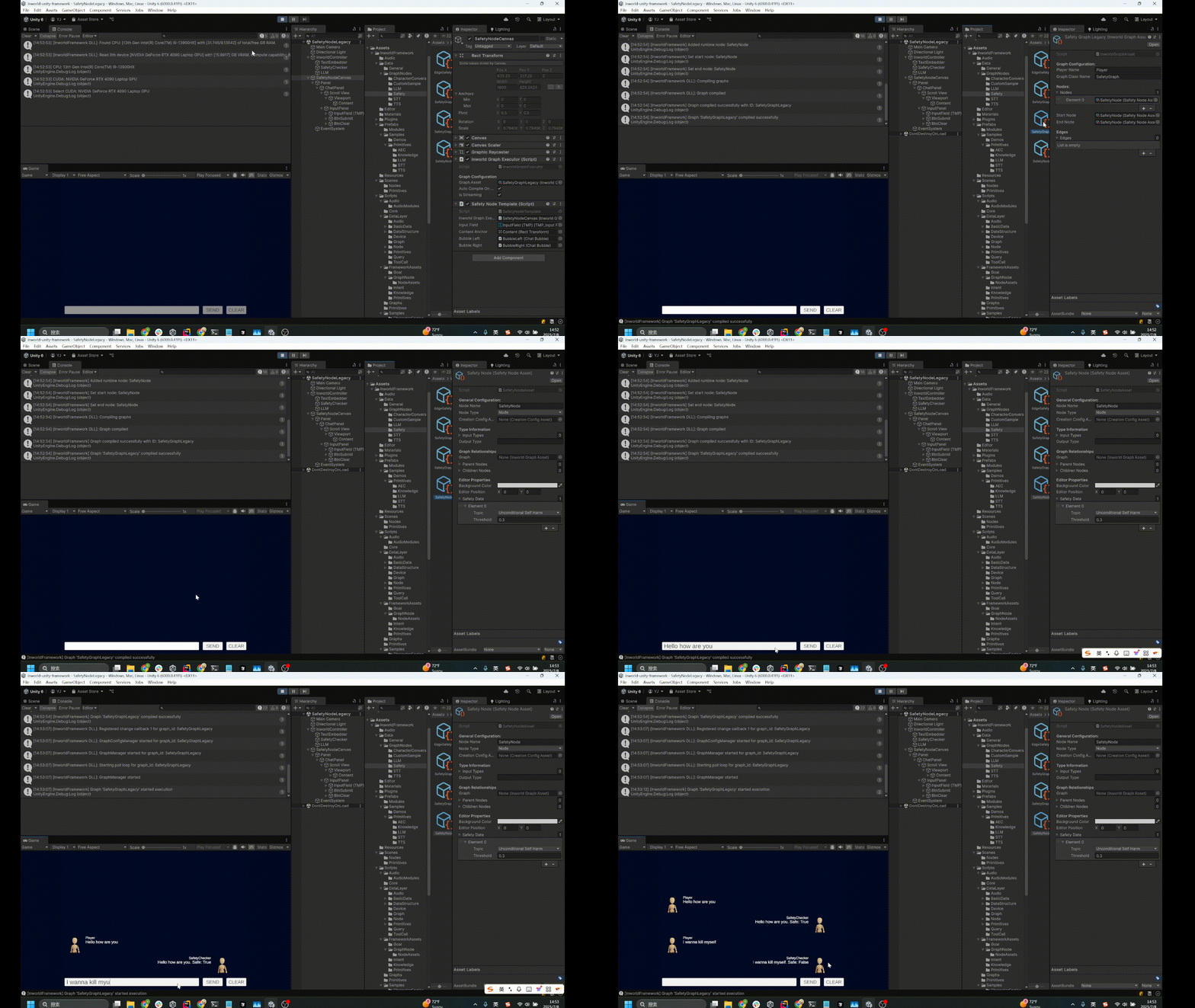
 2. Once the graph is compiled, enter text.
3. The system compares the input against the safety word lists and returns a similarity score (0 = lowest, 1 = highest).
4. If the score exceeds the threshold, the input is marked unsafe.
2. Once the graph is compiled, enter text.
3. The system compares the input against the safety word lists and returns a similarity score (0 = lowest, 1 = highest).
4. If the score exceeds the threshold, the input is marked unsafe.
 ## Understanding the Graph
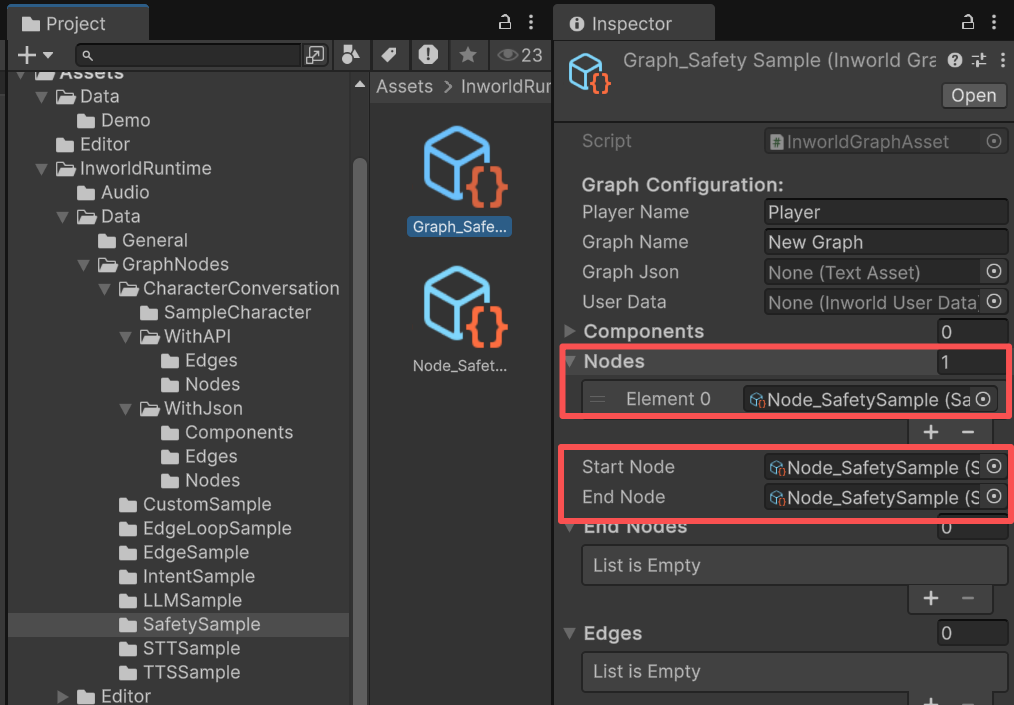
`SafetyNodeCanvas` contains an `InworldGraphExecutor` whose graph asset includes only a single `SafetyNode`.
The graph is very simple. It contains a single node, `SafetyNode`, with no edges.
`SafetyNode` is both the `StartNode` and the `EndNode`.
## Understanding the Graph
`SafetyNodeCanvas` contains an `InworldGraphExecutor` whose graph asset includes only a single `SafetyNode`.
The graph is very simple. It contains a single node, `SafetyNode`, with no edges.
`SafetyNode` is both the `StartNode` and the `EndNode`.
 ### SafetyData
The `SafetyData` is defined directly within the `SafetyNodeAsset`.
### SafetyData
The `SafetyData` is defined directly within the `SafetyNodeAsset`.
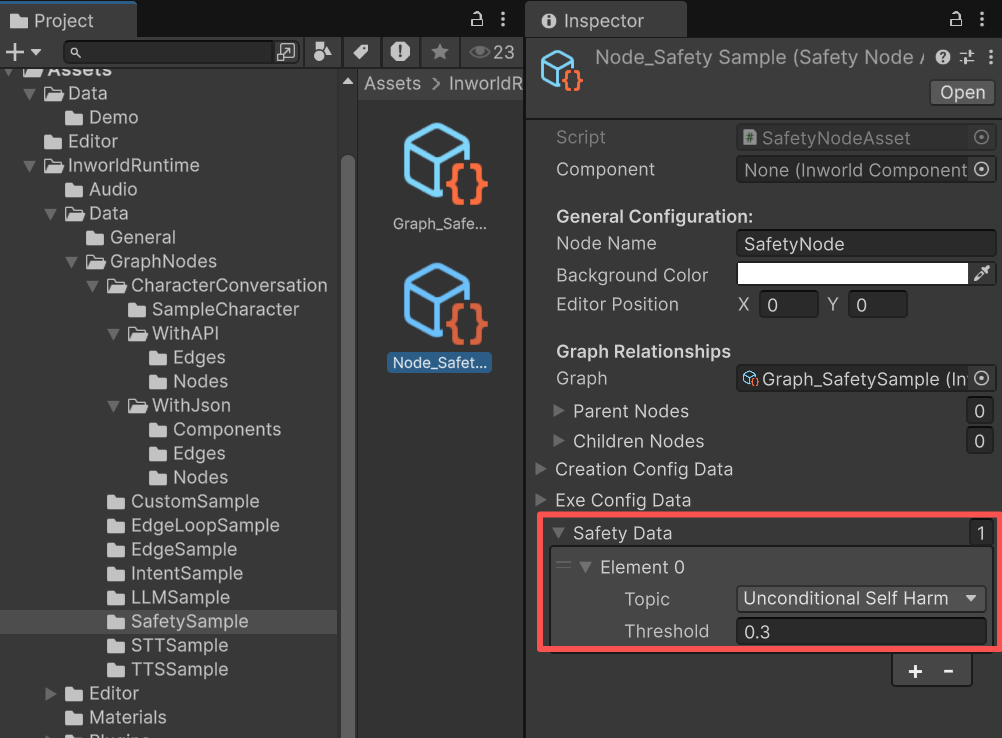 You can select multiple topics and configure a threshold for each detection.
Higher thresholds are more permissive (1 = almost everything is considered safe).
Lower thresholds are stricter (0 = almost everything is considered unsafe).
### InworldController
`InworldController` includes 2 primitive modules: `TextEmbedder` and `SafetyChecker`.
You can select multiple topics and configure a threshold for each detection.
Higher thresholds are more permissive (1 = almost everything is considered safe).
Lower thresholds are stricter (0 = almost everything is considered unsafe).
### InworldController
`InworldController` includes 2 primitive modules: `TextEmbedder` and `SafetyChecker`.
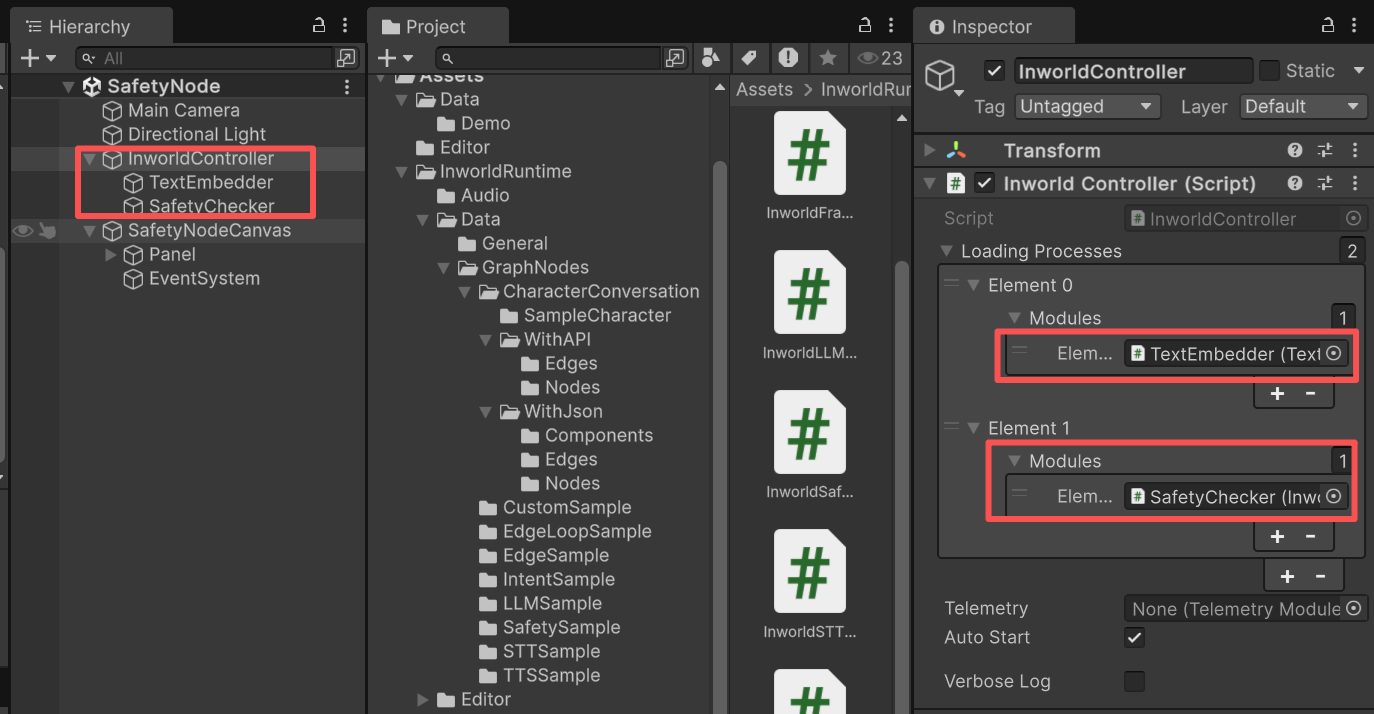 This is because `SafetyNode` requires both the `TextEmbedder` interface and the `SafetyChecker` configuration during `CreateRuntime()`.
The safety module also depends on `TextEmbedderModule` being initialized first.
```c# SafetyNodeAsset.cs theme={"system"}
public override NodeCreationConfig GetNodeCreationConfig()
{
SafetyCheckerNodeCreationConfig nodeCreationCfg = new SafetyCheckerNodeCreationConfig();
nodeCreationCfg.SafetyConfig = InworldController.Safety.CreationConfig; // <== This Requires SafetyCheckerInterface.
nodeCreationCfg.EmbedderComponentID = ComponentID;
m_CreationConfig = nodeCreationCfg;
return m_CreationConfig;
}
public override bool CreateRuntime(InworldGraphAsset graphAsset)
{
m_Graph = graphAsset;
InworldSafetyModule safety = InworldController.Safety;
if (!safety)
return false;
safety.SetupSafetyThreshold(m_SafetyData);
ComponentStore componentStore = new ComponentStore();
componentStore.AddTextEmbedderInterface(NodeName, InworldController.TextEmbedder.Interface as TextEmbedderInterface);
InworldCreationContext creationContext = new InworldCreationContext(componentStore);
SafetyCheckerNodeCreationConfig creationCfg = GetNodeCreationConfig() as SafetyCheckerNodeCreationConfig;
SafetyCheckerNodeExecutionConfig executionCfg = GetNodeExecutionConfig() as SafetyCheckerNodeExecutionConfig;
Runtime = new SafetyCheckerNode(NodeName, creationContext, creationCfg, executionCfg);
return Runtime?.IsValid ?? false;
}
```
### Workflow
1. When the game starts, `InworldController` initializes `TextEmbedderModule`, which creates the `TextEmbedderInterface`.
2. Next, `SafetyChecker` initializes `InworldSafetyModule`.
3. Then `InworldGraphExecutor` initializes its graph asset by calling each component’s `CreateRuntime()`. In this case, `SafetyNode.CreateRuntime()` is called with both the `TextEmbedderInterface` and the `SafetyChecker` configuration as input. After that, the graph calls `Compile()` and returns the executor handle.
4. After compilation, the `OnGraphCompiled` event is invoked. In this demo, `SafetyNodeTemplate` subscribes to it and enables the UI components. Users can then interact with the graph system.
```c# SafetyNodeTemplate.cs theme={"system"}
protected override void OnGraphCompiled(InworldGraphAsset obj)
{
foreach (InworldUIElement element in m_UIElements)
element.Interactable = true;
}
```
5. After the UI is initialized, pressing `Enter` or the `SEND` button sends the input text to the graph.
6. Calling `ExecuteGraphAsync()` eventually produces a result and invokes `OnGraphResult()`, which `SafetyNodeTemplate` subscribes to in order to receive the data.
```c# SafetyNodeTemplate.cs theme={"system"}
protected override void OnGraphResult(InworldBaseData output)
{
SafetyResult safetyResult = new SafetyResult(output);
if (safetyResult.IsValid)
DisplaySafety(safetyResult);
}
```
This is because `SafetyNode` requires both the `TextEmbedder` interface and the `SafetyChecker` configuration during `CreateRuntime()`.
The safety module also depends on `TextEmbedderModule` being initialized first.
```c# SafetyNodeAsset.cs theme={"system"}
public override NodeCreationConfig GetNodeCreationConfig()
{
SafetyCheckerNodeCreationConfig nodeCreationCfg = new SafetyCheckerNodeCreationConfig();
nodeCreationCfg.SafetyConfig = InworldController.Safety.CreationConfig; // <== This Requires SafetyCheckerInterface.
nodeCreationCfg.EmbedderComponentID = ComponentID;
m_CreationConfig = nodeCreationCfg;
return m_CreationConfig;
}
public override bool CreateRuntime(InworldGraphAsset graphAsset)
{
m_Graph = graphAsset;
InworldSafetyModule safety = InworldController.Safety;
if (!safety)
return false;
safety.SetupSafetyThreshold(m_SafetyData);
ComponentStore componentStore = new ComponentStore();
componentStore.AddTextEmbedderInterface(NodeName, InworldController.TextEmbedder.Interface as TextEmbedderInterface);
InworldCreationContext creationContext = new InworldCreationContext(componentStore);
SafetyCheckerNodeCreationConfig creationCfg = GetNodeCreationConfig() as SafetyCheckerNodeCreationConfig;
SafetyCheckerNodeExecutionConfig executionCfg = GetNodeExecutionConfig() as SafetyCheckerNodeExecutionConfig;
Runtime = new SafetyCheckerNode(NodeName, creationContext, creationCfg, executionCfg);
return Runtime?.IsValid ?? false;
}
```
### Workflow
1. When the game starts, `InworldController` initializes `TextEmbedderModule`, which creates the `TextEmbedderInterface`.
2. Next, `SafetyChecker` initializes `InworldSafetyModule`.
3. Then `InworldGraphExecutor` initializes its graph asset by calling each component’s `CreateRuntime()`. In this case, `SafetyNode.CreateRuntime()` is called with both the `TextEmbedderInterface` and the `SafetyChecker` configuration as input. After that, the graph calls `Compile()` and returns the executor handle.
4. After compilation, the `OnGraphCompiled` event is invoked. In this demo, `SafetyNodeTemplate` subscribes to it and enables the UI components. Users can then interact with the graph system.
```c# SafetyNodeTemplate.cs theme={"system"}
protected override void OnGraphCompiled(InworldGraphAsset obj)
{
foreach (InworldUIElement element in m_UIElements)
element.Interactable = true;
}
```
5. After the UI is initialized, pressing `Enter` or the `SEND` button sends the input text to the graph.
6. Calling `ExecuteGraphAsync()` eventually produces a result and invokes `OnGraphResult()`, which `SafetyNodeTemplate` subscribes to in order to receive the data.
```c# SafetyNodeTemplate.cs theme={"system"}
protected override void OnGraphResult(InworldBaseData output)
{
SafetyResult safetyResult = new SafetyResult(output);
if (safetyResult.IsValid)
DisplaySafety(safetyResult);
}
```