> ## Documentation Index
> Fetch the complete documentation index at: https://docs.inworld.ai/llms.txt
> Use this file to discover all available pages before exploring further.
# TTS(Text-to-speech) Node Demo
This demo showcases how to use the `TTSNode`.
## Run the Template
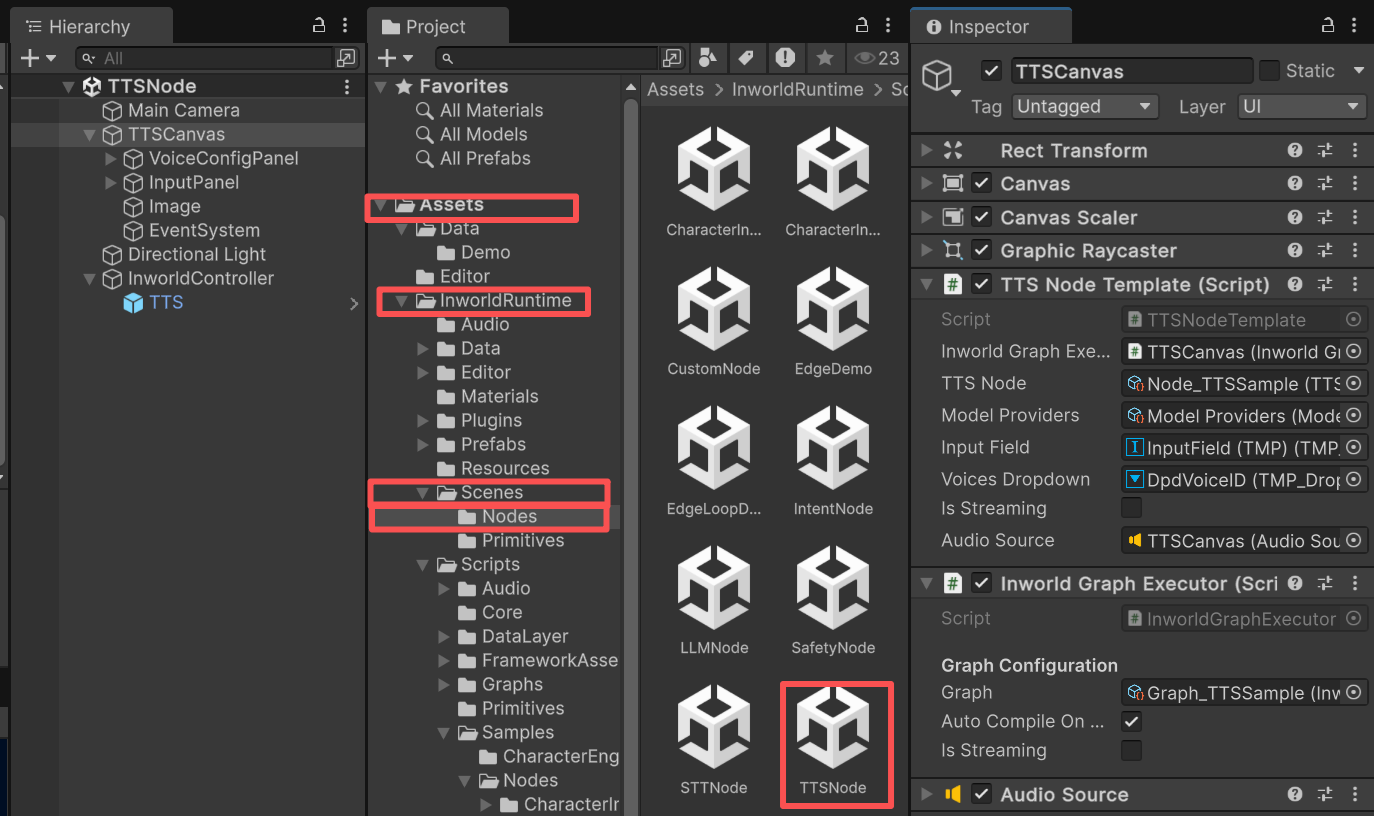
1. Go to `Assets/InworldRuntime/Scenes/Nodes` and play the `TTSNode` scene.
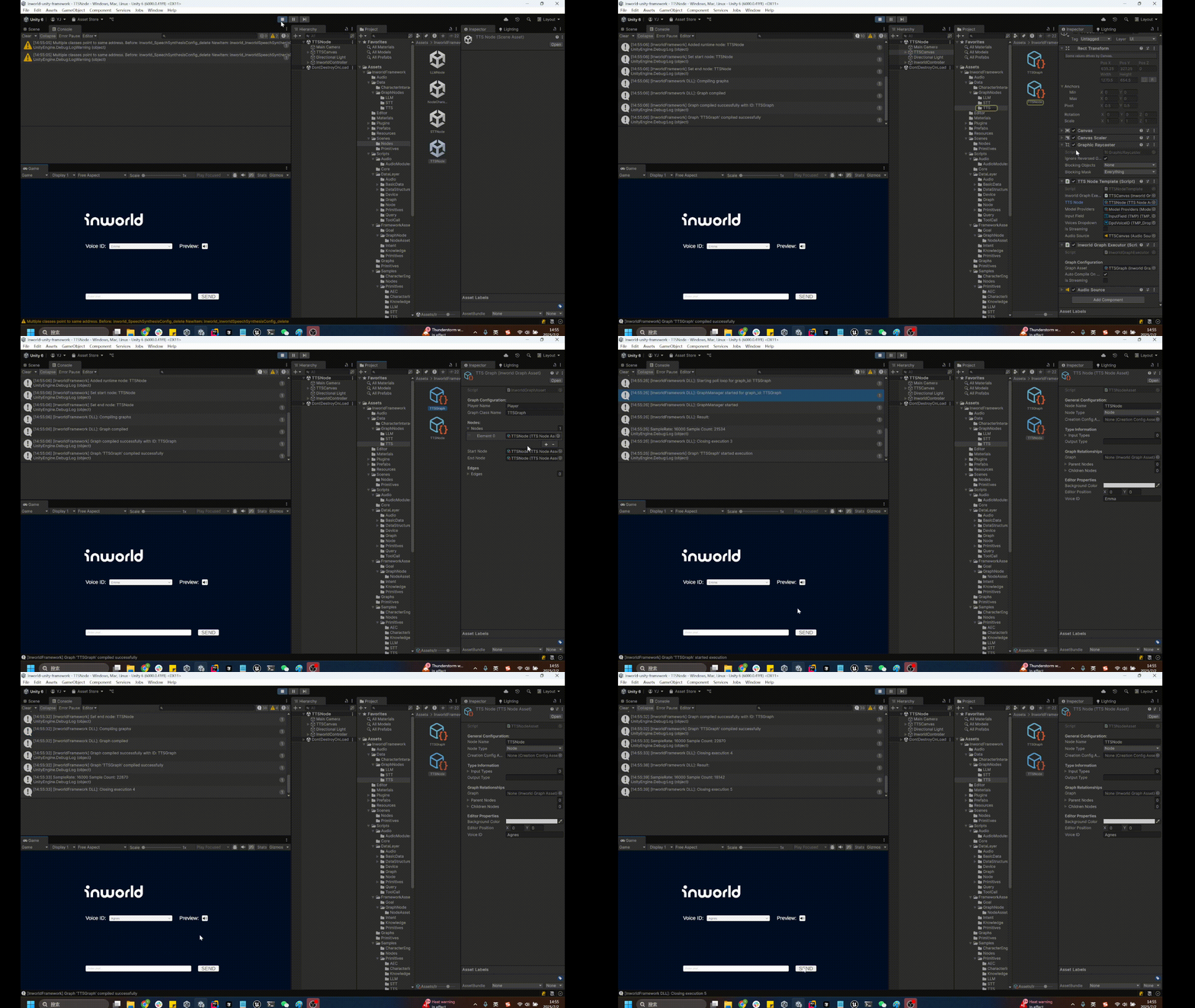
 2. Once the graph is compiled, enter text or send a preview message to generate speech.
 ## Understanding the Graph
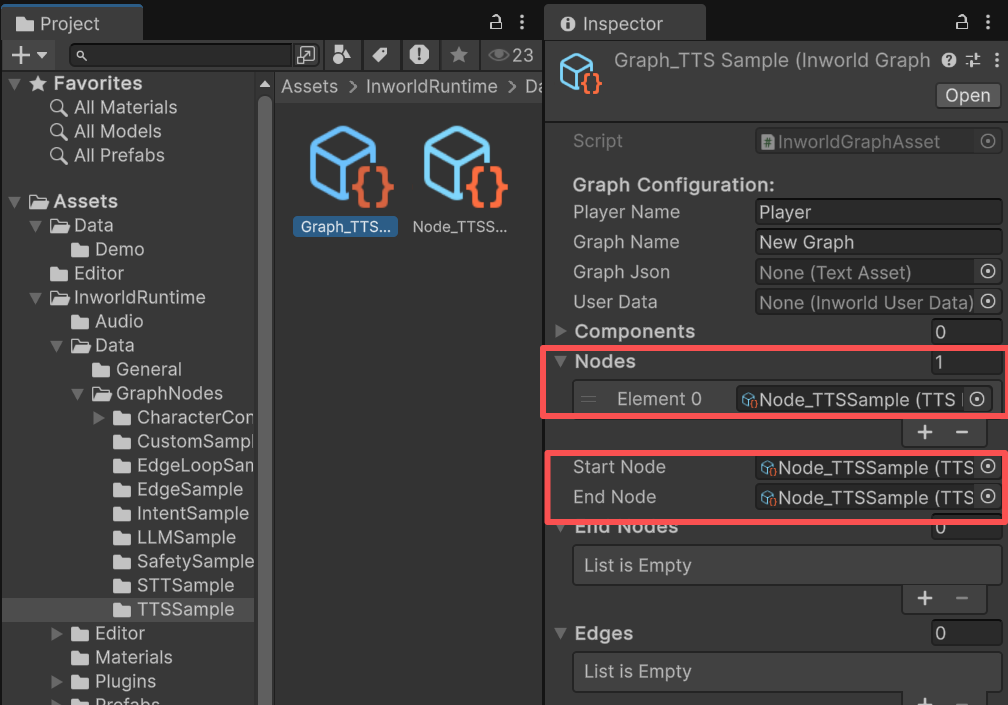
You can find the graph on the `InworldGraphExecutor` of `TTSCanvas`.
The graph is very simple. It contains a single node, `TTSNode`, with no edges.
`TTSNode` is both the `StartNode` and the `EndNode`.
## Understanding the Graph
You can find the graph on the `InworldGraphExecutor` of `TTSCanvas`.
The graph is very simple. It contains a single node, `TTSNode`, with no edges.
`TTSNode` is both the `StartNode` and the `EndNode`.
 ### InworldController
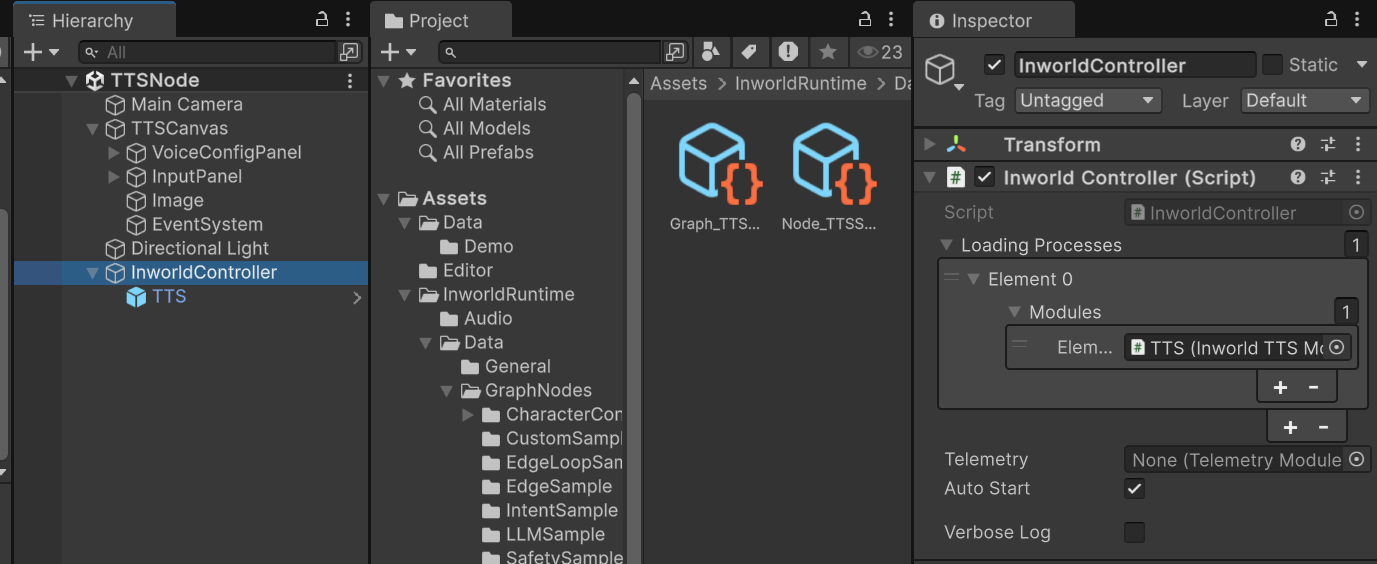
The `InworldController` is also simple; it contains only one primitive module: `TTS`.
### InworldController
The `InworldController` is also simple; it contains only one primitive module: `TTS`.
 For details about the primitive module, see the [TTS Primitive Demo](../primitives/tts).
### Workflow
1. When the game starts, `InworldController` initializes its only module, `TTSModule`, which creates the `TTSInterface` using the voice ID selected in the dropdown.
2. Next, `InworldGraphExecutor` initializes its graph asset by calling each component’s `CreateRuntime()`. In this case, only `TTSNode.CreateRuntime()` is called, using the created `TTSInterface` as input.
3. After initialization, the graph calls `Compile()` and returns the executor handle.
4. After compilation, the `OnGraphCompiled` event is invoked. In this demo, `TTSNodeTemplate` subscribes to it and enables the UI components. Users can then interact with the graph system.
```c# TTSNodeTemplate.cs theme={"system"}
protected override void OnGraphCompiled(InworldGraphAsset obj)
{
foreach (InworldUIElement element in m_UIElements)
element.Interactable = true;
}
```
5. After the UI is initialized, pressing the `Preview` button sends `"Hello, I'm {voiceID}"` as `InworldText` to the graph.
6. When you enter a sentence and press `Enter` or the `Send` button, your message is also sent as `InworldText`.
```c# TTSNodeTemplate.cs theme={"system"}
protected override void OnEnable()
{
base.OnEnable();
if (!m_Audio)
return;
m_Audio.Event.onStartCalibrating.AddListener(()=>Title("Calibrating"));
m_Audio.Event.onStopCalibrating.AddListener(Calibrated);
m_Audio.Event.onPlayerStartSpeaking.AddListener(()=>Title("PlayerSpeaking"));
m_Audio.Event.onPlayerStopSpeaking.AddListener(()=>
{
Title("");
if (m_STTResult)
m_STTResult.text = "";
});
m_Audio.Event.onAudioSent.AddListener(SendAudio);
}
void SendAudio(List audioData)
{
if (!m_ModuleInitialized)
return;
InworldVector wave = new InworldVector();
wave.AddRange(audioData);
_ = m_InworldGraphExecutor.ExecuteGraphAsync("STT", new InworldAudio(wave, wave.Size));
}
```
7. Calling `ExecuteGraphAsync()` eventually produces a result and invokes `OnGraphResult()`, which `TTSNodeTemplate` subscribes to in order to receive the data.
```c# TTSNodeTemplate.cs theme={"system"}
protected override async void OnGraphResult(InworldBaseData obj)
{
InworldDataStream outputStream = new InworldDataStream(obj);
InworldInputStream stream = outputStream.ToInputStream();
int sampleRate = 0;
List result = new List();
await Awaitable.BackgroundThreadAsync();
while (stream != null && stream.HasNext)
{
TTSOutput ttsOutput = stream.Read();
if (ttsOutput == null)
continue;
InworldAudio chunk = ttsOutput.Audio;
sampleRate = chunk.SampleRate;
List data = chunk.Waveform?.ToList();
if (data != null && data.Count > 0)
result.AddRange(data);
await Awaitable.NextFrameAsync();
}
await Awaitable.MainThreadAsync();
string output = $"SampleRate: {sampleRate} Sample Count: {result.Count}";
Debug.Log(output);
int sampleCount = result.Count;
if (sampleRate == 0 || sampleCount == 0)
return;
AudioClip audioClip = AudioClip.Create("TTS", sampleCount, 1, sampleRate, false);
audioClip.SetData(result.ToArray(), 0);
m_AudioSource?.PlayOneShot(audioClip);
}
```
8. The returned data type from `TTSNode` is `InworldDataStream`, which does not expose read APIs. Convert it to `InworldInputStream` first.
9. In this demo, we read on a background thread using Unity’s `Awaitable`.
10. After all waveform data is collected and we switch back to the main thread, we play it using the attached `AudioSource`.
### Switching voiceID
As you know, the InworldGraphSystem must be compiled before it can be used, and the voice ID is set during the compilation phase.
Therefore, to switch the voice ID at runtime, we actually need to terminate the current graph executor and restart the initialization process with the new ID.
For details about the primitive module, see the [TTS Primitive Demo](../primitives/tts).
### Workflow
1. When the game starts, `InworldController` initializes its only module, `TTSModule`, which creates the `TTSInterface` using the voice ID selected in the dropdown.
2. Next, `InworldGraphExecutor` initializes its graph asset by calling each component’s `CreateRuntime()`. In this case, only `TTSNode.CreateRuntime()` is called, using the created `TTSInterface` as input.
3. After initialization, the graph calls `Compile()` and returns the executor handle.
4. After compilation, the `OnGraphCompiled` event is invoked. In this demo, `TTSNodeTemplate` subscribes to it and enables the UI components. Users can then interact with the graph system.
```c# TTSNodeTemplate.cs theme={"system"}
protected override void OnGraphCompiled(InworldGraphAsset obj)
{
foreach (InworldUIElement element in m_UIElements)
element.Interactable = true;
}
```
5. After the UI is initialized, pressing the `Preview` button sends `"Hello, I'm {voiceID}"` as `InworldText` to the graph.
6. When you enter a sentence and press `Enter` or the `Send` button, your message is also sent as `InworldText`.
```c# TTSNodeTemplate.cs theme={"system"}
protected override void OnEnable()
{
base.OnEnable();
if (!m_Audio)
return;
m_Audio.Event.onStartCalibrating.AddListener(()=>Title("Calibrating"));
m_Audio.Event.onStopCalibrating.AddListener(Calibrated);
m_Audio.Event.onPlayerStartSpeaking.AddListener(()=>Title("PlayerSpeaking"));
m_Audio.Event.onPlayerStopSpeaking.AddListener(()=>
{
Title("");
if (m_STTResult)
m_STTResult.text = "";
});
m_Audio.Event.onAudioSent.AddListener(SendAudio);
}
void SendAudio(List audioData)
{
if (!m_ModuleInitialized)
return;
InworldVector wave = new InworldVector();
wave.AddRange(audioData);
_ = m_InworldGraphExecutor.ExecuteGraphAsync("STT", new InworldAudio(wave, wave.Size));
}
```
7. Calling `ExecuteGraphAsync()` eventually produces a result and invokes `OnGraphResult()`, which `TTSNodeTemplate` subscribes to in order to receive the data.
```c# TTSNodeTemplate.cs theme={"system"}
protected override async void OnGraphResult(InworldBaseData obj)
{
InworldDataStream outputStream = new InworldDataStream(obj);
InworldInputStream stream = outputStream.ToInputStream();
int sampleRate = 0;
List result = new List();
await Awaitable.BackgroundThreadAsync();
while (stream != null && stream.HasNext)
{
TTSOutput ttsOutput = stream.Read();
if (ttsOutput == null)
continue;
InworldAudio chunk = ttsOutput.Audio;
sampleRate = chunk.SampleRate;
List data = chunk.Waveform?.ToList();
if (data != null && data.Count > 0)
result.AddRange(data);
await Awaitable.NextFrameAsync();
}
await Awaitable.MainThreadAsync();
string output = $"SampleRate: {sampleRate} Sample Count: {result.Count}";
Debug.Log(output);
int sampleCount = result.Count;
if (sampleRate == 0 || sampleCount == 0)
return;
AudioClip audioClip = AudioClip.Create("TTS", sampleCount, 1, sampleRate, false);
audioClip.SetData(result.ToArray(), 0);
m_AudioSource?.PlayOneShot(audioClip);
}
```
8. The returned data type from `TTSNode` is `InworldDataStream`, which does not expose read APIs. Convert it to `InworldInputStream` first.
9. In this demo, we read on a background thread using Unity’s `Awaitable`.
10. After all waveform data is collected and we switch back to the main thread, we play it using the attached `AudioSource`.
### Switching voiceID
As you know, the InworldGraphSystem must be compiled before it can be used, and the voice ID is set during the compilation phase.
Therefore, to switch the voice ID at runtime, we actually need to terminate the current graph executor and restart the initialization process with the new ID.