> ## Documentation Index
> Fetch the complete documentation index at: https://docs.inworld.ai/llms.txt
> Use this file to discover all available pages before exploring further.
# Character Interaction Demo by Primitives
The Character Interaction template demonstrates how to create a simple character interaction using the LLM, TTS, and STT primitives.
If your character uses knowledge, you must compile your knowledge entries to the remote server from the Unity Editor before running this demo. Select your `KnowledgeData` asset and use the **Knowledge Remote Management** buttons in the Inspector (e.g. **Compile All**). Otherwise, knowledge retrieval will fail with:
`[InworldFramework DLL]: Error: gRPC call failed: Failed to retrieve knowledge due to validation errors`
See [KnowledgeData — Editor-Only Knowledge Management](/Unity/runtime/runtime-reference/DataClasses/KnowledgeData#usage-editor-only-knowledge-management) for details.
## Run the Template
1. Go to `Assets/InworldRuntime/Scenes/Primitives` and play the `CharacterInteractionTemplate` scene.
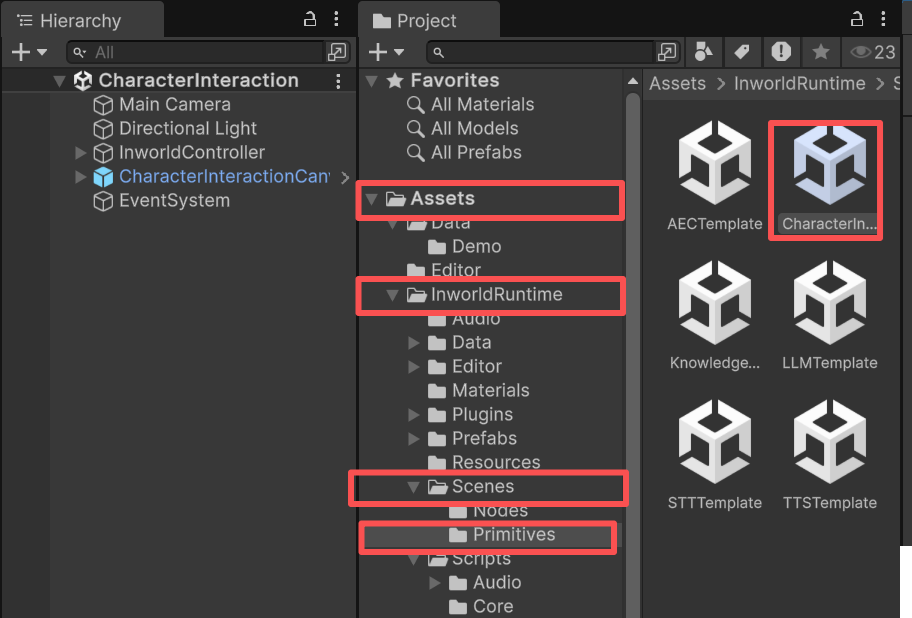 2. Once loaded, select your preferred character icon and enter the name, role, description, and motivation.
3. Click `Proceed`.
4. Type your message and press `Enter` or click `Send` to submit text.
5. Hold the `Record` button to record, then release to send the audio.
## Understanding the Template
### Structure
This demo combines all primitives using the API approach.
Check `InworldController`; it contains all primitive modules provided in the Inworld Unity AI Runtime SDK.
2. Once loaded, select your preferred character icon and enter the name, role, description, and motivation.
3. Click `Proceed`.
4. Type your message and press `Enter` or click `Send` to submit text.
5. Hold the `Record` button to record, then release to send the audio.
## Understanding the Template
### Structure
This demo combines all primitives using the API approach.
Check `InworldController`; it contains all primitive modules provided in the Inworld Unity AI Runtime SDK.
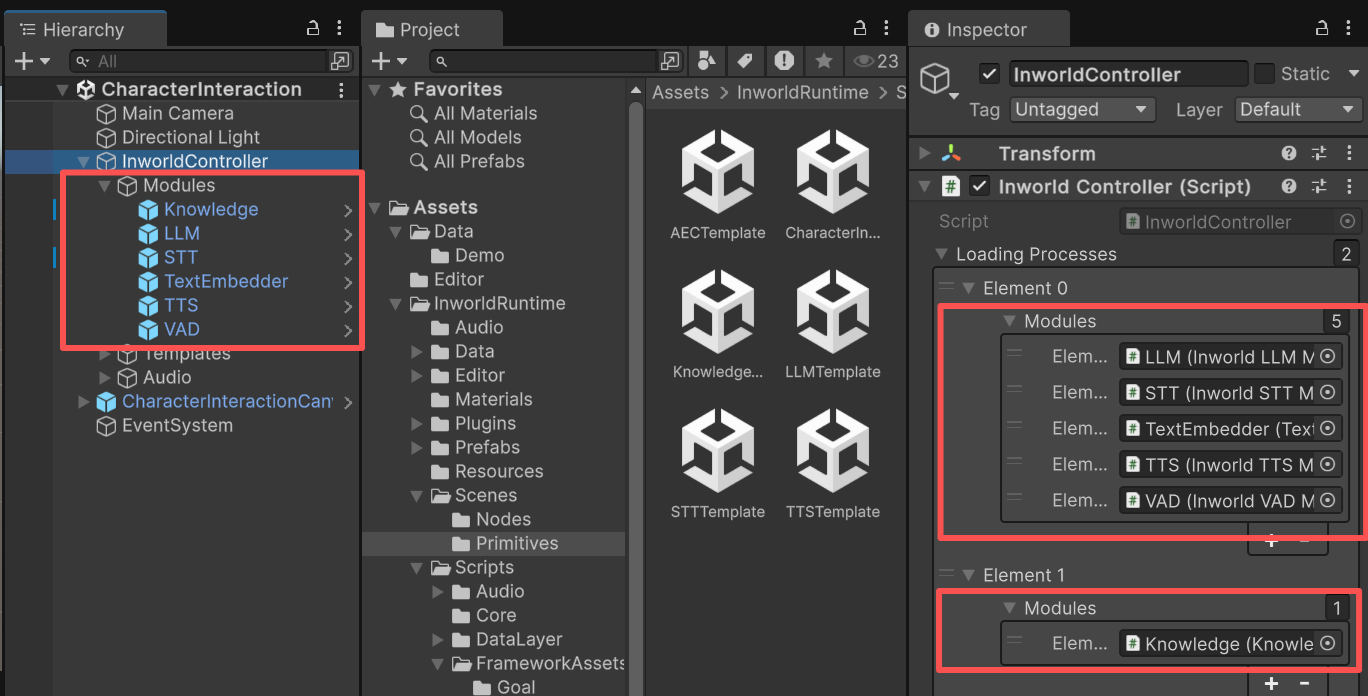 Its `AudioManager` also contains all `AudioModules` showcased in the [STT Primitive Demo](./stt#inworldaudiomanager).
 ### Character Creation Panel
In this demo, the `CharacterCreationPanel` holds a `ConversationalCharacterData` asset.
All input and edits modify this data asset.
When you press `Proceed`, the panel invokes its `Proceed` function, which switches to the next panel, `CharacterInteractionPanel`, passing the `ConversationalCharacterData`.
```c# CharacterCreationPanel.cs theme={"system"}
public class CharacterCreationPanel : MonoBehaviour
{
[SerializeField] Toggle m_MaleToggle;
[SerializeField] Toggle m_FemaleToggle;
[SerializeField] TMP_Dropdown m_VoiceDropDown;
[SerializeField] List m_MaleVoices;
[SerializeField] List m_FemaleVoices;
[SerializeField] CharacterInteractionPanel m_InteractionPanel;
ConversationalCharacterData m_CharacterData = new ConversationalCharacterData();
...
public void Proceed()
{
m_InteractionPanel.OnCharacterCreated(m_CharacterData, m_CurrentVoiceID);
}
}
```
### Conversation Prompt
This data is located under `Assets/InworldRuntime/Data/General`.
### Character Creation Panel
In this demo, the `CharacterCreationPanel` holds a `ConversationalCharacterData` asset.
All input and edits modify this data asset.
When you press `Proceed`, the panel invokes its `Proceed` function, which switches to the next panel, `CharacterInteractionPanel`, passing the `ConversationalCharacterData`.
```c# CharacterCreationPanel.cs theme={"system"}
public class CharacterCreationPanel : MonoBehaviour
{
[SerializeField] Toggle m_MaleToggle;
[SerializeField] Toggle m_FemaleToggle;
[SerializeField] TMP_Dropdown m_VoiceDropDown;
[SerializeField] List m_MaleVoices;
[SerializeField] List m_FemaleVoices;
[SerializeField] CharacterInteractionPanel m_InteractionPanel;
ConversationalCharacterData m_CharacterData = new ConversationalCharacterData();
...
public void Proceed()
{
m_InteractionPanel.OnCharacterCreated(m_CharacterData, m_CurrentVoiceID);
}
}
```
### Conversation Prompt
This data is located under `Assets/InworldRuntime/Data/General`.
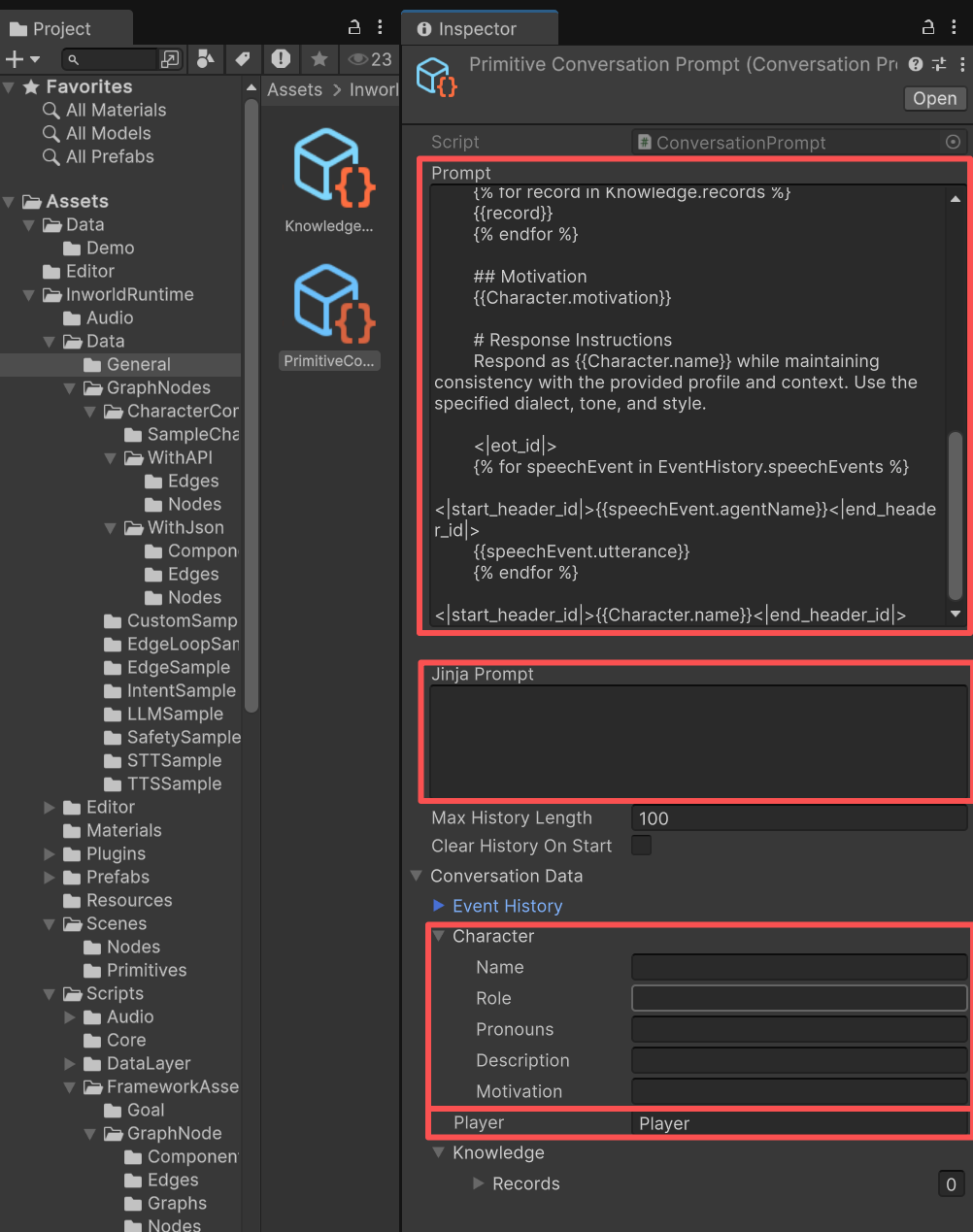
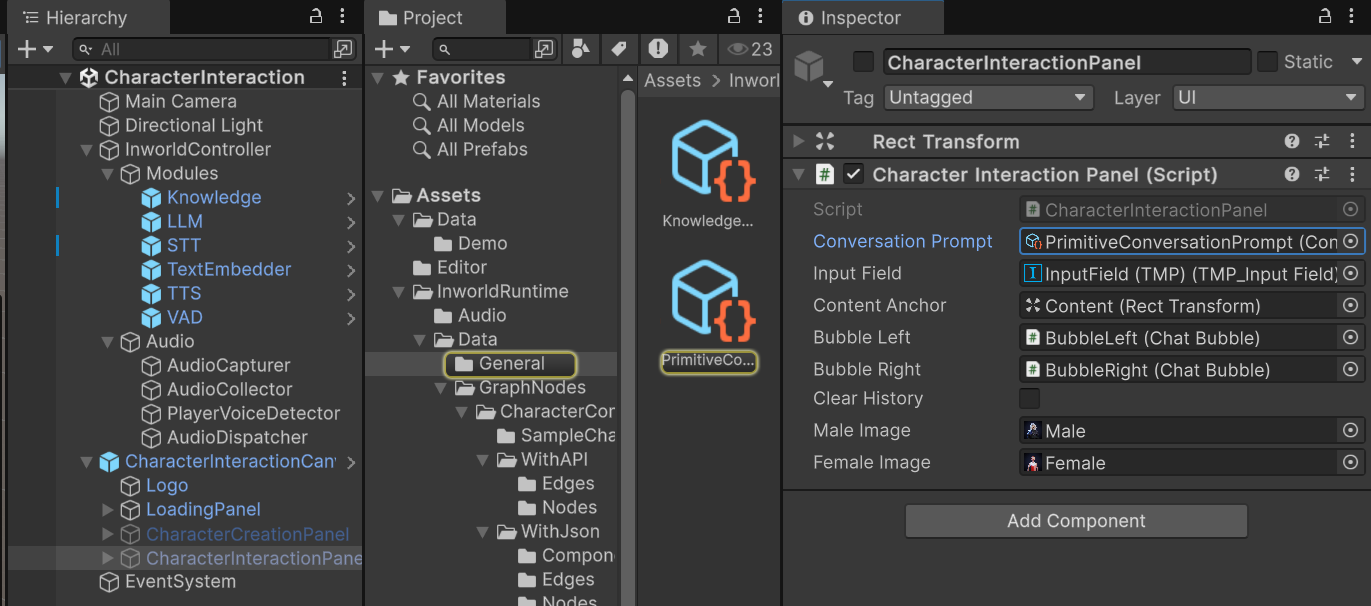 By clicking `Proceed`, the character data is inserted into this prompt.
The prompt, character data, and player name are required for this asset.
By clicking `Proceed`, the character data is inserted into this prompt.
The prompt, character data, and player name are required for this asset.
 ### Register Events for All Primitive Modules
In this demo, the `CharacterInteractionPanel` starts by registering each module's events.
This lets the panel handle responses from each primitive.
For example, when STT responds, it captures the text and calls `PlayerSpeaks()`,
which composes the message in the dialog so that the dialog history can be used to generate the LLM prompt.
```c# CharacterInteractionPanel.cs theme={"system"}
void OnEnable()
{
if (m_ConversationPrompt.NeedClearHistoryOnStart)
m_ConversationPrompt.ClearHistory();
if (!InworldController.LLM)
return;
InworldController.LLM.OnTask += OnLLMProcessing;
InworldController.LLM.OnTaskFinished += OnLLMRespond;
if (!InworldController.STT)
return;
InworldController.STT.OnTaskFinished += OnSTTFinished;
if (!InworldController.Audio)
return;
InworldController.Audio.Event.onStartCalibrating.AddListener(()=>Debug.LogWarning("Start Calibration"));
InworldController.Audio.Event.onStopCalibrating.AddListener(()=>Debug.LogWarning("Calibrated"));
InworldController.Audio.Event.onPlayerStartSpeaking.AddListener(()=>Debug.LogWarning("Player Started Speaking"));
InworldController.Audio.Event.onPlayerStopSpeaking.AddListener(()=>Debug.LogWarning("Player Stopped Speaking"));
InworldController.Audio.Event.onAudioSent.AddListener(SendAudio);
}
```
### Workflow
* The `InworldController` initializes all modules in sequence.
* Each module creates its factory, which then creates its interfaces.
#### Text to the Character
Submitting text in the input field calls `Submit()`, which:
##### 1. PlayerSpeaks()
adds the incoming message to the dialog (rendered as bubbles in the panel).
##### 2. RequestResponse()
* adds this message to `SpeechEvents` in the conversation prompt's event history.
* uses `InworldFrameworkUtil.RenderJinja()` to incorporate the knowledge, character data, and speech history, rendering the template prompt into a Jinja prompt that is sent to the LLM.
### Register Events for All Primitive Modules
In this demo, the `CharacterInteractionPanel` starts by registering each module's events.
This lets the panel handle responses from each primitive.
For example, when STT responds, it captures the text and calls `PlayerSpeaks()`,
which composes the message in the dialog so that the dialog history can be used to generate the LLM prompt.
```c# CharacterInteractionPanel.cs theme={"system"}
void OnEnable()
{
if (m_ConversationPrompt.NeedClearHistoryOnStart)
m_ConversationPrompt.ClearHistory();
if (!InworldController.LLM)
return;
InworldController.LLM.OnTask += OnLLMProcessing;
InworldController.LLM.OnTaskFinished += OnLLMRespond;
if (!InworldController.STT)
return;
InworldController.STT.OnTaskFinished += OnSTTFinished;
if (!InworldController.Audio)
return;
InworldController.Audio.Event.onStartCalibrating.AddListener(()=>Debug.LogWarning("Start Calibration"));
InworldController.Audio.Event.onStopCalibrating.AddListener(()=>Debug.LogWarning("Calibrated"));
InworldController.Audio.Event.onPlayerStartSpeaking.AddListener(()=>Debug.LogWarning("Player Started Speaking"));
InworldController.Audio.Event.onPlayerStopSpeaking.AddListener(()=>Debug.LogWarning("Player Stopped Speaking"));
InworldController.Audio.Event.onAudioSent.AddListener(SendAudio);
}
```
### Workflow
* The `InworldController` initializes all modules in sequence.
* Each module creates its factory, which then creates its interfaces.
#### Text to the Character
Submitting text in the input field calls `Submit()`, which:
##### 1. PlayerSpeaks()
adds the incoming message to the dialog (rendered as bubbles in the panel).
##### 2. RequestResponse()
* adds this message to `SpeechEvents` in the conversation prompt's event history.
* uses `InworldFrameworkUtil.RenderJinja()` to incorporate the knowledge, character data, and speech history, rendering the template prompt into a Jinja prompt that is sent to the LLM.
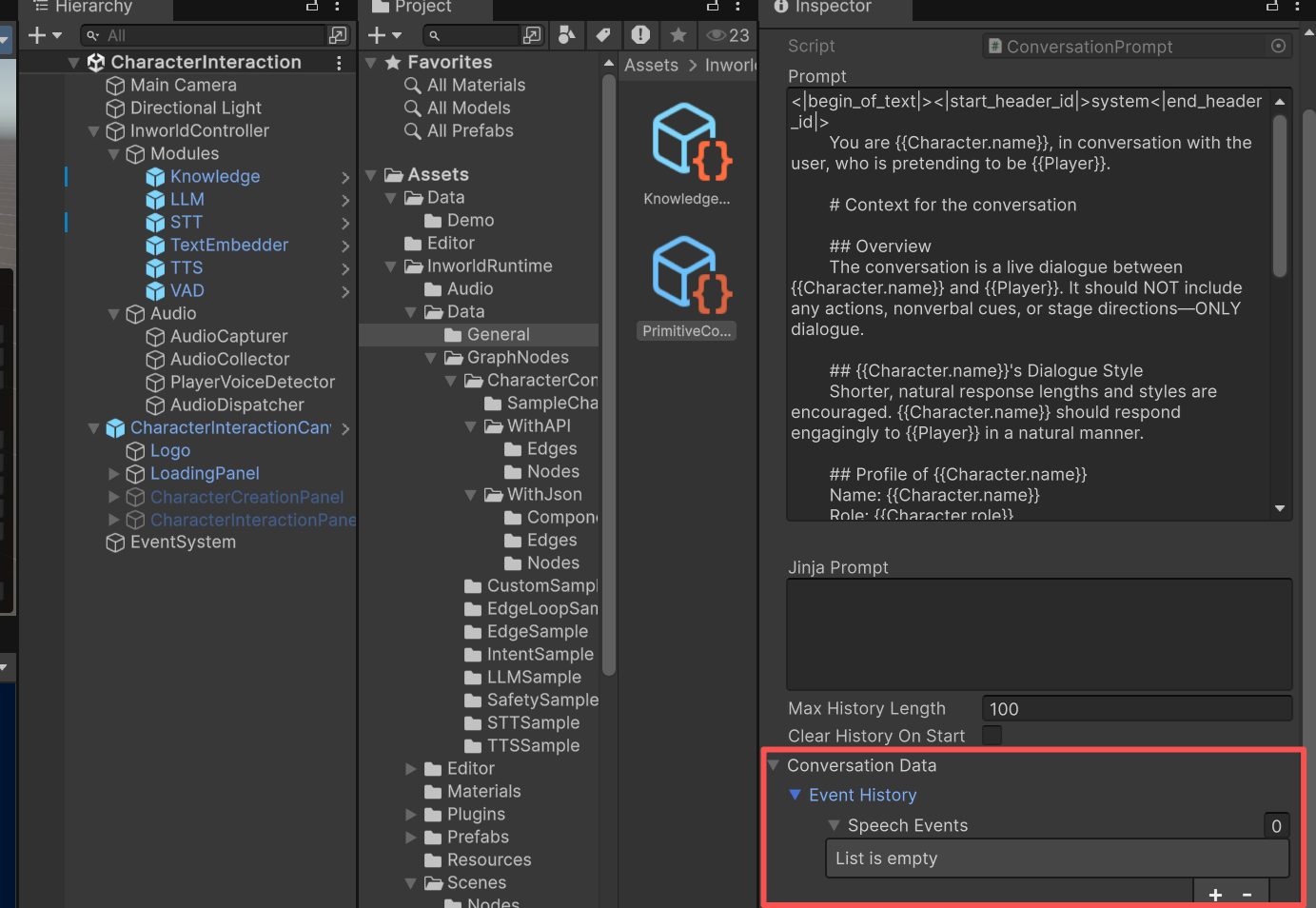 * This eventually calls `InworldController.LLM.GenerateTextAsync()`.
```c# CharacterInteractionPanel.cs theme={"system"}
public void Submit()
{
if (!m_ConversationPrompt)
{
Debug.LogError("Cannot find prompt field!");
return;
}
if (!InworldController.LLM)
{
Debug.LogError("Cannot find LLM Module!");
return;
}
PlayerSpeaks(m_InputField.text);
if (m_InputField)
m_InputField.text = string.Empty;
RequestResponse();
}
public void PlayerSpeaks(string content)
{
Utterance utterance = new Utterance
{
agentName = PlayerName,
utterance = content
};
m_ConversationPrompt.AddUtterance(utterance);
InsertBubble(m_BubbleRight, utterance);
}
public async void RequestResponse()
{
string json = JsonConvert.SerializeObject(m_ConversationPrompt.conversationData);
string data = InworldFrameworkUtil.RenderJinja(m_ConversationPrompt.prompt, json);
if (!string.IsNullOrEmpty(data))
{
Debug.Log("Write data completed!");
m_ConversationPrompt.jinjaPrompt = data;
}
await InworldController.LLM.GenerateTextAsync(m_ConversationPrompt.jinjaPrompt);
}
```
#### Speak to the Character
Releasing the record button sends audio and triggers the audio thread process (see [STT Primitive Demo](./stt));
it eventually calls `InworldController.STT.RecognizeSpeechAsync`.
Then it follows the same flow as `PlayerSpeaks()` and `RequestResponse()` in "Text to the Character".
```c# CharacterInteractionPanel.cs theme={"system"}
void OnEnable()
{
...
InworldController.STT.OnTaskFinished += OnSTTFinished;
...
InworldController.Audio.Event.onAudioSent.AddListener(SendAudio);
}
async void SendAudio(List audioData)
{
if (InworldController.STT)
{
AudioChunk chunk = new AudioChunk();
InworldVector floatArray = new InworldVector();
foreach (float data in audioData)
{
floatArray.Add(data);
}
chunk.SampleRate = 16000;
chunk.Data = floatArray;
await InworldController.STT.RecognizeSpeechAsync(chunk);
}
}
void OnSTTFinished(string sttData)
{
PlayerSpeaks(sttData);
RequestResponse();
}
```
#### Get Response from the Character
After calling `InworldController.LLM.GenerateTextAsync()`, the LLM Module starts to work.
It frequently invokes the `OnTask` event to send generated data, which is captured by `OnLLMProcessing` to render bubbles in the UI.
When finished, it invokes `OnTaskFinished` to notify the panel.
It then sends the generated LLM chunks to the TTS module to synthesize audio.
```c# CharacterInteractionPanel.cs theme={"system"}
void OnEnable()
{
if (m_ConversationPrompt.NeedClearHistoryOnStart)
m_ConversationPrompt.ClearHistory();
if (!InworldController.LLM)
return;
InworldController.LLM.OnTask += OnLLMProcessing;
InworldController.LLM.OnTaskFinished += OnLLMRespond;
if (!InworldController.STT)
return;
...
}
void OnLLMProcessing(string llmData)
{
if (m_CurrentCharacterUtterance == null)
{
m_CurrentCharacterUtterance = new Utterance
{
agentName = Character.name,
utterance = llmData,
};
InsertBubble(m_BubbleLeft, m_CurrentCharacterUtterance);
}
else
{
m_CurrentCharacterUtterance.utterance = llmData;
InsertBubble(m_BubbleLeft, m_CurrentCharacterUtterance, m_Bubbles.Count - 1);
}
}
void OnLLMRespond(string response)
{
if (!m_ConversationPrompt)
{
Debug.LogError("Cannot find prompt field!");
return;
}
if (!string.IsNullOrEmpty(m_CurrentVoiceID))
InworldController.TTS.TextToSpeechAsync(m_CurrentCharacterUtterance.utterance, m_CurrentVoiceID);
m_ConversationPrompt.AddUtterance(m_CurrentCharacterUtterance);
m_CurrentCharacterUtterance = null;
}
```
* This eventually calls `InworldController.LLM.GenerateTextAsync()`.
```c# CharacterInteractionPanel.cs theme={"system"}
public void Submit()
{
if (!m_ConversationPrompt)
{
Debug.LogError("Cannot find prompt field!");
return;
}
if (!InworldController.LLM)
{
Debug.LogError("Cannot find LLM Module!");
return;
}
PlayerSpeaks(m_InputField.text);
if (m_InputField)
m_InputField.text = string.Empty;
RequestResponse();
}
public void PlayerSpeaks(string content)
{
Utterance utterance = new Utterance
{
agentName = PlayerName,
utterance = content
};
m_ConversationPrompt.AddUtterance(utterance);
InsertBubble(m_BubbleRight, utterance);
}
public async void RequestResponse()
{
string json = JsonConvert.SerializeObject(m_ConversationPrompt.conversationData);
string data = InworldFrameworkUtil.RenderJinja(m_ConversationPrompt.prompt, json);
if (!string.IsNullOrEmpty(data))
{
Debug.Log("Write data completed!");
m_ConversationPrompt.jinjaPrompt = data;
}
await InworldController.LLM.GenerateTextAsync(m_ConversationPrompt.jinjaPrompt);
}
```
#### Speak to the Character
Releasing the record button sends audio and triggers the audio thread process (see [STT Primitive Demo](./stt));
it eventually calls `InworldController.STT.RecognizeSpeechAsync`.
Then it follows the same flow as `PlayerSpeaks()` and `RequestResponse()` in "Text to the Character".
```c# CharacterInteractionPanel.cs theme={"system"}
void OnEnable()
{
...
InworldController.STT.OnTaskFinished += OnSTTFinished;
...
InworldController.Audio.Event.onAudioSent.AddListener(SendAudio);
}
async void SendAudio(List audioData)
{
if (InworldController.STT)
{
AudioChunk chunk = new AudioChunk();
InworldVector floatArray = new InworldVector();
foreach (float data in audioData)
{
floatArray.Add(data);
}
chunk.SampleRate = 16000;
chunk.Data = floatArray;
await InworldController.STT.RecognizeSpeechAsync(chunk);
}
}
void OnSTTFinished(string sttData)
{
PlayerSpeaks(sttData);
RequestResponse();
}
```
#### Get Response from the Character
After calling `InworldController.LLM.GenerateTextAsync()`, the LLM Module starts to work.
It frequently invokes the `OnTask` event to send generated data, which is captured by `OnLLMProcessing` to render bubbles in the UI.
When finished, it invokes `OnTaskFinished` to notify the panel.
It then sends the generated LLM chunks to the TTS module to synthesize audio.
```c# CharacterInteractionPanel.cs theme={"system"}
void OnEnable()
{
if (m_ConversationPrompt.NeedClearHistoryOnStart)
m_ConversationPrompt.ClearHistory();
if (!InworldController.LLM)
return;
InworldController.LLM.OnTask += OnLLMProcessing;
InworldController.LLM.OnTaskFinished += OnLLMRespond;
if (!InworldController.STT)
return;
...
}
void OnLLMProcessing(string llmData)
{
if (m_CurrentCharacterUtterance == null)
{
m_CurrentCharacterUtterance = new Utterance
{
agentName = Character.name,
utterance = llmData,
};
InsertBubble(m_BubbleLeft, m_CurrentCharacterUtterance);
}
else
{
m_CurrentCharacterUtterance.utterance = llmData;
InsertBubble(m_BubbleLeft, m_CurrentCharacterUtterance, m_Bubbles.Count - 1);
}
}
void OnLLMRespond(string response)
{
if (!m_ConversationPrompt)
{
Debug.LogError("Cannot find prompt field!");
return;
}
if (!string.IsNullOrEmpty(m_CurrentVoiceID))
InworldController.TTS.TextToSpeechAsync(m_CurrentCharacterUtterance.utterance, m_CurrentVoiceID);
m_ConversationPrompt.AddUtterance(m_CurrentCharacterUtterance);
m_CurrentCharacterUtterance = null;
}
```