> ## Documentation Index
> Fetch the complete documentation index at: https://docs.inworld.ai/llms.txt
> Use this file to discover all available pages before exploring further.
# Speech To Text (STT) Primitive Demo
The Speech To Text (STT) template demonstrates how to perform STT using the STT primitive.
This demo also uses a Voice Activity Detection (VAD) module to detect when the player is speaking.
## Run the Template
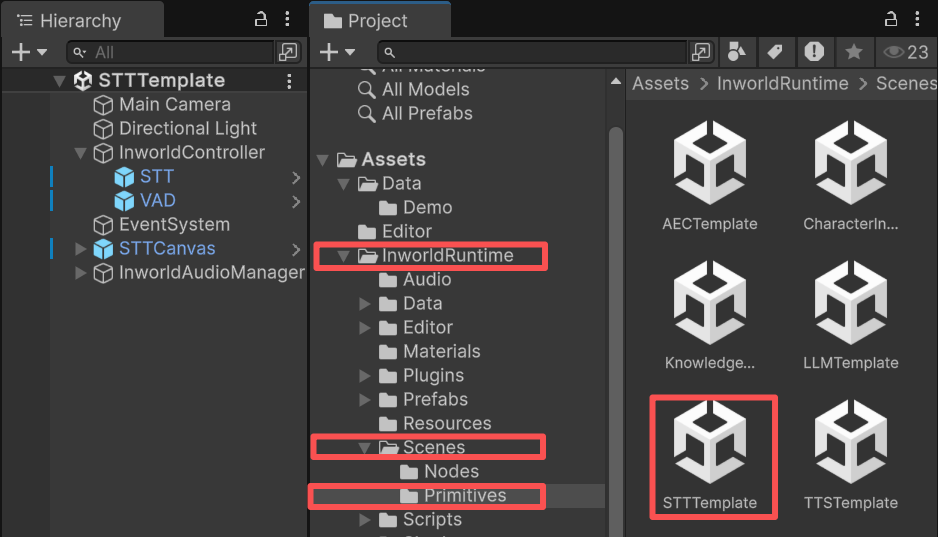
1. Go to `Assets/InworldRuntime/Scenes/Primitives` and play the `STTTemplate` scene.
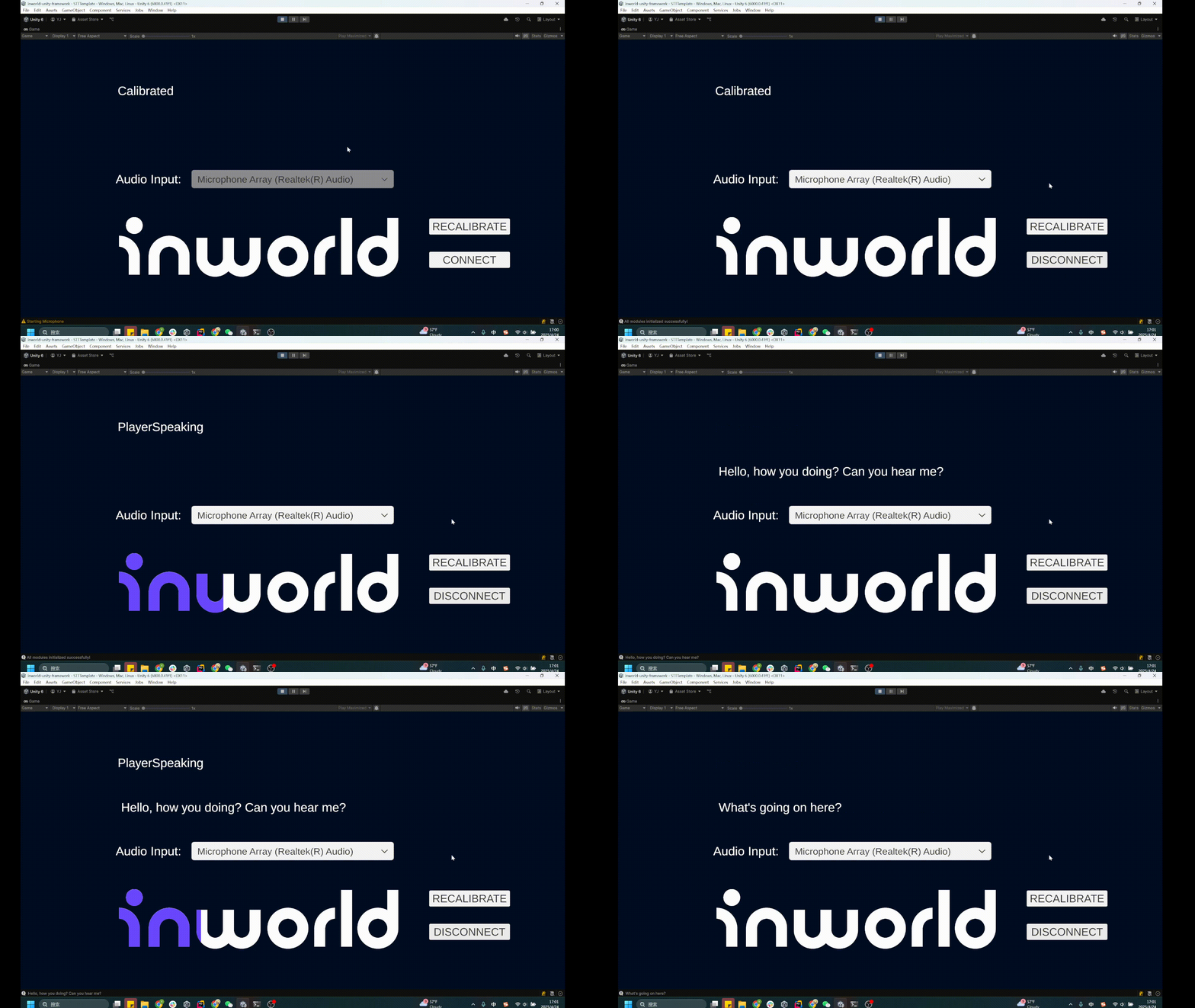
 2. When the game starts, stay quiet for a moment to let the microphone calibrate to background noise.
3. Once you see the `Calibrated` message, speak into the microphone.
4. You'll see the transcribed text appear on screen.
2. When the game starts, stay quiet for a moment to let the microphone calibrate to background noise.
3. Once you see the `Calibrated` message, speak into the microphone.
4. You'll see the transcribed text appear on screen.
 ## Understanding the Template
### Structure
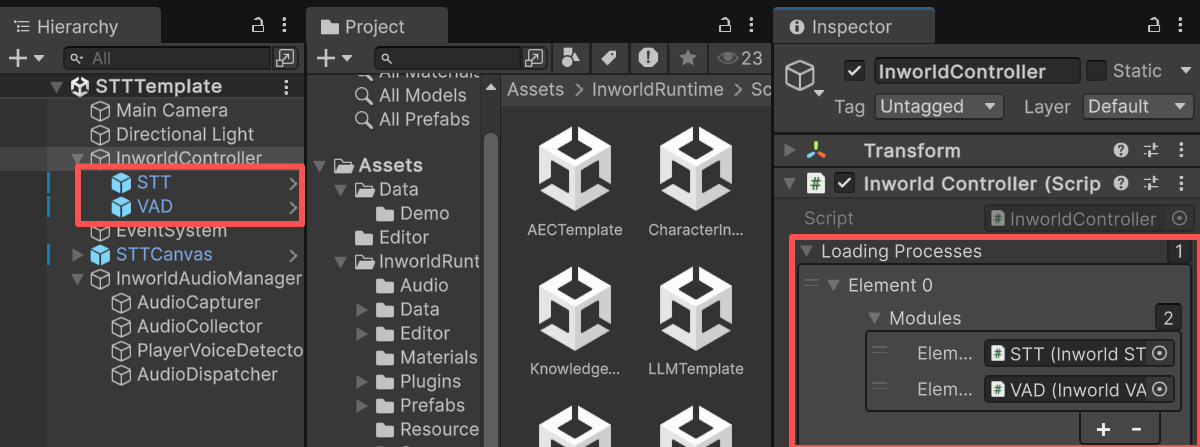
* This demo has two prefabs under `InworldController`: `STT` (contains `InworldSTTModule`) and `VAD` (contains `InworldVADModule`).
* When `InworldController` initializes, it calls `InitializeAsync()` on both modules (see [Primitives Overview](./overview)).
* These functions create `STTFactory` and `VADFactory`, and each factory creates its `STTInterface` or `VADInterface` based on the current `STT/VADConfig`.
## Understanding the Template
### Structure
* This demo has two prefabs under `InworldController`: `STT` (contains `InworldSTTModule`) and `VAD` (contains `InworldVADModule`).
* When `InworldController` initializes, it calls `InitializeAsync()` on both modules (see [Primitives Overview](./overview)).
* These functions create `STTFactory` and `VADFactory`, and each factory creates its `STTInterface` or `VADInterface` based on the current `STT/VADConfig`.
 ### InworldAudioManager
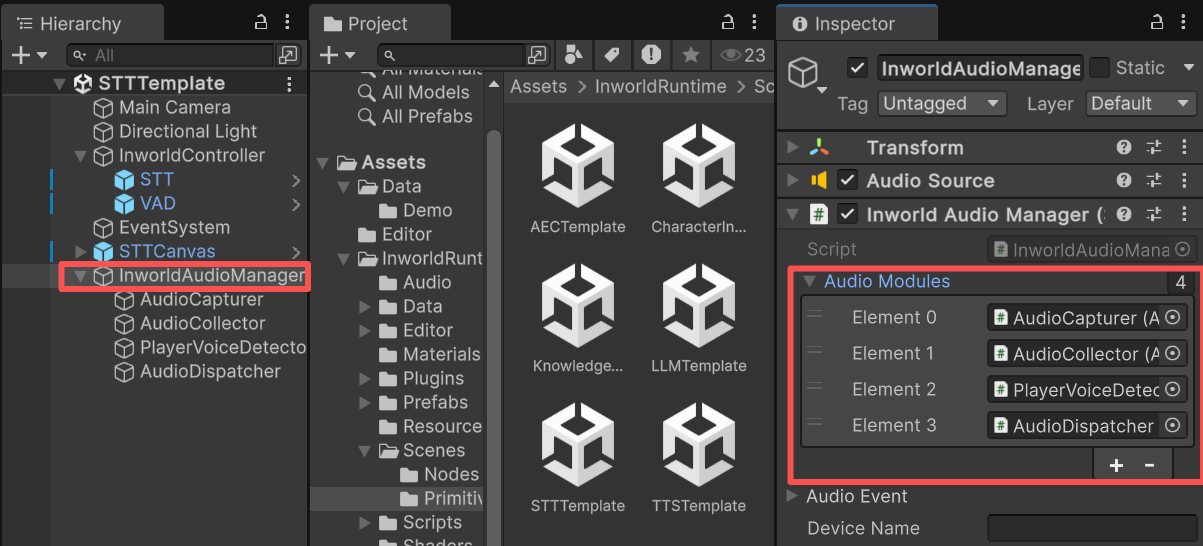
`InworldAudioManager` handles audio processing and is also modular. In this demo, it uses four components:
* **AudioCapturer**: Manages microphone on/off and input devices. Uses Unity's `Microphone` by default, and can be extended via third‑party plugins.
* **AudioCollector**: Collects raw samples from the microphone.
* **PlayerVoiceDetector**: Implements `IPlayerAudioEventHandler` and `ICalibrateAudioHandler` to emit player audio events and decide which timestamped segments to keep from the stream.
For example, `TurnBasedVoiceDetector` automatically pauses capture while the character is speaking to prevent echo.
In this demo, `VoiceActivityDetector` extends `PlayerVoiceDetector` and leverages an AI model to accurately detect when the player is speaking.
* **AudioDispatcher**: Sends the captured microphone data for downstream processing.
### InworldAudioManager
`InworldAudioManager` handles audio processing and is also modular. In this demo, it uses four components:
* **AudioCapturer**: Manages microphone on/off and input devices. Uses Unity's `Microphone` by default, and can be extended via third‑party plugins.
* **AudioCollector**: Collects raw samples from the microphone.
* **PlayerVoiceDetector**: Implements `IPlayerAudioEventHandler` and `ICalibrateAudioHandler` to emit player audio events and decide which timestamped segments to keep from the stream.
For example, `TurnBasedVoiceDetector` automatically pauses capture while the character is speaking to prevent echo.
In this demo, `VoiceActivityDetector` extends `PlayerVoiceDetector` and leverages an AI model to accurately detect when the player is speaking.
* **AudioDispatcher**: Sends the captured microphone data for downstream processing.
 ### Workflow
**Audio Thread:**\
At startup, the microphone calibrates to background noise.
The VAD (Voice Activity Detection) module listens for speech, and when speech is detected, the `AudioDispatcher` streams audio frames to the STT module.
Both partial and final transcriptions are produced and displayed in the UI.
Since this section mainly covers STT, detailed explanations about audio capture will be described later.
**Main Thread:**\
In this demo's `STTCanvas`, each audio-thread event is registered in the `OnEnable` method.
Certain simple events, such as starting or stopping calibration, are handled directly (for example, updating on-screen text):
```c# STTCanvas.cs theme={"system"}
void OnEnable()
{
if (!m_Audio)
return;
m_Audio.Event.onStartCalibrating.AddListener(() => Title("Calibrating"));
m_Audio.Event.onStopCalibrating.AddListener(Calibrated);
m_Audio.Event.onPlayerStartSpeaking.AddListener(() => Title("PlayerSpeaking"));
m_Audio.Event.onPlayerStopSpeaking.AddListener(() =>
{
Title("");
if (m_STTResult)
m_STTResult.text = "";
});
m_Audio.Event.onAudioSent.AddListener((audioData) =>
{
AudioChunk chunk = new AudioChunk();
InworldVector floatArray = new InworldVector();
foreach (float data in audioData)
{
floatArray.Add(data);
}
chunk.SampleRate = 16000;
chunk.Data = floatArray;
_ = InworldController.STT.RecognizeSpeechAsync(chunk);
});
InworldController.Instance.OnFrameworkInitialized += OnFrameworkInitialized;
InworldController.STT.OnTaskFinished += OnSpeechRecognized;
}
```
When the `onAudioSent` event is received, we assemble the audio data into an `AudioChunk`—the audio should be resampled to mono with a sample rate of 16,000 Hz—and call `InworldController.STT.RecognizeSpeechAsync()`.
This function checks whether the STT module exists and has been initialized (i.e., the `STTInterface` is valid).
If so, it directly calls `sttInterface.RecognizeSpeech`, returns the transcription string, and displays it on the `STTCanvas`.
```c# InworldController.cs theme={"system"}
public async Awaitable RecognizeSpeechAsync(AudioChunk audioChunk)
{
string result = "";
if (!Initialized || !(m_Interface is STTInterface sttInterface))
return result;
m_SpeechRecognitionConfig ??= new SpeechRecognitionConfig();
if (m_InputStream != null)
{
m_InputStream.Dispose();
m_InputStream = null;
}
m_InputStream ??= sttInterface.RecognizeSpeech(audioChunk, m_SpeechRecognitionConfig);
...
```
### Workflow
**Audio Thread:**\
At startup, the microphone calibrates to background noise.
The VAD (Voice Activity Detection) module listens for speech, and when speech is detected, the `AudioDispatcher` streams audio frames to the STT module.
Both partial and final transcriptions are produced and displayed in the UI.
Since this section mainly covers STT, detailed explanations about audio capture will be described later.
**Main Thread:**\
In this demo's `STTCanvas`, each audio-thread event is registered in the `OnEnable` method.
Certain simple events, such as starting or stopping calibration, are handled directly (for example, updating on-screen text):
```c# STTCanvas.cs theme={"system"}
void OnEnable()
{
if (!m_Audio)
return;
m_Audio.Event.onStartCalibrating.AddListener(() => Title("Calibrating"));
m_Audio.Event.onStopCalibrating.AddListener(Calibrated);
m_Audio.Event.onPlayerStartSpeaking.AddListener(() => Title("PlayerSpeaking"));
m_Audio.Event.onPlayerStopSpeaking.AddListener(() =>
{
Title("");
if (m_STTResult)
m_STTResult.text = "";
});
m_Audio.Event.onAudioSent.AddListener((audioData) =>
{
AudioChunk chunk = new AudioChunk();
InworldVector floatArray = new InworldVector();
foreach (float data in audioData)
{
floatArray.Add(data);
}
chunk.SampleRate = 16000;
chunk.Data = floatArray;
_ = InworldController.STT.RecognizeSpeechAsync(chunk);
});
InworldController.Instance.OnFrameworkInitialized += OnFrameworkInitialized;
InworldController.STT.OnTaskFinished += OnSpeechRecognized;
}
```
When the `onAudioSent` event is received, we assemble the audio data into an `AudioChunk`—the audio should be resampled to mono with a sample rate of 16,000 Hz—and call `InworldController.STT.RecognizeSpeechAsync()`.
This function checks whether the STT module exists and has been initialized (i.e., the `STTInterface` is valid).
If so, it directly calls `sttInterface.RecognizeSpeech`, returns the transcription string, and displays it on the `STTCanvas`.
```c# InworldController.cs theme={"system"}
public async Awaitable RecognizeSpeechAsync(AudioChunk audioChunk)
{
string result = "";
if (!Initialized || !(m_Interface is STTInterface sttInterface))
return result;
m_SpeechRecognitionConfig ??= new SpeechRecognitionConfig();
if (m_InputStream != null)
{
m_InputStream.Dispose();
m_InputStream = null;
}
m_InputStream ??= sttInterface.RecognizeSpeech(audioChunk, m_SpeechRecognitionConfig);
...
```