> ## Documentation Index
> Fetch the complete documentation index at: https://docs.inworld.ai/llms.txt
> Use this file to discover all available pages before exploring further.
# Build Graphs with the Graph Editor
Everything you can do in the Graph Editor can also be achieved by creating, editing, or removing `ScriptableObject` assets.
In highly customized scenarios, configuring via `ScriptableObjects` may offer finer control (for example, defining your own fields).
The Graph Editor, however, is faster and requires less code.
## Create a Graph
You still need to create a `ScriptableObject` for your graph.
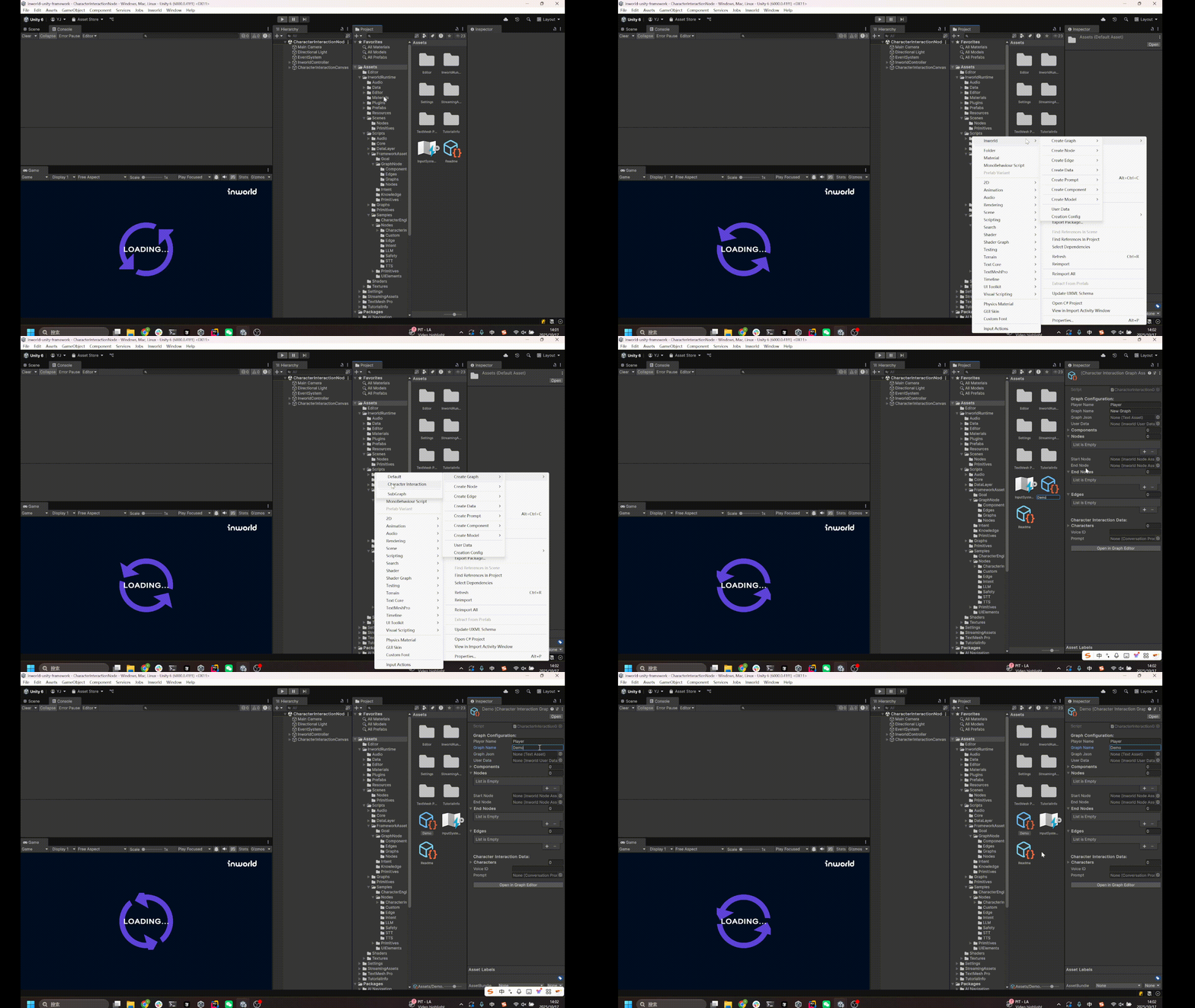
In the Project tab, right‑click and choose "Create > Inworld > Graph > Default" or "Character Interaction".
 ## Fill in Required Fields
Do not open the Graph Editor yet.
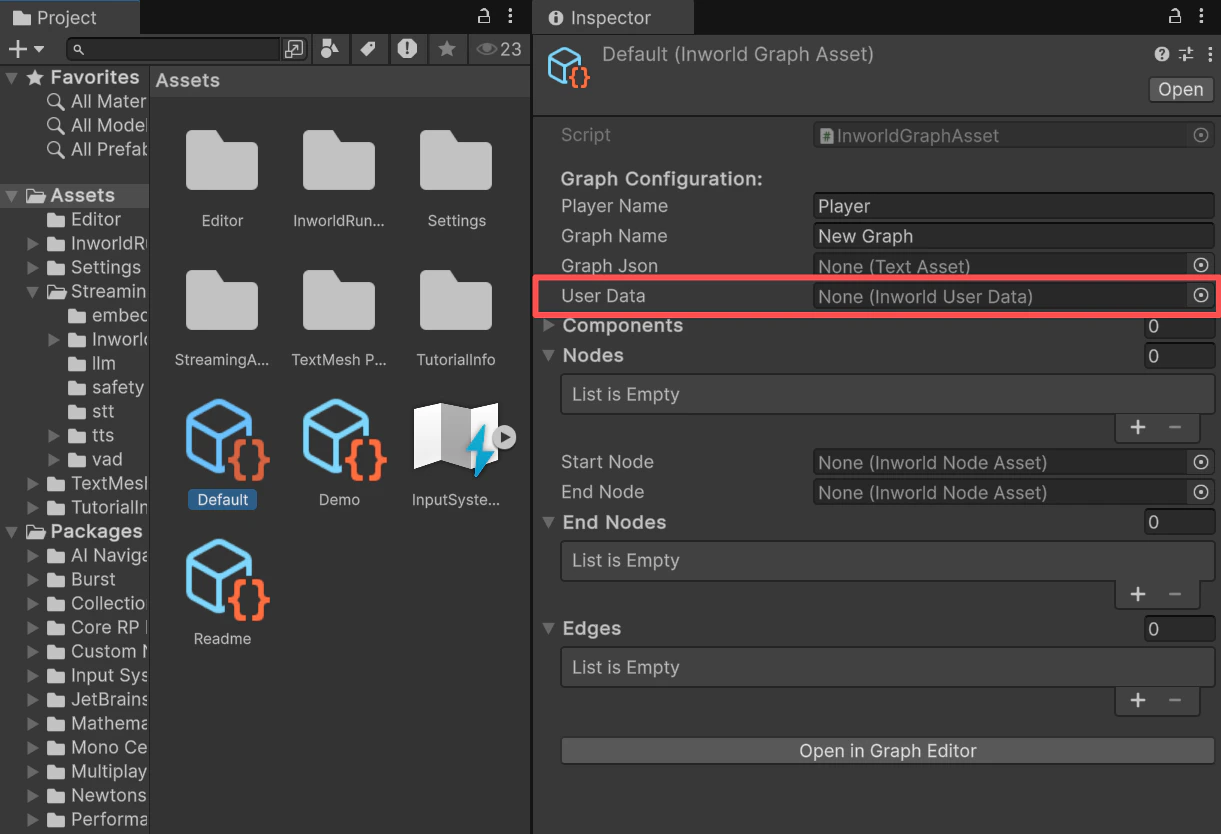
First, fill in some required fields, otherwise the graph will not run.
The Default Graph is suitable for general tasks that are not related to character interaction.
You can also inherit from Default Graph to implement more customized functionality.
UserData is required.
## Fill in Required Fields
Do not open the Graph Editor yet.
First, fill in some required fields, otherwise the graph will not run.
The Default Graph is suitable for general tasks that are not related to character interaction.
You can also inherit from Default Graph to implement more customized functionality.
UserData is required.
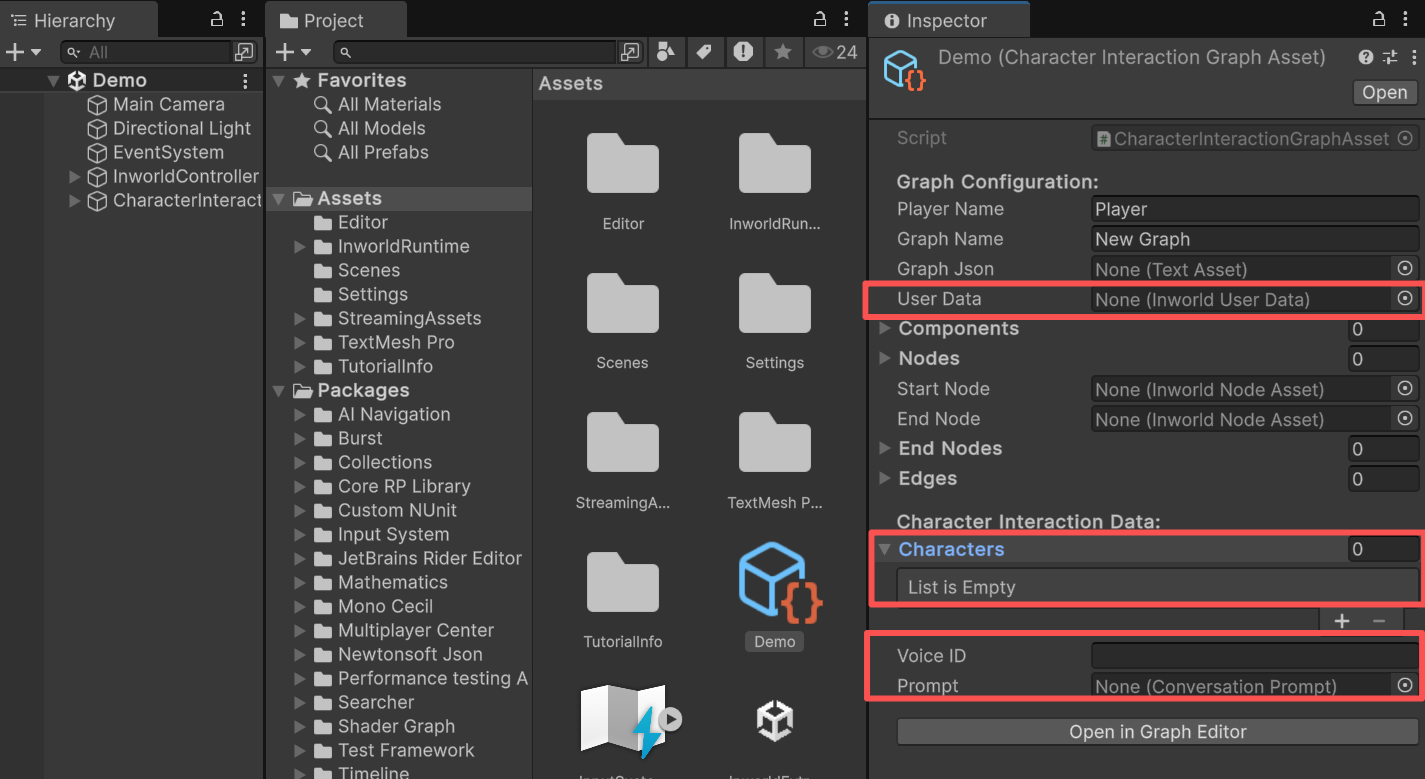
 The Character Interaction Graph inherits from Default Graph.
It is a template focused on character interaction.
In addition to UserData, it has a mandatory field: CharacterData.
If you plan to use a TTS node, also fill in the `Voice ID`.
If you plan to use an LLM node, provide a `Prompt`.
The Character Interaction Graph inherits from Default Graph.
It is a template focused on character interaction.
In addition to UserData, it has a mandatory field: CharacterData.
If you plan to use a TTS node, also fill in the `Voice ID`.
If you plan to use an LLM node, provide a `Prompt`.
 Once these are set, you can open the Graph Editor.
## Zoom in Zoom out and Move Graph
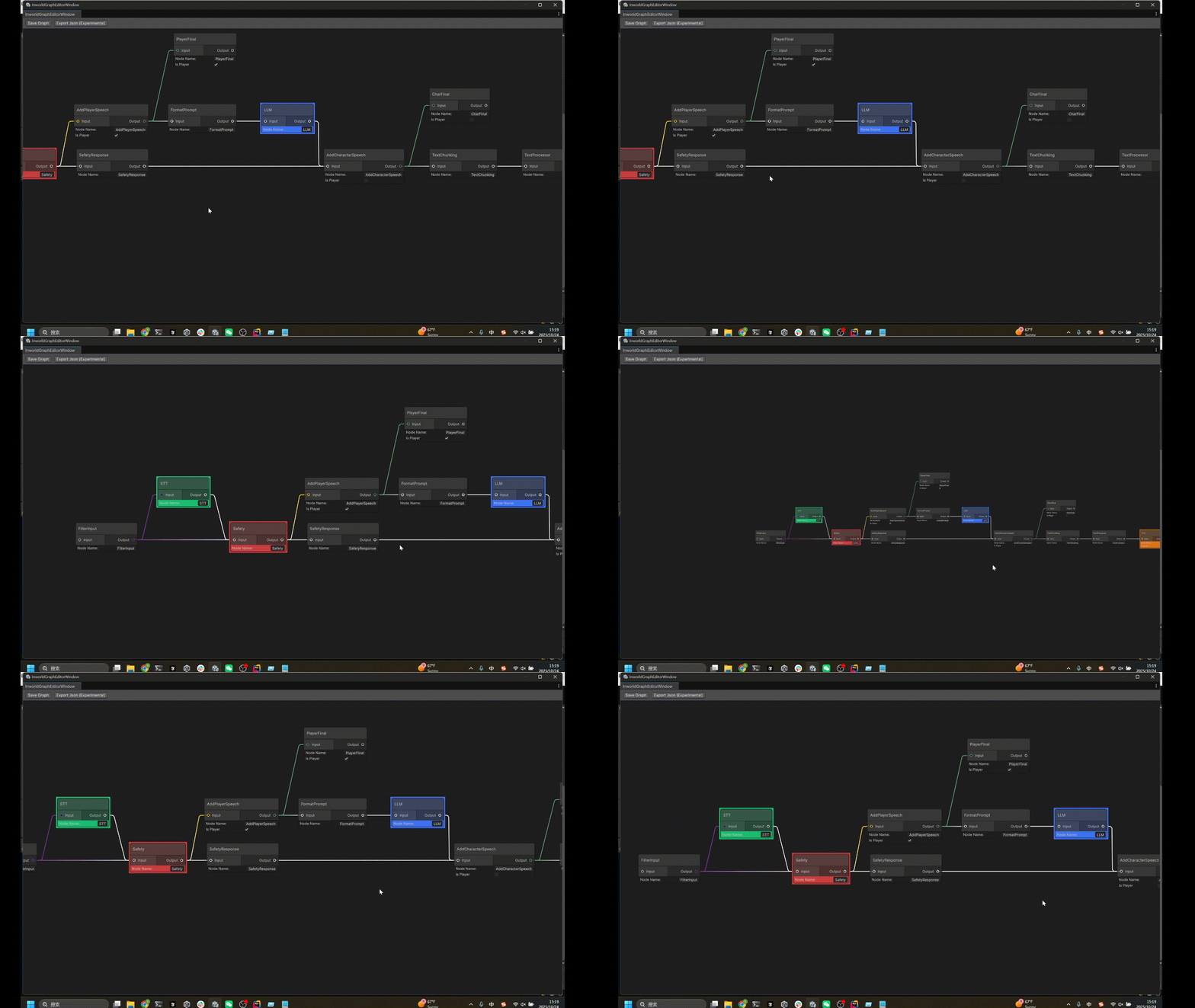
You can scroll the mouse wheel to zoom in and zoom out.
You can press and hold the mouse wheel to move around.
Once these are set, you can open the Graph Editor.
## Zoom in Zoom out and Move Graph
You can scroll the mouse wheel to zoom in and zoom out.
You can press and hold the mouse wheel to move around.
 ## Create a Node
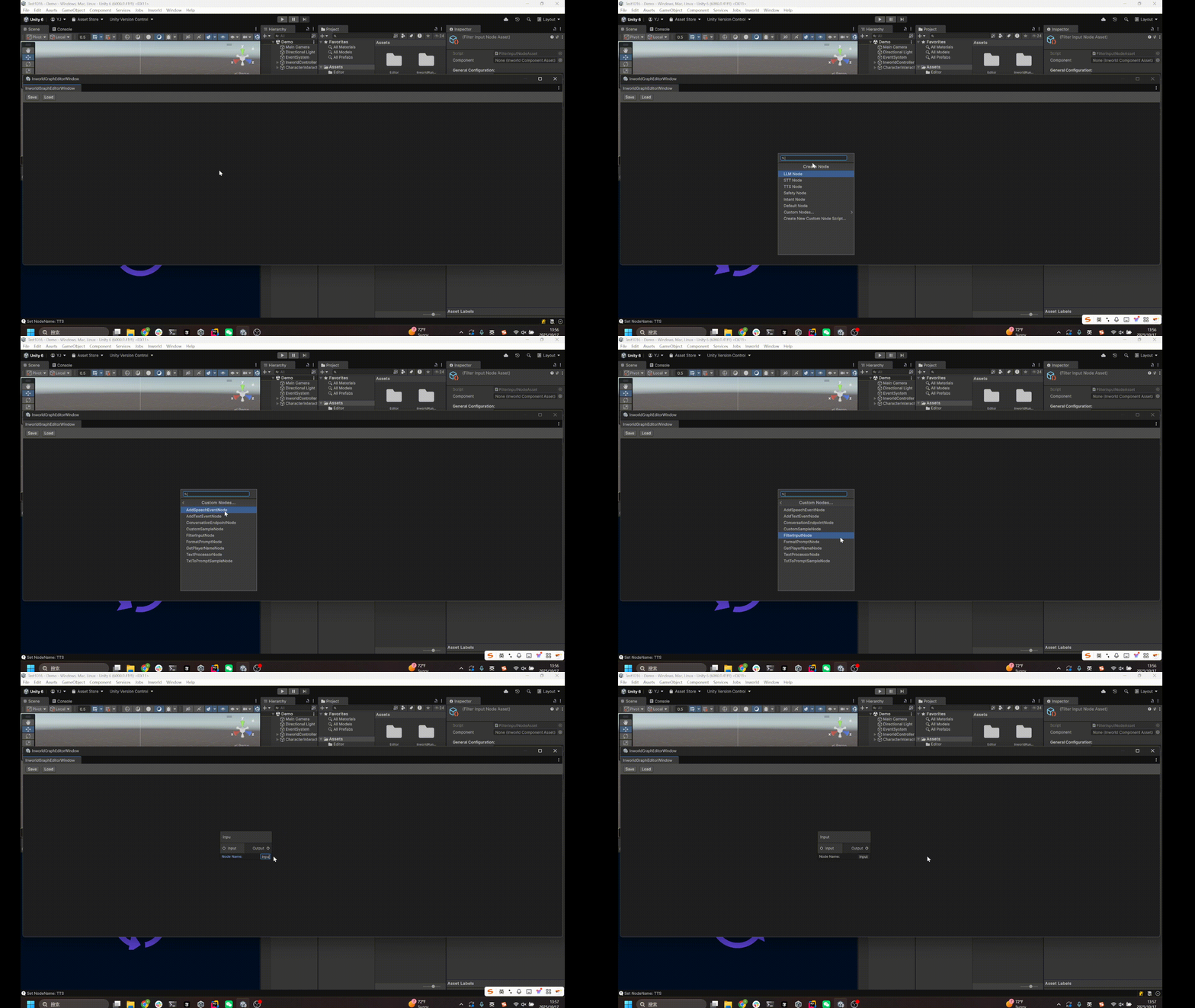
After opening the Graph Editor, right‑click inside the canvas and select `Create Node`.
You can add an Inworld node, or open Custom Nodes to add an existing custom node.
## Create a Node
After opening the Graph Editor, right‑click inside the canvas and select `Create Node`.
You can add an Inworld node, or open Custom Nodes to add an existing custom node.
 ## Create a New Custom Node Type
While adding a node, you can also select `Create New Custom Node Script`.
A dialog will appear asking for a file name and a path.
Click `Create` to proceed.
If the IDE configured for your Unity Editor is already open, it will switch to that IDE and open the newly created file.
## Create a New Custom Node Type
While adding a node, you can also select `Create New Custom Node Script`.
A dialog will appear asking for a file name and a path.
Click `Create` to proceed.
If the IDE configured for your Unity Editor is already open, it will switch to that IDE and open the newly created file.
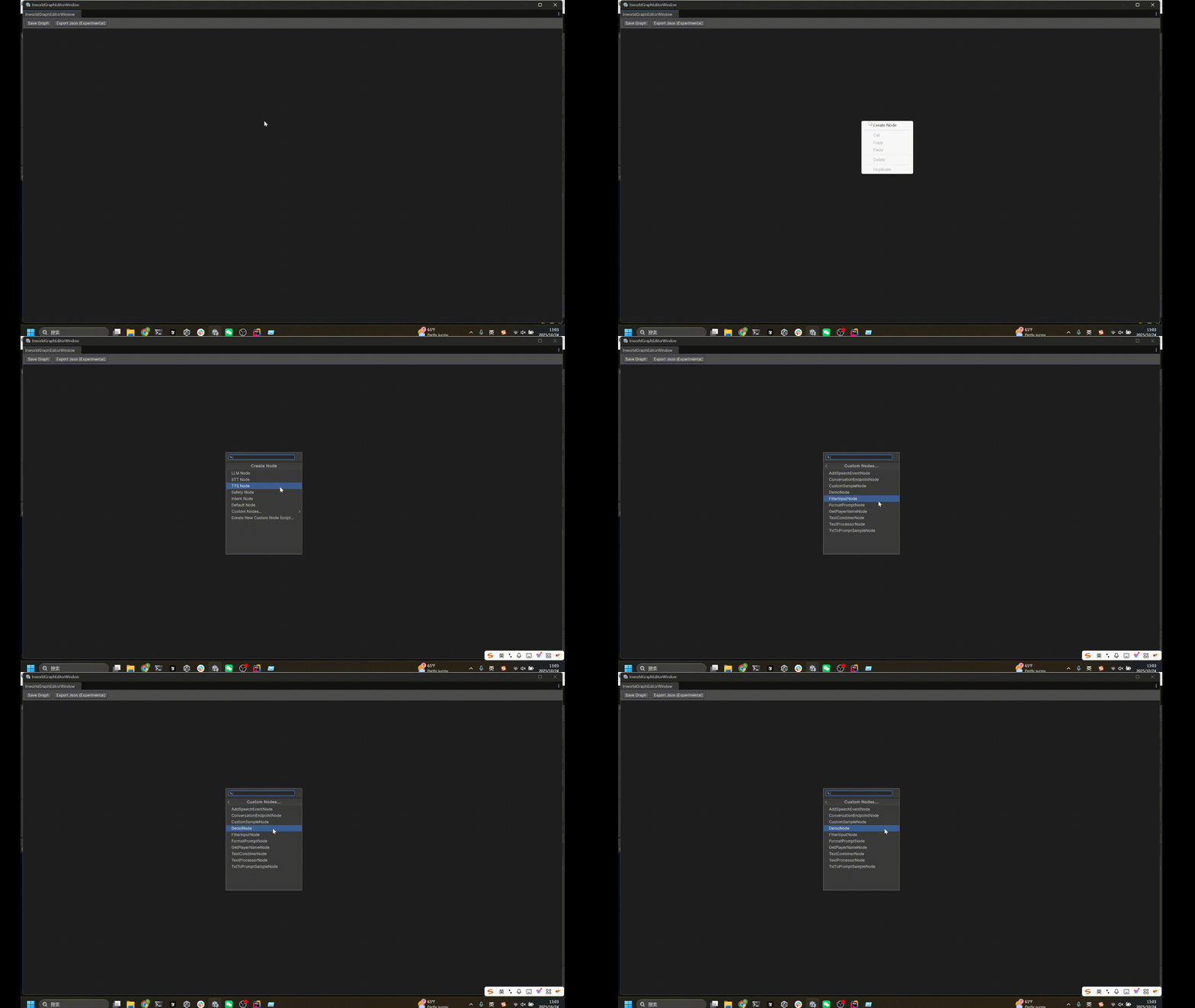
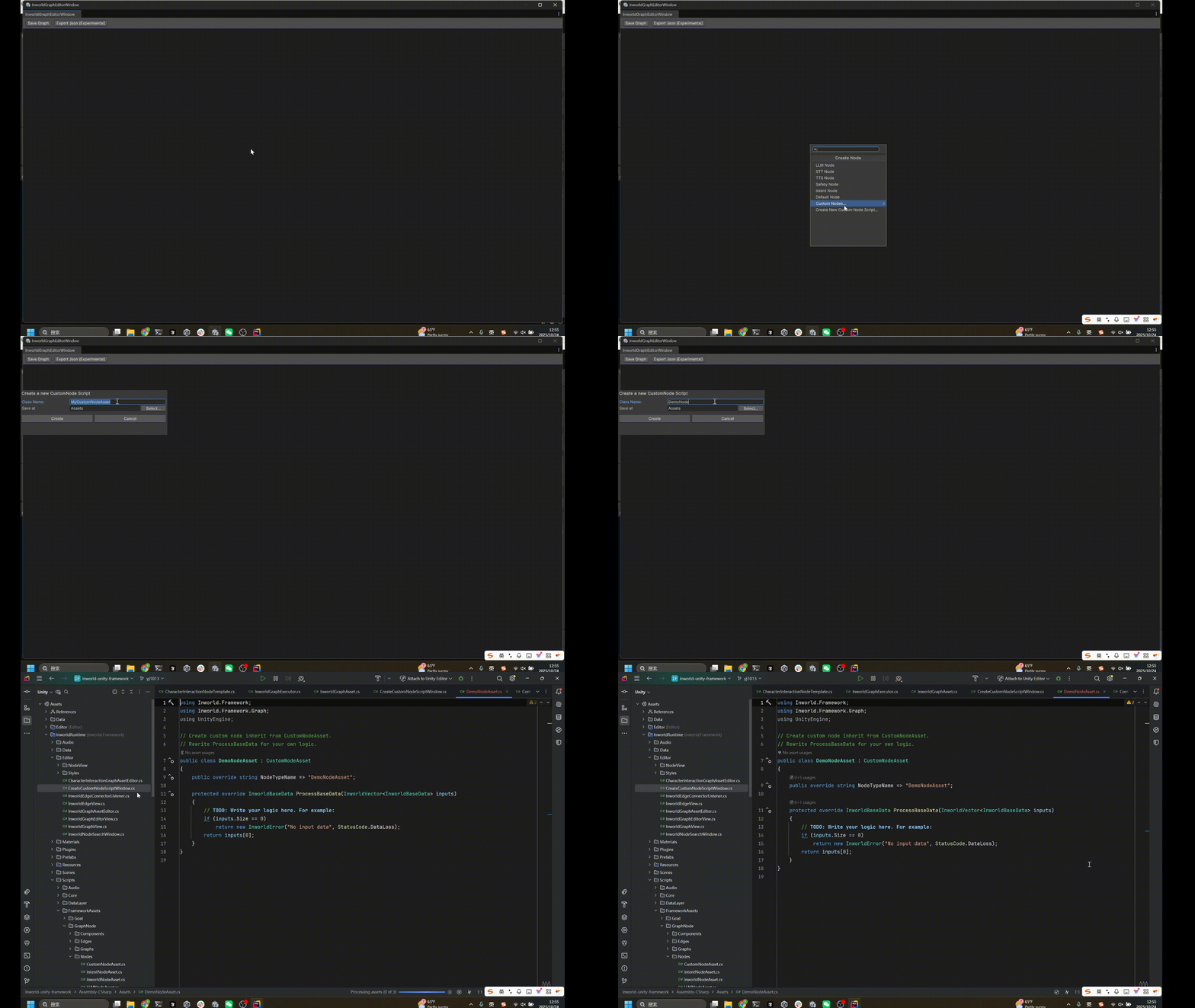 After that, reopen the Graph Editor and you will find your new custom node under Custom Nodes.
 ## Create an Edge
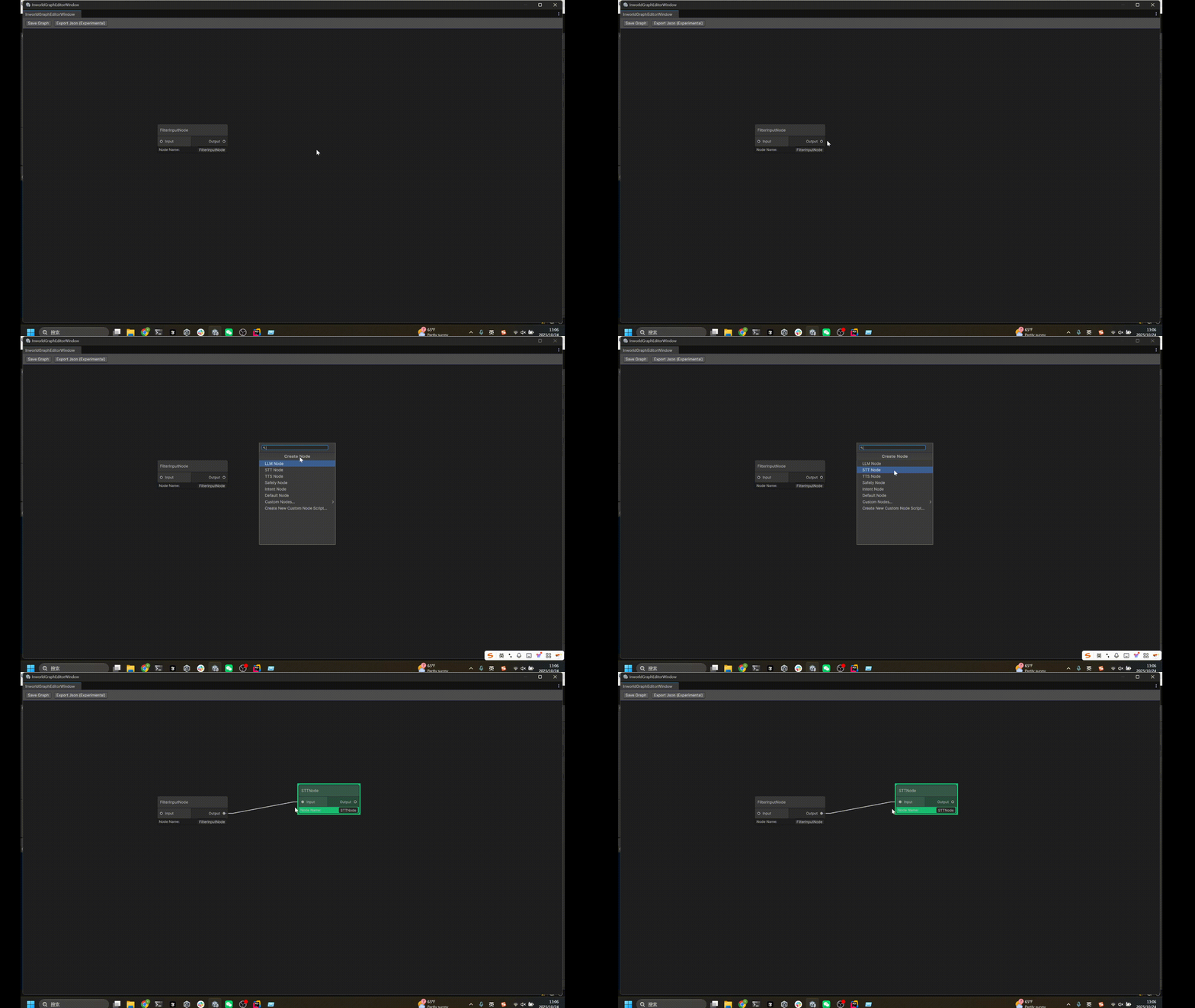
Drag from an output port of one node to an input port of another node to automatically create an edge.
## Create an Edge
Drag from an output port of one node to an input port of another node to automatically create an edge.
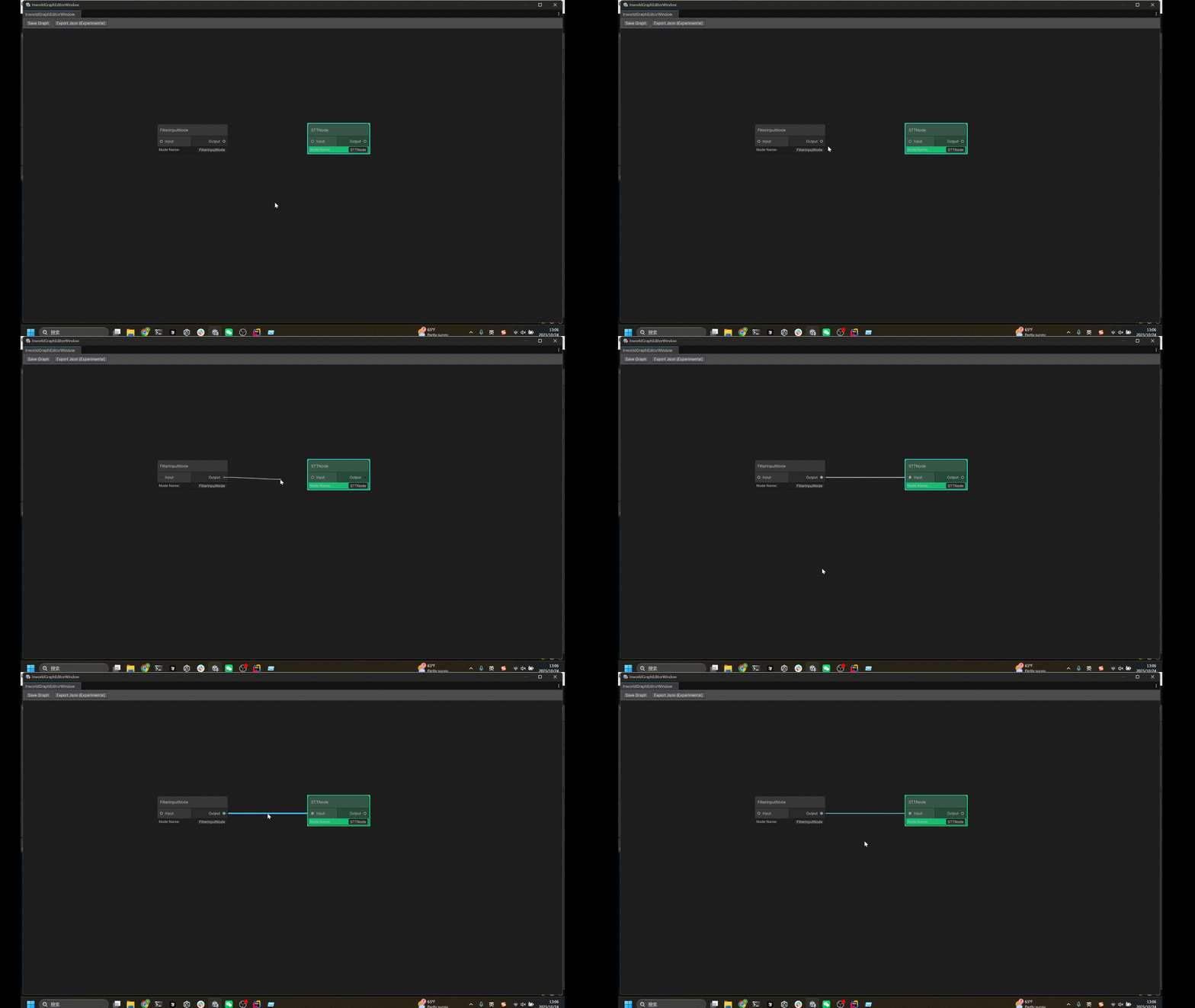 You can also drag out from an output port into empty space.
The editor will open the Create Node dialog; after you select a node to create, an edge will be created automatically between the two nodes.
You can also drag out from an output port into empty space.
The editor will open the Create Node dialog; after you select a node to create, an edge will be created automatically between the two nodes.
 ## Change Edge Type
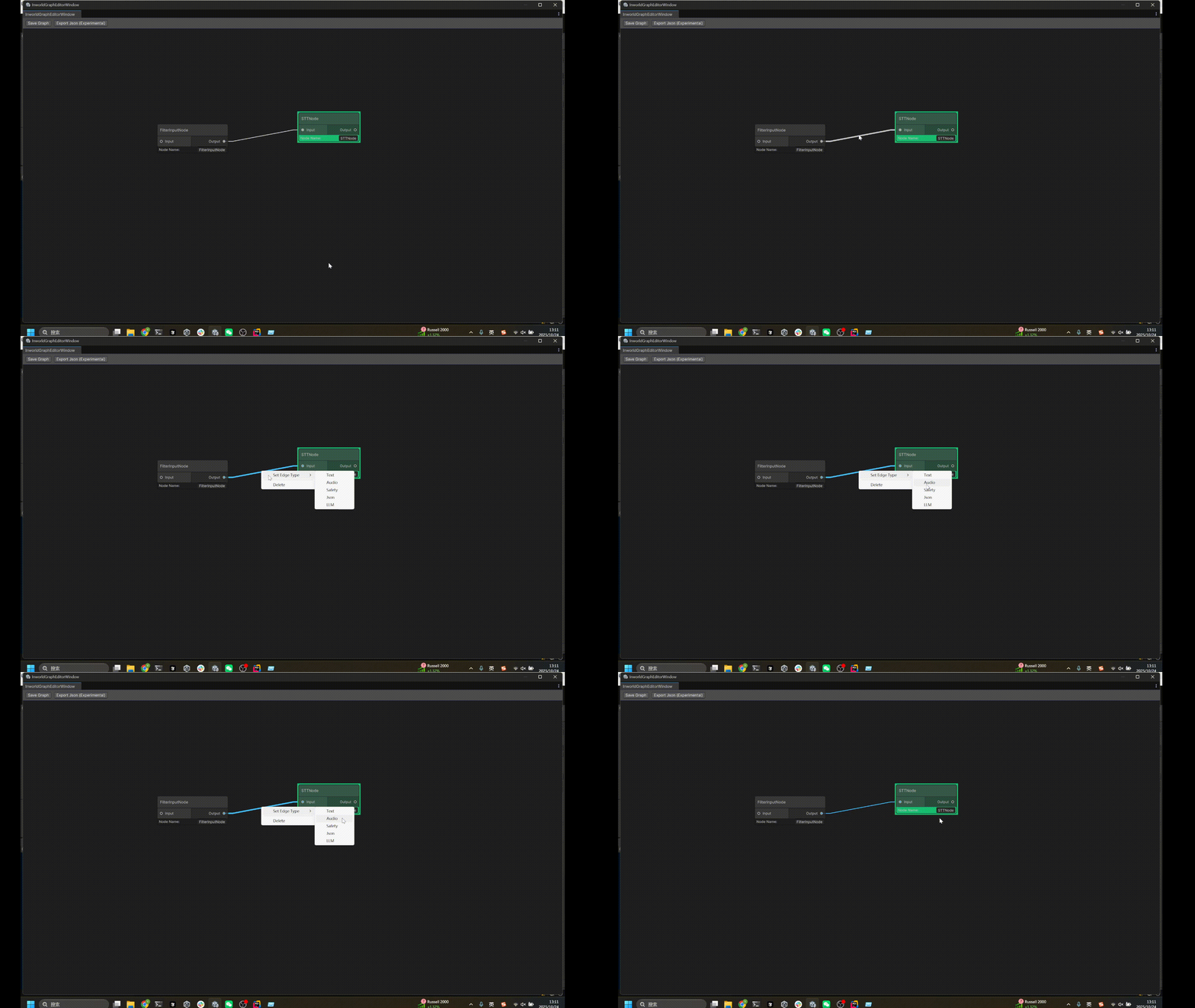
Right‑click an edge to choose its type.
The editor currently only provides a set of predefined edge types.
If you want to create your own edge type, this is not yet supported within the Graph Editor.
Locate the corresponding `EdgeAsset` in your project and replace it with your custom ScriptableObject `EdgeAsset`.
## Change Edge Type
Right‑click an edge to choose its type.
The editor currently only provides a set of predefined edge types.
If you want to create your own edge type, this is not yet supported within the Graph Editor.
Locate the corresponding `EdgeAsset` in your project and replace it with your custom ScriptableObject `EdgeAsset`.
 ## Delete Nodes or Edges
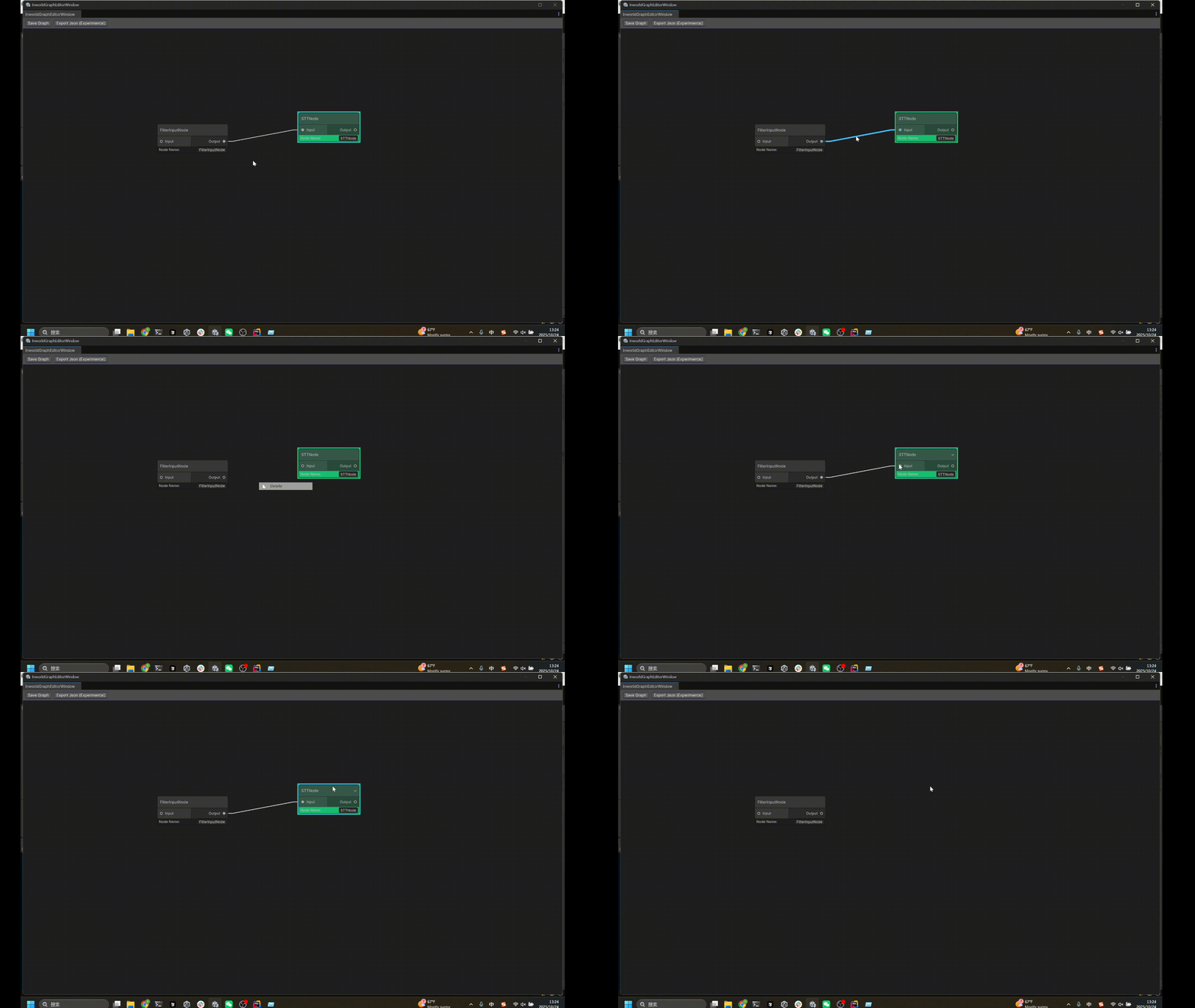
Select an edge and either `Right‑click > Delete` or press the `Delete` key.
Select a node and press the `Delete` key to remove it.
When you delete a node, any edges that can no longer connect will also be removed.
## Delete Nodes or Edges
Select an edge and either `Right‑click > Delete` or press the `Delete` key.
Select a node and press the `Delete` key to remove it.
When you delete a node, any edges that can no longer connect will also be removed.
 ## Save the Graph
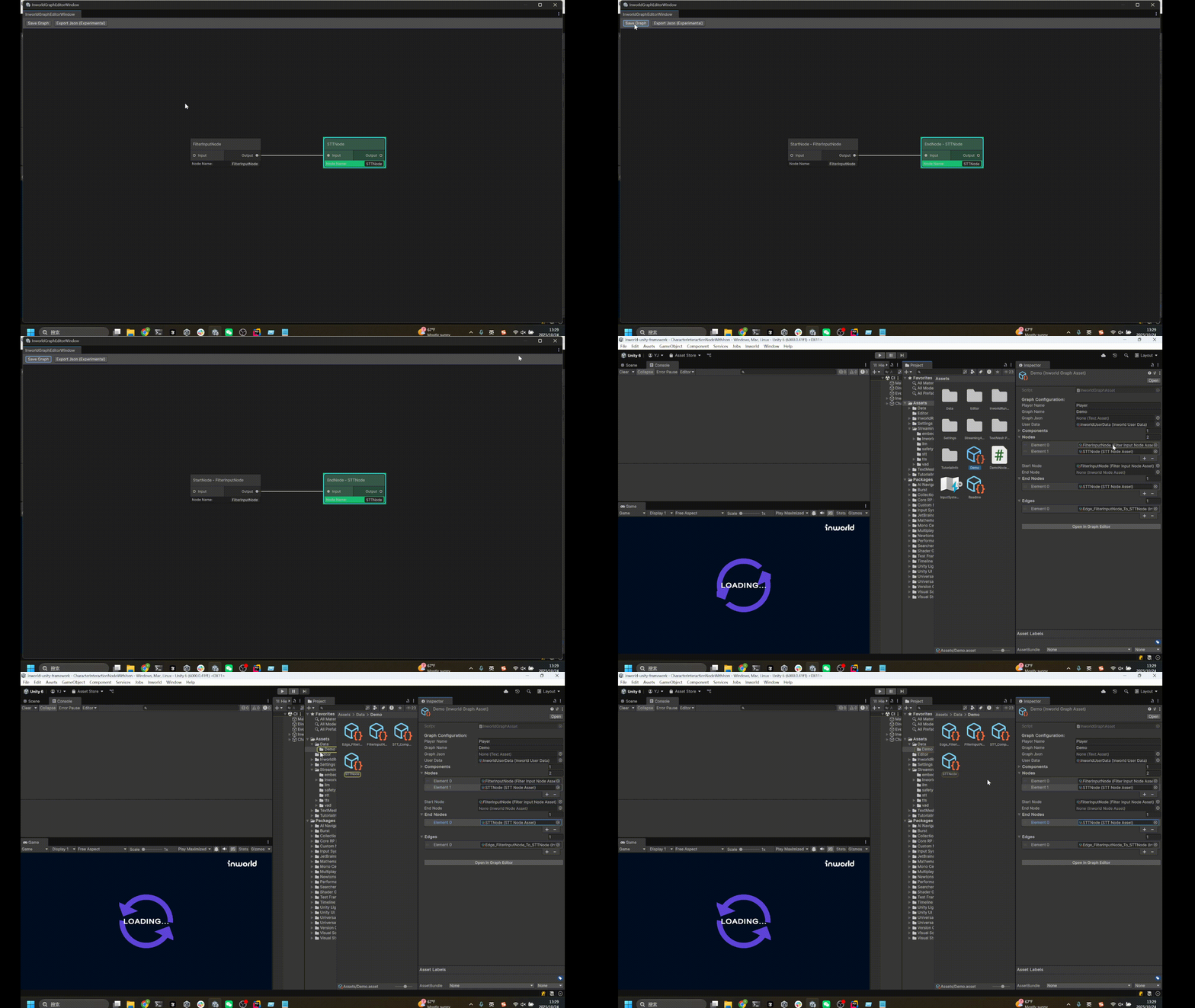
Click Save Graph in the top left to save your changes to the current graph.
You can also press "Ctrl + S" to do the same.
After saving, ScriptableObjects for the nodes and edges are generated under `Assets/Data/{Your graph name}`.
The Start and End nodes are also computed and set automatically.
## Save the Graph
Click Save Graph in the top left to save your changes to the current graph.
You can also press "Ctrl + S" to do the same.
After saving, ScriptableObjects for the nodes and edges are generated under `Assets/Data/{Your graph name}`.
The Start and End nodes are also computed and set automatically.
 ## Export JSON
You can also click `Save Json` to generate a JSON representation of the graph.
This feature is experimental; some component settings may be incomplete and may need to be filled in manually.
## Export JSON
You can also click `Save Json` to generate a JSON representation of the graph.
This feature is experimental; some component settings may be incomplete and may need to be filled in manually.