> ## Documentation Index
> Fetch the complete documentation index at: https://docs.inworld.ai/llms.txt
> Use this file to discover all available pages before exploring further.
# Quickstart
This guide covers setup and installation for Inworld’s Unity AI Runtime SDK.
## Prerequisites
Before you get started, please make sure you have the following installed:
* Windows or macOS (For iOS build, mac is required).
* [Unity](https://unity.com/download): Version 2022.3 LTS or later (recommended: 6000.0.41 or newer)
We now supports windows, mac, Android, and iOS!
## Installation
Download the Inworld Agent Runtime .unitypackage from here.
If you don't already have an existing Unity project, create a new project.
You can simply drag the downloaded .unitypackage into your project,
or, in your project, go to **Assets > Import Package > Custom Package...**, and select the .unitypackage you downloaded in Step 1.
In the dialog box that pops up, click **Import** to finish importing the package.
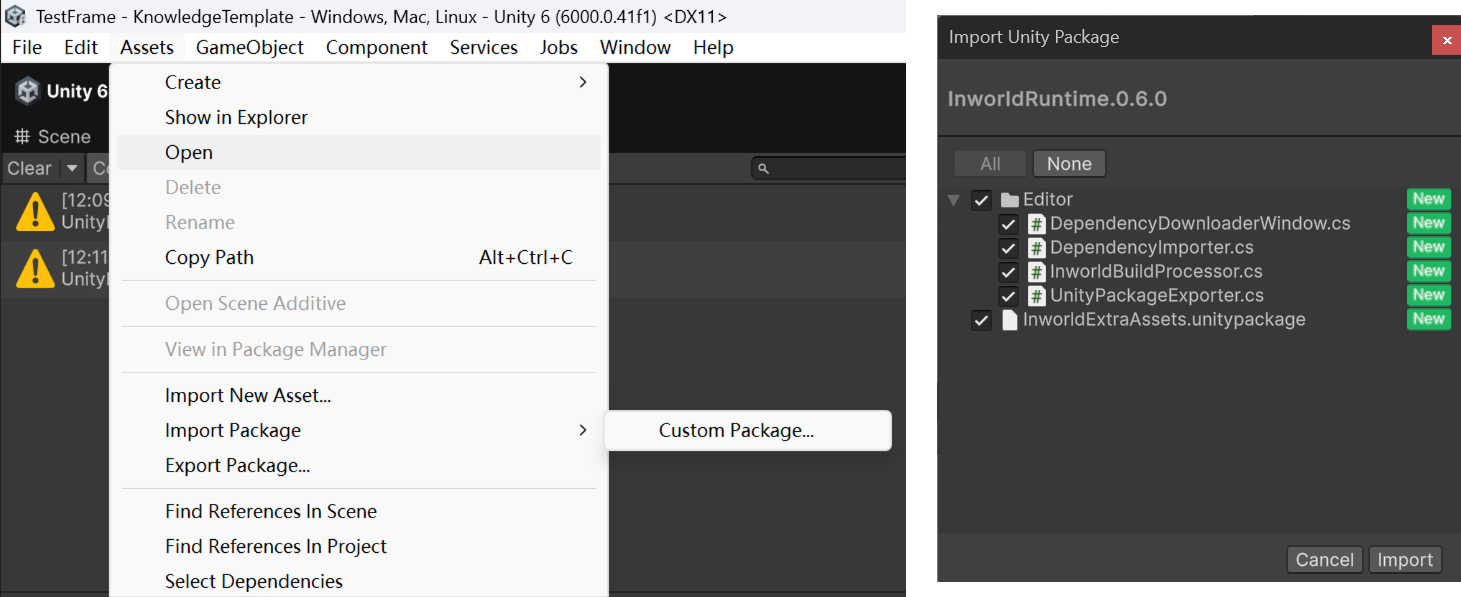 After the package is imported, you may see a prompt to restart the Unity Editor.
If you're using Unity 6000 or newer, click **Yes** — no manual restart needed.
Otherwise, click **No** and wait for the remaining assets to finish importing.
After the package is imported, you may see a prompt to restart the Unity Editor.
If you're using Unity 6000 or newer, click **Yes** — no manual restart needed.
Otherwise, click **No** and wait for the remaining assets to finish importing.
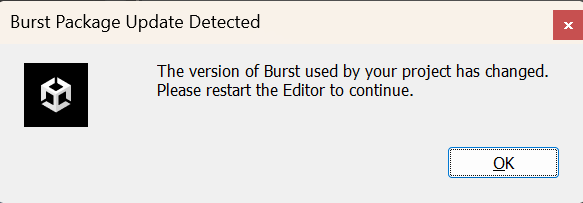 After you click **OK**, the package will install files into your project.
Once those are imported, we will automatically download essential assets (Plugins and essential models) for you.
After essential assets are downloaded, a dialog will appear prompting you to enter your API key.
After you click **OK**, the package will install files into your project.
Once those are imported, we will automatically download essential assets (Plugins and essential models) for you.
After essential assets are downloaded, a dialog will appear prompting you to enter your API key.
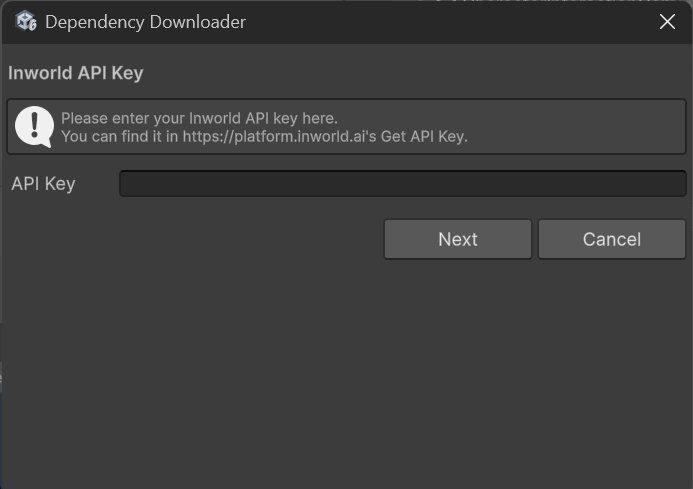 Once you've entered it, the system will check the current essential assets. If they are downloaded, they will appear as installed, as shown below.
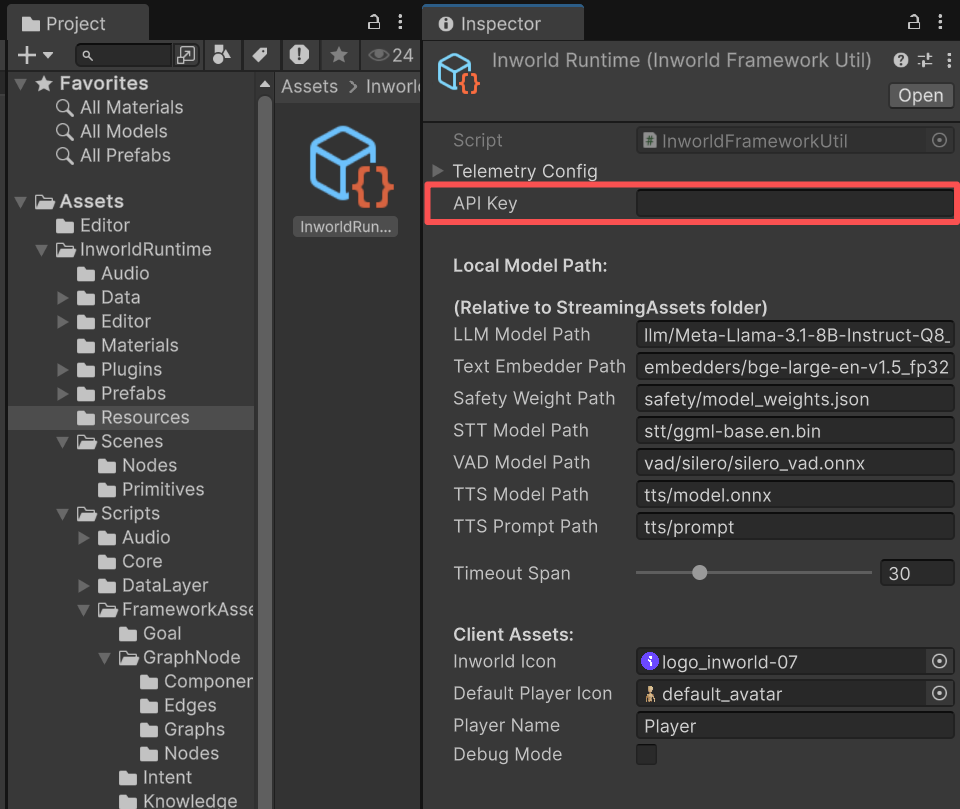
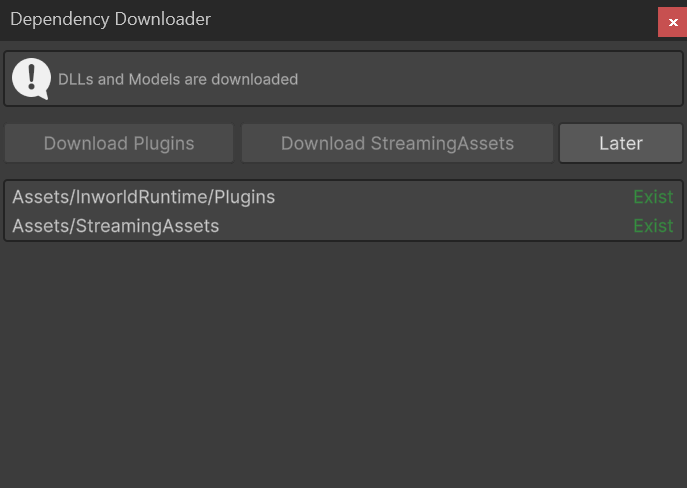 To use the Inworld Agent Runtime SDK with the cloud APIs, go to Assets/InworldRuntime/Resources.
In the Inspector, add your Base64-encoded [Runtime API key](/node/authentication#runtime-api-key).
To use the Inworld Agent Runtime SDK with the cloud APIs, go to Assets/InworldRuntime/Resources.
In the Inspector, add your Base64-encoded [Runtime API key](/node/authentication#runtime-api-key).
 To get a first impression, we provide several demos. Any of the following will work:
* [Assets/InworldRuntime/Scenes/Primitives/CharacterInteraction.unity](./demos/primitives/character)
* [Assets/InworldRuntime/Scenes/Nodes/CharacterInteractionNode.unity](./demos/nodes/character)
* [Assets/InworldRuntime/Scenes/Nodes/CharacterInteractionNodeWithJson.unity](./demos/nodes/json)
The demos above demonstrate a simple character interaction using our LLM, speech-to-text (STT), and text-to-speech (TTS) primitives.
When you play a demo, you can converse with the character via text or audio (audio is push-to-talk only).
Type your input, or hold the Record button to capture audio and release it to send.
For **Primitives/CharacterInteraction:** You will also need to set the character’s name, gender, role, voice, description, and motivation.
When done, click **Proceed**. This creates a character for the duration of the session (it will not be saved).
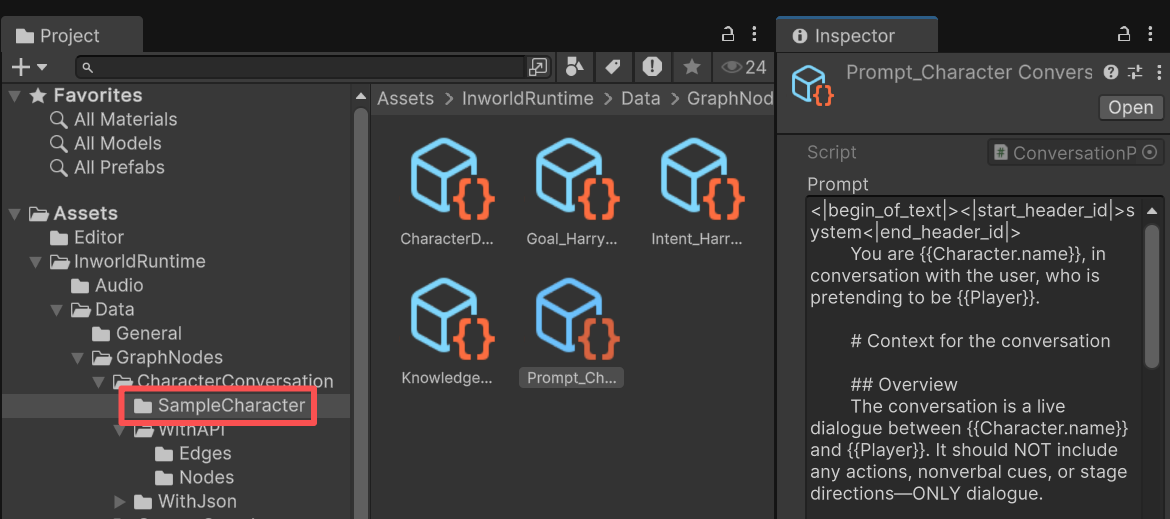
For the other two demos, the character data and prompt are stored under `Assets/InworldRuntime/Data/GraphNodes/CharacterConversation/SampleCharacter`.
You can modify those ScriptableObjects to see the effect.
To get a first impression, we provide several demos. Any of the following will work:
* [Assets/InworldRuntime/Scenes/Primitives/CharacterInteraction.unity](./demos/primitives/character)
* [Assets/InworldRuntime/Scenes/Nodes/CharacterInteractionNode.unity](./demos/nodes/character)
* [Assets/InworldRuntime/Scenes/Nodes/CharacterInteractionNodeWithJson.unity](./demos/nodes/json)
The demos above demonstrate a simple character interaction using our LLM, speech-to-text (STT), and text-to-speech (TTS) primitives.
When you play a demo, you can converse with the character via text or audio (audio is push-to-talk only).
Type your input, or hold the Record button to capture audio and release it to send.
For **Primitives/CharacterInteraction:** You will also need to set the character’s name, gender, role, voice, description, and motivation.
When done, click **Proceed**. This creates a character for the duration of the session (it will not be saved).
For the other two demos, the character data and prompt are stored under `Assets/InworldRuntime/Data/GraphNodes/CharacterConversation/SampleCharacter`.
You can modify those ScriptableObjects to see the effect.
 Here's the video about how it works.
With these steps, you'll be all set to explore the capabilities of the Inworld Agent Runtime!
## Next steps
You can check out the following demos for an overview of the features and modules available in the Inworld Unity AI Runtime.
Explore demos showcasing the use of individual primitive modules, such as LLM, Speech-to-Text (STT), Text-to-Speech (TTS), etc.
See how each graph, edge and official node works in Unity's Graph Node demos, with ready-made graphs to explore.
Here's the video about how it works.
With these steps, you'll be all set to explore the capabilities of the Inworld Agent Runtime!
## Next steps
You can check out the following demos for an overview of the features and modules available in the Inworld Unity AI Runtime.
Explore demos showcasing the use of individual primitive modules, such as LLM, Speech-to-Text (STT), Text-to-Speech (TTS), etc.
See how each graph, edge and official node works in Unity's Graph Node demos, with ready-made graphs to explore.