Overview
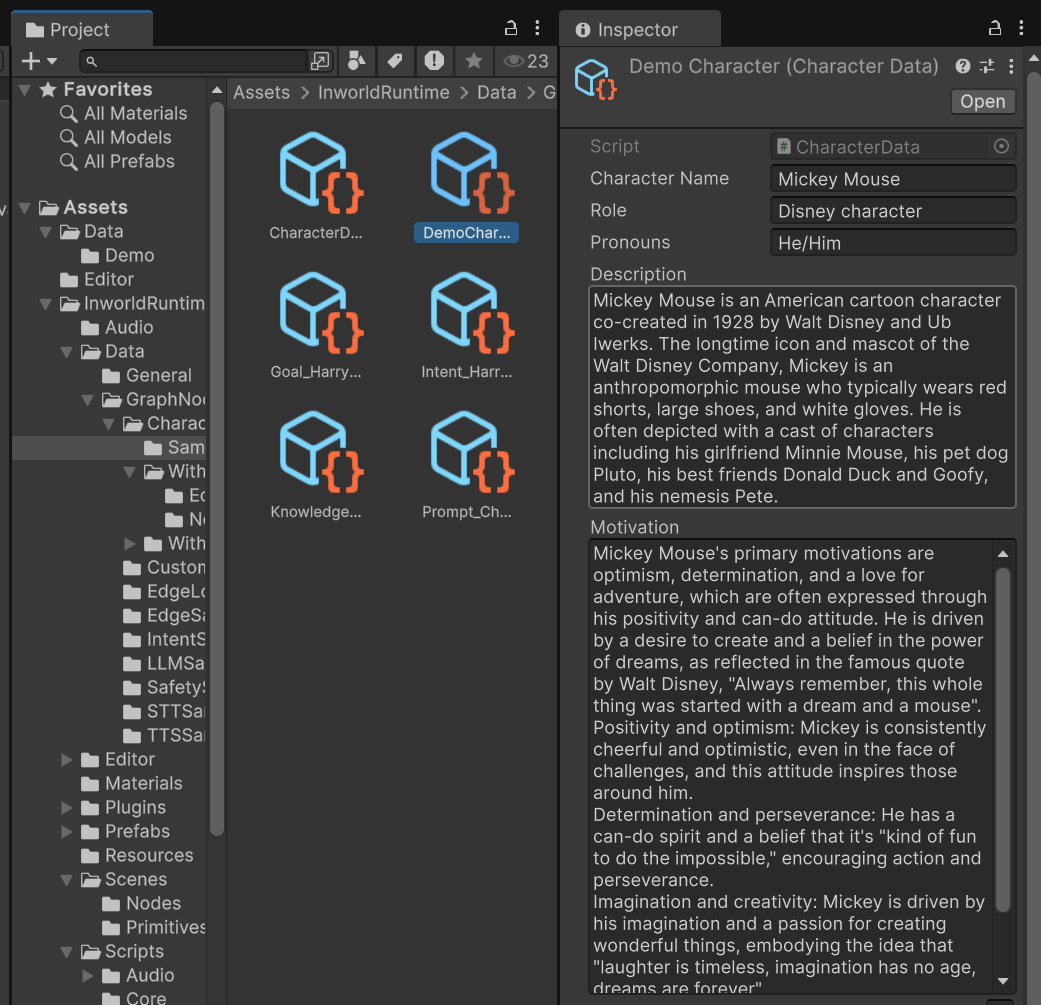
In this tutorial, let’s focus on creating characters by updating the related data.Clone a Scene
In this overview, let’s focus on the graph creating, so we will use the current default GraphNodeTemplate in the demos.Let’s clone a scene from 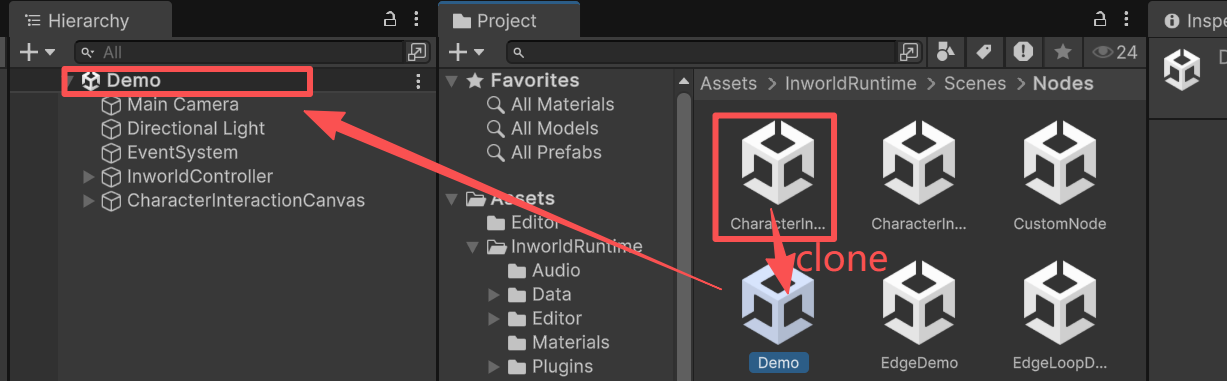
Assets/InworldRuntime/Scenes/Nodes/CharacterInteractionNode.unity.Let’s rename the cloned one whatever you want. i.e; Demo, and open it.Test the Scene
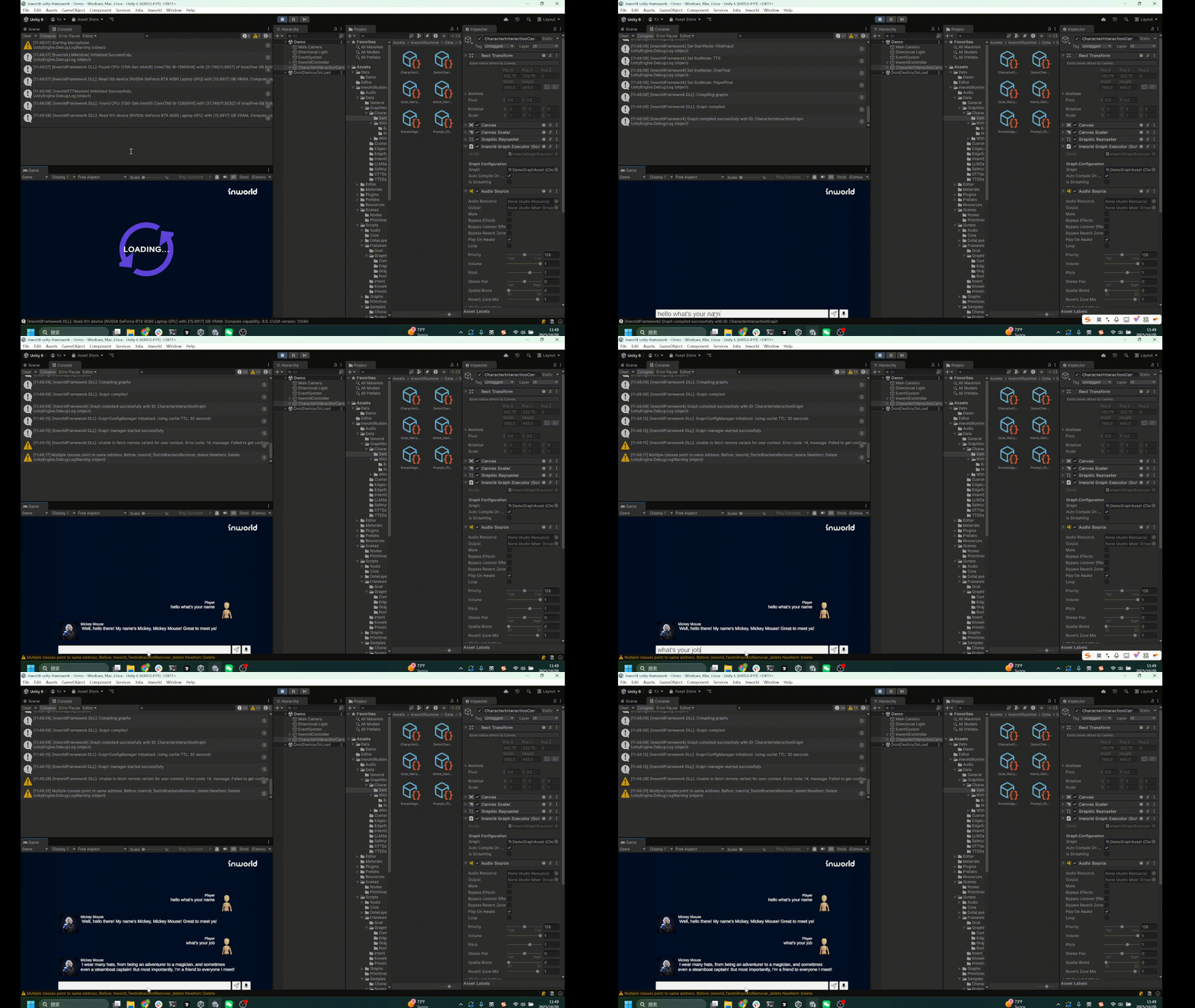
Now let’s test this scene by pressing the 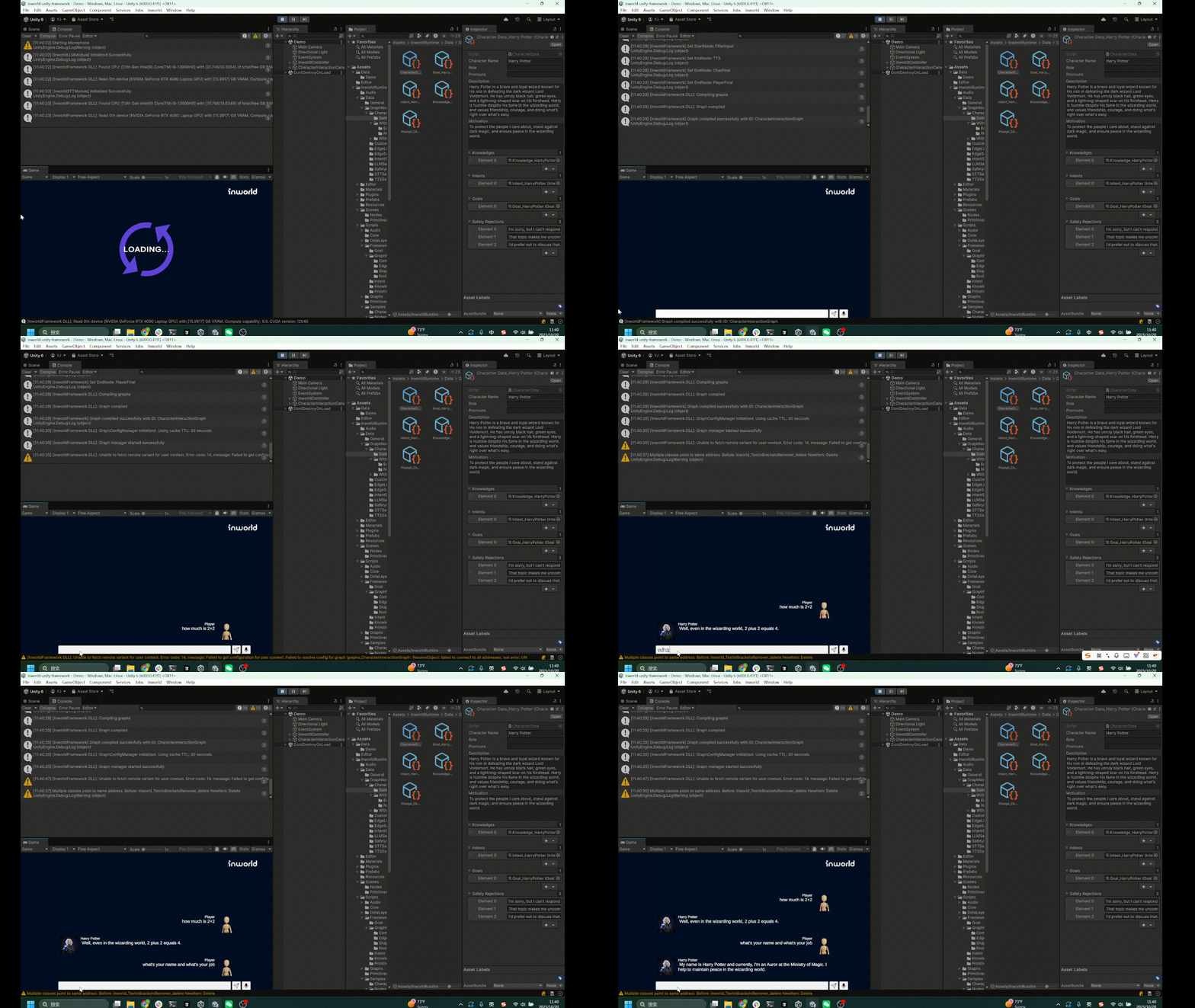
Play button.You are able to type to the character, and you can hold the record button to record, and release that button to send the audio.Please notice that our default character is Harry Potter. In this page we will replace that later.Clone and replace the Graph Asset
Go to 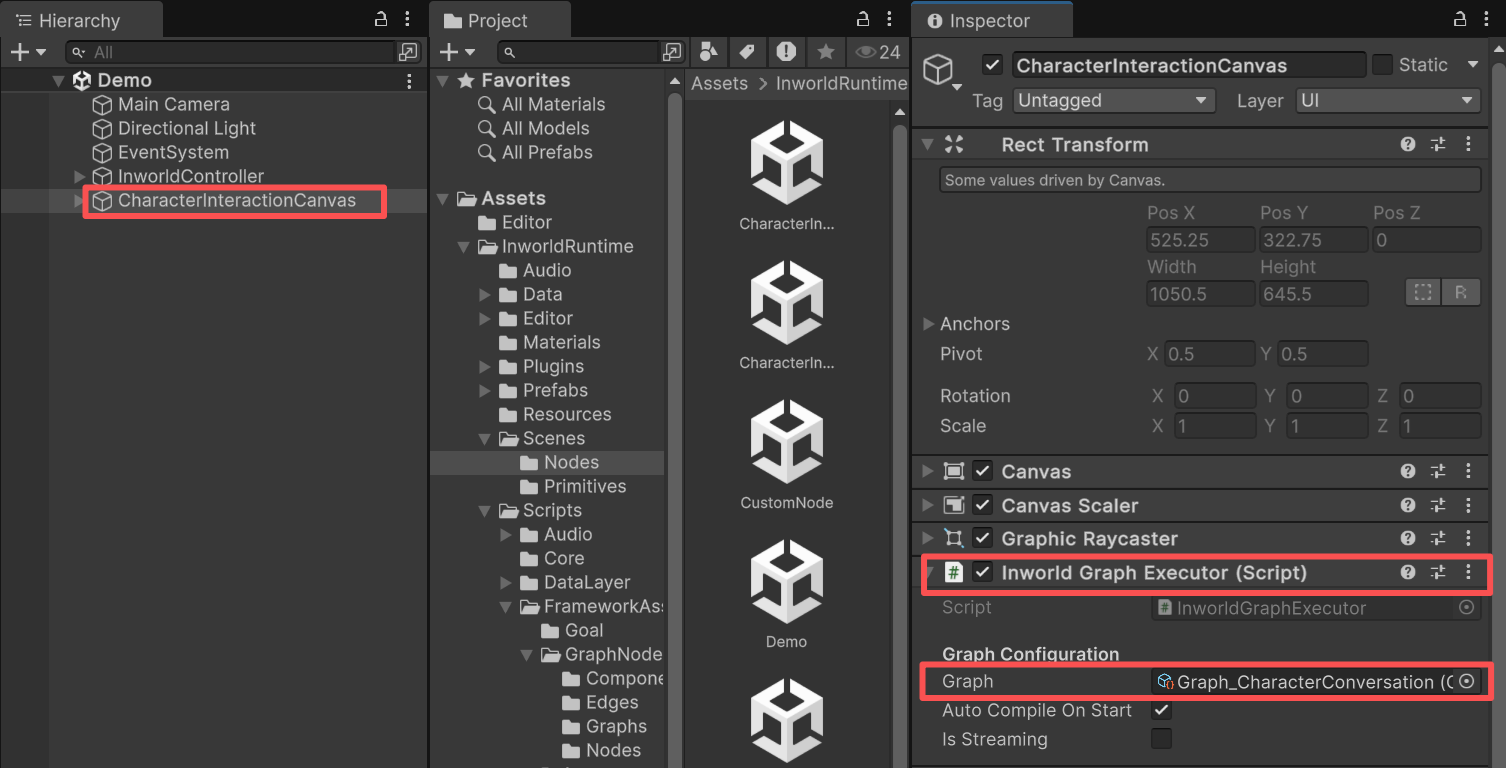
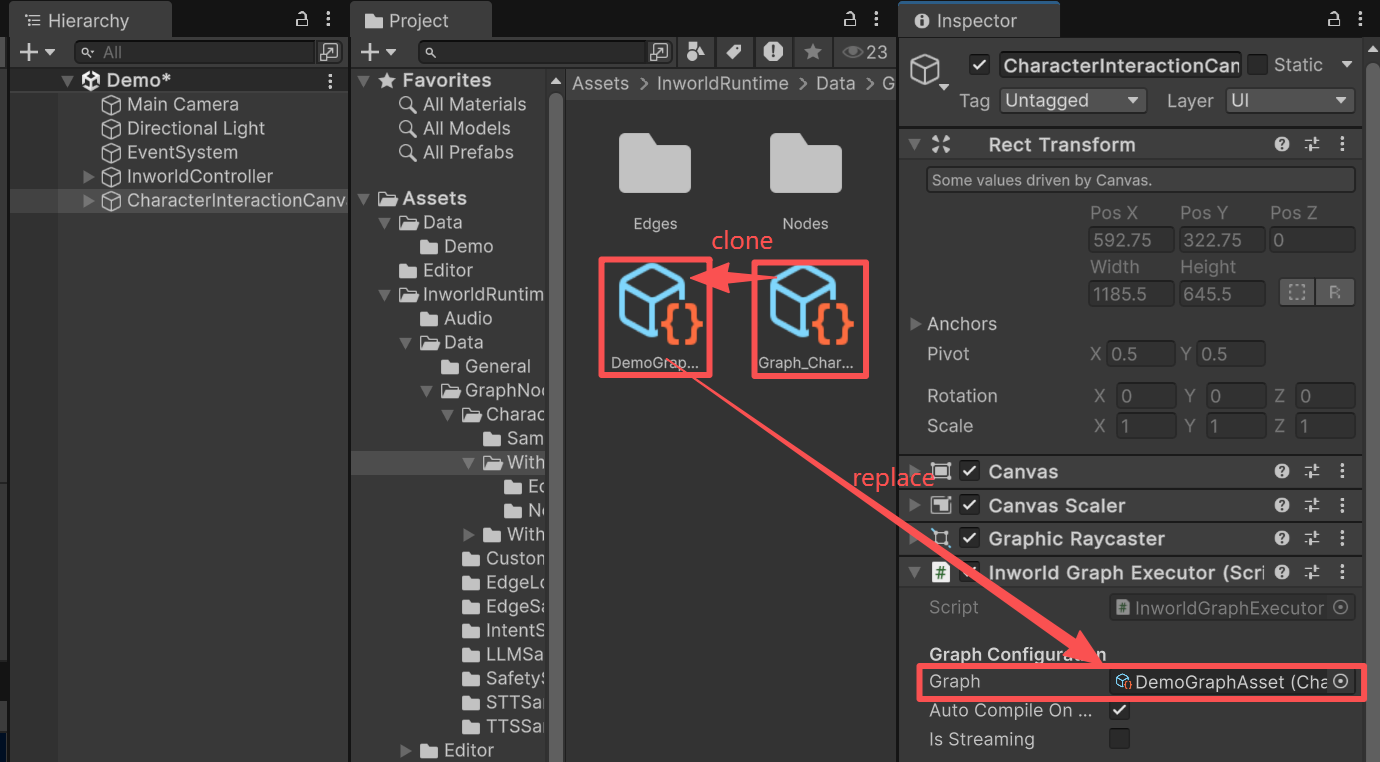
CharacterInteractionCanvas, find the InworldGraphExecutor in the inspector.DemoGraphAsset.Then let’s replace it with the previous asset.Check out the data in Graph
Go to the 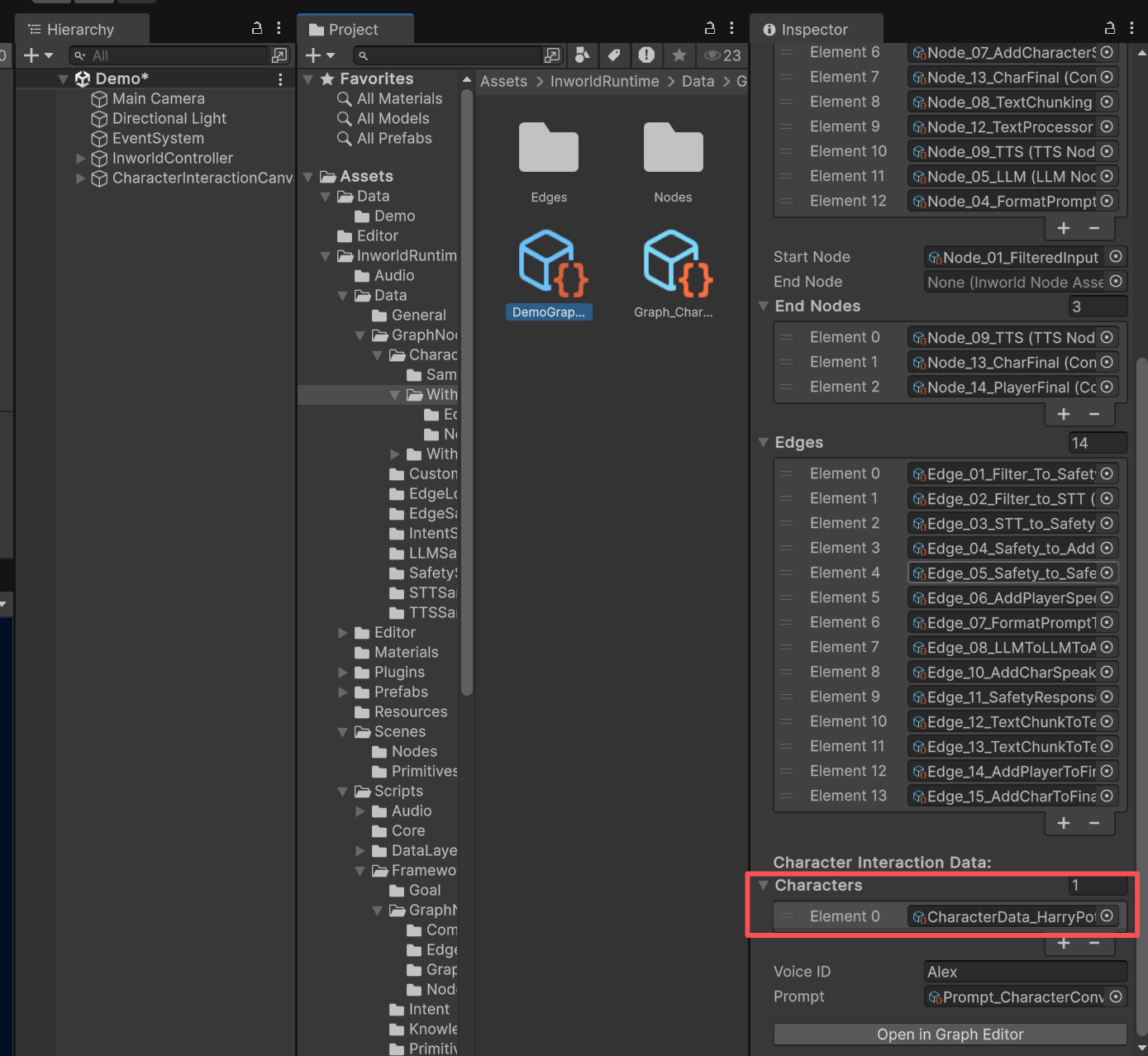
DemoGraphAsset that you just created.Under the CharacterInteractionData, you can see the default character asset.Clone and replace the Character Data
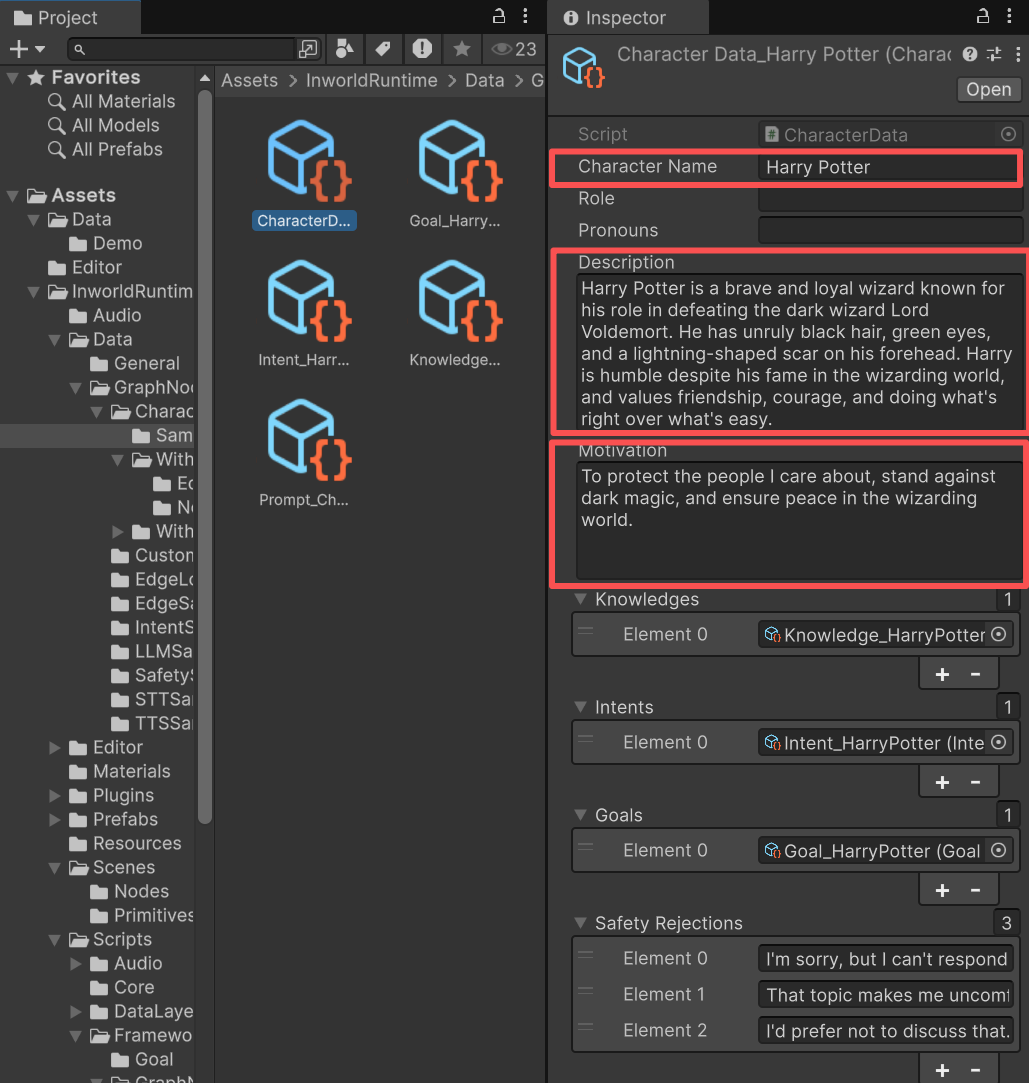
Navigate to the current 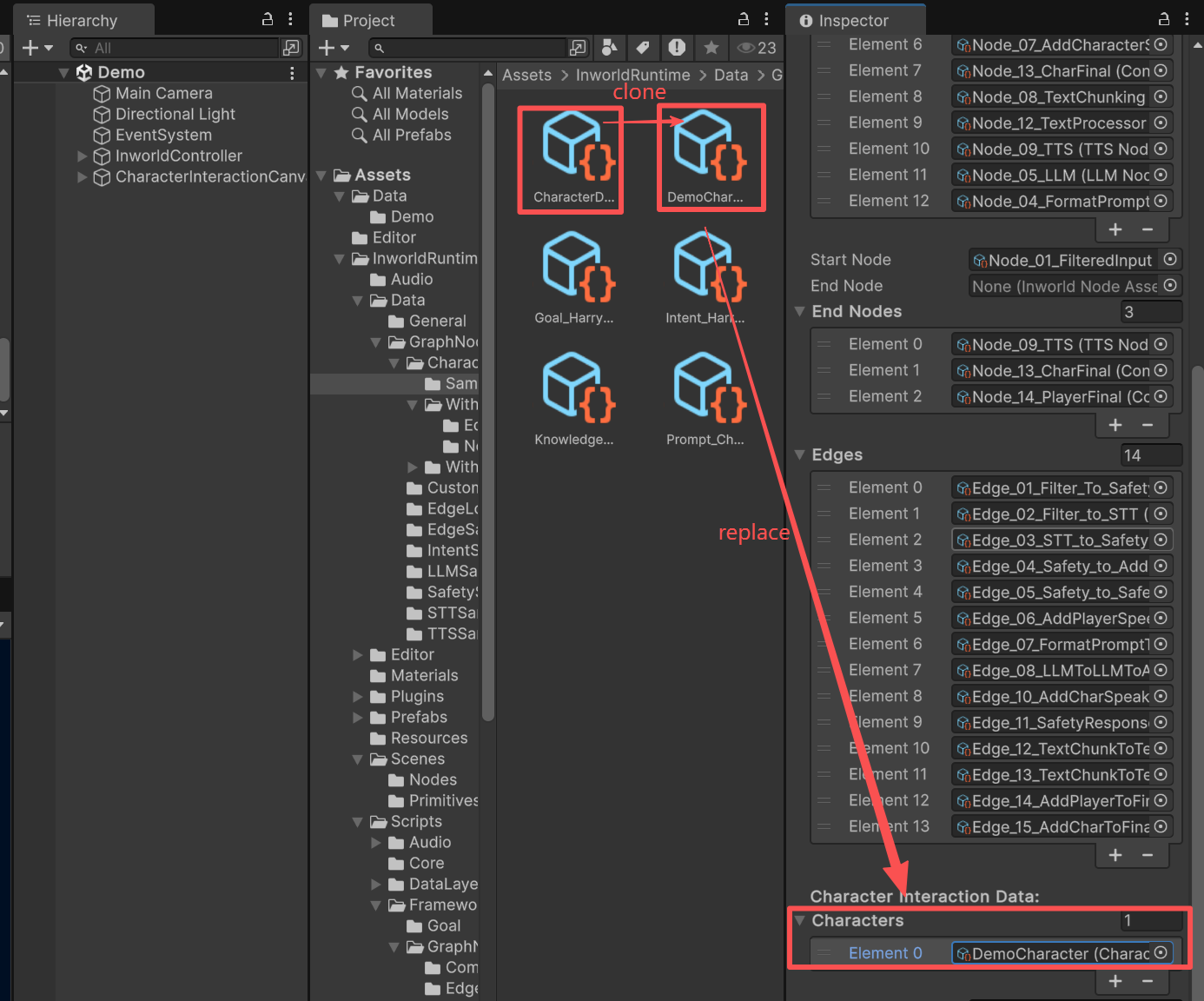
CharacterAsset, Clone it.Then rename it as DemoCharacter.Replace it to the DemoGraph as its current asset.