> ## Documentation Index
> Fetch the complete documentation index at: https://docs.inworld.ai/llms.txt
> Use this file to discover all available pages before exploring further.
# Dashboards
Get real-time visibility into your application health. Track performance, resource usage, and system health through comprehensive dashboards and detailed data views.
 ## Get Started with Dashboards
### Enable Metrics Collection
To start using dashboards, you'll need to configure telemetry in your application:
Add the following code snippet to your application:
```typescript theme={"system"}
import { telemetry } from '@inworld/runtime';
// Initialize telemetry
telemetry.init({
apiKey: process.env.INWORLD_API_KEY,
appName: 'MyApplication',
appVersion: '1.0.0',
});
```
Go to Edit > Project Settings > Plugins > Inworld > Telemetry and enable telemetry.
## Get Started with Dashboards
### Enable Metrics Collection
To start using dashboards, you'll need to configure telemetry in your application:
Add the following code snippet to your application:
```typescript theme={"system"}
import { telemetry } from '@inworld/runtime';
// Initialize telemetry
telemetry.init({
apiKey: process.env.INWORLD_API_KEY,
appName: 'MyApplication',
appVersion: '1.0.0',
});
```
Go to Edit > Project Settings > Plugins > Inworld > Telemetry and enable telemetry.
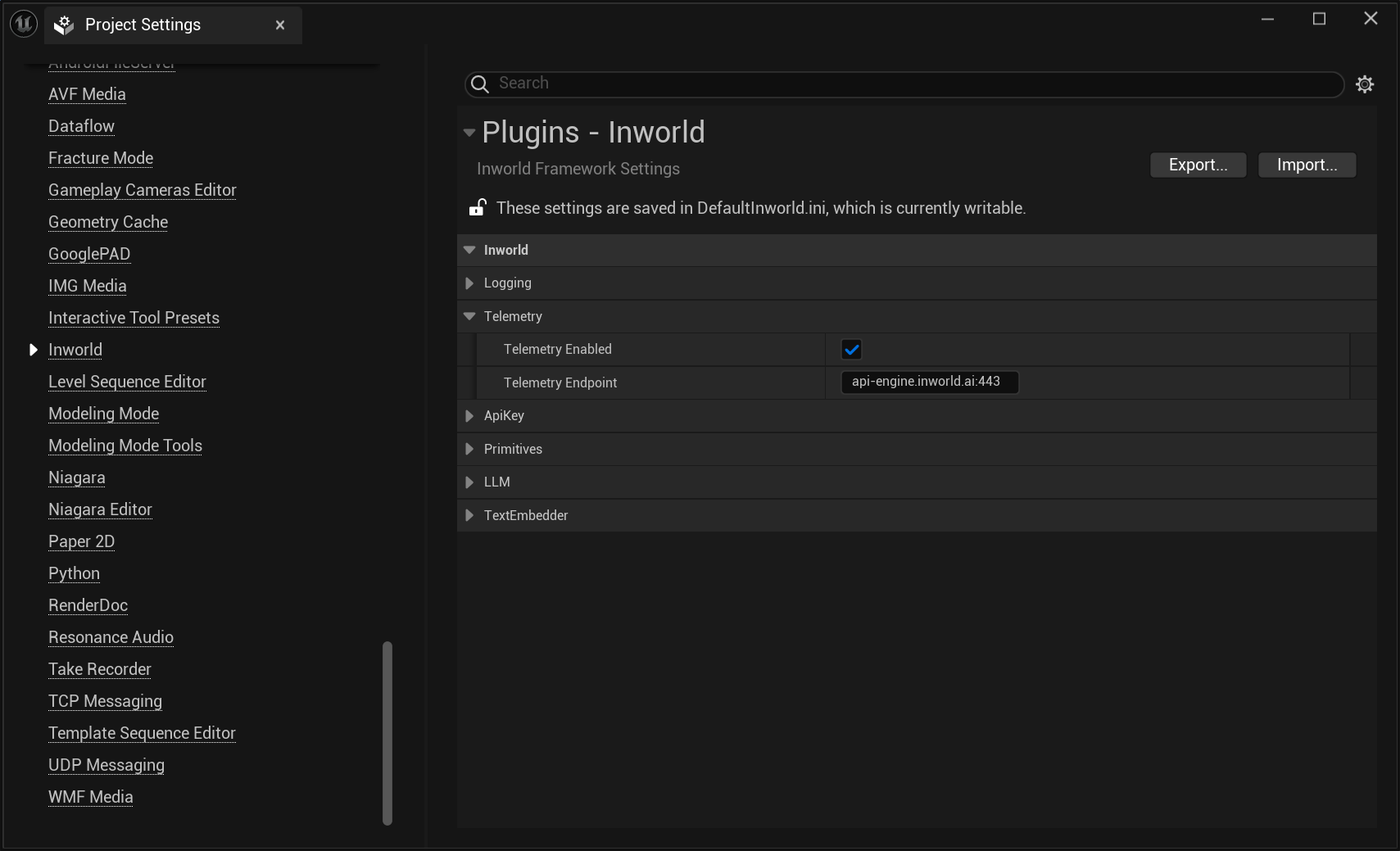 Add the following code snippet to your application:
```cpp theme={"system"}
// Initialize with application details
ConfigureTelemetry("my_application_name", "0.0.1");
```
Once telemetry has been configured, metrics will be automatically collected and sent to Portal.
**First-time users:** The Dashboards tab only appears after you have run your first graph execution. If you've run your first execution but still don't see the Dashboards tab, please sign out and sign back in.
### View Default Dashboard
Every workspace comes with a pre-configured default dashboard containing 8 essential metrics.
These 8 metrics are automatically calculated when you execute your graphs.
| **Panel** | **What it Shows** |
| :-------------------------------------------- | :---------------------------------------------------- |
| **Graph Executions Total** | Count of graph executions |
| **Graph Executions Errors Total** | Count of total graph execution errors |
| **P50 / P99 Graph Execution Latency** | Percentile latency for the full graph execution |
| **Node Executions Total** | Count of node executions across all nodes |
| **Node Executions Errors Total** | Count of total node execution errors across all nodes |
| **P50 / P99 Node Execution Latency** | Percentile latency for all node executions |
| **LLM Node: Output Tokens Rate** | Number of LLM output tokens per unit of time |
| **P50 / P99 LLM Time to First Token Latency** | Percentile latency for time to first token |
## Building Custom Panels
Ready to create your own custom panels? Here's the step-by-step process:
1. Click on the **dashboard** you want to view
2. Click **New Panel** on the top right corner
3. Select a **chart type**: Time Series, Number, Table, Bar, or Pie Chart
The visual query builder makes it simple - just choose a **metric** and an **aggregator**.
Add the following code snippet to your application:
```cpp theme={"system"}
// Initialize with application details
ConfigureTelemetry("my_application_name", "0.0.1");
```
Once telemetry has been configured, metrics will be automatically collected and sent to Portal.
**First-time users:** The Dashboards tab only appears after you have run your first graph execution. If you've run your first execution but still don't see the Dashboards tab, please sign out and sign back in.
### View Default Dashboard
Every workspace comes with a pre-configured default dashboard containing 8 essential metrics.
These 8 metrics are automatically calculated when you execute your graphs.
| **Panel** | **What it Shows** |
| :-------------------------------------------- | :---------------------------------------------------- |
| **Graph Executions Total** | Count of graph executions |
| **Graph Executions Errors Total** | Count of total graph execution errors |
| **P50 / P99 Graph Execution Latency** | Percentile latency for the full graph execution |
| **Node Executions Total** | Count of node executions across all nodes |
| **Node Executions Errors Total** | Count of total node execution errors across all nodes |
| **P50 / P99 Node Execution Latency** | Percentile latency for all node executions |
| **LLM Node: Output Tokens Rate** | Number of LLM output tokens per unit of time |
| **P50 / P99 LLM Time to First Token Latency** | Percentile latency for time to first token |
## Building Custom Panels
Ready to create your own custom panels? Here's the step-by-step process:
1. Click on the **dashboard** you want to view
2. Click **New Panel** on the top right corner
3. Select a **chart type**: Time Series, Number, Table, Bar, or Pie Chart
The visual query builder makes it simple - just choose a **metric** and an **aggregator**.
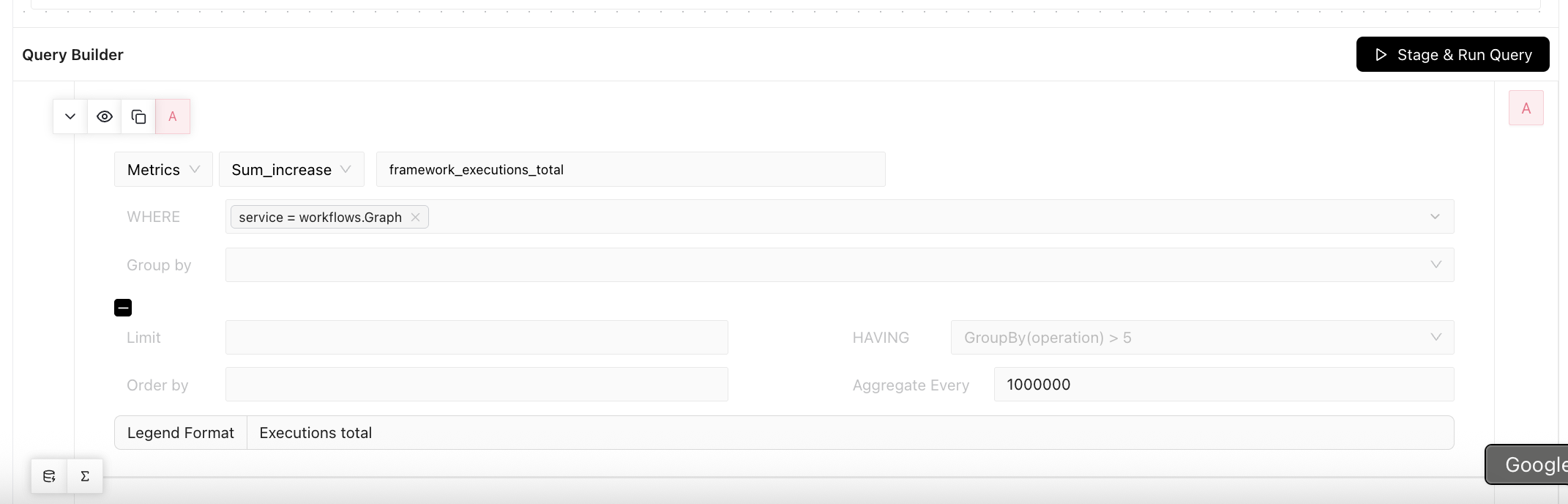 1. **Select a metric**: What you want to measure (e.g., `framework_executions_total`)
2. **Pick an aggregator**: How to calculate values (Count, Average, P99, etc.)
3. **Add filters** (optional): Use WHERE conditions, group by dimensions, or set time aggregation
4. Click **Stage & Run Query**
**End-to-End Example**
1. **Select a metric**: What you want to measure (e.g., `framework_executions_total`)
2. **Pick an aggregator**: How to calculate values (Count, Average, P99, etc.)
3. **Add filters** (optional): Use WHERE conditions, group by dimensions, or set time aggregation
4. Click **Stage & Run Query**
**End-to-End Example**
 ## Query Builder Guide
### Essential Fields
The core fields you'll use for most charts:
| **Field** | **What it Does** | **Example** |
| ---------------------- | ------------------------------ | ---------------------------- |
| **Metric Name** | The specific metric to display | `framework_executions_total` |
| **Aggregate Operator** | How to calculate values | Count, Avg, P99, Sum |
| **WHERE** | Filter your data | `graph_id = "abc"` |
| **Group by** | Split data into separate lines | By service name, endpoint |
### Advanced Fields
For more complex queries and customization:
| **Field** | **What it Does** | **Example** |
| ------------------- | -------------------------------- | ------------------------- |
| **Limit** | Maximum number of groups to show | 10 (top 10 services) |
| **HAVING** | Filter groups after aggregation | `GroupBy(operation) > 5` |
| **Order by** | Sort the results | By value desc, by name |
| **Aggregate Every** | Time resolution (seconds) | 60 = one point per minute |
| **Legend Format** | Customize chart labels | `{{service_name}}` |
### Aggregate Operators
## Query Builder Guide
### Essential Fields
The core fields you'll use for most charts:
| **Field** | **What it Does** | **Example** |
| ---------------------- | ------------------------------ | ---------------------------- |
| **Metric Name** | The specific metric to display | `framework_executions_total` |
| **Aggregate Operator** | How to calculate values | Count, Avg, P99, Sum |
| **WHERE** | Filter your data | `graph_id = "abc"` |
| **Group by** | Split data into separate lines | By service name, endpoint |
### Advanced Fields
For more complex queries and customization:
| **Field** | **What it Does** | **Example** |
| ------------------- | -------------------------------- | ------------------------- |
| **Limit** | Maximum number of groups to show | 10 (top 10 services) |
| **HAVING** | Filter groups after aggregation | `GroupBy(operation) > 5` |
| **Order by** | Sort the results | By value desc, by name |
| **Aggregate Every** | Time resolution (seconds) | 60 = one point per minute |
| **Legend Format** | Customize chart labels | `{{service_name}}` |
### Aggregate Operators
 These operators determine how your data is calculated and displayed:
**Basic Aggregations:**
* **NOOP**: No operation - shows raw metric values without aggregation
* **Count**: Number of events or data points
* **Count Distinct**: Number of unique values
* **Sum**: Adds up all values within each time period (e.g., total requests per minute)
* **Sum\_increase**: Shows increase in cumulative counters over time (e.g., how much a "total requests" counter grew)
* **Avg**: Average value across all data points
* **Max**: Highest value in the dataset
* **Min**: Lowest value in the dataset
**Percentiles:**
* **P50**: 50th percentile (median)
* **P75**: 75th percentile (third quartile)
* **P90**: 90th percentile - only 10% of values are above this
* **P95**: 95th percentile - only 5% of values are above this
* **P99**: 99th percentile - only 1% of values are above this
**Rate Functions:**
* **Sum\_rate**: Sum of individual rate calculations (e.g., total requests/sec across all services)
* **Avg\_rate**: Average of individual rate calculations
* **Max\_rate**: Maximum of individual rate calculations
* **Min\_rate**: Minimum of individual rate calculations
### Time Aggregation Settings
These operators determine how your data is calculated and displayed:
**Basic Aggregations:**
* **NOOP**: No operation - shows raw metric values without aggregation
* **Count**: Number of events or data points
* **Count Distinct**: Number of unique values
* **Sum**: Adds up all values within each time period (e.g., total requests per minute)
* **Sum\_increase**: Shows increase in cumulative counters over time (e.g., how much a "total requests" counter grew)
* **Avg**: Average value across all data points
* **Max**: Highest value in the dataset
* **Min**: Lowest value in the dataset
**Percentiles:**
* **P50**: 50th percentile (median)
* **P75**: 75th percentile (third quartile)
* **P90**: 90th percentile - only 10% of values are above this
* **P95**: 95th percentile - only 5% of values are above this
* **P99**: 99th percentile - only 1% of values are above this
**Rate Functions:**
* **Sum\_rate**: Sum of individual rate calculations (e.g., total requests/sec across all services)
* **Avg\_rate**: Average of individual rate calculations
* **Max\_rate**: Maximum of individual rate calculations
* **Min\_rate**: Minimum of individual rate calculations
### Time Aggregation Settings
 **Time Range**: On the top right of your dashboard - Defines the time scope of your data (e.g., "last 30 minutes", "last 1 week")
**Aggregate Every**: In the Query Builder - Defines how your data is grouped over time (every 60 seconds, 300 seconds, etc.)
When you change the time range on the dashboard, the Aggregate Every field automatically adjusts to keep charts readable. For example, when you select "last 30 minutes", the default Aggregate Every is set to 60 seconds.
**Why this matters:**
* **Longer time ranges** → **Higher aggregation intervals** (fewer data points, smoother charts)
* **Shorter time ranges** → **Lower aggregation intervals** (more data points, more detail)
| **Selected Time Range** | **Aggregate Every (seconds)** | **Human Readable** |
| ----------------------- | ----------------------------- | ------------------ |
| 30 minutes | 60 | 1 minute |
| 60 minutes | 60 | 1 minute |
| 1 hour | 60 | 1 minute |
| 3 hours | 60 | 1 minute |
| 6 hours | 60 | 1 minute |
| 12 hours | 120 | 2 minutes |
| 1 day | 300 | 5 minutes |
| 3 days | 900 | 15 minutes |
| 1 week | 1800 | 30 minutes |
| 10 days | 3600 | 60 minutes |
| 2 weeks | 3600 | 60 minutes |
| 1 month | 9000 | 2h 30min |
| 2 months | 18000 | 5 hours |
**When defaults might cause issues:**
**Problem: Too granular (gaps in chart)**
* **When**: Sparse data + short time range (e.g., events every 5 minutes but aggregating every 1 minute)
* **Result**: Lots of empty intervals, choppy chart with gaps
* **Fix**: **Increase** Aggregate Every (e.g., change from 60 to 300 seconds)
**Problem: Too coarse (missing detail)**
* **When**: Frequent data + long time range (e.g., events every 30 seconds but aggregating every 5 hours)
* **Result**: Important spikes and patterns get smoothed out
* **Fix**: **Decrease** Aggregate Every (e.g., change from 18000 to 3600 seconds)
## Next Steps
Ready to grow your business metrics? Check out the resources below to get started!
Run robust A/B experiments and optimize your metrics
Learn how to build a simple chat experience using the Node.js SDK
**Time Range**: On the top right of your dashboard - Defines the time scope of your data (e.g., "last 30 minutes", "last 1 week")
**Aggregate Every**: In the Query Builder - Defines how your data is grouped over time (every 60 seconds, 300 seconds, etc.)
When you change the time range on the dashboard, the Aggregate Every field automatically adjusts to keep charts readable. For example, when you select "last 30 minutes", the default Aggregate Every is set to 60 seconds.
**Why this matters:**
* **Longer time ranges** → **Higher aggregation intervals** (fewer data points, smoother charts)
* **Shorter time ranges** → **Lower aggregation intervals** (more data points, more detail)
| **Selected Time Range** | **Aggregate Every (seconds)** | **Human Readable** |
| ----------------------- | ----------------------------- | ------------------ |
| 30 minutes | 60 | 1 minute |
| 60 minutes | 60 | 1 minute |
| 1 hour | 60 | 1 minute |
| 3 hours | 60 | 1 minute |
| 6 hours | 60 | 1 minute |
| 12 hours | 120 | 2 minutes |
| 1 day | 300 | 5 minutes |
| 3 days | 900 | 15 minutes |
| 1 week | 1800 | 30 minutes |
| 10 days | 3600 | 60 minutes |
| 2 weeks | 3600 | 60 minutes |
| 1 month | 9000 | 2h 30min |
| 2 months | 18000 | 5 hours |
**When defaults might cause issues:**
**Problem: Too granular (gaps in chart)**
* **When**: Sparse data + short time range (e.g., events every 5 minutes but aggregating every 1 minute)
* **Result**: Lots of empty intervals, choppy chart with gaps
* **Fix**: **Increase** Aggregate Every (e.g., change from 60 to 300 seconds)
**Problem: Too coarse (missing detail)**
* **When**: Frequent data + long time range (e.g., events every 30 seconds but aggregating every 5 hours)
* **Result**: Important spikes and patterns get smoothed out
* **Fix**: **Decrease** Aggregate Every (e.g., change from 18000 to 3600 seconds)
## Next Steps
Ready to grow your business metrics? Check out the resources below to get started!
Run robust A/B experiments and optimize your metrics
Learn how to build a simple chat experience using the Node.js SDK