> ## Documentation Index
> Fetch the complete documentation index at: https://docs.inworld.ai/llms.txt
> Use this file to discover all available pages before exploring further.
# Experiments
> Run, configure, and monitor A/B experiments end to end
Inworld Agent Runtime lets you iterate on prompts, models, and other LLM and TTS configs without redeploying code. This guide walks through the entire workflow—from CLI prep to Portal configuration.
## Summary
1. **Code your agent** – Code your agent, enable remote config, and deploy via CLI.
2. **Register variants** – Use `inworld-runtime graph variant register` to register the graph for experiment. Or upload the JSON via UI.
3. **Start experiment** – Set targeting + rollout percentages in the Experiments Tab in Portal
4. **Monitor & roll out** – Monitor metrics dashboards, then promote the winner.
```mermaid theme={"system"}
flowchart TD
A[CLI: Build & Test] --> B[CLI: Deploy + Register Variants]
B --> C[Portal: Start Experiment]
C --> D[Portal: Roll out Winning Variant]
D --> A
style A fill:#e1f5fe
style B fill:#e1f5fe
style C fill:#e8f5e8
style D fill:#e8f5e8
```
## Experiment workflow
### Step 1 – Code your agent
Install the CLI:
```bash theme={"system"}
npm install -g @inworld/runtime
```
Pull a template project:
```bash theme={"system"}
inworld-runtime init --template llm-to-tts-node --name my-agent
cd my-agent
```
Enable remote config in your graph and add user context to enable targeting:
```typescript theme={"system"}
const graph = new GraphBuilder({
id: 'my-graph-id',
apiKey: process.env.INWORLD_API_KEY,
enableRemoteConfig: true, // Required for Experiments
})
.addNode(llmNode)
.setStartNode(llmNode)
.setEndNode(llmNode)
.build();
const userContext = new UserContext({ // Add user context
tier: user.tier,
country: user.country,
app_version: '2.1.0',
}, user.id); // targeting key
```
Test locally before deploying:
```bash theme={"system"}
inworld-runtime run ./graph.ts '{"input":{"message":"Hello"},"userContext":{"targetingKey":"user123","attributes":{"tier":"premium","country":"US"}}}'
```
Add custom telemetry so you can monitor experiment KPIs later:
```typescript theme={"system"}
import { telemetry, MetricType } from '@inworld/runtime';
telemetry.init({
apiKey: process.env.INWORLD_API_KEY,
appName: 'cli-ops',
appVersion: '1.0.0',
});
telemetry.configureMetric({
metricType: MetricType.COUNTER_UINT,
name: 'successful_interactions',
description: 'Count of responses that reached business success criteria',
});
```
### Step 2 – Register variants
Registering a variant means telling Portal which configuration should be available in Experiments. Start with the baseline version, then add additional variants.
**Register the baseline variant**
Choose the registration workflow that matches your deployment:
* **Hosted endpoint (recommended):** Deploying with the CLI automatically registers the graph ID and baseline variant:
```bash theme={"system"}
inworld-runtime deploy ./graph.ts
```
* **Self-host + CLI:** After building your graph, push the baseline configuration manually:
```bash theme={"system"}
inworld-runtime graph variant register -d baseline ./graph.ts
```
* **Self-host + UI:** Export the graph JSON and upload it in Portal:
```bash theme={"system"}
inworld-runtime graph variant print ./graph.ts > baseline.json
```
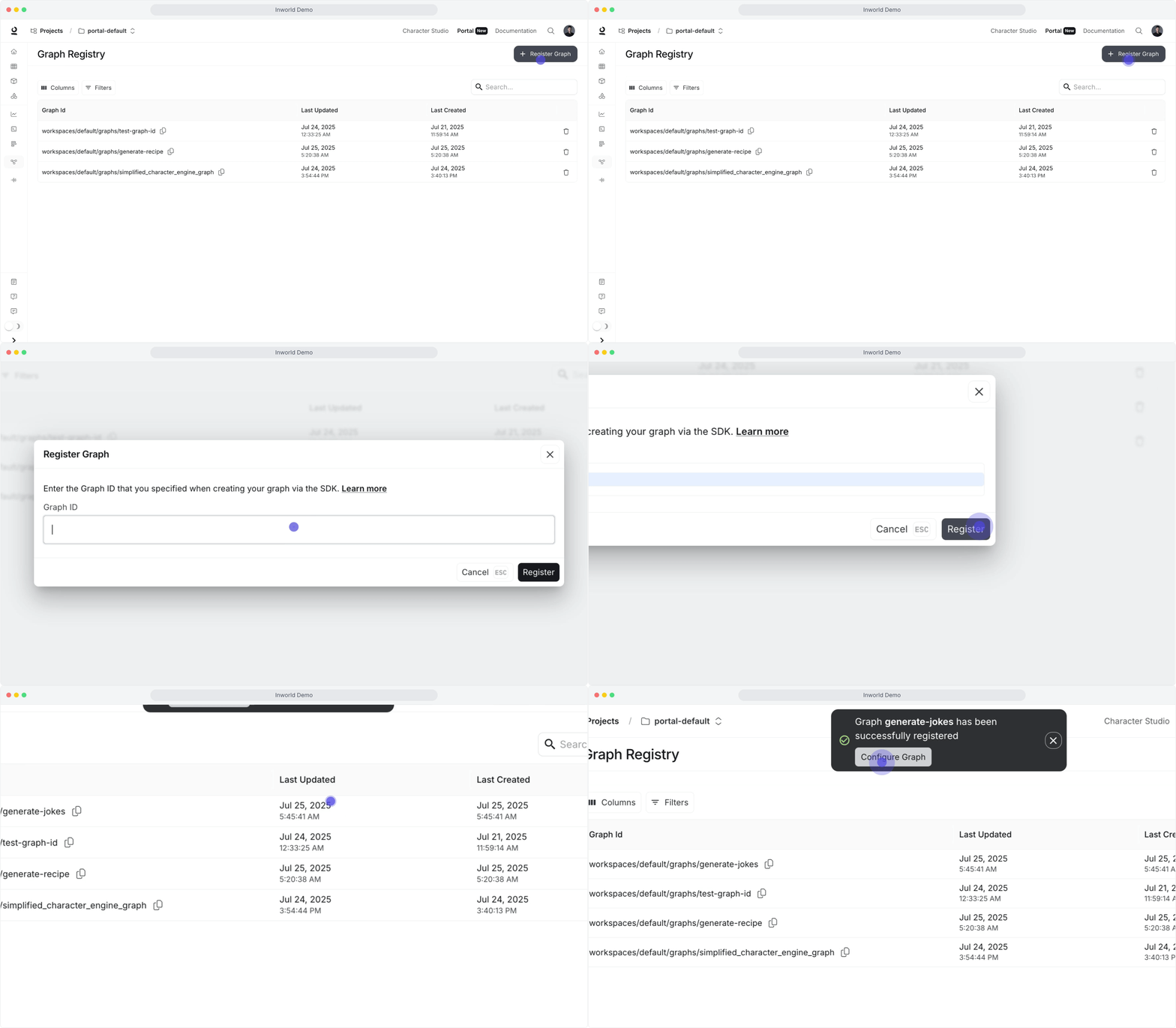
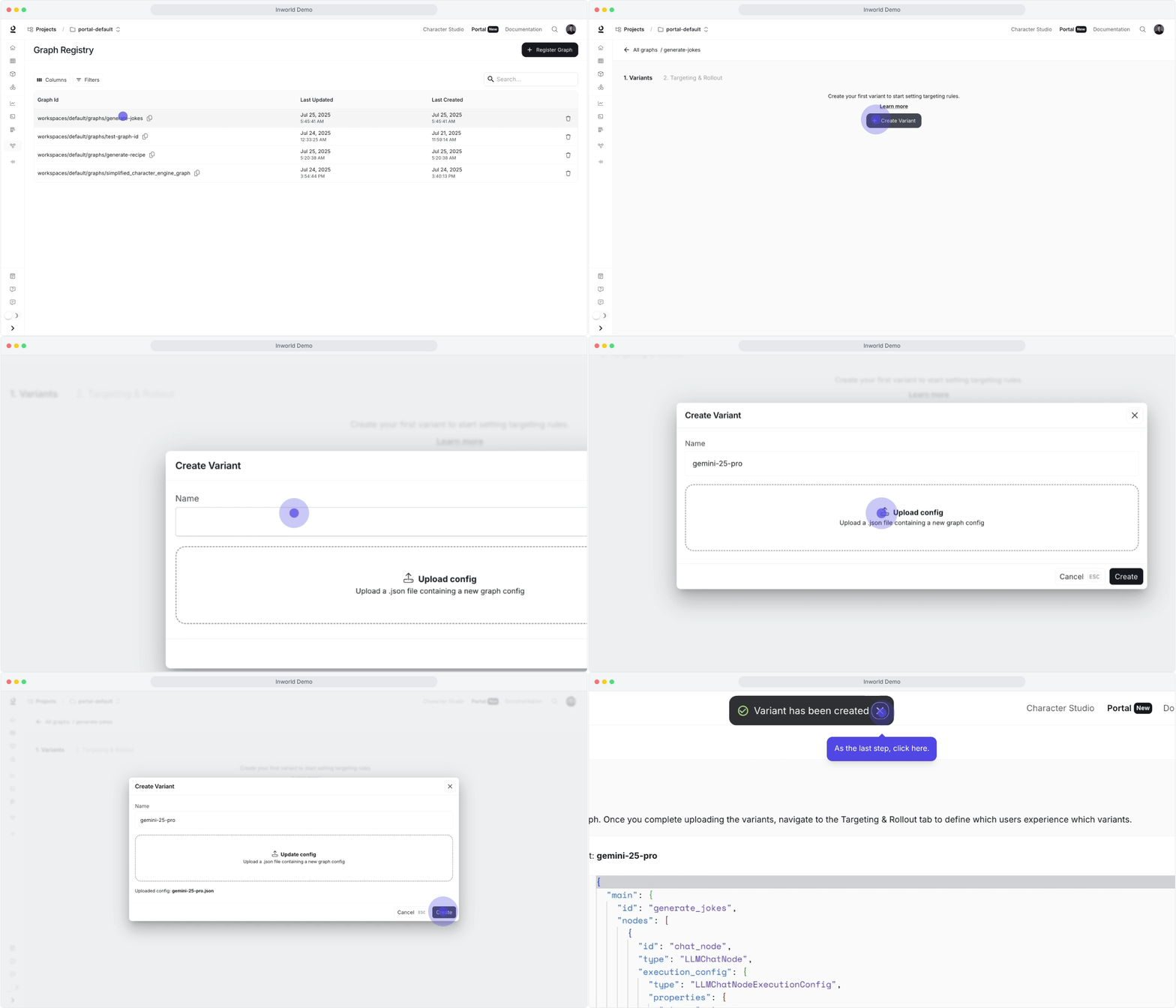
Then in Portal:
1. Open **Register Graph** and enter the graph ID exactly as defined in your code.\\
 2. Click **Create Variant**, name it, and upload `baseline.json`.\\
 **Add additional variants**
Create an experimental copy and change the LLM provider (or any other settings):
```bash theme={"system"}
cp graph.ts graph-claude.ts
```
```typescript theme={"system"}
const llmNode = new RemoteLLMChatNode({
provider: 'openai',
modelName: 'gpt-5-mini',
stream: true,
textGenerationConfig: { maxNewTokens: 200 },
});
```
```typescript theme={"system"}
const llmNode = new RemoteLLMChatNode({
provider: 'anthropic',
modelName: 'claude-4-sonnet',
stream: true,
textGenerationConfig: { maxNewTokens: 200 },
});
```
Register the experimental variant:
```bash theme={"system"}
inworld-runtime graph variant register -d claude ./graph-claude.ts
```
List the variants tied to your graph:
```bash theme={"system"}
inworld-runtime graph variant list ./graph.ts
```
### Step 3 – Start an experiment
**Set targeting rules**
Open the **Targeting & Rollout** tab → **+ Rule** and configure the following:
* Add filters on user attributes (`user_tier`, `location`, etc.) and assign percentages that sum to 100%.
* Save the rule and repeat for additional cohorts (keep specific rules at the top; use "Everyone else" as the fallback).
Order matters—rules are evaluated top to bottom.
Traffic allocation only works if requests include a targeting key and attributes (built in Step 1).
**Start the experiment**
Rules are disabled by default:
* Use the rule menu → **Enable**, then click **Save** to go live.
* Start with small allocations (10–20%) to validate; increase once metrics look good.
* Use the same rule menu to disable, delete, duplicate, or drag-to-reorder rules.
### Step 4 – Monitor & roll out
Monitor your experiment results and deploy the winner:
* Watch [metrics](/node/core-concepts/metrics), [dashboards](/portal/dashboards), [traces](/portal/traces), and [logs](/portal/logs) while the experiment runs.
* Increase the winning variant's allocation gradually (50/50 → 70/30 → 90/10), then set it to 100% and retire old rules.
* Roll back or tweak allocations if latency, errors, or business KPIs regress.
## How Experiments picks variants
When a request hits your graph, the runtime decides whether to use the local configuration or a remote variant from Experiments:
1. Remote config must be enabled.
2. The graph ID must be registered in Experiments and have at least one active rule that returns a variant.
```mermaid theme={"system"}
flowchart TD
A[Graph Execution Request] --> B{enableRemoteConfig == true}
B -->|NO/DEFAULT| C[Static Config]
C --> D[Use local graph configuration]
B -->|YES| E[Remote Config]
E --> F{Experiments returns a variant?}
F -->|NO| G[Use local graph configuration]
F -->|YES| H[Use Experiments variant]
style A fill:#e1f5fe
style D fill:#c8e6c9
style G fill:#c8e6c9
style H fill:#fff3e0
```
**If remote config is enabled**, Experiments evaluates each request as follows:
1. **Local cache check:** If the compiled variant for this user is cached, it executes immediately; otherwise Experiments is queried.
2. **Variant fetch:** Experiments evaluates your targeting rules, returns the selected variant, and falls back to the local configuration if no rule applies or the fetch fails.
3. **Compile & cache:** The runtime compiles the variant payload, caches it, and executes the graph with the new configuration.
## Troubleshooting
**Why are all my users getting the same variant despite setting traffic splits?**
This happens when the UserContext is not properly configured in your code. Here's what you need to check:
1. **Specify a targeting key:** This is typically the user ID and ensures the same user gets consistent variants.
```typescript theme={"system"}
// CORRECT: Each user gets a consistent variant
const userContext = new UserContext(
{
country: country // attributes for targeting rules
},
userId // targeting key
);
await graphExecutor.execute(input, executionId, userContext);
```
```typescript theme={"system"}
// INCORRECT: All users get the same variant
await graphExecutor.execute(input, executionId);
```
2. **Include targeting attributes:** Make sure to pass any attributes that your targeting rules use (e.g., country, user\_tier, etc.).
If you don't specify a targeting key, all users will share the same default key, causing everyone to get the same variant regardless of your traffic split settings.
**How can I tell if my graph is using remote config or static config?**
Confirm that `enableRemoteConfig: true` is set in your CLI project (Step 1) and inspect your application [logs](/portal/logs) for Experiments fetch messages. If remote config is disabled, the runtime always executes the local configuration.
**How do I know if Experiments are working?**
* Ensure remote config is enabled and the graph ID is registered in Experiments.
* Verify that the relevant targeting rules are enabled and percentages sum to 100%.
* Pass different user attributes to confirm that variant assignments change as expected.
* Monitor logs/dashboards for variant metadata or assignment info.
**Why is my graph always using the local configuration?**
Check these common causes:
1. Missing `INWORLD_API_KEY` so the graph never authenticates.
2. `enableRemoteConfig` is set to `false`.
3. Graph not registered in Experiments.
4. No active targeting rules or no variants configured for the matched cohort.
**What changes can I upload without redeploying code?**
Supported via Experiments:
* Switch LLM/STT/TTS models or providers.
* Adjust node configuration (temperature, token limits, prompts).
* Reorder/add/remove built-in nodes while preserving the same inputs/outputs.
* Update processing logic (edge conditions, preprocessing steps, data flow).
Requires a code deployment:
1. Adding new component types.
2. Introducing unregistered custom nodes.
3. Changing the graph's input/output interface.
4. Using custom edge conditions beyond supported CEL expressions.
See [UserContext](/node/core-concepts/user-context) for additional targeting guidance.
**Add additional variants**
Create an experimental copy and change the LLM provider (or any other settings):
```bash theme={"system"}
cp graph.ts graph-claude.ts
```
```typescript theme={"system"}
const llmNode = new RemoteLLMChatNode({
provider: 'openai',
modelName: 'gpt-5-mini',
stream: true,
textGenerationConfig: { maxNewTokens: 200 },
});
```
```typescript theme={"system"}
const llmNode = new RemoteLLMChatNode({
provider: 'anthropic',
modelName: 'claude-4-sonnet',
stream: true,
textGenerationConfig: { maxNewTokens: 200 },
});
```
Register the experimental variant:
```bash theme={"system"}
inworld-runtime graph variant register -d claude ./graph-claude.ts
```
List the variants tied to your graph:
```bash theme={"system"}
inworld-runtime graph variant list ./graph.ts
```
### Step 3 – Start an experiment
**Set targeting rules**
Open the **Targeting & Rollout** tab → **+ Rule** and configure the following:
* Add filters on user attributes (`user_tier`, `location`, etc.) and assign percentages that sum to 100%.
* Save the rule and repeat for additional cohorts (keep specific rules at the top; use "Everyone else" as the fallback).
Order matters—rules are evaluated top to bottom.
Traffic allocation only works if requests include a targeting key and attributes (built in Step 1).
**Start the experiment**
Rules are disabled by default:
* Use the rule menu → **Enable**, then click **Save** to go live.
* Start with small allocations (10–20%) to validate; increase once metrics look good.
* Use the same rule menu to disable, delete, duplicate, or drag-to-reorder rules.
### Step 4 – Monitor & roll out
Monitor your experiment results and deploy the winner:
* Watch [metrics](/node/core-concepts/metrics), [dashboards](/portal/dashboards), [traces](/portal/traces), and [logs](/portal/logs) while the experiment runs.
* Increase the winning variant's allocation gradually (50/50 → 70/30 → 90/10), then set it to 100% and retire old rules.
* Roll back or tweak allocations if latency, errors, or business KPIs regress.
## How Experiments picks variants
When a request hits your graph, the runtime decides whether to use the local configuration or a remote variant from Experiments:
1. Remote config must be enabled.
2. The graph ID must be registered in Experiments and have at least one active rule that returns a variant.
```mermaid theme={"system"}
flowchart TD
A[Graph Execution Request] --> B{enableRemoteConfig == true}
B -->|NO/DEFAULT| C[Static Config]
C --> D[Use local graph configuration]
B -->|YES| E[Remote Config]
E --> F{Experiments returns a variant?}
F -->|NO| G[Use local graph configuration]
F -->|YES| H[Use Experiments variant]
style A fill:#e1f5fe
style D fill:#c8e6c9
style G fill:#c8e6c9
style H fill:#fff3e0
```
**If remote config is enabled**, Experiments evaluates each request as follows:
1. **Local cache check:** If the compiled variant for this user is cached, it executes immediately; otherwise Experiments is queried.
2. **Variant fetch:** Experiments evaluates your targeting rules, returns the selected variant, and falls back to the local configuration if no rule applies or the fetch fails.
3. **Compile & cache:** The runtime compiles the variant payload, caches it, and executes the graph with the new configuration.
## Troubleshooting
**Why are all my users getting the same variant despite setting traffic splits?**
This happens when the UserContext is not properly configured in your code. Here's what you need to check:
1. **Specify a targeting key:** This is typically the user ID and ensures the same user gets consistent variants.
```typescript theme={"system"}
// CORRECT: Each user gets a consistent variant
const userContext = new UserContext(
{
country: country // attributes for targeting rules
},
userId // targeting key
);
await graphExecutor.execute(input, executionId, userContext);
```
```typescript theme={"system"}
// INCORRECT: All users get the same variant
await graphExecutor.execute(input, executionId);
```
2. **Include targeting attributes:** Make sure to pass any attributes that your targeting rules use (e.g., country, user\_tier, etc.).
If you don't specify a targeting key, all users will share the same default key, causing everyone to get the same variant regardless of your traffic split settings.
**How can I tell if my graph is using remote config or static config?**
Confirm that `enableRemoteConfig: true` is set in your CLI project (Step 1) and inspect your application [logs](/portal/logs) for Experiments fetch messages. If remote config is disabled, the runtime always executes the local configuration.
**How do I know if Experiments are working?**
* Ensure remote config is enabled and the graph ID is registered in Experiments.
* Verify that the relevant targeting rules are enabled and percentages sum to 100%.
* Pass different user attributes to confirm that variant assignments change as expected.
* Monitor logs/dashboards for variant metadata or assignment info.
**Why is my graph always using the local configuration?**
Check these common causes:
1. Missing `INWORLD_API_KEY` so the graph never authenticates.
2. `enableRemoteConfig` is set to `false`.
3. Graph not registered in Experiments.
4. No active targeting rules or no variants configured for the matched cohort.
**What changes can I upload without redeploying code?**
Supported via Experiments:
* Switch LLM/STT/TTS models or providers.
* Adjust node configuration (temperature, token limits, prompts).
* Reorder/add/remove built-in nodes while preserving the same inputs/outputs.
* Update processing logic (edge conditions, preprocessing steps, data flow).
Requires a code deployment:
1. Adding new component types.
2. Introducing unregistered custom nodes.
3. Changing the graph's input/output interface.
4. Using custom edge conditions beyond supported CEL expressions.
See [UserContext](/node/core-concepts/user-context) for additional targeting guidance.