> ## Documentation Index
> Fetch the complete documentation index at: https://docs.inworld.ai/llms.txt
> Use this file to discover all available pages before exploring further.
# Logs
Logs are text-based records that capture events occurring during the execution of your AI-powered application. They are essential tools for debugging, monitoring, and improving AI systems.
## Key Features
* **System Observability**: Track application events and errors to ensure smooth operation and quick resolution of issues.
* **Troubleshooting**: Analyze logs to identify the root cause of issues by examining error messages, system state, and the sequence of events leading to the problem.
Depending on your application, you may find it useful to log:
* The application that generated the logs
* Messages reported by the application
* Warnings or errors encountered during runtime
* Outputs or inputs to a specific component
## Capture Logs
If telemetry is configured, logs are automatically generated by the Inworld Agent Runtime during graph execution and sent to Portal.
Support for capturing your own custom logs in Portal is coming soon.
You can adjust the level of log detail by setting the `VERBOSITY` and `logger.level` options.
| **Control** | **Values** | **Default** | **Description** |
| :------------- | :---------------------------------------------- | :---------- | :------------------------------------------------------------------------------ |
| `VERBOSITY` | `0`, `1`, `2` | `0` | Controls what logs are generated:
`0`=none
`1`=some
`2`=all |
| `logger.level` | `INFO`
`WARN`
`DEBUG`
`TRACE` | `INFO` | Controls what gets sent to Portal |
We recommend the following set up depending on your use case:
* **Default**: `VERBOSITY=0` + `LogLevel.INFO` - standard logs only
* **Debugging**: `VERBOSITY=1` + `LogLevel.DEBUG` - adds debug details
* **Max detail**: `VERBOSITY=2` + `LogLevel.TRACE` - everything
To get started, follow the SDK specific instructions below:
Logging is **enabled by default**. Just set your API key:
```bash theme={"system"}
export INWORLD_API_KEY=your-api-key
```
To set the `VERBOSITY`:
```bash bash theme={"system"}
export VERBOSITY=1 # For debug logs
```
To set the `logger.level`:
```typescript graph.ts theme={"system"}
import { telemetry, LogLevel } from '@inworld/runtime';
telemetry.init({
apiKey: process.env.INWORLD_API_KEY,
logger: { level: LogLevel.DEBUG } // For Portal filtering
});
```
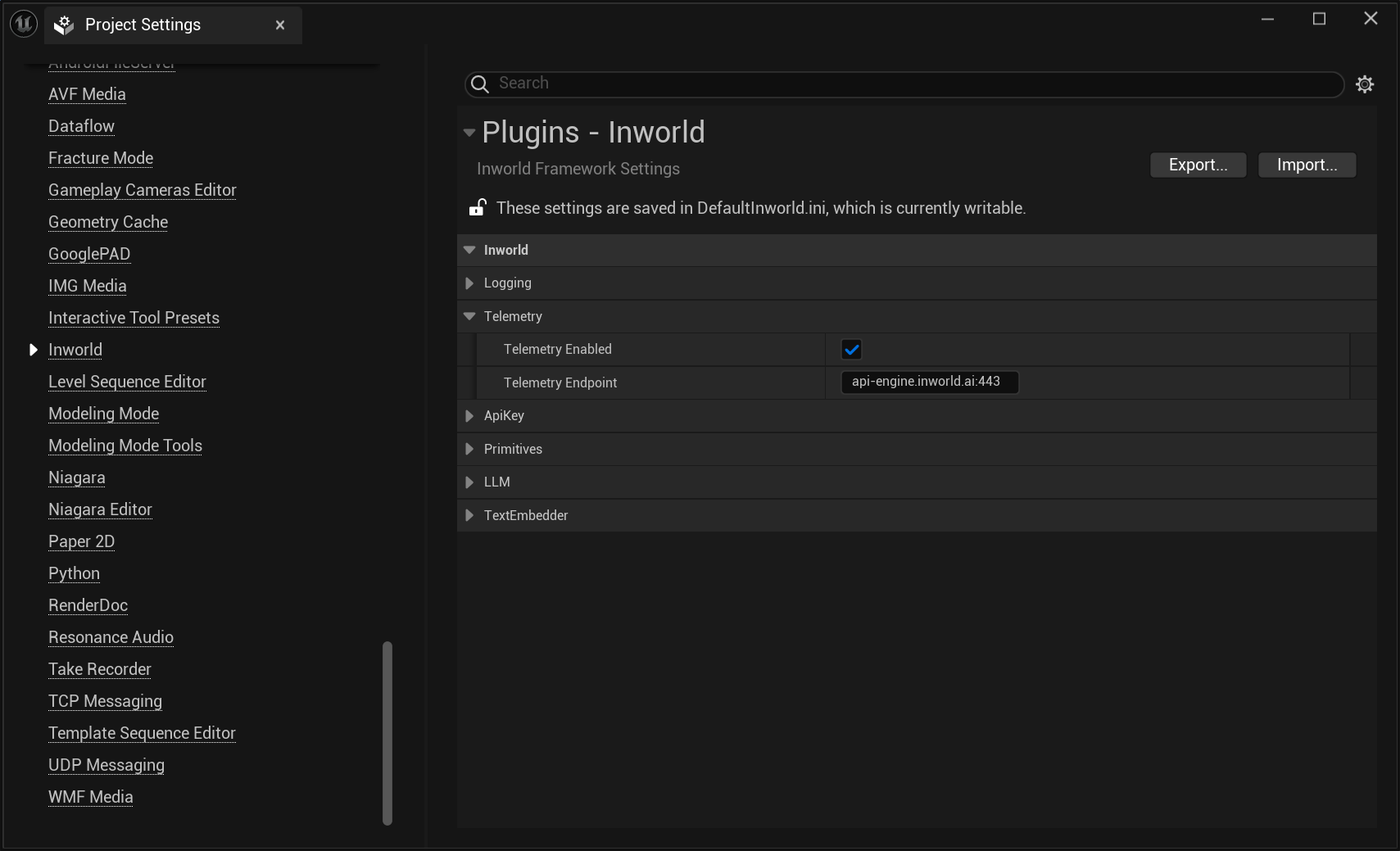
Go to Edit > Project Settings > Plugins > Inworld > Telemetry and enable telemetry. After enabling, you'll need to restart the editor.
 Add the following code snippet to your application:
```cpp theme={"system"}
// Initialize with application details
ConfigureTelemetry("my_application_name", "0.0.1");
```
**First-time users:** The Logs tab only appears after you have run your first graph execution. If you've run your first execution but still don't see the Logs tab, please sign out and sign back in.
## View Logs
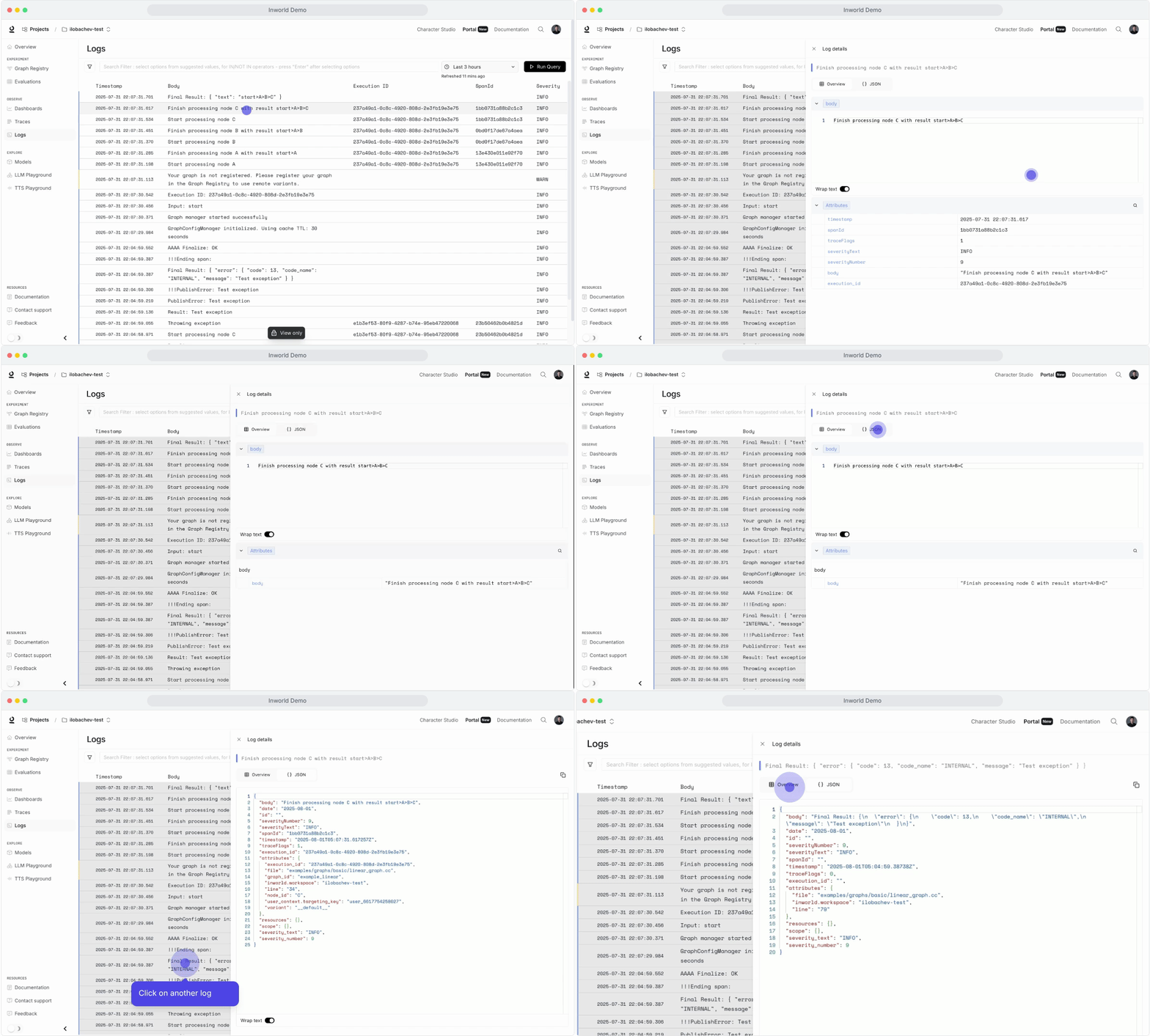
* Click on a log to open a side view
* Toggle between the Overview and JSON view
* Use the **Filter** panel to sort by severity, Service name, Variant, and Graph ID
* Use the **Search** bar to filter logs by keywords or IDs.
Add the following code snippet to your application:
```cpp theme={"system"}
// Initialize with application details
ConfigureTelemetry("my_application_name", "0.0.1");
```
**First-time users:** The Logs tab only appears after you have run your first graph execution. If you've run your first execution but still don't see the Logs tab, please sign out and sign back in.
## View Logs
* Click on a log to open a side view
* Toggle between the Overview and JSON view
* Use the **Filter** panel to sort by severity, Service name, Variant, and Graph ID
* Use the **Search** bar to filter logs by keywords or IDs.
 ## Log Metadata Definitions
| Field Name | Description |
| :------------- | :------------------------------------------------------------------------------------------- |
| `Timestamp` | Time of the log entry. |
| `Body` | Text of the log message. |
| `Execution ID` | Unique identifier for the associated trace (if it exists). You can find the trace in Traces. |
| `Span ID` | Identifier for the individual span (if it exists). |
| `Severity` | Log level: DEBUG, INFO, WARNING, ERROR. |
## When Should I Use Logs vs Traces?
As opposed to traces, which shows the flow of a single execution, logs can be used to capture details about specific events, including detailed metadata unique to that event.
Below is an overview of some key differences:
| **Aspect** | **Logs** | **Traces** |
| :-------------- | :-------------------------------------------------------------------------------------------- | :--------------------------------------------------------------------------- |
| **Purpose** | Captures discrete events (errors, warnings, info) | Capture end-to-end execution flows |
| **Scope** | Capture specific moments in time | Capture relationships between nodes |
| **Granularity** | Often capture detailed, low-level system information, including errors or performance metrics | Show the high-level flow of a request across nodes, including inputs/output |
| **Use Case** | Debugging, monitoring, auditing, performance tracking, and error reporting | End-to-end execution tracking, identifying bottlenecks, tracing dependencies |
**Use logs when you need to:**
* Debug failure cases or unexpected behavior
* Track specific metrics or state changes
* Capture intermediate values within nodes (beyond inputs/outputs)
## Next Steps
View end-to-end graph executions to help with debugging and analysis.
Monitor your key metrics.
Learn how to build a simple chat experience using the Node.js SDK.
## Log Metadata Definitions
| Field Name | Description |
| :------------- | :------------------------------------------------------------------------------------------- |
| `Timestamp` | Time of the log entry. |
| `Body` | Text of the log message. |
| `Execution ID` | Unique identifier for the associated trace (if it exists). You can find the trace in Traces. |
| `Span ID` | Identifier for the individual span (if it exists). |
| `Severity` | Log level: DEBUG, INFO, WARNING, ERROR. |
## When Should I Use Logs vs Traces?
As opposed to traces, which shows the flow of a single execution, logs can be used to capture details about specific events, including detailed metadata unique to that event.
Below is an overview of some key differences:
| **Aspect** | **Logs** | **Traces** |
| :-------------- | :-------------------------------------------------------------------------------------------- | :--------------------------------------------------------------------------- |
| **Purpose** | Captures discrete events (errors, warnings, info) | Capture end-to-end execution flows |
| **Scope** | Capture specific moments in time | Capture relationships between nodes |
| **Granularity** | Often capture detailed, low-level system information, including errors or performance metrics | Show the high-level flow of a request across nodes, including inputs/output |
| **Use Case** | Debugging, monitoring, auditing, performance tracking, and error reporting | End-to-end execution tracking, identifying bottlenecks, tracing dependencies |
**Use logs when you need to:**
* Debug failure cases or unexpected behavior
* Track specific metrics or state changes
* Capture intermediate values within nodes (beyond inputs/outputs)
## Next Steps
View end-to-end graph executions to help with debugging and analysis.
Monitor your key metrics.
Learn how to build a simple chat experience using the Node.js SDK.