> ## Documentation Index
> Fetch the complete documentation index at: https://docs.inworld.ai/llms.txt
> Use this file to discover all available pages before exploring further.
# Domain Verification
> Verify your email domains to auto-join colleagues and unlock SAML SSO and SCIM provisioning.
Verifying an email domain proves to Inworld that your organization controls it. A verified domain is what lets colleagues join your team automatically, and it is the prerequisite for [SAML SSO](/portal/sso) and [SCIM provisioning](/portal/scim) — both only ever apply to domains you have verified.
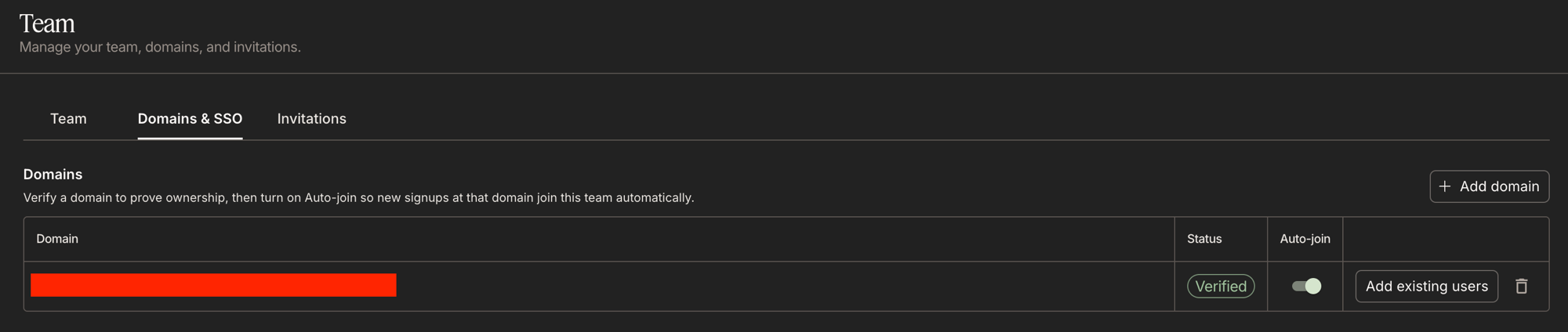
Domains are managed by **Owners** on the **Domains & SSO** tab of the [Team page](https://platform.inworld.ai/settings/team). Admins can view them.
 Domain verification requires a [Team account](/portal/org-management) — personal accounts cannot register domains. Public email providers such as `gmail.com` cannot be registered.
## Verify a domain
On the **Domains & SSO** tab, click **Add domain** and enter your domain, for example `example.com` — without the leading `@`. The domain is created in **Pending** state with a verification token.
Add this record at your DNS provider, at the domain apex:
| Host | Type | Value |
| ---- | ----- | ------------------------------------------ |
| `@` | `TXT` | `inworld-domain-verification=` |
Copy the exact value from the Portal — each domain gets its own token.
Click **Verify**. Inworld looks for the TXT record among the domain's DNS records and, when it finds it, moves the domain to **Verified**.
DNS changes can take up to a few hours to propagate. If verification fails, wait and try again — the check is safe to repeat, and verifying an already-verified domain does nothing.
A domain can be verified by **one** organization at a time. If another organization has already verified it, registering it fails — contact support if that is unexpected.
## Auto-join for new signups
Verifying a domain proves ownership; it does **not** by itself pull anyone in. Auto-join is a separate, opt-in switch per domain.
Once you enable **Auto-join** on a verified domain, anyone who signs up with an email address at that domain joins your organization as a **Member** instead of getting their own personal account.
* Auto-join is **off by default** and can only be enabled on a verified domain.
* Turning it off stops future auto-joins. People who already joined stay members.
* You must have at least one workspace [shared with the team](/portal/org-management#why-a-shared-workspace-is-required) before you can enable it.
## Add existing users at a domain
Auto-join only applies to *new* signups. To pull in colleagues who already have Inworld accounts at a verified domain, use **Add existing users** on that domain.
This adds every registered user at the domain to your organization as a **Member**, skipping anyone who is already a member, and reports how many were added. As with auto-join, it requires a workspace shared with the team.
This adds accounts without an invitation or a consent step — ownership of the domain is the authorization. Use [invitations](/portal/org-management#inviting-a-member) for anyone outside your domain.
## Remove a domain
Removing a domain stops auto-join for new signups at that domain. Members who already joined are unaffected.
Removing a verified domain also withdraws it from your access configuration:
* **SAML SSO** sign-ins from that domain stop being accepted, and SSO cannot be enabled without at least one verified domain remaining.
* **SCIM provisioning** can no longer create or reactivate users at that domain.
## Troubleshooting
Check that the record is a `TXT` record at the **apex** (host `@`, not `www` or a subdomain), that the value is the full `inworld-domain-verification=` string, and that your DNS provider has not appended your domain to the host. Query it yourself with `dig +short TXT example.com` before retrying. DNS changes can take a few hours.
A domain can only be verified by one organization at a time — typically another team inside your company got there first. Have that team remove the domain, or contact support.
Both require at least one workspace shared with the whole team, and a **Verified** domain. Share a workspace with the team, then retry.
Auto-join is opt-in per domain — confirm it is switched on for their domain, and that they signed up with an address at exactly that domain. Auto-join only applies at signup; for existing accounts use **Add existing users**.
## Next steps
Let your team sign in through your identity provider.
Let your IdP create, update, and deactivate members.
Domain verification requires a [Team account](/portal/org-management) — personal accounts cannot register domains. Public email providers such as `gmail.com` cannot be registered.
## Verify a domain
On the **Domains & SSO** tab, click **Add domain** and enter your domain, for example `example.com` — without the leading `@`. The domain is created in **Pending** state with a verification token.
Add this record at your DNS provider, at the domain apex:
| Host | Type | Value |
| ---- | ----- | ------------------------------------------ |
| `@` | `TXT` | `inworld-domain-verification=` |
Copy the exact value from the Portal — each domain gets its own token.
Click **Verify**. Inworld looks for the TXT record among the domain's DNS records and, when it finds it, moves the domain to **Verified**.
DNS changes can take up to a few hours to propagate. If verification fails, wait and try again — the check is safe to repeat, and verifying an already-verified domain does nothing.
A domain can be verified by **one** organization at a time. If another organization has already verified it, registering it fails — contact support if that is unexpected.
## Auto-join for new signups
Verifying a domain proves ownership; it does **not** by itself pull anyone in. Auto-join is a separate, opt-in switch per domain.
Once you enable **Auto-join** on a verified domain, anyone who signs up with an email address at that domain joins your organization as a **Member** instead of getting their own personal account.
* Auto-join is **off by default** and can only be enabled on a verified domain.
* Turning it off stops future auto-joins. People who already joined stay members.
* You must have at least one workspace [shared with the team](/portal/org-management#why-a-shared-workspace-is-required) before you can enable it.
## Add existing users at a domain
Auto-join only applies to *new* signups. To pull in colleagues who already have Inworld accounts at a verified domain, use **Add existing users** on that domain.
This adds every registered user at the domain to your organization as a **Member**, skipping anyone who is already a member, and reports how many were added. As with auto-join, it requires a workspace shared with the team.
This adds accounts without an invitation or a consent step — ownership of the domain is the authorization. Use [invitations](/portal/org-management#inviting-a-member) for anyone outside your domain.
## Remove a domain
Removing a domain stops auto-join for new signups at that domain. Members who already joined are unaffected.
Removing a verified domain also withdraws it from your access configuration:
* **SAML SSO** sign-ins from that domain stop being accepted, and SSO cannot be enabled without at least one verified domain remaining.
* **SCIM provisioning** can no longer create or reactivate users at that domain.
## Troubleshooting
Check that the record is a `TXT` record at the **apex** (host `@`, not `www` or a subdomain), that the value is the full `inworld-domain-verification=` string, and that your DNS provider has not appended your domain to the host. Query it yourself with `dig +short TXT example.com` before retrying. DNS changes can take a few hours.
A domain can only be verified by one organization at a time — typically another team inside your company got there first. Have that team remove the domain, or contact support.
Both require at least one workspace shared with the whole team, and a **Verified** domain. Share a workspace with the team, then retry.
Auto-join is opt-in per domain — confirm it is switched on for their domain, and that they signed up with an address at exactly that domain. Auto-join only applies at signup; for existing accounts use **Add existing users**.
## Next steps
Let your team sign in through your identity provider.
Let your IdP create, update, and deactivate members.