> ## Documentation Index
> Fetch the complete documentation index at: https://docs.inworld.ai/llms.txt
> Use this file to discover all available pages before exploring further.
# SAML Single Sign-On
> Let your team sign in to Inworld through your own SAML 2.0 identity provider.
SAML SSO lets your team sign in to Inworld with your own identity provider — Okta, Microsoft Entra ID, Google Workspace, OneLogin, or any SAML 2.0 IdP. You connect your IdP once, and everyone with an email address at one of your [verified domains](/portal/org-domains) can sign in through it.
SAML SSO is available on the **Enterprise** plan and is configured by **Owners** on the **Domains & SSO** tab of the [Team page](https://platform.inworld.ai/settings/team). Admins can view the configuration.
 ## Before you start
You need all of the following:
* A [Team account](/portal/org-management) on the **Enterprise** plan. [Contact sales](https://inworld.ai/contact-sales) to upgrade.
* At least one [**verified** email domain](/portal/org-domains). SSO only ever applies to domains you have verified — this is what stops an identity provider asserting addresses it does not own.
* Permission to create a SAML application in your IdP.
Sign-in is service-provider-initiated. Launching Inworld from a tile in your IdP dashboard (IdP-initiated sign-on) is not supported — configure the tile as a bookmark to the Inworld login page instead.
## Set up SSO
In your identity provider, create a new SAML 2.0 application and configure it with Inworld's service-provider values. These are the same for every organization, so you can enter them now:
| Field | Value |
| ---------------------------------------- | ----------------------------------------- |
| ACS URL (Reply URL / Single sign-on URL) | `https://auth.inworld.ai/__/auth/handler` |
| SP entity ID (Audience URI / Identifier) | `https://platform.inworld.ai/saml/sp` |
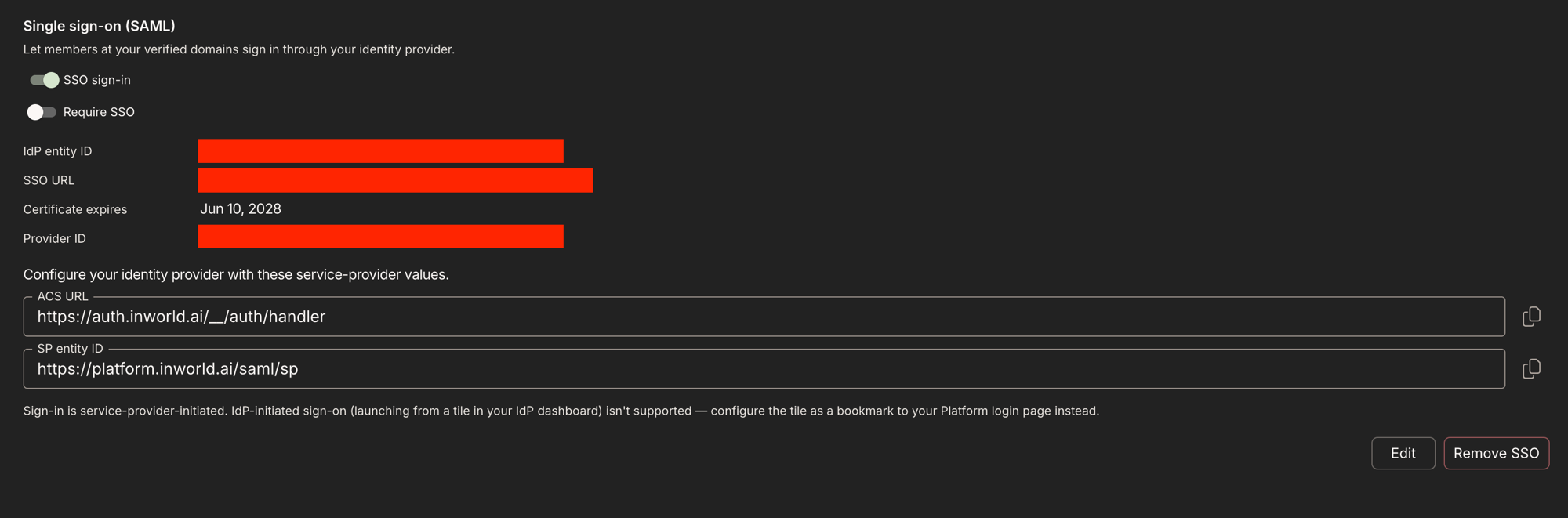
The Portal shows both values with copy buttons on the **Domains & SSO** tab — in the setup dialog once you save, and afterwards in the SSO summary — if you would rather copy them than retype them.
Configure the app so the assertion identifies the user by their **work email address** — in most IdPs this means setting the Name ID format to `EmailAddress` and mapping it to the user's primary email. Sign-in is rejected if the assertion carries no email address.
From the SAML app, copy:
* **IdP entity ID** (issuer) — e.g. `http://www.okta.com/exk1a2b3c4d5`
* **SSO URL** (sign-in / login URL) — must be `https://`
* **X.509 signing certificate** — the full PEM, including the `-----BEGIN CERTIFICATE-----` and `-----END CERTIFICATE-----` lines
On the **Domains & SSO** tab, click **Set up SSO**, paste the three values, and save. Inworld validates the certificate as it is stored: a malformed, expired, or not-yet-valid certificate is rejected.
Assign your users or groups to the SAML app in your IdP, then sign in from a private browser window: on the Inworld login page choose **Sign in with SSO**, enter a work email at a verified domain, and continue to your IdP.
Once a test sign-in works, enable the **SSO sign-in** toggle. Until it is on, no one can sign in through your IdP.
### Field reference and limits
| Field | Requirements |
| ----------------- | ----------------------------------------------------------------------------------- |
| IdP entity ID | Required, up to 1024 characters |
| SSO URL | Required, valid `https://` URL, up to 2048 characters |
| X.509 certificate | Required, PEM-encoded, currently valid (not expired, not future-dated), up to 16 KB |
## How your team signs in
1. On the Inworld login page they choose **Sign in with SSO**.
2. They enter their work email. Inworld looks up which organization has that domain verified with SSO enabled.
3. They are handed off to your IdP in a popup, authenticate there, and land in Inworld.
If a domain has no SSO configured, the dialog says so and steers them to another sign-in method. Users can tick **Remember my email on this device** to skip retyping.
First-time SSO users get an Inworld account created automatically on their first successful sign-in.
## Require SSO
By default, SSO is one option among several — your team can still sign in with a password, Google, Microsoft, or GitHub. Turning on **Require SSO** blocks all of those for users whose email is at one of your verified domains, so your IdP becomes the only way in.
Enforcement happens on Inworld's servers at sign-in, not in the browser. A user who tries another method is signed out and shown **"Your organization requires SSO"** with a **Continue with SSO** action.
**There is no break-glass exemption.** Require SSO applies to every user at your verified domains, including Owners. If your IdP becomes unavailable — an expired certificate, a deleted SAML app, a misconfigured assertion — nobody in your organization can sign in, and the only recovery is to contact support to reset the configuration out of band.
Before enabling it: complete a successful test sign-in, and confirm your certificate expiry date.
**Require SSO** can only be turned on while **SSO sign-in** is enabled. Turning SSO sign-in off automatically clears the enforcement.
## Rotate your signing certificate
The Portal shows your certificate's expiry date on the **Domains & SSO** tab. **Sign-ins fail once the certificate expires**, so rotate before that date.
To rotate, click **Edit** and paste the new PEM certificate. The new certificate replaces the old one immediately, so schedule the change for when your IdP is already serving assertions signed with the new key.
Set a calendar reminder a few weeks before the expiry date shown in the Portal. If **Require SSO** is on, an expired certificate locks out your whole organization.
## Turn SSO off or remove it
* **Disabling the SSO sign-in toggle** stops all SSO sign-ins and clears **Require SSO**. The configuration is kept, so you can re-enable it later.
* **Remove SSO** deletes the connection entirely. Users who signed in through SSO keep their Inworld accounts but can no longer authenticate through your IdP; they will need another sign-in method.
Both actions stay available even if your plan is downgraded from Enterprise — winding SSO down is never blocked. Setting SSO up, enabling it, changing the IdP details, or requiring it all need an active Enterprise plan.
If your organization is downgraded from Enterprise, SSO stops being offered at sign-in and **Require SSO** stops being enforced, so your team falls back to other sign-in methods rather than being locked out. The configuration remains visible in the Portal.
## Troubleshooting
The domain is not verified for an organization with SSO enabled. Check that the domain is **Verified** on the **Domains & SSO** tab, that the **SSO sign-in** toggle is on, that your plan is Enterprise, and that the user's email is at exactly that domain (subdomains are separate domains and need their own verification).
The assertion reached Inworld but was refused. The usual causes: the asserted email is at a domain your organization has **not** verified; the signing certificate in Inworld no longer matches the one your IdP signs with; or the assertion carries no email address. Re-check the Name ID mapping and the certificate, then retry.
Expected when **Require SSO** is on and someone tries a password or social sign-in. Use **Continue with SSO**. If SSO itself is broken, contact support to reset the configuration — there is no user-side bypass.
The certificate must be a complete PEM including the `BEGIN`/`END CERTIFICATE` lines, must currently be valid, and must be under 16 KB. Export the signing certificate (not the metadata XML) from your IdP, or paste the `` body wrapped in the PEM markers.
Browsers block popups that are not opened by a direct click. Allow popups for the Inworld login page and click **Continue** again.
IdP-initiated sign-on is not supported. Change the tile to a bookmark pointing at the Inworld login page, where the user picks **Sign in with SSO**.
## Next steps
Let your IdP create, update, and deactivate members automatically.
Roles, invitations, and membership.
## Before you start
You need all of the following:
* A [Team account](/portal/org-management) on the **Enterprise** plan. [Contact sales](https://inworld.ai/contact-sales) to upgrade.
* At least one [**verified** email domain](/portal/org-domains). SSO only ever applies to domains you have verified — this is what stops an identity provider asserting addresses it does not own.
* Permission to create a SAML application in your IdP.
Sign-in is service-provider-initiated. Launching Inworld from a tile in your IdP dashboard (IdP-initiated sign-on) is not supported — configure the tile as a bookmark to the Inworld login page instead.
## Set up SSO
In your identity provider, create a new SAML 2.0 application and configure it with Inworld's service-provider values. These are the same for every organization, so you can enter them now:
| Field | Value |
| ---------------------------------------- | ----------------------------------------- |
| ACS URL (Reply URL / Single sign-on URL) | `https://auth.inworld.ai/__/auth/handler` |
| SP entity ID (Audience URI / Identifier) | `https://platform.inworld.ai/saml/sp` |
The Portal shows both values with copy buttons on the **Domains & SSO** tab — in the setup dialog once you save, and afterwards in the SSO summary — if you would rather copy them than retype them.
Configure the app so the assertion identifies the user by their **work email address** — in most IdPs this means setting the Name ID format to `EmailAddress` and mapping it to the user's primary email. Sign-in is rejected if the assertion carries no email address.
From the SAML app, copy:
* **IdP entity ID** (issuer) — e.g. `http://www.okta.com/exk1a2b3c4d5`
* **SSO URL** (sign-in / login URL) — must be `https://`
* **X.509 signing certificate** — the full PEM, including the `-----BEGIN CERTIFICATE-----` and `-----END CERTIFICATE-----` lines
On the **Domains & SSO** tab, click **Set up SSO**, paste the three values, and save. Inworld validates the certificate as it is stored: a malformed, expired, or not-yet-valid certificate is rejected.
Assign your users or groups to the SAML app in your IdP, then sign in from a private browser window: on the Inworld login page choose **Sign in with SSO**, enter a work email at a verified domain, and continue to your IdP.
Once a test sign-in works, enable the **SSO sign-in** toggle. Until it is on, no one can sign in through your IdP.
### Field reference and limits
| Field | Requirements |
| ----------------- | ----------------------------------------------------------------------------------- |
| IdP entity ID | Required, up to 1024 characters |
| SSO URL | Required, valid `https://` URL, up to 2048 characters |
| X.509 certificate | Required, PEM-encoded, currently valid (not expired, not future-dated), up to 16 KB |
## How your team signs in
1. On the Inworld login page they choose **Sign in with SSO**.
2. They enter their work email. Inworld looks up which organization has that domain verified with SSO enabled.
3. They are handed off to your IdP in a popup, authenticate there, and land in Inworld.
If a domain has no SSO configured, the dialog says so and steers them to another sign-in method. Users can tick **Remember my email on this device** to skip retyping.
First-time SSO users get an Inworld account created automatically on their first successful sign-in.
## Require SSO
By default, SSO is one option among several — your team can still sign in with a password, Google, Microsoft, or GitHub. Turning on **Require SSO** blocks all of those for users whose email is at one of your verified domains, so your IdP becomes the only way in.
Enforcement happens on Inworld's servers at sign-in, not in the browser. A user who tries another method is signed out and shown **"Your organization requires SSO"** with a **Continue with SSO** action.
**There is no break-glass exemption.** Require SSO applies to every user at your verified domains, including Owners. If your IdP becomes unavailable — an expired certificate, a deleted SAML app, a misconfigured assertion — nobody in your organization can sign in, and the only recovery is to contact support to reset the configuration out of band.
Before enabling it: complete a successful test sign-in, and confirm your certificate expiry date.
**Require SSO** can only be turned on while **SSO sign-in** is enabled. Turning SSO sign-in off automatically clears the enforcement.
## Rotate your signing certificate
The Portal shows your certificate's expiry date on the **Domains & SSO** tab. **Sign-ins fail once the certificate expires**, so rotate before that date.
To rotate, click **Edit** and paste the new PEM certificate. The new certificate replaces the old one immediately, so schedule the change for when your IdP is already serving assertions signed with the new key.
Set a calendar reminder a few weeks before the expiry date shown in the Portal. If **Require SSO** is on, an expired certificate locks out your whole organization.
## Turn SSO off or remove it
* **Disabling the SSO sign-in toggle** stops all SSO sign-ins and clears **Require SSO**. The configuration is kept, so you can re-enable it later.
* **Remove SSO** deletes the connection entirely. Users who signed in through SSO keep their Inworld accounts but can no longer authenticate through your IdP; they will need another sign-in method.
Both actions stay available even if your plan is downgraded from Enterprise — winding SSO down is never blocked. Setting SSO up, enabling it, changing the IdP details, or requiring it all need an active Enterprise plan.
If your organization is downgraded from Enterprise, SSO stops being offered at sign-in and **Require SSO** stops being enforced, so your team falls back to other sign-in methods rather than being locked out. The configuration remains visible in the Portal.
## Troubleshooting
The domain is not verified for an organization with SSO enabled. Check that the domain is **Verified** on the **Domains & SSO** tab, that the **SSO sign-in** toggle is on, that your plan is Enterprise, and that the user's email is at exactly that domain (subdomains are separate domains and need their own verification).
The assertion reached Inworld but was refused. The usual causes: the asserted email is at a domain your organization has **not** verified; the signing certificate in Inworld no longer matches the one your IdP signs with; or the assertion carries no email address. Re-check the Name ID mapping and the certificate, then retry.
Expected when **Require SSO** is on and someone tries a password or social sign-in. Use **Continue with SSO**. If SSO itself is broken, contact support to reset the configuration — there is no user-side bypass.
The certificate must be a complete PEM including the `BEGIN`/`END CERTIFICATE` lines, must currently be valid, and must be under 16 KB. Export the signing certificate (not the metadata XML) from your IdP, or paste the `` body wrapped in the PEM markers.
Browsers block popups that are not opened by a direct click. Allow popups for the Inworld login page and click **Continue** again.
IdP-initiated sign-on is not supported. Change the tile to a bookmark pointing at the Inworld login page, where the user picks **Sign in with SSO**.
## Next steps
Let your IdP create, update, and deactivate members automatically.
Roles, invitations, and membership.