> ## Documentation Index
> Fetch the complete documentation index at: https://docs.inworld.ai/llms.txt
> Use this file to discover all available pages before exploring further.
# Traces
Traces provide detailed visibility into AI interactions, including timestamps, execution IDs, and durations. They support debugging, system analysis, and graph monitoring.
## Key Features
* **Performance Analysis**: Measure response times and system latency to identify bottlenecks.
* **Debugging & Troubleshooting**: Investigate errors and refine AI graphs using trace data.
* **\[Coming Soon] Reusable Data**: Logged traces can be used to generate evaluation datasets in automated and human review workflows.
## Get Started with Traces
### Capturing Traces
To capture traces, you'll first need to ensure telemetry is enabled (it should be on by default). Follow the SDK specific instructions:
Tracing is **enabled by default**. Just set your API key:
```bash theme={"system"}
export INWORLD_API_KEY=your-api-key
```
**Optional: Custom configuration**
Developers can customize telemetry behavior for better monitoring and performance:
```typescript theme={"system"}
import { telemetry, LogLevel, ExporterType } from '@inworld/runtime';
telemetry.init({
// Required
apiKey: 'your-api-key',
// Application identification (helps filter traces in Portal)
appName: 'my-chat-app', // Appears as service.name in traces
appVersion: '2.1.0', // Track different deployments
// Custom endpoint (optional)
endpoint: 'https://custom-telemetry.example.com',
// Tracing configuration
tracer: {
samplingRate: 0.1 // Sample 10% of trace sessions (default: 1.0 = 100%)
},
// Export destination
exporterType: ExporterType.REMOTE // Send data to Inworld Portal (default remote)
});
```
**Why customize these settings?**
* **`appName`/`appVersion`**: Identify your app in Portal when monitoring multiple services
* **`tracer.samplingRate`**: Reduce overhead in high-traffic production (default: 1.0 = capture all traces)
* `0.1` = capture 10% of trace sessions (complete execution flows)
* Each captured trace still shows the full execution path
* Logs are NOT affected by trace sampling - they're captured based on logger.level setting regardless of whether the trace is sampled
* **`exporterType`**: Control where telemetry data is sent
* `REMOTE` (default): Send to Portal via HTTPS for monitoring and analysis
* `LOCAL`: Output to console/terminal for development debugging (no Portal)
**To disable telemetry completely:**
If you do not want to capture telemetry, you can disable it by:
*Environment variable:*
```bash theme={"system"}
export DISABLE_TELEMETRY=true
# or alternatively
export DISABLE_TELEMETRY=1
```
*Programmatically in code:*
```typescript theme={"system"}
// Option 1: Set environment variable before importing the framework
// CORRECT - Set before any imports
process.env.DISABLE_TELEMETRY = 'true';
import { telemetry } from '@inworld/runtime'; // telemetry won't initialize
// WRONG - Set after import
import { telemetry } from '@inworld/runtime'; // telemetry already initialized!
process.env.DISABLE_TELEMETRY = 'true'; // too late
// Option 2: Shutdown telemetry after automatic initialization
import { telemetry } from '@inworld/runtime';
telemetry.shutdown();
```
Go to Edit > Project Settings > Plugins > Inworld > Telemetry and make sure Telemetry Enabled is checked.
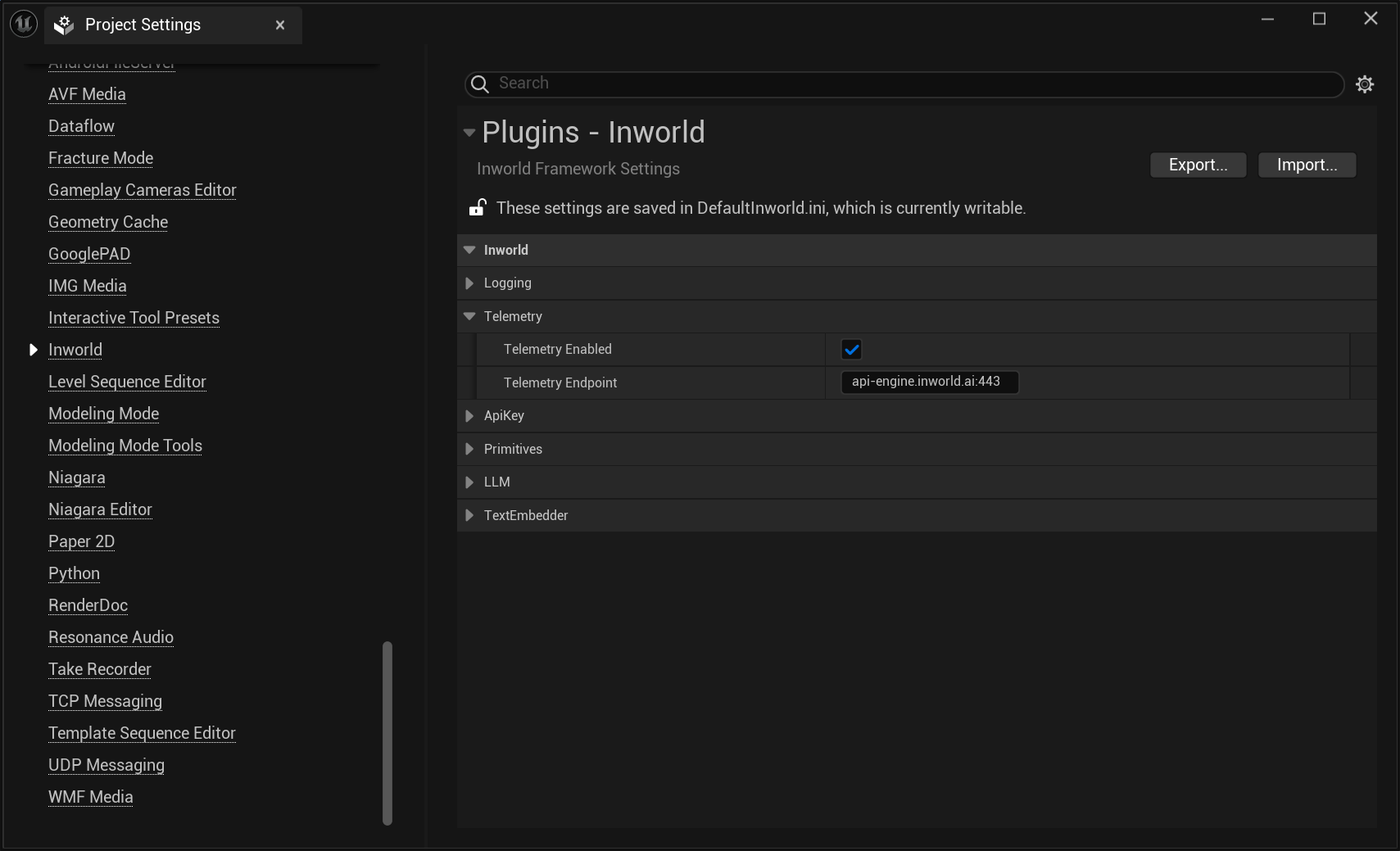 Add the following code snippet to your application
```cpp theme={"system"}
// Initialize with application details
ConfigureTelemetry("my_application_name", "0.0.1");
```
**First-time users:** The Traces tab only appears after you have run your first graph execution. If you've run your first execution but still don't see the Traces tab, please sign out and sign back in.
### Viewing Traces
Add the following code snippet to your application
```cpp theme={"system"}
// Initialize with application details
ConfigureTelemetry("my_application_name", "0.0.1");
```
**First-time users:** The Traces tab only appears after you have run your first graph execution. If you've run your first execution but still don't see the Traces tab, please sign out and sign back in.
### Viewing Traces
 To view your Traces, navigate to the **Traces** tab in Portal.
* Select a timeframe to view relevant traces.
* Filter by Name, Trace ID, Span ID, Application Name, or Status Code.
* Click a trace to view:
* Execution ID
* Execution latency
* Span latencies and details
* Click a span to see:
* Span ID
* Tags
* Events
If you want to deep dive more into a specific trace, you can also look up any logs associated with that trace, by navigating to the **Logs** tab.
* Use the search bar to find [logs](/portal/logs) by Trace ID or Span ID.
* Examine [logs](/portal/logs) for additional context on the particular trace or span.
## Trace Metadata Definitions
| Field Name | Description | Defined by |
| :---------------------------- | :--------------------------------------------------------------------------- | :------------------------------ |
| **Trace Level Fields** | | |
| `Execution ID` | Unique ID of one graph execution/ one trace | Runtime/ Developer can override |
| `Duration` | Duration of the trace execution in milliseconds | Runtime |
| `Graph ID` | Unique ID of the executing graph | Developer |
| `Graph Variant` | Graph variant being executed | Runtime |
| `App: Name` | Name of the application or service | Developer |
| `App: Version` | Application version | Developer |
| `App Instance ID` | Auto-generated unique instance identifier | Runtime |
| `User Context: Targeting_key` | Key to ensure users experience the same variant across sessions | Developer |
| `User Context: *` | Custom user attributes (e.g., user\_context.age, user\_context.user\_id) | Developer |
| **Span Level Fields** | | |
| `Span ID` | Unique span identifier | Runtime |
| `Span Name` | Name of the span. Ex: Graph ID (for graph spans) or Node ID (for node spans) | Runtime |
| `Timestamp` | When the span started | Runtime |
| `Status` | Final status as string: "Unset", "Error", "Ok" | Runtime |
| `Service` | Either "workflows.Graph" or "workflows.Node" | Runtime |
| `Method` | Either "execute" or "process" | Runtime |
| `Node ID` | ID of the specific node being executed | Runtime |
| `Input` | Input to the graph/node/service | Runtime |
| `Output` | Output from the graph/node/service | Runtime |
## Best Practices
* **Enable Tracing in Development**: Ensure trace logging is active in your development setup for early diagnostics.
* **Use Filters for Faster Debugging**: Apply filters like Execution ID and service name to quickly find issues.
* **Monitor Performance Trends**: Track long-term trace data to uncover inefficiencies or anomalies.
* **Optimize execution**: Dive deep into each trace execution to optimize each span
* **Error Highlighting**: Spans with errors appear with red borders for immediate identification
* **Error Propagation**: Dotted outlines indicate parent spans containing child spans with errors
To view your Traces, navigate to the **Traces** tab in Portal.
* Select a timeframe to view relevant traces.
* Filter by Name, Trace ID, Span ID, Application Name, or Status Code.
* Click a trace to view:
* Execution ID
* Execution latency
* Span latencies and details
* Click a span to see:
* Span ID
* Tags
* Events
If you want to deep dive more into a specific trace, you can also look up any logs associated with that trace, by navigating to the **Logs** tab.
* Use the search bar to find [logs](/portal/logs) by Trace ID or Span ID.
* Examine [logs](/portal/logs) for additional context on the particular trace or span.
## Trace Metadata Definitions
| Field Name | Description | Defined by |
| :---------------------------- | :--------------------------------------------------------------------------- | :------------------------------ |
| **Trace Level Fields** | | |
| `Execution ID` | Unique ID of one graph execution/ one trace | Runtime/ Developer can override |
| `Duration` | Duration of the trace execution in milliseconds | Runtime |
| `Graph ID` | Unique ID of the executing graph | Developer |
| `Graph Variant` | Graph variant being executed | Runtime |
| `App: Name` | Name of the application or service | Developer |
| `App: Version` | Application version | Developer |
| `App Instance ID` | Auto-generated unique instance identifier | Runtime |
| `User Context: Targeting_key` | Key to ensure users experience the same variant across sessions | Developer |
| `User Context: *` | Custom user attributes (e.g., user\_context.age, user\_context.user\_id) | Developer |
| **Span Level Fields** | | |
| `Span ID` | Unique span identifier | Runtime |
| `Span Name` | Name of the span. Ex: Graph ID (for graph spans) or Node ID (for node spans) | Runtime |
| `Timestamp` | When the span started | Runtime |
| `Status` | Final status as string: "Unset", "Error", "Ok" | Runtime |
| `Service` | Either "workflows.Graph" or "workflows.Node" | Runtime |
| `Method` | Either "execute" or "process" | Runtime |
| `Node ID` | ID of the specific node being executed | Runtime |
| `Input` | Input to the graph/node/service | Runtime |
| `Output` | Output from the graph/node/service | Runtime |
## Best Practices
* **Enable Tracing in Development**: Ensure trace logging is active in your development setup for early diagnostics.
* **Use Filters for Faster Debugging**: Apply filters like Execution ID and service name to quickly find issues.
* **Monitor Performance Trends**: Track long-term trace data to uncover inefficiencies or anomalies.
* **Optimize execution**: Dive deep into each trace execution to optimize each span
* **Error Highlighting**: Spans with errors appear with red borders for immediate identification
* **Error Propagation**: Dotted outlines indicate parent spans containing child spans with errors
 ## When Should I Use Traces vs Logs?
As opposed to [logs](/portal/logs), which capture details about a specific event, traces show the flow of an entire execution.
Below is an overview of some key differences:
| **Aspect** | **Logs** | **Traces** |
| :-------------- | :-------------------------------------------------------------------------------------------- | :--------------------------------------------------------------------------- |
| **Purpose** | Captures discrete events (errors, warnings, info) | Capture end-to-end execution flows |
| **Scope** | Capture specific moments in time | Capture relationships between nodes |
| **Granularity** | Often capture detailed, low-level system information, including errors or performance metrics | Show the high-level flow of a request across nodes, including inputs/output |
| **Use Case** | Debugging, monitoring, auditing, performance tracking, and error reporting | End-to-end execution tracking, identifying bottlenecks, tracing dependencies |
**Use traces when you need to:**
* Visualize the complete flow of a request through your system
* Identify performance bottlenecks across multiple components
* Understand dependencies between different components
* Identify where failures are happening across the system (e.g., was knowledge not retrieved or did the model not utilize it?)
## Next Steps
Use trace insights to continue to optimize your AI graph performance!
Monitor your key metrics.
Learn how to run an experiment to optimize your metrics.
Learn how to build a simple chat experience using the Node.js SDK.
## When Should I Use Traces vs Logs?
As opposed to [logs](/portal/logs), which capture details about a specific event, traces show the flow of an entire execution.
Below is an overview of some key differences:
| **Aspect** | **Logs** | **Traces** |
| :-------------- | :-------------------------------------------------------------------------------------------- | :--------------------------------------------------------------------------- |
| **Purpose** | Captures discrete events (errors, warnings, info) | Capture end-to-end execution flows |
| **Scope** | Capture specific moments in time | Capture relationships between nodes |
| **Granularity** | Often capture detailed, low-level system information, including errors or performance metrics | Show the high-level flow of a request across nodes, including inputs/output |
| **Use Case** | Debugging, monitoring, auditing, performance tracking, and error reporting | End-to-end execution tracking, identifying bottlenecks, tracing dependencies |
**Use traces when you need to:**
* Visualize the complete flow of a request through your system
* Identify performance bottlenecks across multiple components
* Understand dependencies between different components
* Identify where failures are happening across the system (e.g., was knowledge not retrieved or did the model not utilize it?)
## Next Steps
Use trace insights to continue to optimize your AI graph performance!
Monitor your key metrics.
Learn how to run an experiment to optimize your metrics.
Learn how to build a simple chat experience using the Node.js SDK.