> ## Documentation Index
> Fetch the complete documentation index at: https://docs.inworld.ai/llms.txt
> Use this file to discover all available pages before exploring further.
# Realtime Router Quickstart
> Learn how to make your first Realtime Router API request
This quickstart will walk you through creating your first LLM Router (via [Portal](#create-your-first-router-on-portal) or [API](#create-your-first-router-via-api)) and making your first request.
While this guide uses the OpenAI Chat Completions compatible `/v1/chat/completions` endpoint, you can also integrate with our [Anthropic Messages API compatible](/router/anthropic-compatibility) `/v1/messages` endpoint, [OpenAI SDK](/router/openai-compatibility#openai-sdk), and Anthropic SDK.
## Create your first Router on Portal
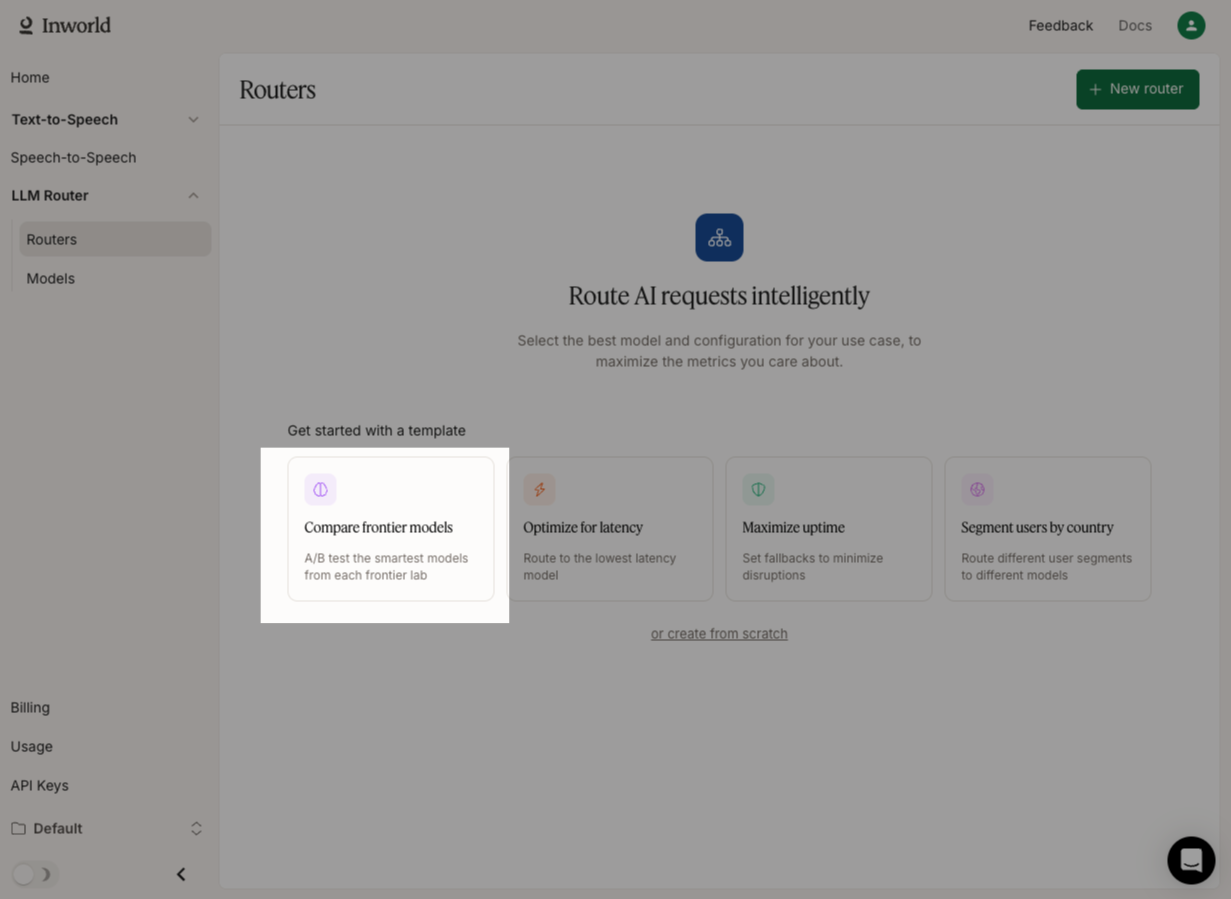
In [Inworld Portal](https://platform.inworld.ai/), go to **Routers** and select "Compare frontier models".
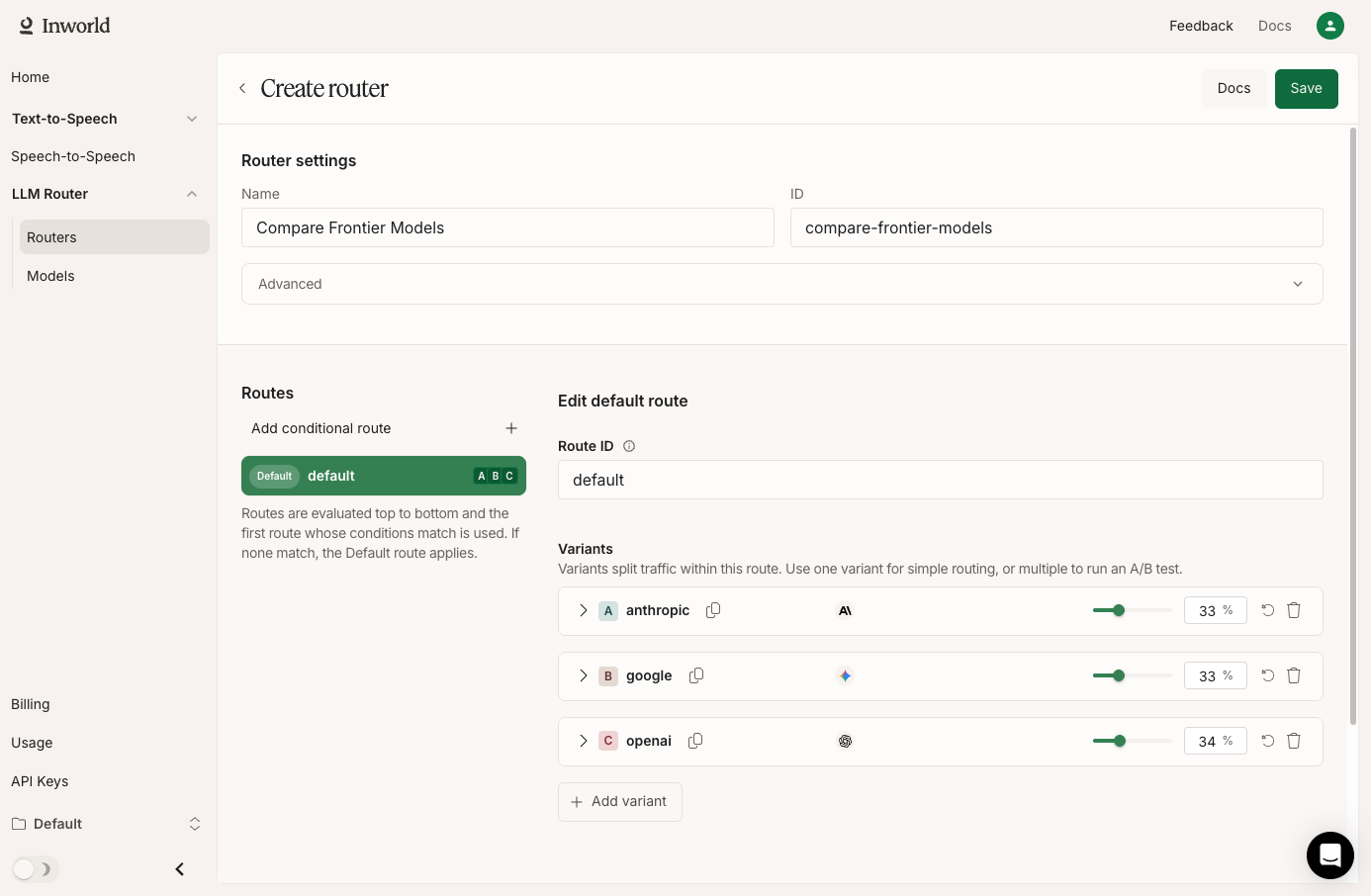
 Click **Save** to create this router, which splits your traffic between Anthropic's Opus 4.6, Google's Gemini 3.1 Pro, and OpenAI's GPT-5.2.
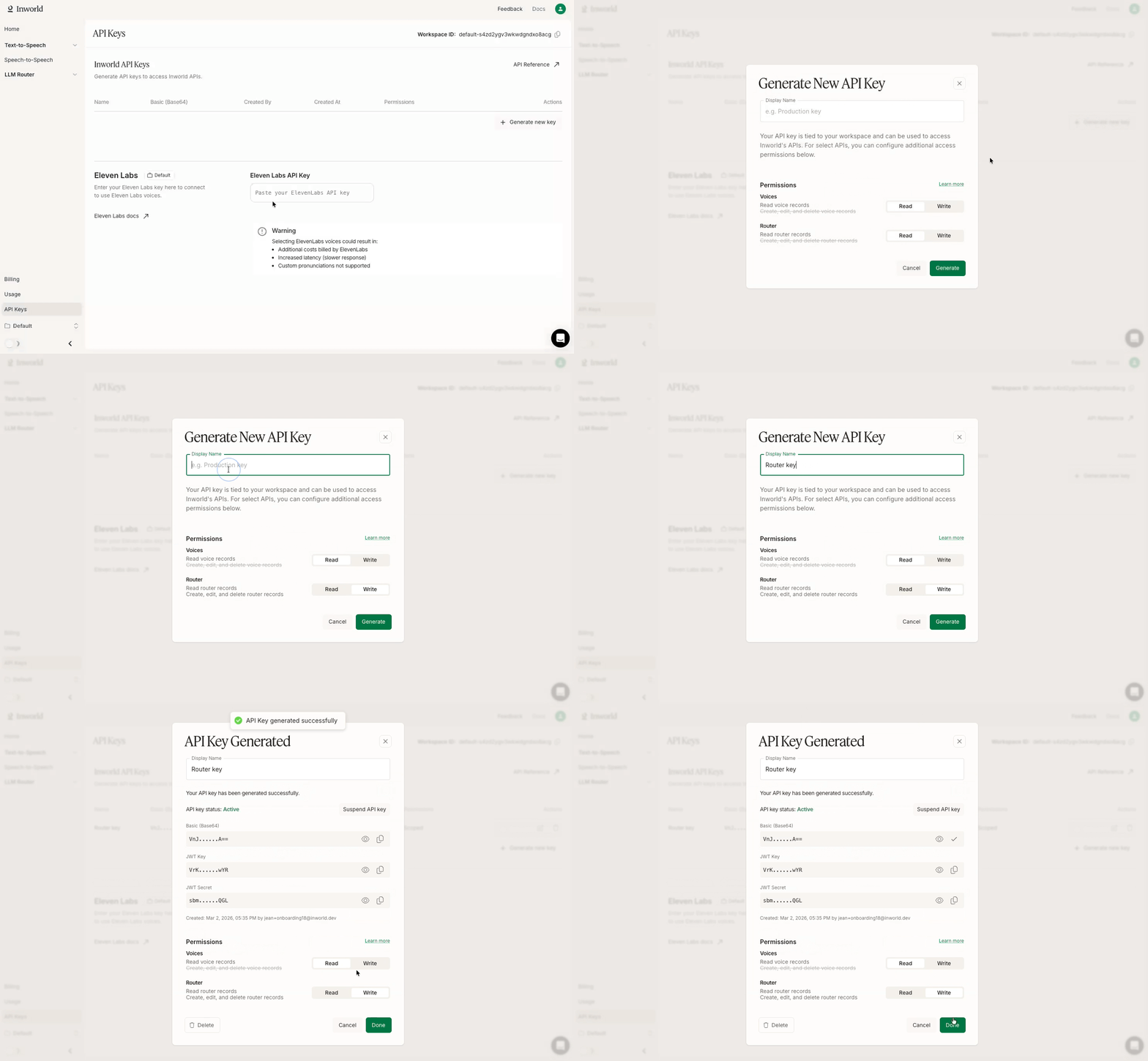
 Go to [**API Keys**](https://platform.inworld.ai/api-keys) and click **Generate new key**. Copy the Base64 credentials.
Now run the following code to make your first request to your router.
```bash curl theme={"system"}
curl --request POST \
--url https://api.inworld.ai/v1/chat/completions \
--header 'Authorization: Basic ' \
--header 'Content-Type: application/json' \
--data '{
"model": "inworld/compare-frontier-models",
"messages": [
{"role": "user", "content": "Who created you?"}
]
}'
```
If you run the request multiple times, you should see traffic split across Anthropic's Opus 4.6, Google's Gemini 3.1 Pro, and OpenAI's GPT-5.2.
## Create your first Router via API
In [Inworld Portal](https://platform.inworld.ai/), go to [**API Keys**](https://platform.inworld.ai/api-keys) and click **Generate new key**. Enable **Write** permissions for the Router API, and click **Generate**.
Copy the Base64 credentials.
Go to [**API Keys**](https://platform.inworld.ai/api-keys) and click **Generate new key**. Copy the Base64 credentials.
Now run the following code to make your first request to your router.
```bash curl theme={"system"}
curl --request POST \
--url https://api.inworld.ai/v1/chat/completions \
--header 'Authorization: Basic ' \
--header 'Content-Type: application/json' \
--data '{
"model": "inworld/compare-frontier-models",
"messages": [
{"role": "user", "content": "Who created you?"}
]
}'
```
If you run the request multiple times, you should see traffic split across Anthropic's Opus 4.6, Google's Gemini 3.1 Pro, and OpenAI's GPT-5.2.
## Create your first Router via API
In [Inworld Portal](https://platform.inworld.ai/), go to [**API Keys**](https://platform.inworld.ai/api-keys) and click **Generate new key**. Enable **Write** permissions for the Router API, and click **Generate**.
Copy the Base64 credentials.
 Now let's create a router that splits your traffic between Anthropic's Opus 4.6, Google's Gemini 3.1 Pro, and OpenAI's GPT-5.2.
```shell curl theme={"system"}
curl --location 'https://api.inworld.ai/router/v1/routers' \
--header 'Content-Type: application/json' \
--header 'Authorization: Basic ' \
--data '{
"name": "compare-frontier-models",
"default_route": {
"route_id": "default",
"variants": [
{
"variant": {
"variant_id": "anthropic",
"model_id": "anthropic/claude-opus-4-6"
},
"weight": 33
},
{
"variant": {
"variant_id": "google",
"model_id": "google-ai-studio/gemini-3.1-pro-preview"
},
"weight": 33
},
{
"variant": {
"variant_id": "openai",
"model_id": "openai/gpt-5.2"
},
"weight": 34
}
]
}
}'
```
```python Python theme={"system"}
import requests
url = "https://api.inworld.ai/router/v1/routers"
headers = {
"Content-Type": "application/json",
"Authorization": "Basic "
}
data = {
"name": "compare-frontier-models",
"default_route": {
"route_id": "default",
"variants": [
{
"variant": {
"variant_id": "anthropic",
"model_id": "anthropic/claude-opus-4-6"
},
"weight": 33
},
{
"variant": {
"variant_id": "google",
"model_id": "google-ai-studio/gemini-3.1-pro-preview"
},
"weight": 33
},
{
"variant": {
"variant_id": "openai",
"model_id": "openai/gpt-5.2"
},
"weight": 34
}
]
}
}
response = requests.post(url, headers=headers, json=data)
print(response.json())
```
```javascript JavaScript theme={"system"}
const response = await fetch("https://api.inworld.ai/router/v1/routers", {
method: "POST",
headers: {
"Content-Type": "application/json",
"Authorization": "Basic "
},
body: JSON.stringify({
name: "compare-frontier-models",
default_route: {
route_id: "default",
variants: [
{
variant: {
variant_id: "anthropic",
model_id: "anthropic/claude-opus-4-6"
},
weight: 33
},
{
variant: {
variant_id: "google",
model_id: "google-ai-studio/gemini-3.1-pro-preview"
},
weight: 33
},
{
variant: {
variant_id: "openai",
model_id: "openai/gpt-5.2"
},
weight: 34
}
]
}
})
});
const data = await response.json();
console.log(data);
```
Now run the following code to make your first request to your router.
```bash curl theme={"system"}
curl --request POST \
--url https://api.inworld.ai/v1/chat/completions \
--header 'Authorization: Basic ' \
--header 'Content-Type: application/json' \
--data '{
"model": "inworld/compare-frontier-models",
"messages": [
{"role": "user", "content": "Who created you?"}
]
}'
```
If you run the request multiple times, you should see traffic split across Anthropic's Opus 4.6, Google's Gemini 3.1 Pro, and OpenAI's GPT-5.2.
## Next Steps
Now that you've made your first request, you can explore more of Inworld Router's capabilities.
Understand core router concepts, including fallbacks, conditional routing, and more
Learn more about how to use conditional routing
View request and response schemas for Chat Completions and Router APIs
Now let's create a router that splits your traffic between Anthropic's Opus 4.6, Google's Gemini 3.1 Pro, and OpenAI's GPT-5.2.
```shell curl theme={"system"}
curl --location 'https://api.inworld.ai/router/v1/routers' \
--header 'Content-Type: application/json' \
--header 'Authorization: Basic ' \
--data '{
"name": "compare-frontier-models",
"default_route": {
"route_id": "default",
"variants": [
{
"variant": {
"variant_id": "anthropic",
"model_id": "anthropic/claude-opus-4-6"
},
"weight": 33
},
{
"variant": {
"variant_id": "google",
"model_id": "google-ai-studio/gemini-3.1-pro-preview"
},
"weight": 33
},
{
"variant": {
"variant_id": "openai",
"model_id": "openai/gpt-5.2"
},
"weight": 34
}
]
}
}'
```
```python Python theme={"system"}
import requests
url = "https://api.inworld.ai/router/v1/routers"
headers = {
"Content-Type": "application/json",
"Authorization": "Basic "
}
data = {
"name": "compare-frontier-models",
"default_route": {
"route_id": "default",
"variants": [
{
"variant": {
"variant_id": "anthropic",
"model_id": "anthropic/claude-opus-4-6"
},
"weight": 33
},
{
"variant": {
"variant_id": "google",
"model_id": "google-ai-studio/gemini-3.1-pro-preview"
},
"weight": 33
},
{
"variant": {
"variant_id": "openai",
"model_id": "openai/gpt-5.2"
},
"weight": 34
}
]
}
}
response = requests.post(url, headers=headers, json=data)
print(response.json())
```
```javascript JavaScript theme={"system"}
const response = await fetch("https://api.inworld.ai/router/v1/routers", {
method: "POST",
headers: {
"Content-Type": "application/json",
"Authorization": "Basic "
},
body: JSON.stringify({
name: "compare-frontier-models",
default_route: {
route_id: "default",
variants: [
{
variant: {
variant_id: "anthropic",
model_id: "anthropic/claude-opus-4-6"
},
weight: 33
},
{
variant: {
variant_id: "google",
model_id: "google-ai-studio/gemini-3.1-pro-preview"
},
weight: 33
},
{
variant: {
variant_id: "openai",
model_id: "openai/gpt-5.2"
},
weight: 34
}
]
}
})
});
const data = await response.json();
console.log(data);
```
Now run the following code to make your first request to your router.
```bash curl theme={"system"}
curl --request POST \
--url https://api.inworld.ai/v1/chat/completions \
--header 'Authorization: Basic ' \
--header 'Content-Type: application/json' \
--data '{
"model": "inworld/compare-frontier-models",
"messages": [
{"role": "user", "content": "Who created you?"}
]
}'
```
If you run the request multiple times, you should see traffic split across Anthropic's Opus 4.6, Google's Gemini 3.1 Pro, and OpenAI's GPT-5.2.
## Next Steps
Now that you've made your first request, you can explore more of Inworld Router's capabilities.
Understand core router concepts, including fallbacks, conditional routing, and more
Learn more about how to use conditional routing
View request and response schemas for Chat Completions and Router APIs