> ## Documentation Index
> Fetch the complete documentation index at: https://docs.inworld.ai/llms.txt
> Use this file to discover all available pages before exploring further.
# TTS On-Premises
> Enterprise-grade text-to-speech, deployed entirely within your environment
Inworld TTS On-Premises lets organizations run high-quality text-to-speech models locally — without sending text or audio data to the cloud. It's built for enterprises that require strict data control, low latency, and compliance with internal or regulatory standards.
Inworld TTS On-Premises is available for both the **Realtime TTS 1.5 Mini** and **Realtime TTS 1.5 Max** models.
To get started with TTS On-Premises, contact [sales@inworld.ai](mailto:sales@inworld.ai) for pricing and access to the container registry.
## Why TTS On-Premises
No outbound data transfer. Full ownership of text and audio.
Optimized for production workloads and interactive applications.
Suitable for air-gapped, private, and compliance-sensitive deployments.
Containerized architecture designed for operational stability.
## How it works
Inworld TTS On-Premises is delivered as a GPU-accelerated, Docker-containerized version of the Inworld TTS API. It exposes both REST and gRPC APIs for easy integration.
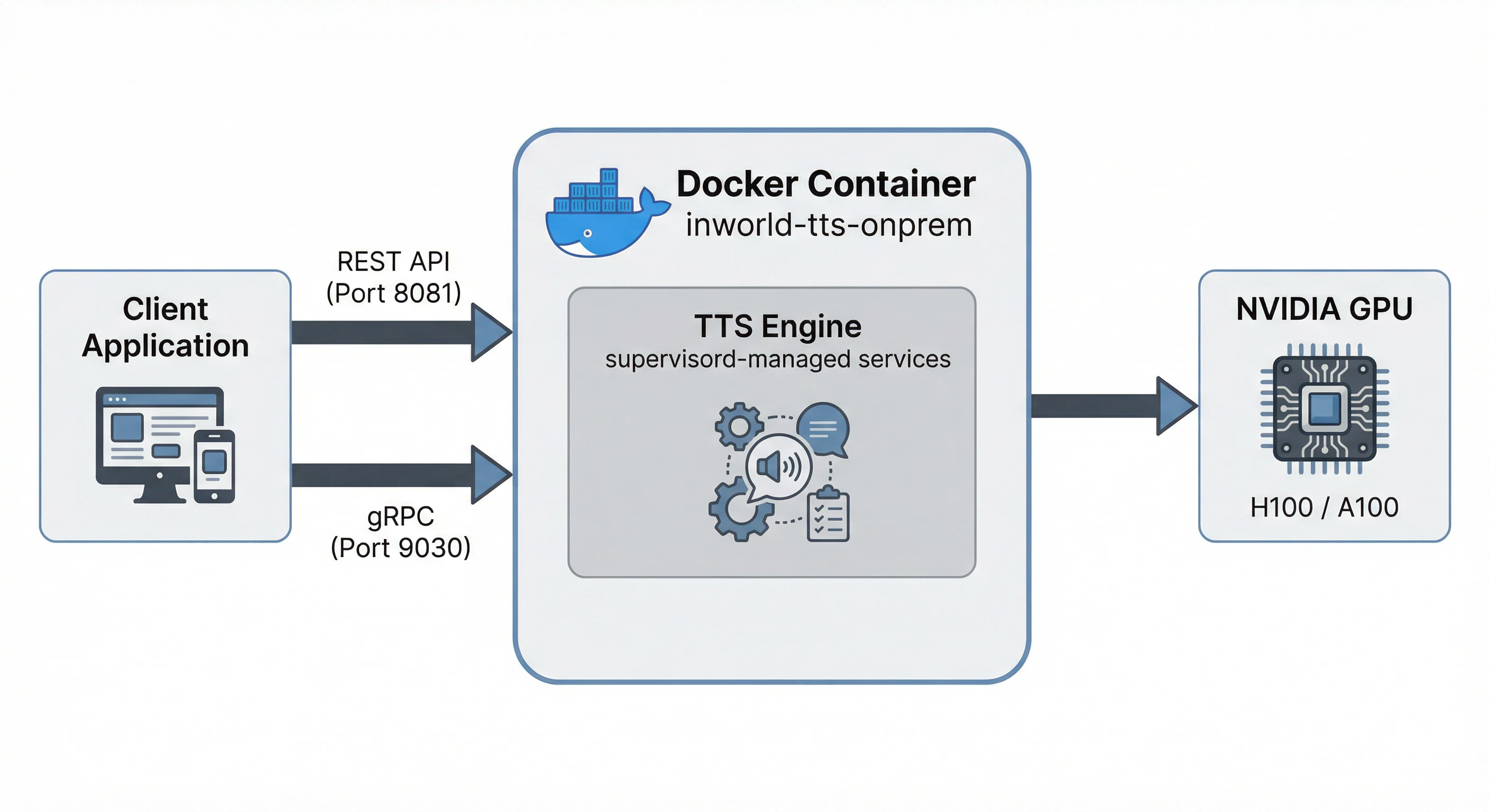 | Port | Protocol | Description |
| -------- | -------- | ---------------------- |
| **8081** | HTTP | REST API (recommended) |
| **9030** | gRPC | For gRPC clients |
### Performance
* **Latency:** Real-time streaming on supported NVIDIA GPUs
* **Throughput:** Multiple concurrent sessions are supported depending on the GPU being utilized
Contact [sales@inworld.ai](mailto:sales@inworld.ai) to get a detailed performance report for your specific hardware.
## System requirements
Inworld TTS supports all modern cloud NVIDIA GPUs: A100s, H100s, H200, B200, B300. If you have a specific target hardware platform not on this list, please reach out for custom support.
The minimum inference machine requirements are as follows:
| Component | Requirement |
| ------------ | --------------------------------- |
| **GPU** | NVIDIA H100 SXM5 (80GB) |
| **RAM** | 64GB+ system memory |
| **CPU** | 8+ cores |
| **Disk** | 50GB free space |
| **OS** | Ubuntu 22.04 LTS |
| **Software** | Docker + NVIDIA Container Toolkit |
| **Software** | Google Cloud SDK (gcloud CLI) |
| **CUDA** | 13.0+ |
## Prerequisites
Before deploying TTS On-Premises, ensure the following software is installed on your Ubuntu 22.04 LTS machine.
### NVIDIA drivers
Install the latest NVIDIA drivers for your GPU. Follow the official guide at [nvidia.com/drivers](https://www.nvidia.com/en-us/drivers), or use the following commands on Ubuntu:
```bash theme={"system"}
# Update packages
sudo apt-get update
# Install basic toolchain and kernel headers
sudo apt-get install -y gcc make wget linux-headers-$(uname -r)
# Install NVIDIA driver (check https://www.nvidia.com/en-us/drivers for the latest version)
sudo apt-get install -y nvidia-driver-580
```
### Docker
Install Docker Engine by following the official guide: [Install Docker Engine on Ubuntu](https://docs.docker.com/engine/install/ubuntu/).
Optionally, add the current user to the `docker` group so you can run Docker without `sudo`: [Linux post-installation steps](https://docs.docker.com/engine/install/linux-postinstall/).
### NVIDIA Container Toolkit
Install the NVIDIA Container Toolkit to enable GPU access from Docker containers. Follow both the **Installation** and **Configuration** sections of the official guide: [NVIDIA Container Toolkit install guide](https://docs.nvidia.com/datacenter/cloud-native/container-toolkit/latest/install-guide.html).
### Google Cloud SDK
Install the gcloud CLI by following the official guide: [Install the gcloud CLI](https://cloud.google.com/sdk/docs/install#deb).
### Verify prerequisites
Run the following command to verify that Docker, NVIDIA drivers, and the NVIDIA Container Toolkit are all correctly installed:
```bash theme={"system"}
docker run --rm --gpus all nvidia/cuda:13.0.0-base-ubuntu22.04 nvidia-smi
```
You should see your GPU listed in the output alongside the driver version and CUDA version. If this command succeeds, your environment is ready for TTS On-Premises deployment.
### Firewall requirements
The TTS On-Premises container listens on the following ports for inbound traffic:
| Port | Protocol | Description |
| -------- | -------- | ----------- |
| **8081** | HTTP | REST API |
| **9030** | gRPC | gRPC API |
You will also need to allow the following outbound traffic:
* `us-central1-docker.pkg.dev` on port **443** — GCP Artifact Registry for pulling container images
## Quick start
### 1. Create a GCP service account
Create a service account in your GCP project and generate a key file:
```bash theme={"system"}
# Create the service account
gcloud iam service-accounts create inworld-tts-onprem \
--project= \
--display-name="Inworld TTS On-Prem" \
--description="Service account for Inworld TTS on-prem container"
# Create a key file
gcloud iam service-accounts keys create service-account-key.json \
--iam-account=inworld-tts-onprem@.iam.gserviceaccount.com \
--project=
```
### 2. Share the service account email with Inworld
Send the service account email (e.g., `inworld-tts-onprem@.iam.gserviceaccount.com`) to your Inworld contact. Inworld will provide your **Customer ID**.
### 3. Authenticate to the container registry
```bash theme={"system"}
gcloud auth activate-service-account \
--key-file=service-account-key.json
gcloud auth configure-docker us-central1-docker.pkg.dev
```
For more authentication options, see [Configure authentication to Artifact Registry for Docker](https://docs.google.com/artifact-registry/docs/docker/authentication#gcloud-helper).
### 4. Configure
```bash theme={"system"}
cp onprem.env.example onprem.env
```
Edit `onprem.env` with your values:
```bash theme={"system"}
INWORLD_CUSTOMER_ID=
TTS_IMAGE=us-central1-docker.pkg.dev/inworld-ai-registry/tts-onprem/tts-1.5-mini-h100-onprem:
KEY_FILE=./service-account-key.json
```
### 5. Start
```bash theme={"system"}
./run.sh
```
The script will:
1. Check prerequisites (Docker, GPU, NVIDIA Container Toolkit)
2. Validate your configuration
3. Fix key file permissions if needed
4. Pull the Docker image
5. Start the container
6. Wait for services to be ready (\~3 minutes)
The ML model takes approximately 3 minutes to load on first startup. This is normal.
### 6. Verify the deployment
Check that the container is running and services are healthy:
```bash theme={"system"}
./run.sh status
```
### 7. Send a test request
```bash theme={"system"}
curl -X POST http://localhost:8081/tts/v1/voice \
-H "Content-Type: application/json" \
-d '{
"text": "Hello, this is a test of the on-premises TTS system.",
"voice_id": "Craig",
"model_id": "inworld-tts-1.5-mini",
"audio_config": {
"audio_encoding": "LINEAR16",
"sample_rate_hertz": 48000
}
}'
```
### List available voices
```bash theme={"system"}
curl http://localhost:8081/tts/v1/voices
```
For the full API specification, see the [Synthesize Speech API reference](/api-reference/ttsAPI/texttospeech/synthesize-speech).
## Lifecycle commands
```bash theme={"system"}
./run.sh # Start the container
./run.sh stop # Stop and remove the container
./run.sh status # Check container and service health
./run.sh logs # Show recent logs from all services
./run.sh logs -f # Tail all service logs live
./run.sh logs export # Export all logs to a timestamped folder
./run.sh restart # Restart the container
```
## Available images
| Image | Model | GPU |
| -------------------------- | --------- | ---- |
| `tts-1.5-mini-h100-onprem` | 1B (mini) | H100 |
| `tts-1.5-max-h100-onprem` | 8B (max) | H100 |
Registry: `us-central1-docker.pkg.dev/inworld-ai-registry/tts-onprem/`
## Configuration
### onprem.env
| Variable | Required | Description |
| --------------------- | -------- | ------------------------------------------------------------ |
| `INWORLD_CUSTOMER_ID` | Yes | Your customer ID |
| `TTS_IMAGE` | Yes | Docker image URL (see [Available Images](#available-images)) |
| `KEY_FILE` | Yes | Path to your GCP service account key file |
## Logs
```bash theme={"system"}
# Show recent logs from all services (last 20 lines each)
./run.sh logs
# Tail all service logs live
./run.sh logs -f
# Export all logs to a timestamped folder
./run.sh logs export
```
Individual service logs:
```bash theme={"system"}
docker exec inworld-tts-onprem tail -f /var/log/tts-v3-trtllm.log # ML server
docker exec inworld-tts-onprem tail -f /var/log/tts-normalization.log # Text normalization
docker exec inworld-tts-onprem tail -f /var/log/public-tts-service.log # TTS service
docker exec inworld-tts-onprem tail -f /var/log/grpc-gateway.log # HTTP gateway
docker exec inworld-tts-onprem tail -f /var/log/w-proxy.log # gRPC proxy
docker exec inworld-tts-onprem tail -f /var/log/supervisord.log # Supervisor
```
## Troubleshooting
| Issue | Solution |
| ----------------------------------- | --------------------------------------------------------------- |
| "INWORLD\_CUSTOMER\_ID is required" | Set `INWORLD_CUSTOMER_ID` in `onprem.env` |
| "GCP credentials file not found" | Check that `KEY_FILE` in `onprem.env` points to a valid file |
| "Credentials file is not readable" | Fix permissions on host: `chmod 644 .json` |
| "Topic not found" | Verify your `INWORLD_CUSTOMER_ID` matches the PubSub topic name |
| "Permission denied for topic" | Ensure Inworld has granted your service account publish access |
| Slow startup (\~3 min) | Normal — text processing grammars take time to initialize |
```bash theme={"system"}
# Check service status
docker exec inworld-tts-onprem supervisorctl -s unix:///tmp/supervisor.sock status
# Export logs for support
./run.sh logs export
```
Share the exported logs folder with [Inworld support](mailto:support@inworld.ai) when reporting issues.
## Advanced: manual Docker run
For users who prefer to run Docker directly without `run.sh`:
```bash theme={"system"}
docker run -d \
--gpus all \
--name inworld-tts-onprem \
-p 8081:8081 \
-p 9030:9030 \
-e INWORLD_CUSTOMER_ID= \
-v $(pwd)/service-account-key.json:/app/gcp-credentials/service-account.json:ro \
us-central1-docker.pkg.dev/inworld-ai-registry/tts-onprem/tts-1.5-mini-h100-onprem:
```
* Ensure your key file has 644 permissions: `chmod 644 service-account-key.json`
* The container exposes port 8081 (HTTP) and 9030 (gRPC)
* Use `docker ps` to check container health — STATUS will show `healthy` when ready
```bash theme={"system"}
# Stop and remove
docker stop inworld-tts-onprem && docker rm inworld-tts-onprem
# View logs
docker logs inworld-tts-onprem
# Check service status
docker exec inworld-tts-onprem supervisorctl -s unix:///tmp/supervisor.sock status
```
## Benchmarking
For performance testing, see the [Benchmarking](/tts/on-premises-benchmarking) guide.
## FAQs
Yes. The on-premises container is designed for production workloads. To get started, contact [sales@inworld.ai](mailto:sales@inworld.ai) for access to the repository.
For complete data control, low latency, and compliance with strict security or regulatory requirements.
No. All text and audio processing occurs entirely within your environment.
Deployment takes just a few minutes, with a brief model warm-up (\~200 seconds).
Enterprises, governments, and regulated industries that cannot use cloud-based TTS.
**In-scope:**
* API compatibility with Inworld public API
* All built-in voices in Inworld's Voice Library
* The following model capabilities: text normalization, timestamps, and audio pre- and post-processing settings
* Deployment how-to's and latency benchmarks reproduction scripts
**Out-of-scope:**
* Instant voice cloning features and their APIs
* Voice design and its API
| Port | Protocol | Description |
| -------- | -------- | ---------------------- |
| **8081** | HTTP | REST API (recommended) |
| **9030** | gRPC | For gRPC clients |
### Performance
* **Latency:** Real-time streaming on supported NVIDIA GPUs
* **Throughput:** Multiple concurrent sessions are supported depending on the GPU being utilized
Contact [sales@inworld.ai](mailto:sales@inworld.ai) to get a detailed performance report for your specific hardware.
## System requirements
Inworld TTS supports all modern cloud NVIDIA GPUs: A100s, H100s, H200, B200, B300. If you have a specific target hardware platform not on this list, please reach out for custom support.
The minimum inference machine requirements are as follows:
| Component | Requirement |
| ------------ | --------------------------------- |
| **GPU** | NVIDIA H100 SXM5 (80GB) |
| **RAM** | 64GB+ system memory |
| **CPU** | 8+ cores |
| **Disk** | 50GB free space |
| **OS** | Ubuntu 22.04 LTS |
| **Software** | Docker + NVIDIA Container Toolkit |
| **Software** | Google Cloud SDK (gcloud CLI) |
| **CUDA** | 13.0+ |
## Prerequisites
Before deploying TTS On-Premises, ensure the following software is installed on your Ubuntu 22.04 LTS machine.
### NVIDIA drivers
Install the latest NVIDIA drivers for your GPU. Follow the official guide at [nvidia.com/drivers](https://www.nvidia.com/en-us/drivers), or use the following commands on Ubuntu:
```bash theme={"system"}
# Update packages
sudo apt-get update
# Install basic toolchain and kernel headers
sudo apt-get install -y gcc make wget linux-headers-$(uname -r)
# Install NVIDIA driver (check https://www.nvidia.com/en-us/drivers for the latest version)
sudo apt-get install -y nvidia-driver-580
```
### Docker
Install Docker Engine by following the official guide: [Install Docker Engine on Ubuntu](https://docs.docker.com/engine/install/ubuntu/).
Optionally, add the current user to the `docker` group so you can run Docker without `sudo`: [Linux post-installation steps](https://docs.docker.com/engine/install/linux-postinstall/).
### NVIDIA Container Toolkit
Install the NVIDIA Container Toolkit to enable GPU access from Docker containers. Follow both the **Installation** and **Configuration** sections of the official guide: [NVIDIA Container Toolkit install guide](https://docs.nvidia.com/datacenter/cloud-native/container-toolkit/latest/install-guide.html).
### Google Cloud SDK
Install the gcloud CLI by following the official guide: [Install the gcloud CLI](https://cloud.google.com/sdk/docs/install#deb).
### Verify prerequisites
Run the following command to verify that Docker, NVIDIA drivers, and the NVIDIA Container Toolkit are all correctly installed:
```bash theme={"system"}
docker run --rm --gpus all nvidia/cuda:13.0.0-base-ubuntu22.04 nvidia-smi
```
You should see your GPU listed in the output alongside the driver version and CUDA version. If this command succeeds, your environment is ready for TTS On-Premises deployment.
### Firewall requirements
The TTS On-Premises container listens on the following ports for inbound traffic:
| Port | Protocol | Description |
| -------- | -------- | ----------- |
| **8081** | HTTP | REST API |
| **9030** | gRPC | gRPC API |
You will also need to allow the following outbound traffic:
* `us-central1-docker.pkg.dev` on port **443** — GCP Artifact Registry for pulling container images
## Quick start
### 1. Create a GCP service account
Create a service account in your GCP project and generate a key file:
```bash theme={"system"}
# Create the service account
gcloud iam service-accounts create inworld-tts-onprem \
--project= \
--display-name="Inworld TTS On-Prem" \
--description="Service account for Inworld TTS on-prem container"
# Create a key file
gcloud iam service-accounts keys create service-account-key.json \
--iam-account=inworld-tts-onprem@.iam.gserviceaccount.com \
--project=
```
### 2. Share the service account email with Inworld
Send the service account email (e.g., `inworld-tts-onprem@.iam.gserviceaccount.com`) to your Inworld contact. Inworld will provide your **Customer ID**.
### 3. Authenticate to the container registry
```bash theme={"system"}
gcloud auth activate-service-account \
--key-file=service-account-key.json
gcloud auth configure-docker us-central1-docker.pkg.dev
```
For more authentication options, see [Configure authentication to Artifact Registry for Docker](https://docs.google.com/artifact-registry/docs/docker/authentication#gcloud-helper).
### 4. Configure
```bash theme={"system"}
cp onprem.env.example onprem.env
```
Edit `onprem.env` with your values:
```bash theme={"system"}
INWORLD_CUSTOMER_ID=
TTS_IMAGE=us-central1-docker.pkg.dev/inworld-ai-registry/tts-onprem/tts-1.5-mini-h100-onprem:
KEY_FILE=./service-account-key.json
```
### 5. Start
```bash theme={"system"}
./run.sh
```
The script will:
1. Check prerequisites (Docker, GPU, NVIDIA Container Toolkit)
2. Validate your configuration
3. Fix key file permissions if needed
4. Pull the Docker image
5. Start the container
6. Wait for services to be ready (\~3 minutes)
The ML model takes approximately 3 minutes to load on first startup. This is normal.
### 6. Verify the deployment
Check that the container is running and services are healthy:
```bash theme={"system"}
./run.sh status
```
### 7. Send a test request
```bash theme={"system"}
curl -X POST http://localhost:8081/tts/v1/voice \
-H "Content-Type: application/json" \
-d '{
"text": "Hello, this is a test of the on-premises TTS system.",
"voice_id": "Craig",
"model_id": "inworld-tts-1.5-mini",
"audio_config": {
"audio_encoding": "LINEAR16",
"sample_rate_hertz": 48000
}
}'
```
### List available voices
```bash theme={"system"}
curl http://localhost:8081/tts/v1/voices
```
For the full API specification, see the [Synthesize Speech API reference](/api-reference/ttsAPI/texttospeech/synthesize-speech).
## Lifecycle commands
```bash theme={"system"}
./run.sh # Start the container
./run.sh stop # Stop and remove the container
./run.sh status # Check container and service health
./run.sh logs # Show recent logs from all services
./run.sh logs -f # Tail all service logs live
./run.sh logs export # Export all logs to a timestamped folder
./run.sh restart # Restart the container
```
## Available images
| Image | Model | GPU |
| -------------------------- | --------- | ---- |
| `tts-1.5-mini-h100-onprem` | 1B (mini) | H100 |
| `tts-1.5-max-h100-onprem` | 8B (max) | H100 |
Registry: `us-central1-docker.pkg.dev/inworld-ai-registry/tts-onprem/`
## Configuration
### onprem.env
| Variable | Required | Description |
| --------------------- | -------- | ------------------------------------------------------------ |
| `INWORLD_CUSTOMER_ID` | Yes | Your customer ID |
| `TTS_IMAGE` | Yes | Docker image URL (see [Available Images](#available-images)) |
| `KEY_FILE` | Yes | Path to your GCP service account key file |
## Logs
```bash theme={"system"}
# Show recent logs from all services (last 20 lines each)
./run.sh logs
# Tail all service logs live
./run.sh logs -f
# Export all logs to a timestamped folder
./run.sh logs export
```
Individual service logs:
```bash theme={"system"}
docker exec inworld-tts-onprem tail -f /var/log/tts-v3-trtllm.log # ML server
docker exec inworld-tts-onprem tail -f /var/log/tts-normalization.log # Text normalization
docker exec inworld-tts-onprem tail -f /var/log/public-tts-service.log # TTS service
docker exec inworld-tts-onprem tail -f /var/log/grpc-gateway.log # HTTP gateway
docker exec inworld-tts-onprem tail -f /var/log/w-proxy.log # gRPC proxy
docker exec inworld-tts-onprem tail -f /var/log/supervisord.log # Supervisor
```
## Troubleshooting
| Issue | Solution |
| ----------------------------------- | --------------------------------------------------------------- |
| "INWORLD\_CUSTOMER\_ID is required" | Set `INWORLD_CUSTOMER_ID` in `onprem.env` |
| "GCP credentials file not found" | Check that `KEY_FILE` in `onprem.env` points to a valid file |
| "Credentials file is not readable" | Fix permissions on host: `chmod 644 .json` |
| "Topic not found" | Verify your `INWORLD_CUSTOMER_ID` matches the PubSub topic name |
| "Permission denied for topic" | Ensure Inworld has granted your service account publish access |
| Slow startup (\~3 min) | Normal — text processing grammars take time to initialize |
```bash theme={"system"}
# Check service status
docker exec inworld-tts-onprem supervisorctl -s unix:///tmp/supervisor.sock status
# Export logs for support
./run.sh logs export
```
Share the exported logs folder with [Inworld support](mailto:support@inworld.ai) when reporting issues.
## Advanced: manual Docker run
For users who prefer to run Docker directly without `run.sh`:
```bash theme={"system"}
docker run -d \
--gpus all \
--name inworld-tts-onprem \
-p 8081:8081 \
-p 9030:9030 \
-e INWORLD_CUSTOMER_ID= \
-v $(pwd)/service-account-key.json:/app/gcp-credentials/service-account.json:ro \
us-central1-docker.pkg.dev/inworld-ai-registry/tts-onprem/tts-1.5-mini-h100-onprem:
```
* Ensure your key file has 644 permissions: `chmod 644 service-account-key.json`
* The container exposes port 8081 (HTTP) and 9030 (gRPC)
* Use `docker ps` to check container health — STATUS will show `healthy` when ready
```bash theme={"system"}
# Stop and remove
docker stop inworld-tts-onprem && docker rm inworld-tts-onprem
# View logs
docker logs inworld-tts-onprem
# Check service status
docker exec inworld-tts-onprem supervisorctl -s unix:///tmp/supervisor.sock status
```
## Benchmarking
For performance testing, see the [Benchmarking](/tts/on-premises-benchmarking) guide.
## FAQs
Yes. The on-premises container is designed for production workloads. To get started, contact [sales@inworld.ai](mailto:sales@inworld.ai) for access to the repository.
For complete data control, low latency, and compliance with strict security or regulatory requirements.
No. All text and audio processing occurs entirely within your environment.
Deployment takes just a few minutes, with a brief model warm-up (\~200 seconds).
Enterprises, governments, and regulated industries that cannot use cloud-based TTS.
**In-scope:**
* API compatibility with Inworld public API
* All built-in voices in Inworld's Voice Library
* The following model capabilities: text normalization, timestamps, and audio pre- and post-processing settings
* Deployment how-to's and latency benchmarks reproduction scripts
**Out-of-scope:**
* Instant voice cloning features and their APIs
* Voice design and its API