> ## Documentation Index
> Fetch the complete documentation index at: https://docs.inworld.ai/llms.txt
> Use this file to discover all available pages before exploring further.
# Voice Cloning
> Create a personalized voice clone in seconds
Inworld's text-to-speech models offer best-in-class voice cloning capabilities, enabling developers to create distinct, personalized voices for their experiences.
There are three ways to clone a voice:
1. **Instant Voice Cloning** - Clone a voice in minutes, from as little as 3 seconds of audio. The longer the sample (up to the current 15-second limit), the better the speaker similarity. Also known as zero-shot cloning. Available to all users through Portal.
2. **Voice Cloning via API** - Instant voice cloning via API. Useful for workflow automation or enabling your users to clone their own voices.
3. **Professional Voice Cloning** - For the best quality and similarity, fine-tune a model on recordings of your voice. See the [Professional Voice Cloning best practices](/tts/best-practices/voice-cloning#best-practices-for-professional-voice-cloning) for audio requirements.
Professional voice cloning is currently not publicly available — self-serve professional voice cloning is coming soon. In the meantime, to get access please [reach out to our sales team](https://inworld.ai/contact-sales).
Don't have audio samples? Use [Voice Design](/tts/voice-design) to create a voice from a text description instead.
You can also clone a voice in one command with the [Inworld CLI](/tts/resources/inworld-cli): `inworld tts clone sample.wav --name "My Voice"`
## Instant Voice Cloning
In Portal, select **TTS Playground** from the left-hand side panel. In the TTS Playground, click **Create Voice** and select **Clone**.
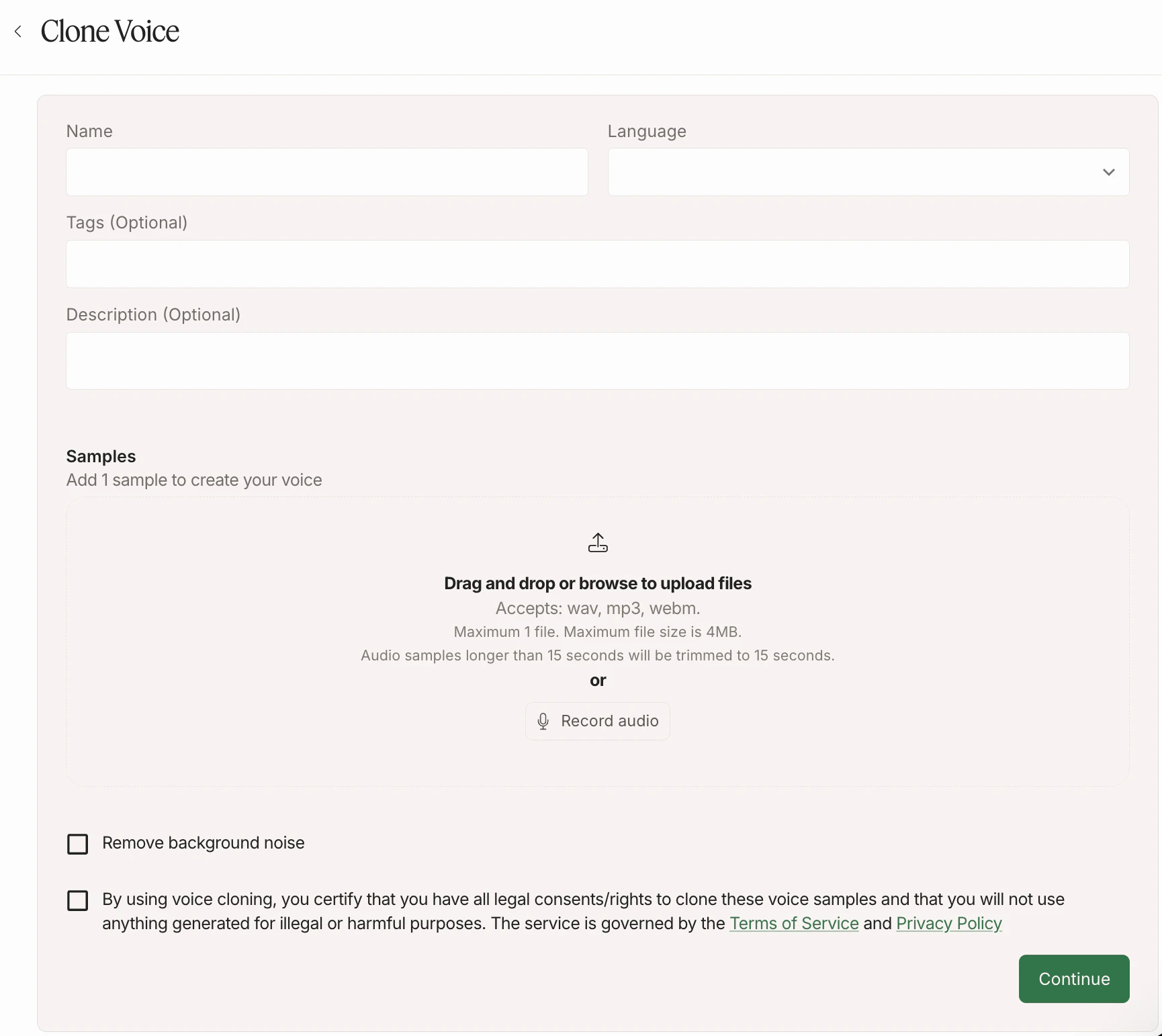 Name your voice and select the language, which should match the audio samples. Select `Other` if you're cloning in an [experimental language](/tts/capabilities/multilingual#experimental-languages).
You can either upload or record audio:
* **Upload**: Drag and drop or browse to upload 1 audio file. Accepted formats: wav, mp3, webm. Maximum file size is 4MB. Audio samples longer than 15 seconds will be automatically trimmed to 15 seconds — we're working on supporting longer prompts soon.
* **Record**: Click "Record audio" and record your audio. You can use the suggested scripts to help guide your recording, or use your own script. For best results, record in a quiet place to minimize background noise, avoid mic noise, and speak with a variety of emotions to capture the full range of the voice.
Enable "Remove background noise" if you wish to remove background noise from your audio. Confirm you have the rights to clone the voice, then click "Continue".
Check out our [Voice Cloning Best Practices](/tts/best-practices/voice-cloning) for helpful tips and tricks to improve the quality of your voices clones.
Name your voice and select the language, which should match the audio samples. Select `Other` if you're cloning in an [experimental language](/tts/capabilities/multilingual#experimental-languages).
You can either upload or record audio:
* **Upload**: Drag and drop or browse to upload 1 audio file. Accepted formats: wav, mp3, webm. Maximum file size is 4MB. Audio samples longer than 15 seconds will be automatically trimmed to 15 seconds — we're working on supporting longer prompts soon.
* **Record**: Click "Record audio" and record your audio. You can use the suggested scripts to help guide your recording, or use your own script. For best results, record in a quiet place to minimize background noise, avoid mic noise, and speak with a variety of emotions to capture the full range of the voice.
Enable "Remove background noise" if you wish to remove background noise from your audio. Confirm you have the rights to clone the voice, then click "Continue".
Check out our [Voice Cloning Best Practices](/tts/best-practices/voice-cloning) for helpful tips and tricks to improve the quality of your voices clones.
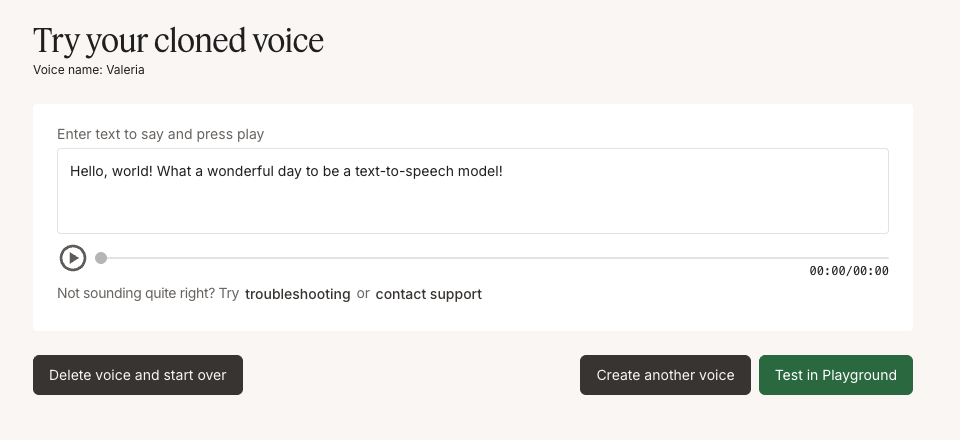 Once voice cloning completes, you'll see the "Try your cloned voice" interface. Enter text in the input field and press play to hear your cloned voice. You can test different phrases to ensure the voice sounds as expected.
If the voice doesn't sound quite right, you can delete the voice and start over, create another voice, or test it in the TTS Playground for more advanced testing options.
The number of cloned voices you can store depends on your subscription plan. See the [Pricing page](https://inworld.ai/pricing) for per-plan limits. If you need a higher limit, please [contact our sales team](https://inworld.ai/contact-sales).
Once voice cloning completes, you'll see the "Try your cloned voice" interface. Enter text in the input field and press play to hear your cloned voice. You can test different phrases to ensure the voice sounds as expected.
If the voice doesn't sound quite right, you can delete the voice and start over, create another voice, or test it in the TTS Playground for more advanced testing options.
The number of cloned voices you can store depends on your subscription plan. See the [Pricing page](https://inworld.ai/pricing) for per-plan limits. If you need a higher limit, please [contact our sales team](https://inworld.ai/contact-sales).
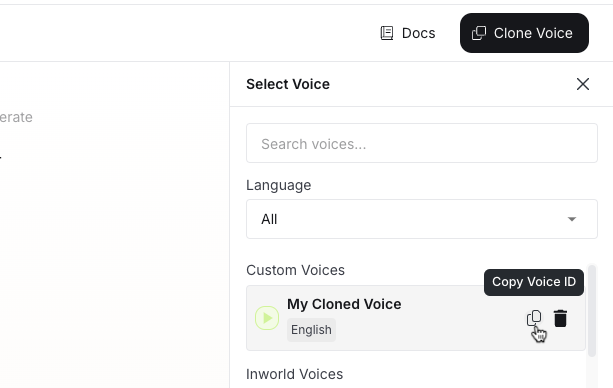 To use the cloned voice via API, copy the voice ID for your cloned voice in TTS Playground. Use that value for the `voiceId` when making an API call. See our [Quickstart](/quickstart-tts) to learn how to make your first API call.
Instant voice cloning may not perform well for less common voices, such as children's voices or unique accents. For those use cases, we recommend professional voice cloning.
## Voice Cloning API Reference And Examples
If you want to automate voice cloning (for example, to support creator onboarding at scale), use the Voice Cloning API.
* **API reference**: [Clone a voice](/api-reference/voiceAPI/voiceservice/clone-voice)
* **Node.js SDK**: [`cloneVoice()`](/tts/node-sdk#clonevoiceoptions) — clone a voice in a few lines with the `@inworld/tts` SDK
* **Python example**: [example\_voice\_clone.py](https://github.com/inworld-ai/inworld-api-examples/blob/main/tts/python/example_voice_clone.py)
* **JavaScript example**: [example\_voice\_clone.js](https://github.com/inworld-ai/inworld-api-examples/blob/main/tts/js/example_voice_clone.js)
Voice cloning has lower rate limits than regular speech synthesis. For details, see [Rate limits](/resources/rate-limits).
## Next Steps
Looking for more tips and tricks? Check out the resources below to get started!
Learn best practices for producing high-quality voice clones.
Learn best practices for synthesizing high-quality speech.
Explore Python and JavaScript code examples for TTS integration.
To use the cloned voice via API, copy the voice ID for your cloned voice in TTS Playground. Use that value for the `voiceId` when making an API call. See our [Quickstart](/quickstart-tts) to learn how to make your first API call.
Instant voice cloning may not perform well for less common voices, such as children's voices or unique accents. For those use cases, we recommend professional voice cloning.
## Voice Cloning API Reference And Examples
If you want to automate voice cloning (for example, to support creator onboarding at scale), use the Voice Cloning API.
* **API reference**: [Clone a voice](/api-reference/voiceAPI/voiceservice/clone-voice)
* **Node.js SDK**: [`cloneVoice()`](/tts/node-sdk#clonevoiceoptions) — clone a voice in a few lines with the `@inworld/tts` SDK
* **Python example**: [example\_voice\_clone.py](https://github.com/inworld-ai/inworld-api-examples/blob/main/tts/python/example_voice_clone.py)
* **JavaScript example**: [example\_voice\_clone.js](https://github.com/inworld-ai/inworld-api-examples/blob/main/tts/js/example_voice_clone.js)
Voice cloning has lower rate limits than regular speech synthesis. For details, see [Rate limits](/resources/rate-limits).
## Next Steps
Looking for more tips and tricks? Check out the resources below to get started!
Learn best practices for producing high-quality voice clones.
Learn best practices for synthesizing high-quality speech.
Explore Python and JavaScript code examples for TTS integration.