> ## Documentation Index
> Fetch the complete documentation index at: https://docs.inworld.ai/llms.txt
> Use this file to discover all available pages before exploring further.
# Configuring Primitives
At the heart of Inworld Agent Runtime are *primitives*: foundational components like Large Language Models (LLMs), Speech-to-Text (STT), Text-to-Speech (TTS), and Text Embedders. These are the "raw ingredients" of any AI-powered application.
Think of them as a library of high-performance AI modules, designed to abstract away the complexities of working with various providers, models, and hardware - allowing you to build on a consistent, provider-agnostic foundation. These primitives are then used within Inworld's graph system to power various nodes.
Each primitive type can be configured through Unreal Engine's Project Settings interface, allowing you to:
* Configure multiple named instances of each primitive type (LLM, STT, TTS, Text Embedder)
* Set up provider-specific configurations (Inworld, OpenAI, Anthropic, Google, etc.)
* Define reusable configurations that can be referenced by nodes in your graphs
* Easily access and modify your primitives across your project
## Accessing Primitives Configuration
To configure primitives in your project:
1. Open **Edit > Project Settings** from the main menu
2. Navigate to **Plugins > Inworld** in the left sidebar
3. Scroll down to the **Primitives** section
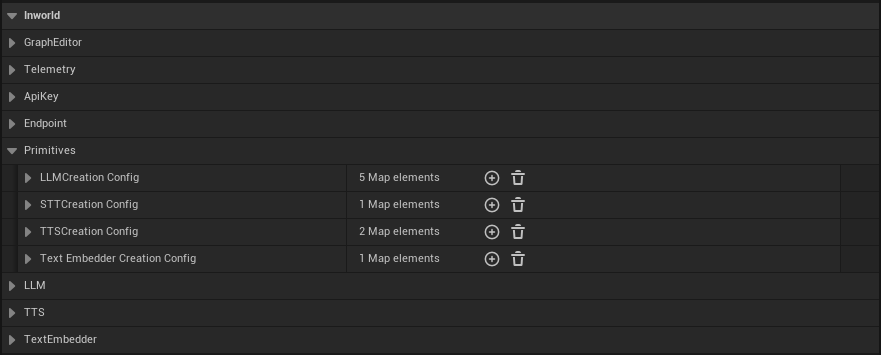 Here you'll find configuration maps for each primitive type:
* **LLM Creation Config** - Configure Large Language Models
* **STT Creation Config** - Configure Speech-to-Text models
* **Streaming STT Creation Config** - Configure real-time streaming Speech-to-Text models
* **TTS Creation Config** - Configure Text-to-Speech models
* **Text Embedder Creation Config** - Configure text embedding models
## LLM
LLMs are powerful models that can be used to understand and generate text and other content. To configure an LLM:
Here you'll find configuration maps for each primitive type:
* **LLM Creation Config** - Configure Large Language Models
* **STT Creation Config** - Configure Speech-to-Text models
* **Streaming STT Creation Config** - Configure real-time streaming Speech-to-Text models
* **TTS Creation Config** - Configure Text-to-Speech models
* **Text Embedder Creation Config** - Configure text embedding models
## LLM
LLMs are powerful models that can be used to understand and generate text and other content. To configure an LLM:
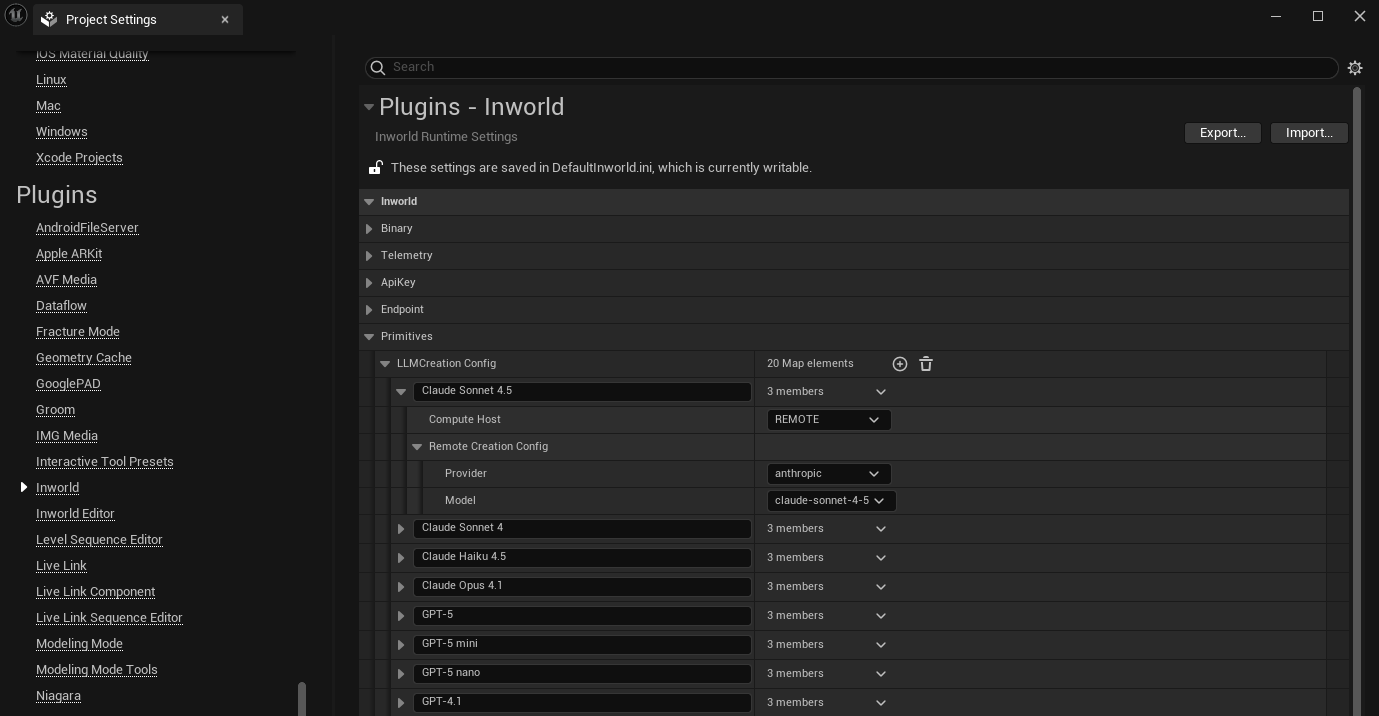 1. In the **LLM Creation Config** map, click the **+** button to add a new entry
2. Set a descriptive name for this configuration. This name will be used for selecting this configuration in your graph.
3. Select either `Local` or `Remote` for the **Compute Host**
* **Remote:** this means that the models will be run by cloud servers.
* **Provider**: Select from available [service providers](/models#chat-completion).
* **Model**: Choose the specific [model](/models#chat-completion). Make sure you specify a model that is provided by the selected provider. See [Adding models or providers](#adding-models-or-providers).
If a model or service provider is not available in the dropdown, you can add additional options under the **LLM** section of the Inworld Agent Runtime Settings.
* **Local:** this means that the models will run locally
* **Local Compute Host**: Choose `CPU` or `GPU`
* **Model**: Path to the local model.
4. Your configuration will now be available for selection in LLM powered nodes throughout your graphs.
### Adding models or providers
All service providers and models listed under [Chat Completion](/models#chat-completion) are supported. If a model or service provider is not available in the **Remote** LLM Creation Config dropdown, you can add additional options under the **LLM** section of the Inworld Agent Runtime Settings.
1. In the **LLM Creation Config** map, click the **+** button to add a new entry
2. Set a descriptive name for this configuration. This name will be used for selecting this configuration in your graph.
3. Select either `Local` or `Remote` for the **Compute Host**
* **Remote:** this means that the models will be run by cloud servers.
* **Provider**: Select from available [service providers](/models#chat-completion).
* **Model**: Choose the specific [model](/models#chat-completion). Make sure you specify a model that is provided by the selected provider. See [Adding models or providers](#adding-models-or-providers).
If a model or service provider is not available in the dropdown, you can add additional options under the **LLM** section of the Inworld Agent Runtime Settings.
* **Local:** this means that the models will run locally
* **Local Compute Host**: Choose `CPU` or `GPU`
* **Model**: Path to the local model.
4. Your configuration will now be available for selection in LLM powered nodes throughout your graphs.
### Adding models or providers
All service providers and models listed under [Chat Completion](/models#chat-completion) are supported. If a model or service provider is not available in the **Remote** LLM Creation Config dropdown, you can add additional options under the **LLM** section of the Inworld Agent Runtime Settings.
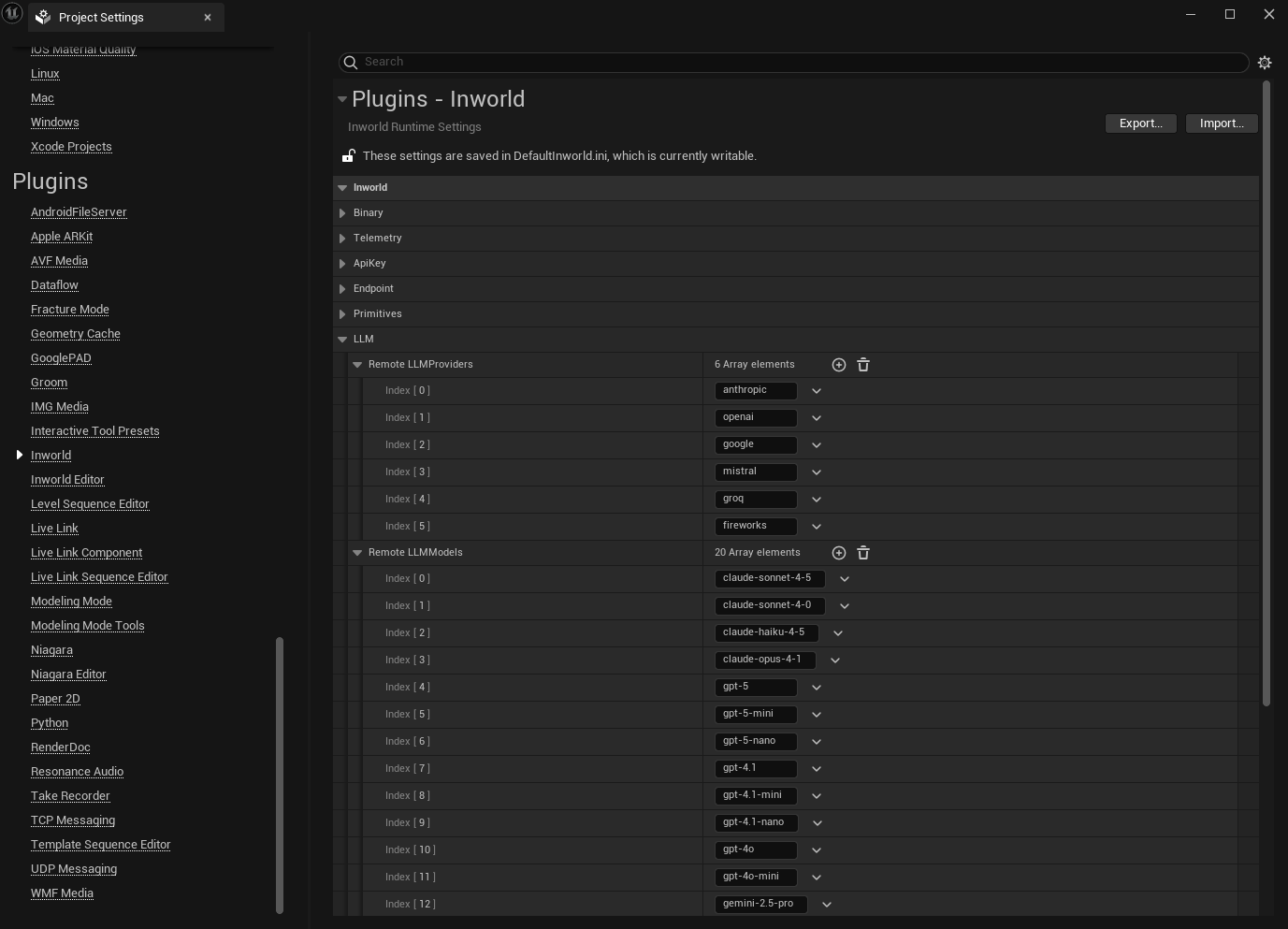 1. In the **Remote LLMProviders** list, click the **+** button to add any additional service providers you want to use.
2. In the **Remote LLMModels** list, click the **+** button to add any additional models you want to use.
## TTS
Text-to-Speech converts text into audio. To configure TTS:
1. In the **TTS Creation Config** map, click the **+** button to add a new entry
2. Set a descriptive name for this configuration. This name will be used for selecting this configuration in your graph.
3. Select either `Local` or `Remote` for the **Compute Host**
* **Remote:** this means that the models will be run by cloud servers.
* **Provider**: Select `INWORLD`
* Configure provider-specific settings like model selection and voice parameters.
* **Local:** this means that the models will run locally
* **Local Compute Host**: Choose `CPU` or `GPU`
* **Model**: Path to the local model.
* **Speech Synthesis Config**: Adjust parameters like sample rate, temperature, and speaking rate.
4. Your configuration will now be available for selection in TTS nodes throughout your graphs.
## STT
Speech-to-Text converts a complete audio clip into text. Use this for pre-recorded audio. For live microphone input, see [Streaming STT](#streaming-stt) below.
To configure STT:
1. In the **STT Creation Config** map, click the **+** button to add a new entry
2. Set a descriptive name for this configuration. This name will be referenced by the **STT Component ID** field on STT nodes.
3. Select either `Local` or `Remote` for the **Compute Host**
* **Remote:** models run on cloud servers.
* **Service**: Choose from available providers:
* **Inworld** — routes through Inworld's STT API. Set a **Model ID** (e.g. `groq/whisper-large-v3`) and optionally an **Endpoint Override** and **Default Timeout**.
* **Groq** — calls Groq's transcription API directly. Set a **Model ID** (e.g. `whisper-large-v3`) and optionally a **Default Timeout**.
* Both providers support a **Language** setting for improved recognition accuracy.
* **Local:** models run on-device.
* **Local Compute Host**: Choose `CPU` or `GPU`
* **Model**: Path to the local model file.
4. Your configuration will now be available for selection in STT nodes throughout your graphs.
## Streaming STT
Streaming Speech-to-Text transcribes audio incrementally in real-time as it arrives, making it suitable for live microphone input. Use this with STT nodes that have **Streamed** enabled and receive `FInworldData_DataStream_AudioChunk` input.
To configure Streaming STT:
1. In the **Streaming STT Creation Config** map, click the **+** button to add a new entry
2. Set a descriptive name for this configuration. This name will be referenced by the **Streaming STT Component ID** field on STT nodes.
3. Select either `Local` or `Remote` for the **Compute Host**
* **Remote:** models run on cloud servers.
* **Model ID**: The streaming model to use (default: `assemblyai/universal-streaming-multilingual`).
* **Silence Threshold (ms)**: Duration of silence in milliseconds before speech is considered ended (default: `1500`).
* **Activity Detection** (optional): Fine-tune end-of-turn detection with per-provider settings:
* **End of Turn Confidence Threshold** — confidence required to commit a turn boundary.
* **Min End of Turn Silence When Confident** — minimum silence when confidence is high (ms).
* **Max Turn Silence** — maximum silence before forcing a turn boundary (ms).
* **Endpoint Override** (optional): Override the default service endpoint.
* **Default Timeout** (optional): Request timeout in seconds. `0` means no timeout.
* **Local:** models run on-device. Requires separate model and device selection for both the STT and VAD components:
* **STT Local Compute Host** / **STT Model**: Device and model path for speech recognition.
* **VAD Local Compute Host** / **VAD Model**: Device and model path for voice activity detection.
* **Silence Threshold (ms)**: Same as remote — duration of silence before speech ends.
4. Your configuration will now be available for selection in STT nodes that have **Streamed** enabled.
## Text Embedder
Text Embedders convert text into numerical vectors for semantic operations, and powers features like intent detection and knowledge retrieval. To configure embedders:
1. In the **Text Embedder Creation Config** map, click the **+** button to add a new entry
2. Set a descriptive name for this configuration. This name will be used for selecting this configuration in your graph.
3. Select either `Local` or `Remote` for the **Compute Host**
* **Remote:** this means that the models will be run by cloud servers.
* **Provider**: Select from available providers
* **Model**: Choose the embedding model
* **Local:** this means that the models will run locally
* **Local Compute Host**: Choose `CPU` or `GPU`
* **Model**: Path to the local model.
4. Your configuration will now be available for selection in embeddings powered nodes throughout your graphs.
1. In the **Remote LLMProviders** list, click the **+** button to add any additional service providers you want to use.
2. In the **Remote LLMModels** list, click the **+** button to add any additional models you want to use.
## TTS
Text-to-Speech converts text into audio. To configure TTS:
1. In the **TTS Creation Config** map, click the **+** button to add a new entry
2. Set a descriptive name for this configuration. This name will be used for selecting this configuration in your graph.
3. Select either `Local` or `Remote` for the **Compute Host**
* **Remote:** this means that the models will be run by cloud servers.
* **Provider**: Select `INWORLD`
* Configure provider-specific settings like model selection and voice parameters.
* **Local:** this means that the models will run locally
* **Local Compute Host**: Choose `CPU` or `GPU`
* **Model**: Path to the local model.
* **Speech Synthesis Config**: Adjust parameters like sample rate, temperature, and speaking rate.
4. Your configuration will now be available for selection in TTS nodes throughout your graphs.
## STT
Speech-to-Text converts a complete audio clip into text. Use this for pre-recorded audio. For live microphone input, see [Streaming STT](#streaming-stt) below.
To configure STT:
1. In the **STT Creation Config** map, click the **+** button to add a new entry
2. Set a descriptive name for this configuration. This name will be referenced by the **STT Component ID** field on STT nodes.
3. Select either `Local` or `Remote` for the **Compute Host**
* **Remote:** models run on cloud servers.
* **Service**: Choose from available providers:
* **Inworld** — routes through Inworld's STT API. Set a **Model ID** (e.g. `groq/whisper-large-v3`) and optionally an **Endpoint Override** and **Default Timeout**.
* **Groq** — calls Groq's transcription API directly. Set a **Model ID** (e.g. `whisper-large-v3`) and optionally a **Default Timeout**.
* Both providers support a **Language** setting for improved recognition accuracy.
* **Local:** models run on-device.
* **Local Compute Host**: Choose `CPU` or `GPU`
* **Model**: Path to the local model file.
4. Your configuration will now be available for selection in STT nodes throughout your graphs.
## Streaming STT
Streaming Speech-to-Text transcribes audio incrementally in real-time as it arrives, making it suitable for live microphone input. Use this with STT nodes that have **Streamed** enabled and receive `FInworldData_DataStream_AudioChunk` input.
To configure Streaming STT:
1. In the **Streaming STT Creation Config** map, click the **+** button to add a new entry
2. Set a descriptive name for this configuration. This name will be referenced by the **Streaming STT Component ID** field on STT nodes.
3. Select either `Local` or `Remote` for the **Compute Host**
* **Remote:** models run on cloud servers.
* **Model ID**: The streaming model to use (default: `assemblyai/universal-streaming-multilingual`).
* **Silence Threshold (ms)**: Duration of silence in milliseconds before speech is considered ended (default: `1500`).
* **Activity Detection** (optional): Fine-tune end-of-turn detection with per-provider settings:
* **End of Turn Confidence Threshold** — confidence required to commit a turn boundary.
* **Min End of Turn Silence When Confident** — minimum silence when confidence is high (ms).
* **Max Turn Silence** — maximum silence before forcing a turn boundary (ms).
* **Endpoint Override** (optional): Override the default service endpoint.
* **Default Timeout** (optional): Request timeout in seconds. `0` means no timeout.
* **Local:** models run on-device. Requires separate model and device selection for both the STT and VAD components:
* **STT Local Compute Host** / **STT Model**: Device and model path for speech recognition.
* **VAD Local Compute Host** / **VAD Model**: Device and model path for voice activity detection.
* **Silence Threshold (ms)**: Same as remote — duration of silence before speech ends.
4. Your configuration will now be available for selection in STT nodes that have **Streamed** enabled.
## Text Embedder
Text Embedders convert text into numerical vectors for semantic operations, and powers features like intent detection and knowledge retrieval. To configure embedders:
1. In the **Text Embedder Creation Config** map, click the **+** button to add a new entry
2. Set a descriptive name for this configuration. This name will be used for selecting this configuration in your graph.
3. Select either `Local` or `Remote` for the **Compute Host**
* **Remote:** this means that the models will be run by cloud servers.
* **Provider**: Select from available providers
* **Model**: Choose the embedding model
* **Local:** this means that the models will run locally
* **Local Compute Host**: Choose `CPU` or `GPU`
* **Model**: Path to the local model.
4. Your configuration will now be available for selection in embeddings powered nodes throughout your graphs.