> ## Documentation Index
> Fetch the complete documentation index at: https://docs.inworld.ai/llms.txt
> Use this file to discover all available pages before exploring further.
# Graph Editor
## Overview
The **Inworld Graph Editor** (part of the **InworldRuntime** Unreal plugin) enables developers to build their graphs in Unreal using an easy-to-use visual editor. It lets you build graphs where **nodes** or **subgraphs** are connected by **edges**. Nodes/Subgraphs process data; edges define execution flow. Graphs are saved as assets and can be executed at runtime.
## Graph workflow summary
From the Content Browser context menu.
Open the editor, add nodes, subgraphs, configure nodes, connect edges.
Allows to have multiple Start and End nodes.
Get graph instance using graph asset.
Call Execute, pass Input and RuntimeData if needed.
Handle result callbacks from End nodes
## Editor Layout
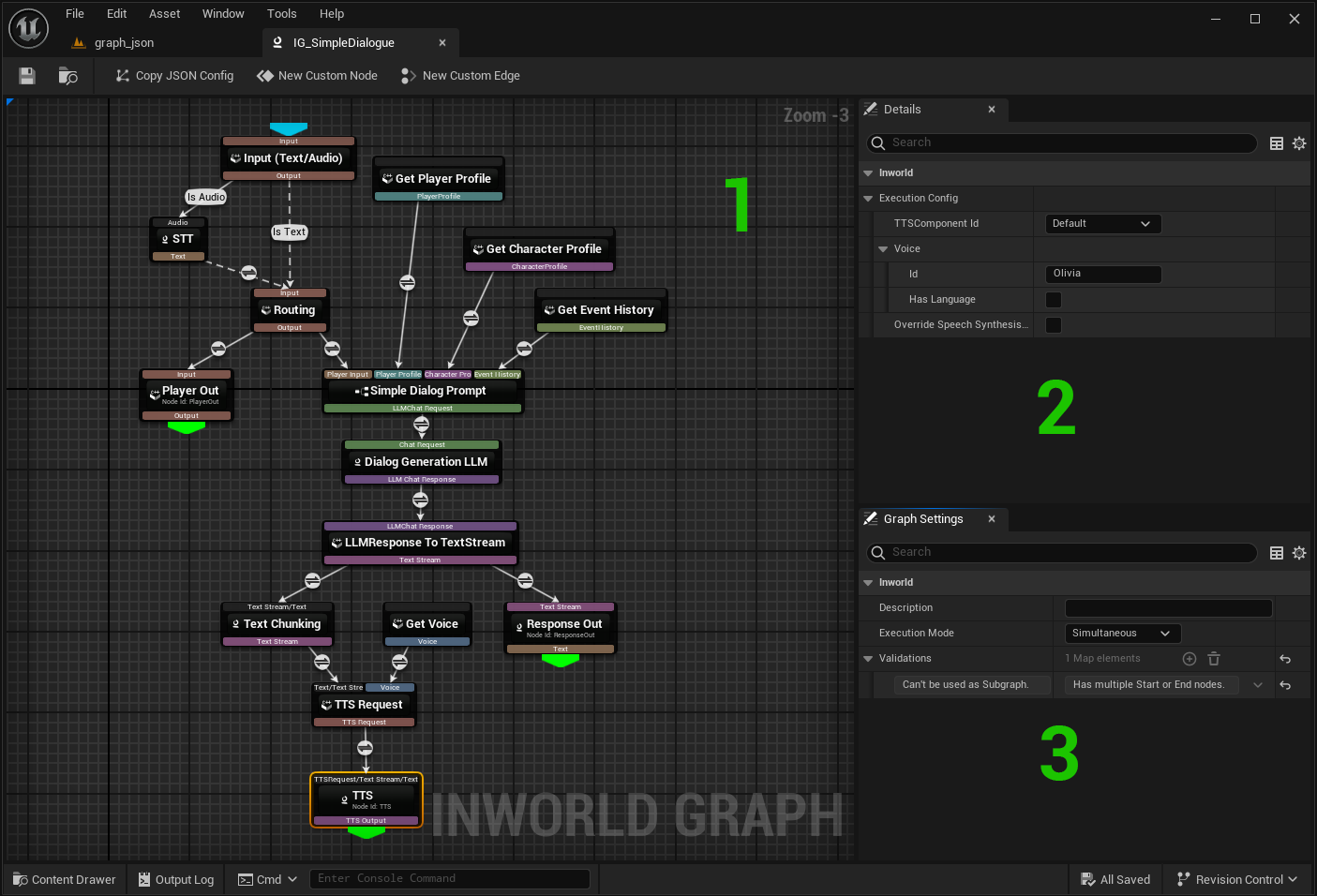 1. **Canvas** -- place and connect nodes. Drag to move. **Ctrl+C/Ctrl+V** to copy/paste. *Del* to delete node/edge.
2. **Details Panel (right)** -- properties of the selected node/edge.
3. **Graph Settings (below Details)** -- shows the description, execution mode and list of validation messages.
**Execution mode** defines how multiple executions are handled. Three modes are available::
* Simultaneous: Allow multiple executions to run simultaneously.
* Latest Only: Cancels previous execution when starting a new one.
* Sequential: Queues new executions until the current one finishes (FIFO), no cancellations.
1. **Canvas** -- place and connect nodes. Drag to move. **Ctrl+C/Ctrl+V** to copy/paste. *Del* to delete node/edge.
2. **Details Panel (right)** -- properties of the selected node/edge.
3. **Graph Settings (below Details)** -- shows the description, execution mode and list of validation messages.
**Execution mode** defines how multiple executions are handled. Three modes are available::
* Simultaneous: Allow multiple executions to run simultaneously.
* Latest Only: Cancels previous execution when starting a new one.
* Sequential: Queues new executions until the current one finishes (FIFO), no cancellations.
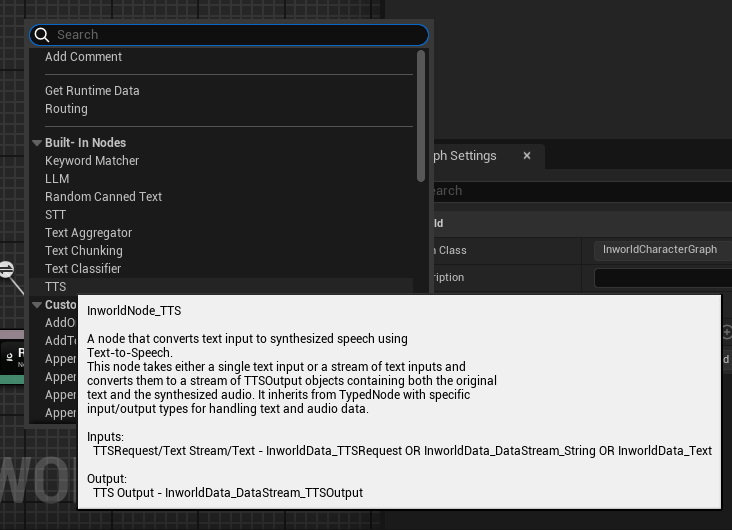 * **Context Menu (right-click on canvas)** -- to add nodes, comment or subgraphs or on **edge icon** to define edge type.
* Start typing to **filter** by name.
* Hover a menu item to see its description, inputs/outputs.
**Tooltips:** Hover an **input/output pin** to see its data type in a tooltip.
* **Context Menu (right-click on canvas)** -- to add nodes, comment or subgraphs or on **edge icon** to define edge type.
* Start typing to **filter** by name.
* Hover a menu item to see its description, inputs/outputs.
**Tooltips:** Hover an **input/output pin** to see its data type in a tooltip.
 ## Creating a Graph Asset
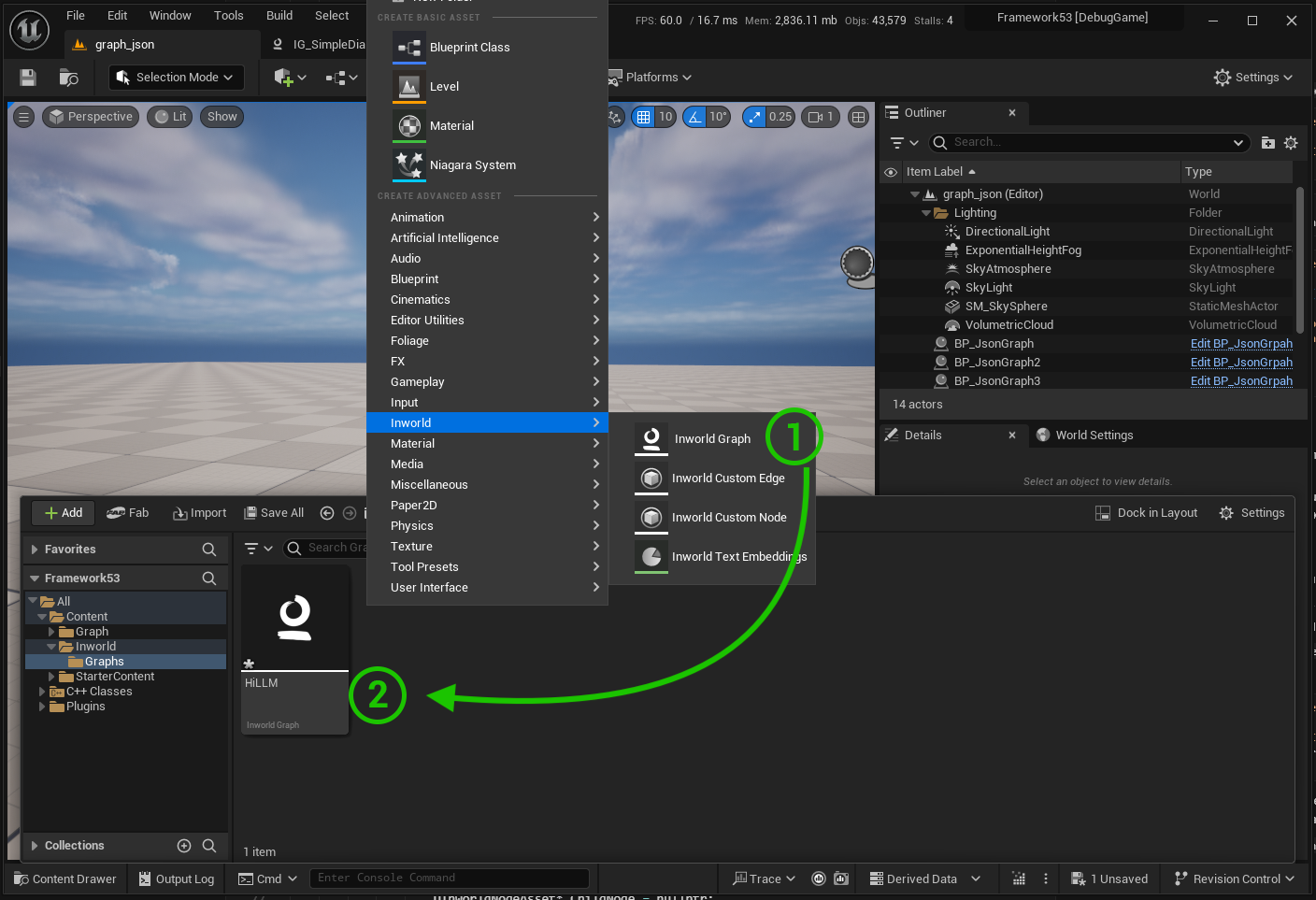
1. **Add New > Inworld > Graph**.
2. Name and save the asset > Double-click to open Inworld Graph Editor.
## Creating a Graph Asset
1. **Add New > Inworld > Graph**.
2. Name and save the asset > Double-click to open Inworld Graph Editor.
 ## Nodes
* **Adding**:
* right-click on the canvas and select a node from the menu.
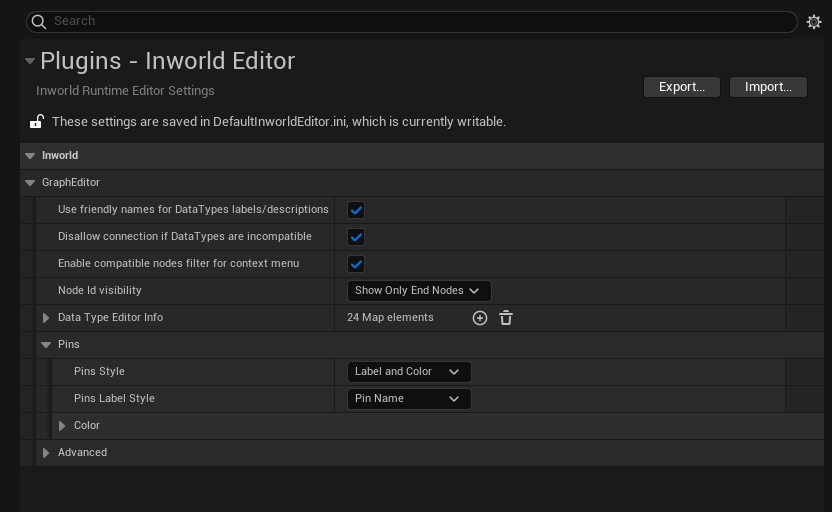
* drag from a pin and release to open node selection menu. In this case, the menu is filtered to show only nodes that can accept the input of the dragged pin. (can be changed in the settings)
* **Move/Copy/Paste/Delete**: drag to move; **Ctrl+C/Ctrl+V** to copy/paste; select node *Del* to delete.
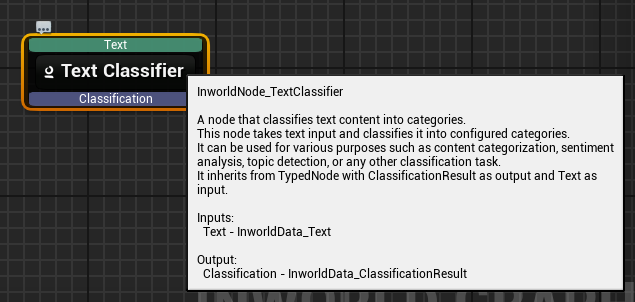
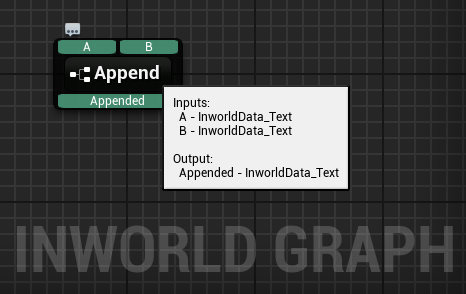
* **Hover for Info**: hover a node to see description and pins info.
## Nodes
* **Adding**:
* right-click on the canvas and select a node from the menu.
* drag from a pin and release to open node selection menu. In this case, the menu is filtered to show only nodes that can accept the input of the dragged pin. (can be changed in the settings)
* **Move/Copy/Paste/Delete**: drag to move; **Ctrl+C/Ctrl+V** to copy/paste; select node *Del* to delete.
* **Hover for Info**: hover a node to see description and pins info.
 * **Pins & Types**:
* Each input/output pin has a **data type** (pins are color-coded).
* Optional inputs are indicated by \* and noted in the tooltip.
* Type checks prevent invalid connections; behavior configurable in *Settings*.
* **Pin Display Modes** (Settings): label + color, color only, or label only. Labels can show **Pin Name** or **Data Type**.
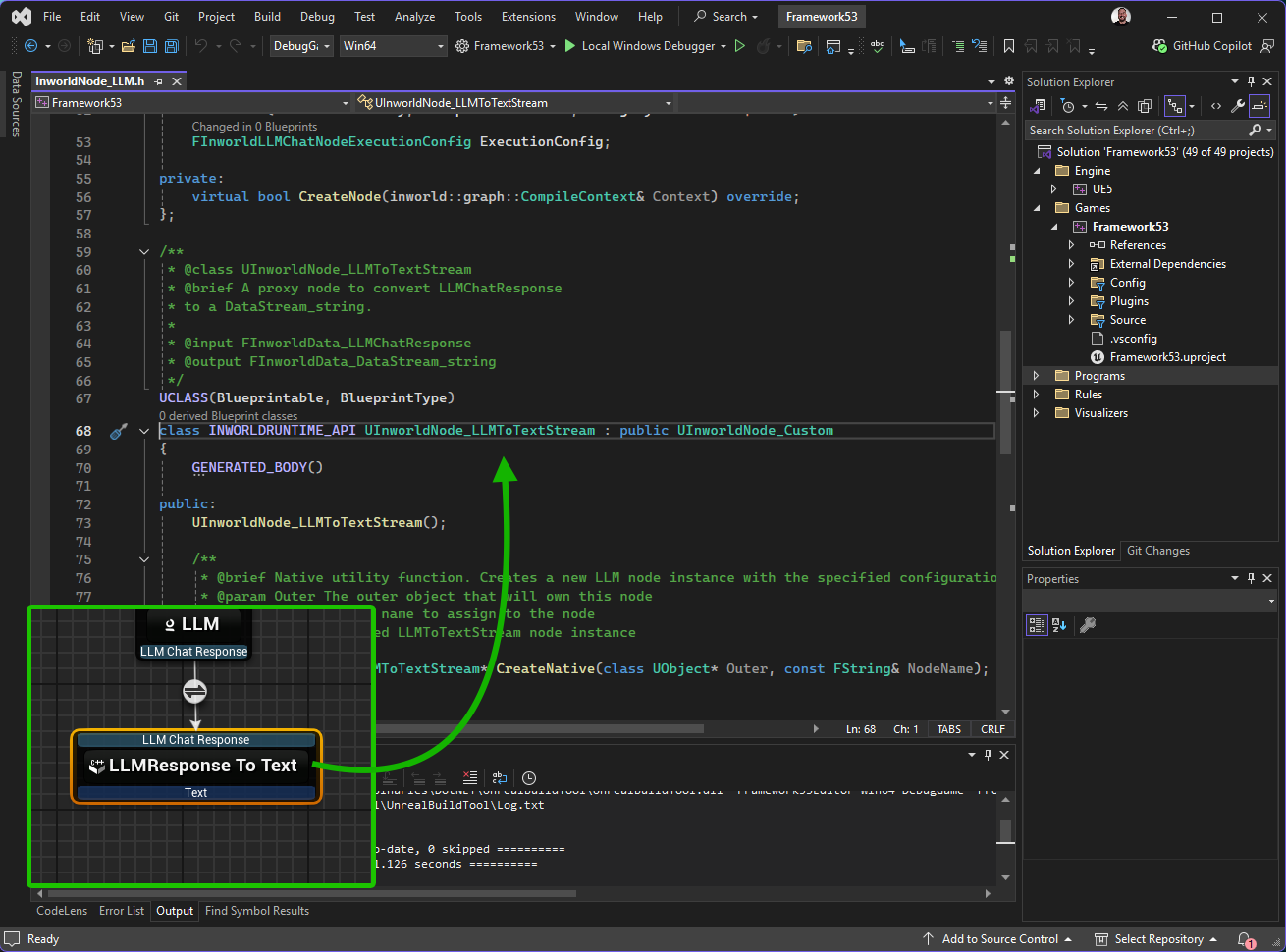
* **Double-click node body** > opens node implementation for custom nodes or subgraphs.
* **Pins & Types**:
* Each input/output pin has a **data type** (pins are color-coded).
* Optional inputs are indicated by \* and noted in the tooltip.
* Type checks prevent invalid connections; behavior configurable in *Settings*.
* **Pin Display Modes** (Settings): label + color, color only, or label only. Labels can show **Pin Name** or **Data Type**.
* **Double-click node body** > opens node implementation for custom nodes or subgraphs.
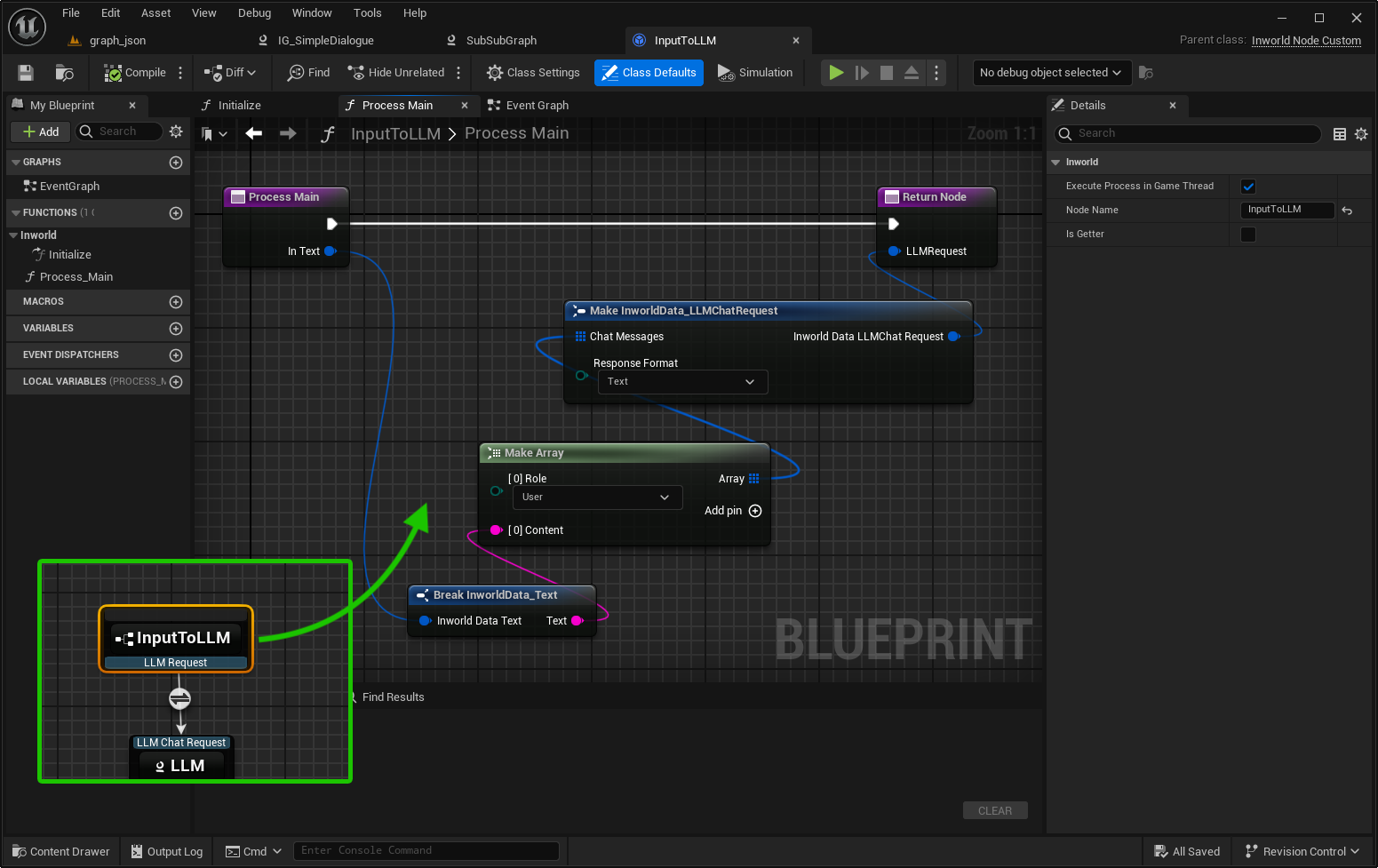 Opens the source file at the line of node implementation.
 * **Double-click node name** > **rename** the node inline.
* **Getter Nodes**: set IsGetter to true if no input required for node. In this case, you do not need to set up an input connection for the node. (optional you can wire input for explicit ordering).
### Custom Node
Custom nodes can be implemented using Blueprint or C++. In this example, we will implement a custom node that processes PlayerProfile RuntimeData and two Text inputs to combine them into one Text output.
1. **Create Custom Node**
Create via *Content Browser* or the **New Custom Node** button in the Graph Editor.
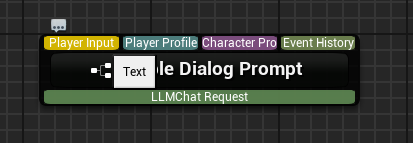
Custom nodes implemented in Blueprints have an icon
* **Double-click node name** > **rename** the node inline.
* **Getter Nodes**: set IsGetter to true if no input required for node. In this case, you do not need to set up an input connection for the node. (optional you can wire input for explicit ordering).
### Custom Node
Custom nodes can be implemented using Blueprint or C++. In this example, we will implement a custom node that processes PlayerProfile RuntimeData and two Text inputs to combine them into one Text output.
1. **Create Custom Node**
Create via *Content Browser* or the **New Custom Node** button in the Graph Editor.
Custom nodes implemented in Blueprints have an icon  in Graph Editor.
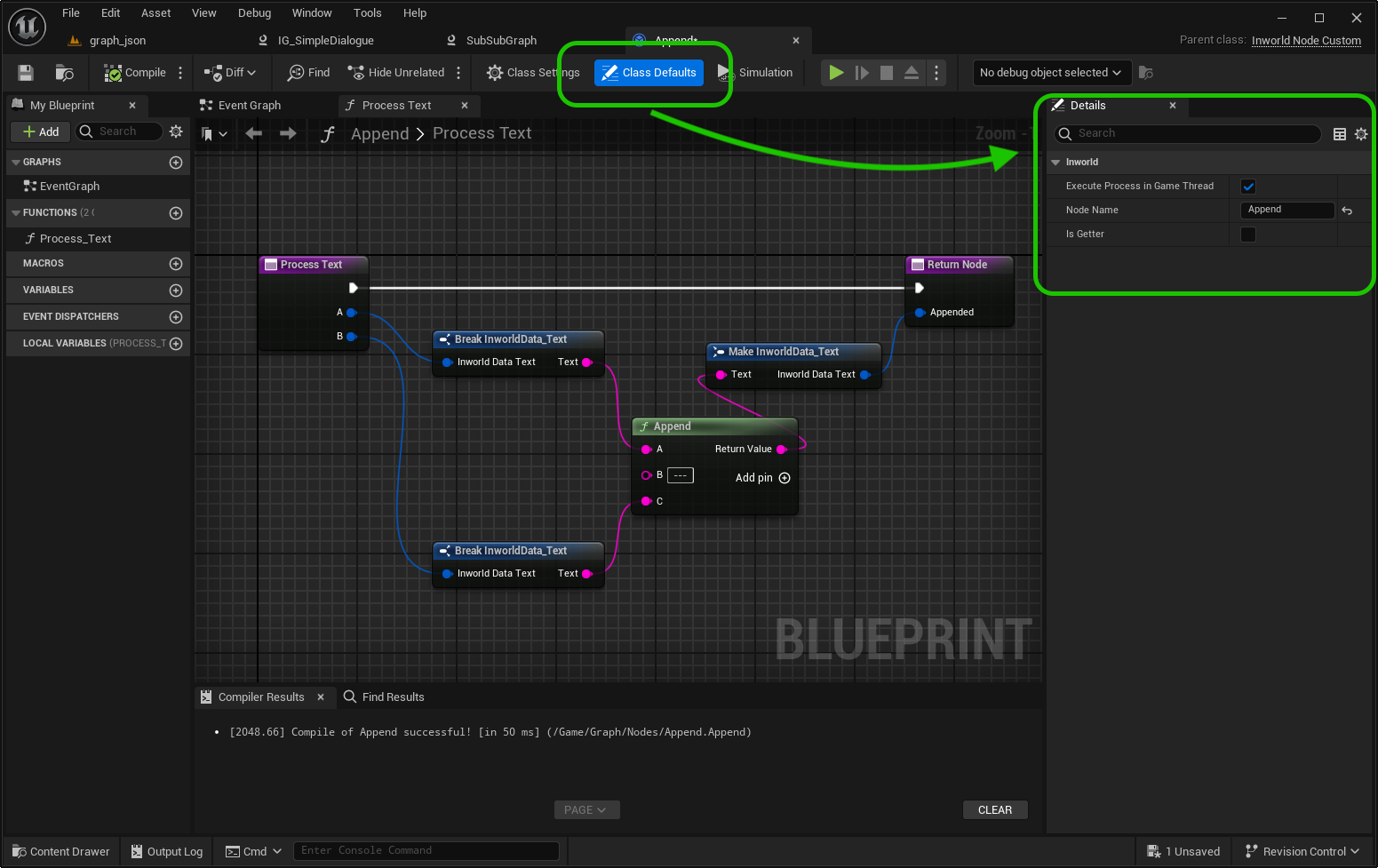
2. **Class Defaults**
Define:
* Node Name
* Node Description (Description of the node functionality and purpose)
* Is Getter (Special getter node mode that not required for input)
in Graph Editor.
2. **Class Defaults**
Define:
* Node Name
* Node Description (Description of the node functionality and purpose)
* Is Getter (Special getter node mode that not required for input)
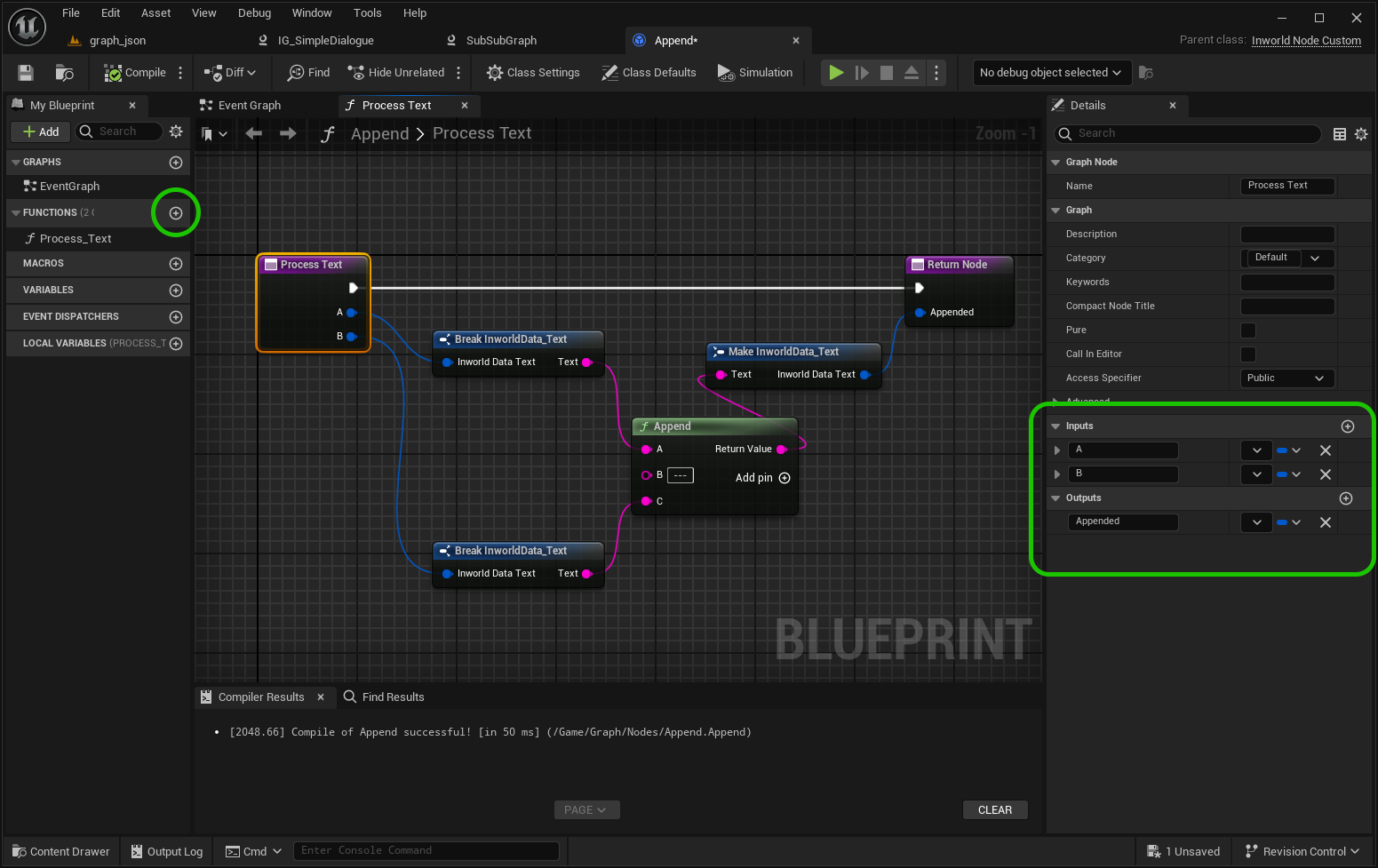
 3. **Process Function**
To make a function available as a processing node, its name must start with **Process**.
Examples: **`Process`**, **`ProcessDialogue`**, **`ProcessAudio`**, **`ProcessLogic`**.
Each function defines the node's execution logic.
The defined inputs and outputs (names and types) are automatically reflected as pins in the Graph Editor.
A single node can be linked to multiple processing functions.
When executing, the node automatically selects the appropriate function based on matching input types.
3. **Process Function**
To make a function available as a processing node, its name must start with **Process**.
Examples: **`Process`**, **`ProcessDialogue`**, **`ProcessAudio`**, **`ProcessLogic`**.
Each function defines the node's execution logic.
The defined inputs and outputs (names and types) are automatically reflected as pins in the Graph Editor.
A single node can be linked to multiple processing functions.
When executing, the node automatically selects the appropriate function based on matching input types.
 4. **Save**
The node appears in the context menu immediately.
4. **Save**
The node appears in the context menu immediately.
 1. **Create Custom Node class**
Create a C++ class inheriting from UInworldNode\_Custom.
Custom nodes that implemented in C++ have an icon
1. **Create Custom Node class**
Create a C++ class inheriting from UInworldNode\_Custom.
Custom nodes that implemented in C++ have an icon  in Graph Editor.
2. **Define at constructor**
Define:
* Node Name
* IsGetter (special getter node that not required for input)
3. **Process Function**
To make a function available as a processing node:
* Mark it with UFUNCTION()
* Its name must start with **Process**.
Examples: **`Process`**, **`ProcessDialogue`**, **`ProcessAudio`**, **`ProcessLogic`**.
Each function defines the node's execution logic.
The defined inputs and outputs (names and types) are automatically reflected as pins in the Graph Editor.
A single node can be linked to multiple processing functions.
When executing, the node automatically selects the appropriate function based on matching input types.
You can also optionally define the process context as the first argument to access runtime information:
```cpp theme={"system"}
FInworldData_Text Process(const UInworldProcessContext* ProcessContext, const FInworldData_Text& A, const FInworldData_Text& B) const
```
The UInworldProcessContext parameter provides access to contextual data and runtime state during graph execution.
If present, it will be automatically passed by the graph system.
```cpp theme={"system"}
#pragma once
#include "CoreMinimal.h"
#include "Graph/Nodes/InworldNode_Custom.h"
#include "MyInworldNode_AppendText.generated.h"
/**
* @class UInworldNode_GetCharacterName
* @brief A node that append two text inputs.
*/
UCLASS()
class MYGAME_API UMyInworldNode_AppendText : public UInworldNode_Custom
{
GENERATED_BODY()
public:
UMyInworldNode_AppendText()
{
NodeName = "Append Text";
}
protected:
UFUNCTION()
UPARAM(meta = (DisplayName = "A + B"))
FInworldData_Text Process(const FInworldData_Text& A, const FInworldData_Text& B) const
{
if (A.Text.IsEmpty() || B.Text.IsEmpty())
{
return FInworldData_Text::Error(TEXT("A or B is empty."));
}
FInworldData_Text ResultData;
ResultData.Text = A.Text + " " + B.Text;
return ResultData;
}
};
```
4. **Compile**
The node appears in the context menu.
in Graph Editor.
2. **Define at constructor**
Define:
* Node Name
* IsGetter (special getter node that not required for input)
3. **Process Function**
To make a function available as a processing node:
* Mark it with UFUNCTION()
* Its name must start with **Process**.
Examples: **`Process`**, **`ProcessDialogue`**, **`ProcessAudio`**, **`ProcessLogic`**.
Each function defines the node's execution logic.
The defined inputs and outputs (names and types) are automatically reflected as pins in the Graph Editor.
A single node can be linked to multiple processing functions.
When executing, the node automatically selects the appropriate function based on matching input types.
You can also optionally define the process context as the first argument to access runtime information:
```cpp theme={"system"}
FInworldData_Text Process(const UInworldProcessContext* ProcessContext, const FInworldData_Text& A, const FInworldData_Text& B) const
```
The UInworldProcessContext parameter provides access to contextual data and runtime state during graph execution.
If present, it will be automatically passed by the graph system.
```cpp theme={"system"}
#pragma once
#include "CoreMinimal.h"
#include "Graph/Nodes/InworldNode_Custom.h"
#include "MyInworldNode_AppendText.generated.h"
/**
* @class UInworldNode_GetCharacterName
* @brief A node that append two text inputs.
*/
UCLASS()
class MYGAME_API UMyInworldNode_AppendText : public UInworldNode_Custom
{
GENERATED_BODY()
public:
UMyInworldNode_AppendText()
{
NodeName = "Append Text";
}
protected:
UFUNCTION()
UPARAM(meta = (DisplayName = "A + B"))
FInworldData_Text Process(const FInworldData_Text& A, const FInworldData_Text& B) const
{
if (A.Text.IsEmpty() || B.Text.IsEmpty())
{
return FInworldData_Text::Error(TEXT("A or B is empty."));
}
FInworldData_Text ResultData;
ResultData.Text = A.Text + " " + B.Text;
return ResultData;
}
};
```
4. **Compile**
The node appears in the context menu.
 ## Edges
* **Connect** by dragging between pins.
* **Delete**: select edge by click on icon > **Del**.
* **Input/Ouput Types Checking**:
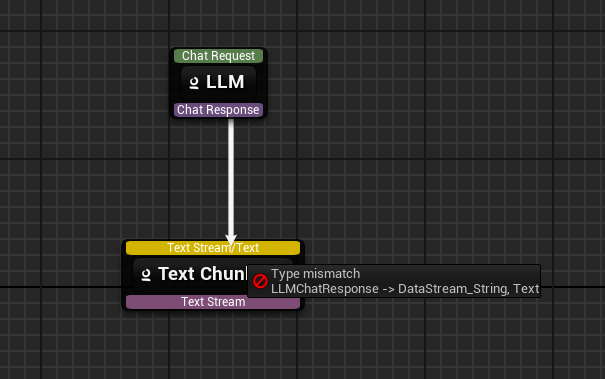
* **Disallow connection - checked** (default): incompatible types **cannot** connect.
## Edges
* **Connect** by dragging between pins.
* **Delete**: select edge by click on icon > **Del**.
* **Input/Ouput Types Checking**:
* **Disallow connection - checked** (default): incompatible types **cannot** connect.
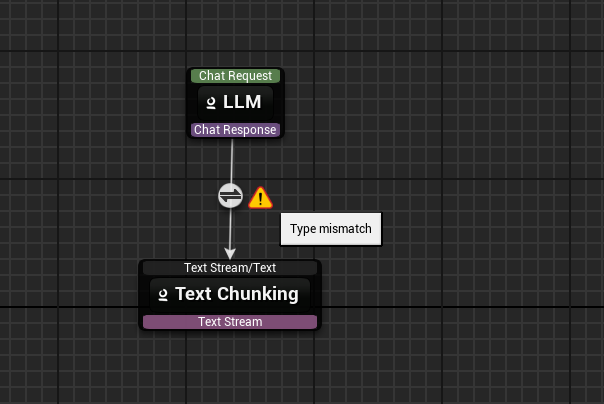
 * **Disallow connection - unchecked**: connection allowed but a **warning** is shown.
 * **Conditional Edges**:
* Set an edge type: right-click the edge > choose a **Condition type** (e.g., *General*, *IsSafe*).
* **Conditional Edges**:
* Set an edge type: right-click the edge > choose a **Condition type** (e.g., *General*, *IsSafe*).
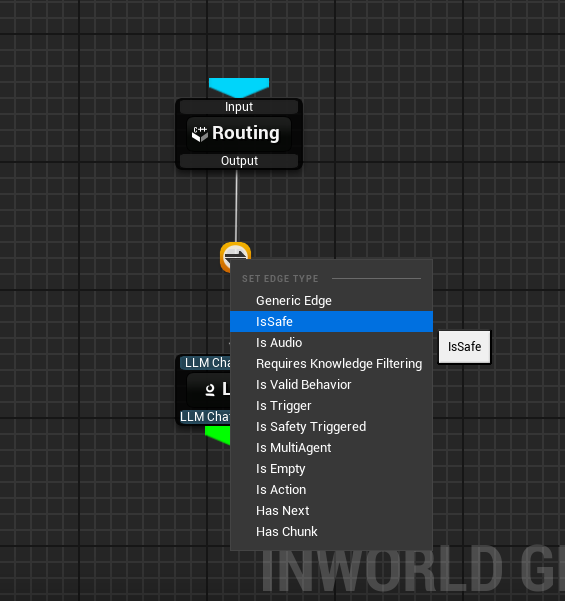 * Each condition can be **negated** at design time in the Details panel.
* **IsSafe** is a special condition based edge on a safe-node result.
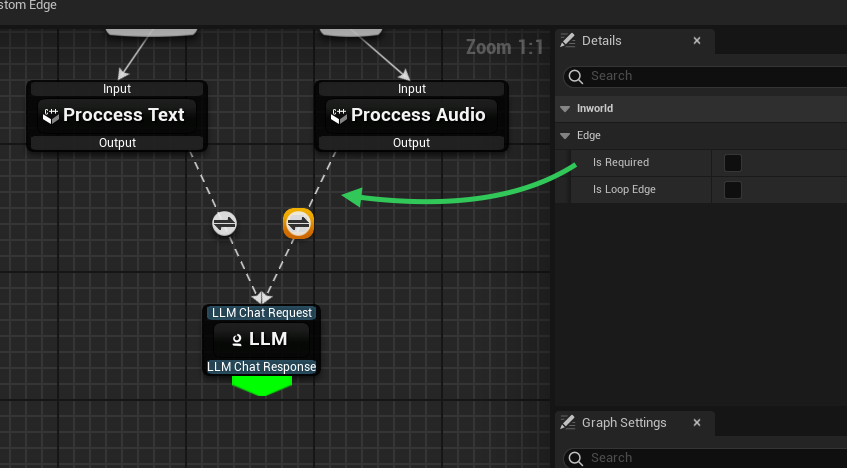
* **Edge Properties**: **Title**, **Negation**, **Required**.
* Not Required edges are shown as **dashed** lines.
* Each condition can be **negated** at design time in the Details panel.
* **IsSafe** is a special condition based edge on a safe-node result.
* **Edge Properties**: **Title**, **Negation**, **Required**.
* Not Required edges are shown as **dashed** lines.
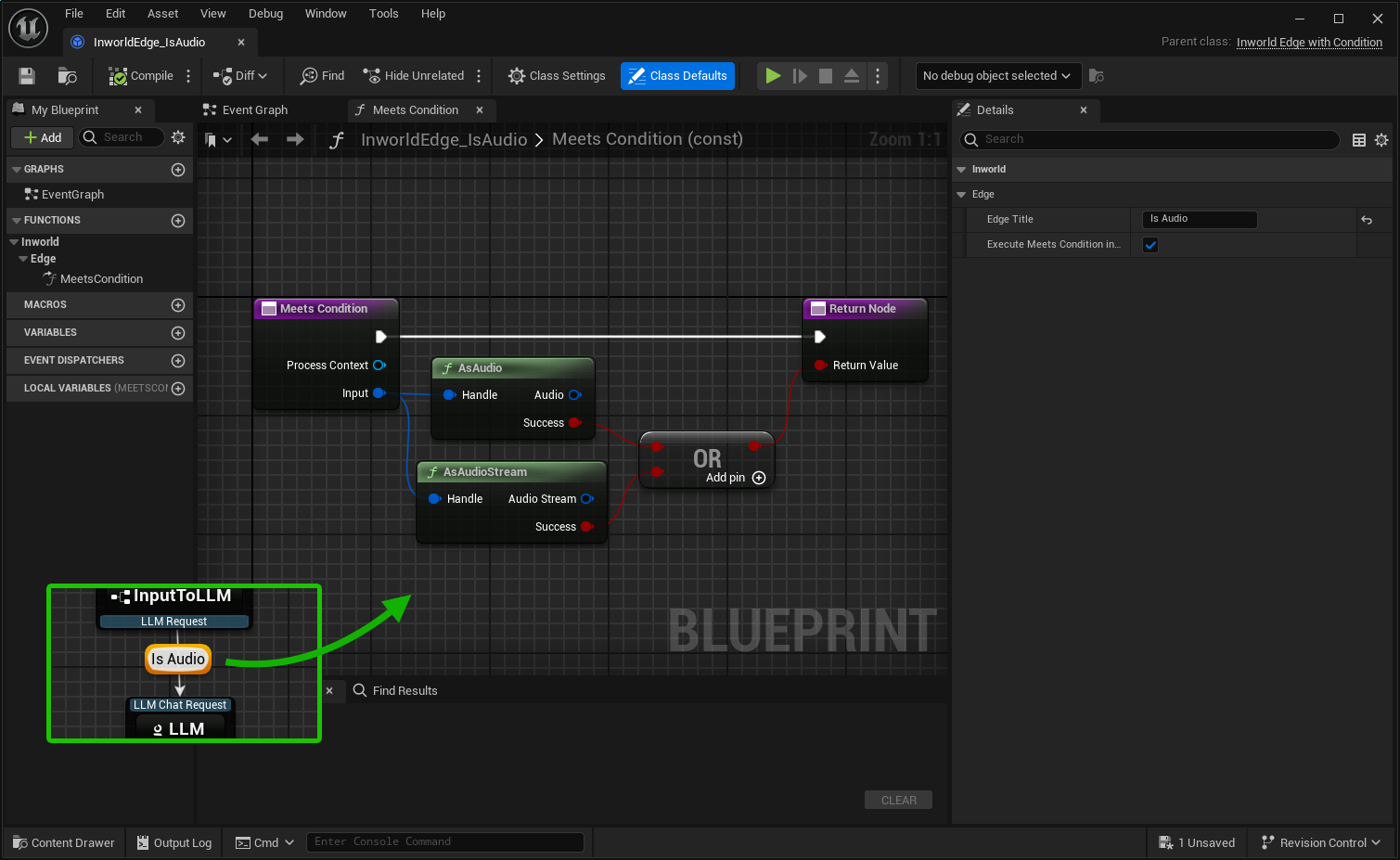
 * **To Open Implementation**: double-click on conditional edge widget to navigate to implementation (C++ or Blueprint).
### Custom Conditional Edge
Custom edges can be implemented using Blueprint or C++.
1. **Create Custom Edge**
Create via *Content Browser* context menu or the **New Custom Edge** button in the Graph Editor.
2. **Class Defaults**
Define:
* Edge Title
* Execute Meets Condition in Game Thread
3. **MeetsCondition Function**
To make a function available as a condition, its name must start with **MeetsCondition**.
Examples: **`MeetsCondition`**, **`MeetsConditionCheck`**, **`MeetsConditionIsValid`**, **`MeetsConditionLogic`**.
Each function defines the edge's conditional logic and must return a bool value.
A single edge can be linked to multiple condition functions.
When executing, the edge automatically selects the appropriate function based on matching input type.
* **To Open Implementation**: double-click on conditional edge widget to navigate to implementation (C++ or Blueprint).
### Custom Conditional Edge
Custom edges can be implemented using Blueprint or C++.
1. **Create Custom Edge**
Create via *Content Browser* context menu or the **New Custom Edge** button in the Graph Editor.
2. **Class Defaults**
Define:
* Edge Title
* Execute Meets Condition in Game Thread
3. **MeetsCondition Function**
To make a function available as a condition, its name must start with **MeetsCondition**.
Examples: **`MeetsCondition`**, **`MeetsConditionCheck`**, **`MeetsConditionIsValid`**, **`MeetsConditionLogic`**.
Each function defines the edge's conditional logic and must return a bool value.
A single edge can be linked to multiple condition functions.
When executing, the edge automatically selects the appropriate function based on matching input type.
 4. **Save**
The edge appears in the context menu immediately.
1. **Create Custom Condition Edge class**
Create a C++ class inheriting from UInworldEdge\_WithCondition.
2. **At Constructor**
Define:
* Edge Title
* Execute Meets Condition in Game Thread
3. **MeetsCondition Function**
To make a function available as a condition:
* Mark it with UFUNCTION()
* Its name must start with **MeetsCondition**
Examples: **`MeetsCondition`**, **`MeetsConditionCheck`**, **`MeetsConditionIsValid`**, **`MeetsConditionLogic`**.
Each function defines the edge's conditional logic and must return a bool value.
A single edge can be linked to multiple condition functions.
When executing, the edge automatically selects the appropriate function based on matching input type.
You can also optionally define the process context as the first argument to access runtime information:
```cpp theme={"system"}
bool MeetsCondition(const UInworldProcessContext* ProcessContext,
const FInworldData_Text& Input) const
```
The UInworldProcessContext parameter provides access to contextual data and runtime state during graph execution.
If present, it will be automatically passed by the graph system.
```cpp theme={"system"}
#pragma once
#include "CoreMinimal.h"
#include "Graph/Edges/InworldEdge_WithCondition.h"
#include "MyInworldEdge_IsAudio.generated.h"
UCLASS()
class MYGAME_API UInworldEdge_MyEdge : public UInworldEdge_WithCondition
{
GENERATED_BODY()
public:
UInworldEdge_MyEdge()
{
EdgeTitle = "My Edge C++";
}
protected:
UFUNCTION()
bool MeetsCondition(const FInworldData_Text& Input) const
{
return (Input.Text.Contains(TEXT("Inworld")));
}
};
```
4. **Compile**
The node appears in the context menu.
## Start & End Nodes
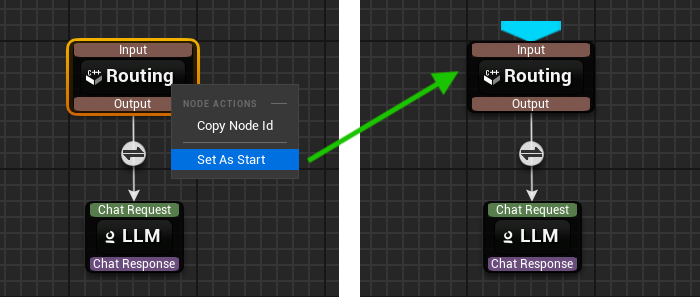
* **Start Node**:
* Mark a node as **Start** (right-click on node > Mark as Start).
* At runtime, all **Start** nodes **receive the top-level input data** you pass into `Execute(...)` and RuntimeData.
* A node with **no incoming edges** can be marked as a start point.
4. **Save**
The edge appears in the context menu immediately.
1. **Create Custom Condition Edge class**
Create a C++ class inheriting from UInworldEdge\_WithCondition.
2. **At Constructor**
Define:
* Edge Title
* Execute Meets Condition in Game Thread
3. **MeetsCondition Function**
To make a function available as a condition:
* Mark it with UFUNCTION()
* Its name must start with **MeetsCondition**
Examples: **`MeetsCondition`**, **`MeetsConditionCheck`**, **`MeetsConditionIsValid`**, **`MeetsConditionLogic`**.
Each function defines the edge's conditional logic and must return a bool value.
A single edge can be linked to multiple condition functions.
When executing, the edge automatically selects the appropriate function based on matching input type.
You can also optionally define the process context as the first argument to access runtime information:
```cpp theme={"system"}
bool MeetsCondition(const UInworldProcessContext* ProcessContext,
const FInworldData_Text& Input) const
```
The UInworldProcessContext parameter provides access to contextual data and runtime state during graph execution.
If present, it will be automatically passed by the graph system.
```cpp theme={"system"}
#pragma once
#include "CoreMinimal.h"
#include "Graph/Edges/InworldEdge_WithCondition.h"
#include "MyInworldEdge_IsAudio.generated.h"
UCLASS()
class MYGAME_API UInworldEdge_MyEdge : public UInworldEdge_WithCondition
{
GENERATED_BODY()
public:
UInworldEdge_MyEdge()
{
EdgeTitle = "My Edge C++";
}
protected:
UFUNCTION()
bool MeetsCondition(const FInworldData_Text& Input) const
{
return (Input.Text.Contains(TEXT("Inworld")));
}
};
```
4. **Compile**
The node appears in the context menu.
## Start & End Nodes
* **Start Node**:
* Mark a node as **Start** (right-click on node > Mark as Start).
* At runtime, all **Start** nodes **receive the top-level input data** you pass into `Execute(...)` and RuntimeData.
* A node with **no incoming edges** can be marked as a start point.
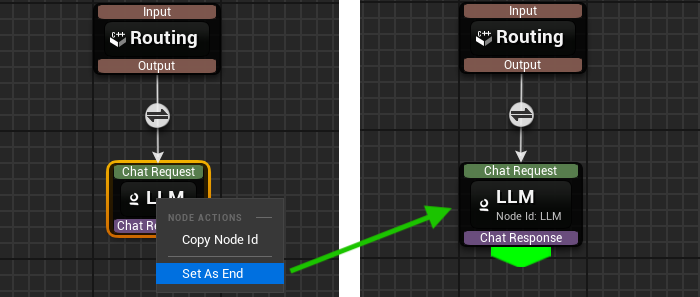
 * **End Node**:
* Mark a node **End** (right-click on node > Mark as End).
* When an End node finishes, it emits a **result callback** carrying that node's output.
* A node with **no outgoing edges** can be marked as an end point.
* **End Node**:
* Mark a node **End** (right-click on node > Mark as End).
* When an End node finishes, it emits a **result callback** carrying that node's output.
* A node with **no outgoing edges** can be marked as an end point.
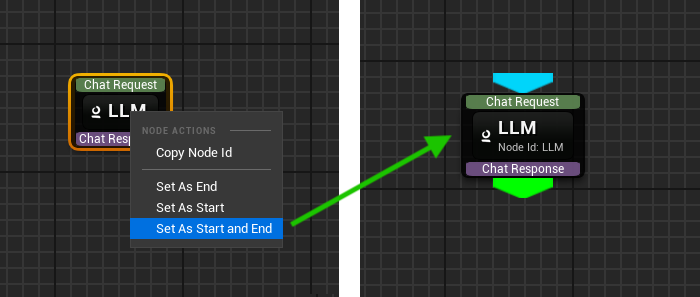
 * **Dual-role Node**: A node with **no inputs and outputs** can be marked as both **Start and End**.
 ## Subgraphs
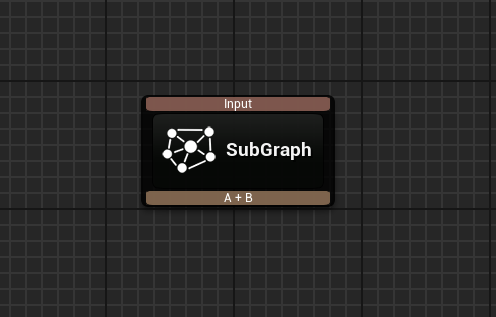
Each saved graph asset that has exactly one Start and one End node can be added as a Subgraph to an existing graph as node.
The subgraph's inputs correspond to its Start node inputs, and its output comes from the End node.
All RuntimeData is automatically passed to the subgraph during execution.
* **Adding**:
* Right-click on the canvas and select a subgraph from the `Subgraph` section of the context menu.
* Or drag from a pin and release to open the selection menu.
## Subgraphs
Each saved graph asset that has exactly one Start and one End node can be added as a Subgraph to an existing graph as node.
The subgraph's inputs correspond to its Start node inputs, and its output comes from the End node.
All RuntimeData is automatically passed to the subgraph during execution.
* **Adding**:
* Right-click on the canvas and select a subgraph from the `Subgraph` section of the context menu.
* Or drag from a pin and release to open the selection menu.
 ## Settings
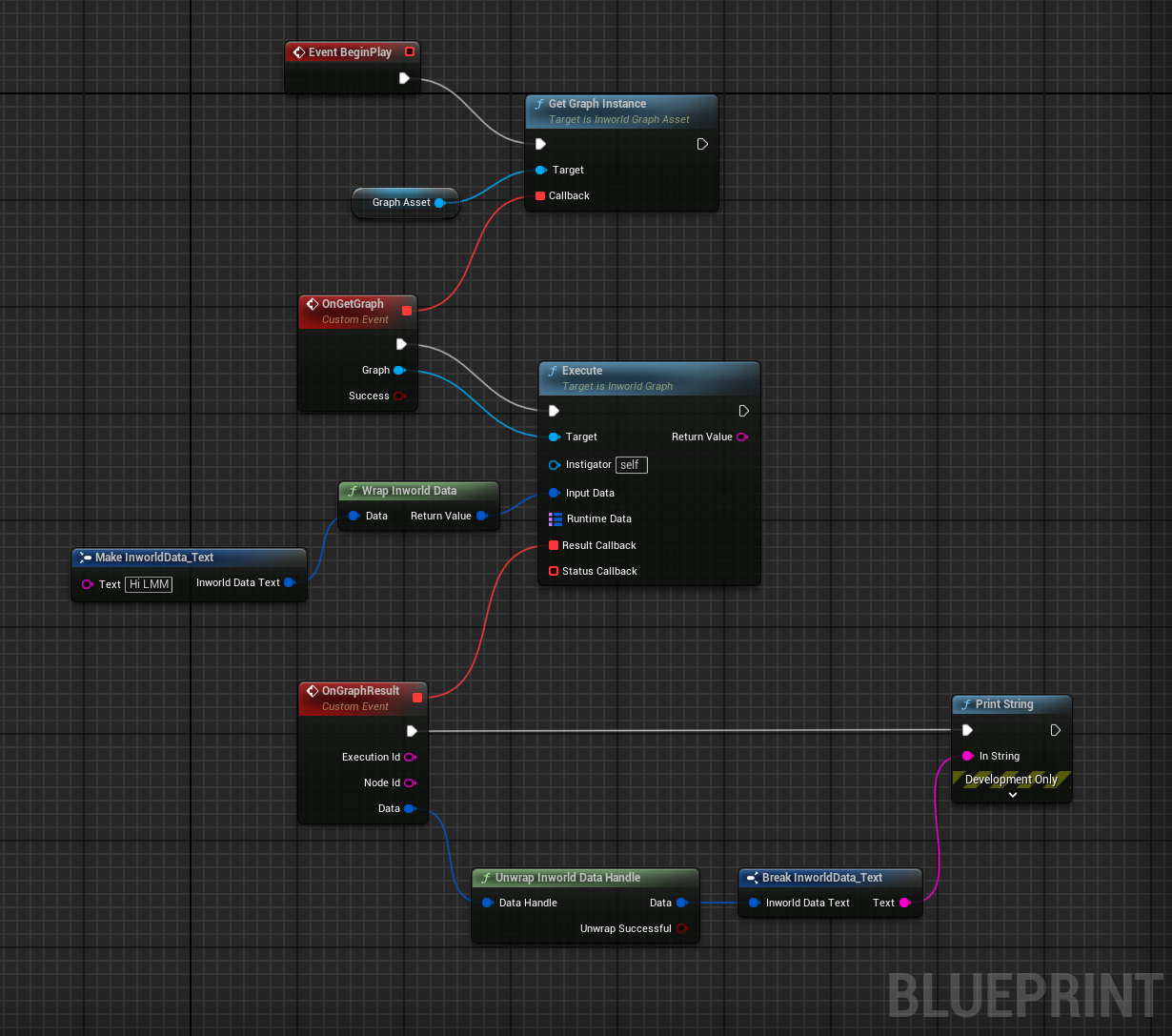
 ## Executing a Graph using Graph Asset at Runtime
1. Get an instance: `GetGraphInstance`
2. Execute the graph: call **`Execute()`**.
* **Start nodes** will receive `Input` and `RuntimeData` map.
* Each **End node** triggers **`OnResultCallback`** and returns the result along with the corresponding `NodeId` and `ExecutionId`.
3. Process results in your system.
## Executing a Graph using Graph Asset at Runtime
1. Get an instance: `GetGraphInstance`
2. Execute the graph: call **`Execute()`**.
* **Start nodes** will receive `Input` and `RuntimeData` map.
* Each **End node** triggers **`OnResultCallback`** and returns the result along with the corresponding `NodeId` and `ExecutionId`.
3. Process results in your system.
 ```cpp theme={"system"}
#pragma once
#include "CoreMinimal.h"
#include "GameFramework/Actor.h"
#include "Graph/InworldGraph.h"
#include "Graph/Assets/InworldGraphAsset.h"
#include "AGraphExecution.generated.h"
UCLASS()
class MYGAME_API AGraphExecution : public AActor
{
GENERATED_BODY()
public:
UPROPERTY(EditAnywhere, BlueprintReadWrite, Category = "Graph")
TObjectPtr GraphAsset;
protected:
virtual void BeginPlay() override
{
Super::BeginPlay();
GraphAsset->GetGraphInstance(FOnGraphCompiledNative::CreateUObject(this, &AGraphExecution::OnGetGraph));
};
void OnGetGraph(UInworldGraph* CompiledGraph, bool bSuccess)
{
if (bSuccess)
{
FInworldData_Text InputData;
InputData.Text = TEXT("Hi LLM");
CompiledGraph->Execute(this, InputData, {}, FOnGraphResultNative::CreateUObject(this, &AGraphExecution::OnResult));
}
}
void OnResult(const FString& ExecutionId, const FString& NodeId, const FInworldDataHandle& DataHandle)
{
if (FInworldData_Text* ResultTextData = DataHandle.Unwrap())
{
GEngine->AddOnScreenDebugMessage(-1, 5.0f, FColor::Green, ResultTextData->Text);
}
}
};
```
## Inworld Data Handle
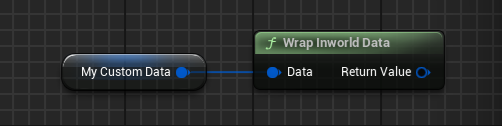
Graph input and result data must be of type **FInworldDataHandle**.
Input data must be "wrapped" into **FInworldDataHandle**.
```cpp theme={"system"}
#pragma once
#include "CoreMinimal.h"
#include "GameFramework/Actor.h"
#include "Graph/InworldGraph.h"
#include "Graph/Assets/InworldGraphAsset.h"
#include "AGraphExecution.generated.h"
UCLASS()
class MYGAME_API AGraphExecution : public AActor
{
GENERATED_BODY()
public:
UPROPERTY(EditAnywhere, BlueprintReadWrite, Category = "Graph")
TObjectPtr GraphAsset;
protected:
virtual void BeginPlay() override
{
Super::BeginPlay();
GraphAsset->GetGraphInstance(FOnGraphCompiledNative::CreateUObject(this, &AGraphExecution::OnGetGraph));
};
void OnGetGraph(UInworldGraph* CompiledGraph, bool bSuccess)
{
if (bSuccess)
{
FInworldData_Text InputData;
InputData.Text = TEXT("Hi LLM");
CompiledGraph->Execute(this, InputData, {}, FOnGraphResultNative::CreateUObject(this, &AGraphExecution::OnResult));
}
}
void OnResult(const FString& ExecutionId, const FString& NodeId, const FInworldDataHandle& DataHandle)
{
if (FInworldData_Text* ResultTextData = DataHandle.Unwrap())
{
GEngine->AddOnScreenDebugMessage(-1, 5.0f, FColor::Green, ResultTextData->Text);
}
}
};
```
## Inworld Data Handle
Graph input and result data must be of type **FInworldDataHandle**.
Input data must be "wrapped" into **FInworldDataHandle**.
 ```cpp theme={"system"}
// FInworldData
FInworldData_Text InworldText;
FInworldDataHandle InworldDataHandle = InworldText;
// Custom Struct Data
FMyCustomStruct MyCustomStruct;
FInworldDataHandle InworldDataHandle = FInworldData_Struct(MyCustomStruct);
```
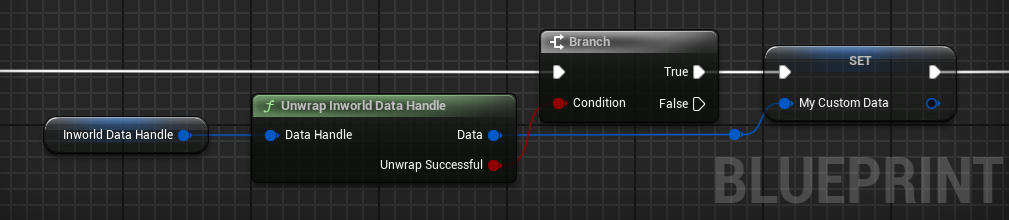
Result data must be "unwrapped" out of **FInworldDataHandle**.
```cpp theme={"system"}
// FInworldData
FInworldData_Text InworldText;
FInworldDataHandle InworldDataHandle = InworldText;
// Custom Struct Data
FMyCustomStruct MyCustomStruct;
FInworldDataHandle InworldDataHandle = FInworldData_Struct(MyCustomStruct);
```
Result data must be "unwrapped" out of **FInworldDataHandle**.
 ```cpp theme={"system"}
// FInworldData
if (FInworldData_Text* InworldText = InworldDataHandle->Unwrap(); FInworldData_Text != nullptr)
{
// InworldText is valid
}
// Custom Struct Data
if (FInworldData_Struct* InworldDataStruct = InworldDataHandle->Unwrap(); InworldDataStruct != nullptr)
{
if (FMyCustomStruct MyCustomStruct; InworldDataStruct->GetData(MyCustomStruct))
{
// MyCustomStruct is valid
}
}
```
```cpp theme={"system"}
// FInworldData
if (FInworldData_Text* InworldText = InworldDataHandle->Unwrap(); FInworldData_Text != nullptr)
{
// InworldText is valid
}
// Custom Struct Data
if (FInworldData_Struct* InworldDataStruct = InworldDataHandle->Unwrap(); InworldDataStruct != nullptr)
{
if (FMyCustomStruct MyCustomStruct; InworldDataStruct->GetData(MyCustomStruct))
{
// MyCustomStruct is valid
}
}
```