> ## Documentation Index
> Fetch the complete documentation index at: https://docs.inworld.ai/llms.txt
> Use this file to discover all available pages before exploring further.
# Innequin
The Innequin Template builds on the [Character template](/unreal-engine/runtime/templates/character) to provide an example of utilizing the Inworld Character graphs and components to create 3D character interactions.
 ## Run an Innequin Sample Level
1. Open the settings menu in the Content Browser within Unreal.
2. Enable the option for "Show Plugin Content".
3. In the Content Browser, navigate to `/Plugins/InworldInnequin/Levels`.
4. Double-click on the **SingleCharacter** or **MultiCharacter** map.
5. Click the Play-in-Editor button (alt+p) to launch your level.
6. Have a conversation! You can uncheck the microphone to speak or type directly in the text box.
## Template Overview
The Innequin template provides a few sample levels to demonstrate the [Character template](/unreal-engine/runtime/templates/character) components in a 3D environment.
This also includes a collection of Inworld Innequin character assets, and a sample 3D chat interface widget `WBP_Chat3D`.
### SingleCharacter Level
The SingleCharacter level is a simple level that demonstrates a single character interacting with the player.
This character is named "Algo the Apprentice", she is an eager,
highly trained, and slightly chaotic wizard's apprentice who has mastered her studies and now desperately waits at the tower to be claimed by the right wizard, all while hoping
the user might be the one she's been searching for.
## Run an Innequin Sample Level
1. Open the settings menu in the Content Browser within Unreal.
2. Enable the option for "Show Plugin Content".
3. In the Content Browser, navigate to `/Plugins/InworldInnequin/Levels`.
4. Double-click on the **SingleCharacter** or **MultiCharacter** map.
5. Click the Play-in-Editor button (alt+p) to launch your level.
6. Have a conversation! You can uncheck the microphone to speak or type directly in the text box.
## Template Overview
The Innequin template provides a few sample levels to demonstrate the [Character template](/unreal-engine/runtime/templates/character) components in a 3D environment.
This also includes a collection of Inworld Innequin character assets, and a sample 3D chat interface widget `WBP_Chat3D`.
### SingleCharacter Level
The SingleCharacter level is a simple level that demonstrates a single character interacting with the player.
This character is named "Algo the Apprentice", she is an eager,
highly trained, and slightly chaotic wizard's apprentice who has mastered her studies and now desperately waits at the tower to be claimed by the right wizard, all while hoping
the user might be the one she's been searching for.
 To send a message to Algo, you can either:
1. Type your message in the text box and press enter (or click the send button).
To send a message to Algo, you can either:
1. Type your message in the text box and press enter (or click the send button).
 2. Talk using your microphone. Simply click the microphone icon at the left end of the text box to toggle the microphone on or off.
| **Microphone Off** | | **Microphone On** |
| ------------------------------------------------------------------------------------------------------------------------------------------------------------------------------------------------------------------------------------------------------------------------------------------------------------------------------------------------------------------------------------------------------------------------------------------------------------------------------------------------------------------------------------------------------------------------------------------------------------------------------------------------------------------------------------------------------------------------------------------------------------------------------------------------------------------------------------------------------------------------------------------------------------------------------------------------------------------------------------------------------------------------------------------------------------------------------------------------------------------------------------------------------------------------------------------------------------------------------------------------------------------------------------------------------------------------------------------------------------------------------------------------------------------------------------------------------------------------------------------------------------------------ | - | ---------------------------------------------------------------------------------------------------------------------------------------------------------------------------------------------------------------------------------------------------------------------------------------------------------------------------------------------------------------------------------------------------------------------------------------------------------------------------------------------------------------------------------------------------------------------------------------------------------------------------------------------------------------------------------------------------------------------------------------------------------------------------------------------------------------------------------------------------------------------------------------------------------------------------------------------------------------------------------------------------------------------------------------------------------------------------------------------------------------------------------------------------------------------------------------------------------------------------------------------------------------------------------------------------------------------------------------------------------------------------------------------------------------------------------------------------------------------------------------------------------------- |
|
2. Talk using your microphone. Simply click the microphone icon at the left end of the text box to toggle the microphone on or off.
| **Microphone Off** | | **Microphone On** |
| ------------------------------------------------------------------------------------------------------------------------------------------------------------------------------------------------------------------------------------------------------------------------------------------------------------------------------------------------------------------------------------------------------------------------------------------------------------------------------------------------------------------------------------------------------------------------------------------------------------------------------------------------------------------------------------------------------------------------------------------------------------------------------------------------------------------------------------------------------------------------------------------------------------------------------------------------------------------------------------------------------------------------------------------------------------------------------------------------------------------------------------------------------------------------------------------------------------------------------------------------------------------------------------------------------------------------------------------------------------------------------------------------------------------------------------------------------------------------------------------------------------------------ | - | ---------------------------------------------------------------------------------------------------------------------------------------------------------------------------------------------------------------------------------------------------------------------------------------------------------------------------------------------------------------------------------------------------------------------------------------------------------------------------------------------------------------------------------------------------------------------------------------------------------------------------------------------------------------------------------------------------------------------------------------------------------------------------------------------------------------------------------------------------------------------------------------------------------------------------------------------------------------------------------------------------------------------------------------------------------------------------------------------------------------------------------------------------------------------------------------------------------------------------------------------------------------------------------------------------------------------------------------------------------------------------------------------------------------------------------------------------------------------------------------------------------------- |
|  | |
| |  |
The audio capture component will automatically detect when you have completed your message and send the message to Algo.
A speech bubble will appear above Algo's head and she will generate a response.
#### Character Configuration
In the SingleCharacter level, the Algo character is represented by a **BP\_Innequin\_Character** actor (which inherits from the **BP\_InworldCharacter3D** blueprint from the [Character template](/unreal-engine/runtime/templates/character)).
|
The audio capture component will automatically detect when you have completed your message and send the message to Algo.
A speech bubble will appear above Algo's head and she will generate a response.
#### Character Configuration
In the SingleCharacter level, the Algo character is represented by a **BP\_Innequin\_Character** actor (which inherits from the **BP\_InworldCharacter3D** blueprint from the [Character template](/unreal-engine/runtime/templates/character)).
 The character is configured in the **Inworld Character** component. In this example, the details are set in the **DT\_InworldCharacters** data table and referenced on the component.

 For more information on how to configure a character, see the [Character template](/unreal-engine/runtime/templates/character#character-setup).
#### Goals and Intents
Goals allow you to configure predefined character responses and behavior. Intents are sets of phrases used to classify a player's message intention. Intents can be used to activate goals.
Algo has a few goals and intents configured to her. For instance, when you say "Hello", the "Greeting" goal is activated and she will be instructed to:
For more information on how to configure a character, see the [Character template](/unreal-engine/runtime/templates/character#character-setup).
#### Goals and Intents
Goals allow you to configure predefined character responses and behavior. Intents are sets of phrases used to classify a player's message intention. Intents can be used to activate goals.
Algo has a few goals and intents configured to her. For instance, when you say "Hello", the "Greeting" goal is activated and she will be instructed to:
Introduce yourself and express hopeful excitement about meeting someone new, comically inquiring if the user might be a wizard seeking an apprentice.
**Algo's Goals:**
 * **Greeting**
* Instruction: "Introduce yourself and express hopeful excitement about meeting someone new, comically inquiring if the user might be a wizard seeking an apprentice."
* Intents:
* Greeting: "Hello", "Hi there", "Hey"
* **Greeting**
* Instruction: "Introduce yourself and express hopeful excitement about meeting someone new, comically inquiring if the user might be a wizard seeking an apprentice."
* Intents:
* Greeting: "Hello", "Hi there", "Hey"
 * **AskForHelp**
* Instruction: "Eagerly frame the user's request for help as a adventurous quest and then ask what you can assist them with."
* **AskForJoke**:
* Verbatim: "Okay, what's the difference between a wizard and a sorcerer? About three years of student loan debt."
* **Goodbye**:
* Instruction: "Express hope that the user will return soon and wish them well in their travels."
For more information on how to configure goals and intents, see the [Character template](/unreal-engine/runtime/templates/character#goals).
### MultiCharacter Level
The MultiCharacter level is a more complex level that demonstrates a group of characters conversing and interacting with the player.
In this conversation we have:
* Aurora Summers, a seasoned, middle-aged detective, is observant and analytical, with a keen eye for detail honed by years of cracking tough cases.
* Marcus Thompson, a curious and charismatic young adult journalist whose persistent, investigative nature makes him formidable in reporting.
* **AskForHelp**
* Instruction: "Eagerly frame the user's request for help as a adventurous quest and then ask what you can assist them with."
* **AskForJoke**:
* Verbatim: "Okay, what's the difference between a wizard and a sorcerer? About three years of student loan debt."
* **Goodbye**:
* Instruction: "Express hope that the user will return soon and wish them well in their travels."
For more information on how to configure goals and intents, see the [Character template](/unreal-engine/runtime/templates/character#goals).
### MultiCharacter Level
The MultiCharacter level is a more complex level that demonstrates a group of characters conversing and interacting with the player.
In this conversation we have:
* Aurora Summers, a seasoned, middle-aged detective, is observant and analytical, with a keen eye for detail honed by years of cracking tough cases.
* Marcus Thompson, a curious and charismatic young adult journalist whose persistent, investigative nature makes him formidable in reporting.
 In a group conversation characters will automatically take turns speaking with eachother. The player is able to interrupt and join in the conversation at any time.
 #### Conversation group
In the MultiCharacter level, the conversation group is created by a **BP\_ConversationGroup** actor (a blueprint from the [Character template](/unreal-engine/runtime/templates/character)).
#### Conversation group
In the MultiCharacter level, the conversation group is created by a **BP\_ConversationGroup** actor (a blueprint from the [Character template](/unreal-engine/runtime/templates/character)).
 This blueprint actor allows you to initialize a conversation group with a set of characters from the level. It also has some basic automated response settings.
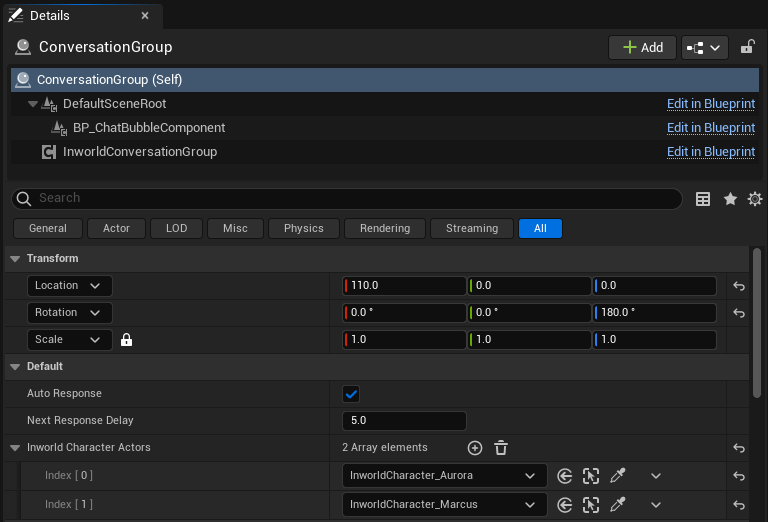 In this example we have configured the conversation group to trigger responses from the characters automatically every 5 seconds of silence.
For more information on conversation groups, see the [Character template](/unreal-engine/runtime/templates/character#inworld-conversation-group-uobject).
### Director Mode Level
The Director Mode level is essentially a replica of the [MultiCharacter Level](#multicharacter-level), but specifically configured to demonstrate the **Speaker Rule Director**.
While the MultiCharacter level uses dynamic AI speaker selection, this level enforces a strict, turn-based speaker order. This is useful for scenarios like board games or scripted sequences where AI randomness is not desired.
In this example we have configured the conversation group to trigger responses from the characters automatically every 5 seconds of silence.
For more information on conversation groups, see the [Character template](/unreal-engine/runtime/templates/character#inworld-conversation-group-uobject).
### Director Mode Level
The Director Mode level is essentially a replica of the [MultiCharacter Level](#multicharacter-level), but specifically configured to demonstrate the **Speaker Rule Director**.
While the MultiCharacter level uses dynamic AI speaker selection, this level enforces a strict, turn-based speaker order. This is useful for scenarios like board games or scripted sequences where AI randomness is not desired.
 In this example, the characters (Aurora and Marcus) follow a predefined sequence instead of using the dynamic AI speaker selection. As shown in the configuration (bottom right of the screenshot), the sequence is defined as: **Aurora -> Aurora -> Aurora**.
#### Level Setup
1. **Map**: `MultiCharacter_Director`
2. **GameMode**: `BP_Innequin_Director_GameMode`
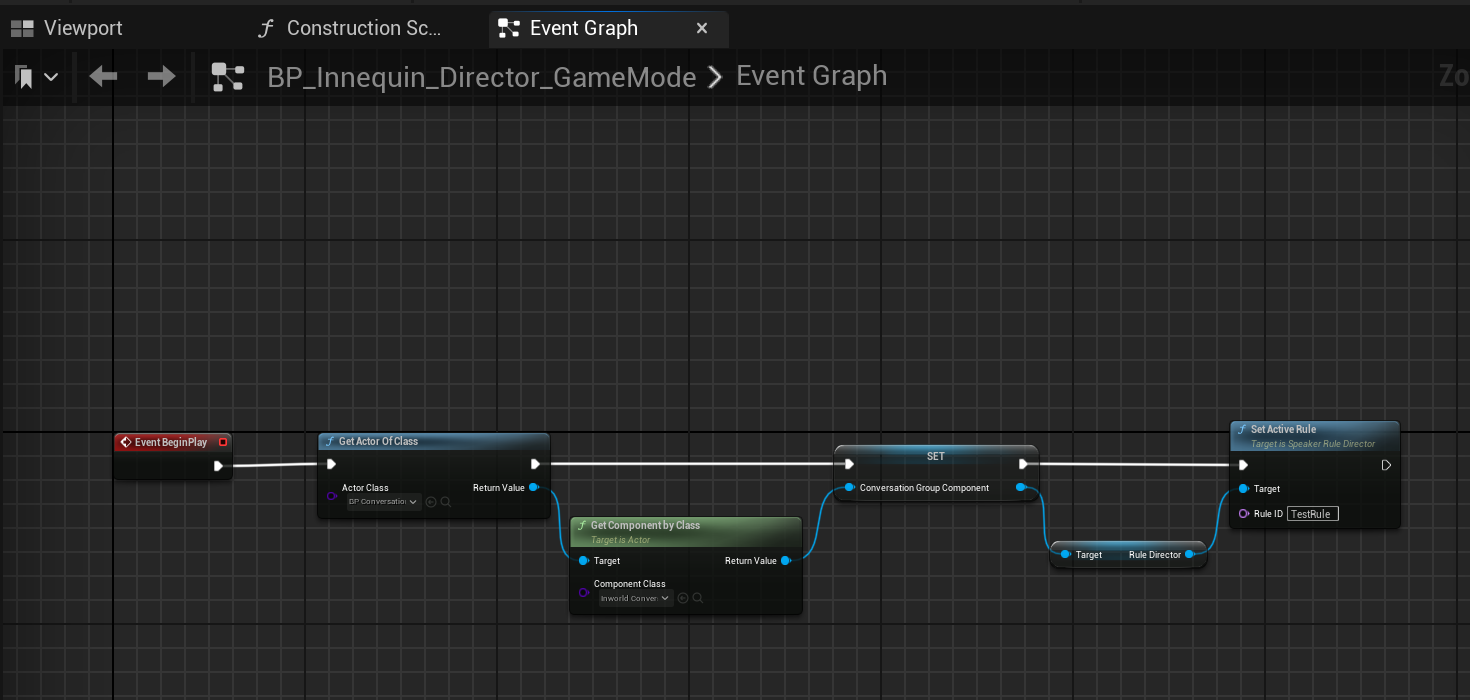
The logic for activating the rule is handled in the GameMode. On `BeginPlay`, the GameMode gets the `RuleDirector` from the conversation group component and activates the "TestRule".
In this example, the characters (Aurora and Marcus) follow a predefined sequence instead of using the dynamic AI speaker selection. As shown in the configuration (bottom right of the screenshot), the sequence is defined as: **Aurora -> Aurora -> Aurora**.
#### Level Setup
1. **Map**: `MultiCharacter_Director`
2. **GameMode**: `BP_Innequin_Director_GameMode`
The logic for activating the rule is handled in the GameMode. On `BeginPlay`, the GameMode gets the `RuleDirector` from the conversation group component and activates the "TestRule".
 For more information on how to configure the Speaker Rule Director, see the [Character template](/unreal-engine/runtime/templates/character).