This quickstart will walk you through creating your first LLM Router (via Portal or API) and making your first request. While this guide uses the OpenAI Chat Completions compatible /v1/chat/completions endpoint, you can also integrate with our Anthropic Messages API compatible /v1/messages endpoint, OpenAI SDK, and Anthropic SDK.

Create your first Router on Portal

1

Open Routers

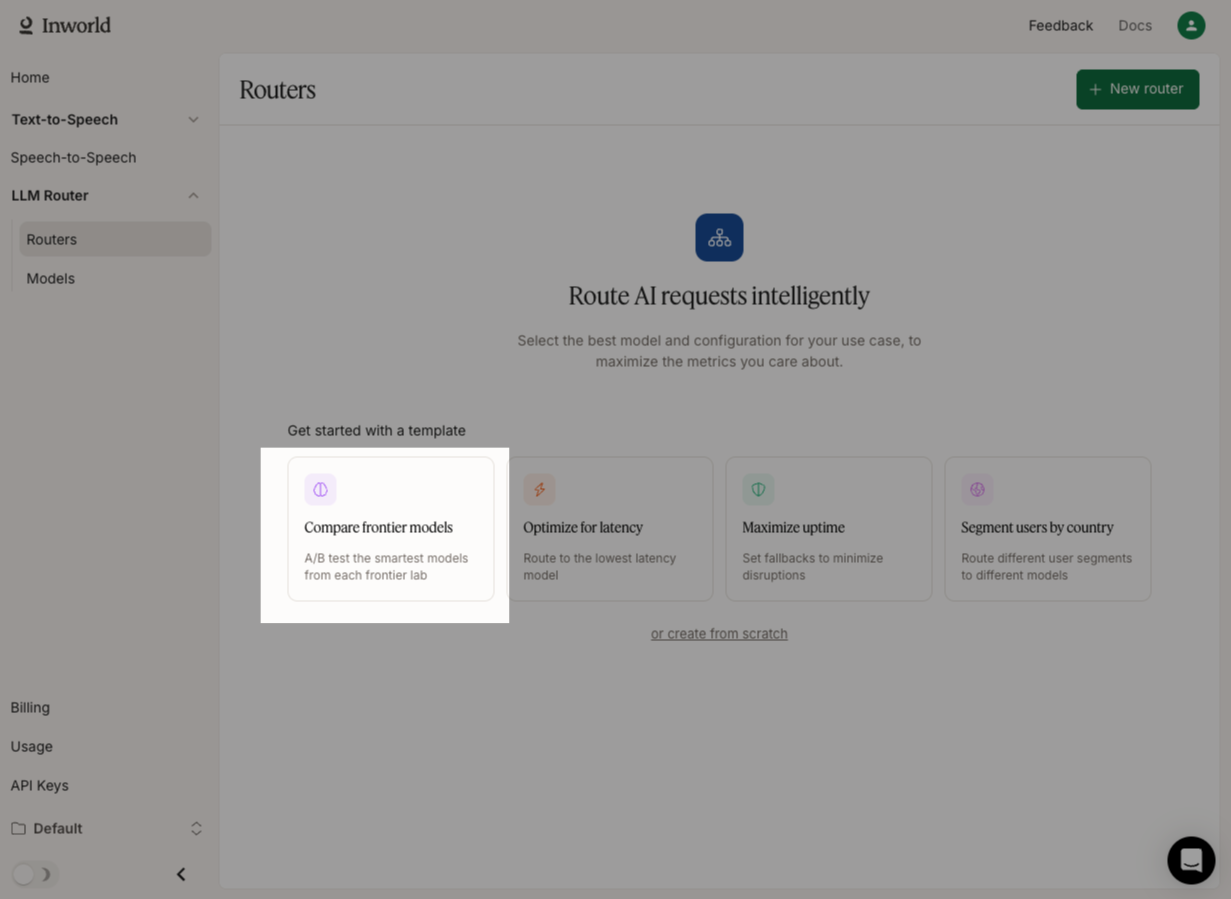
In Inworld Portal, go to Routers and select “Compare frontier models”.
2

Create a router

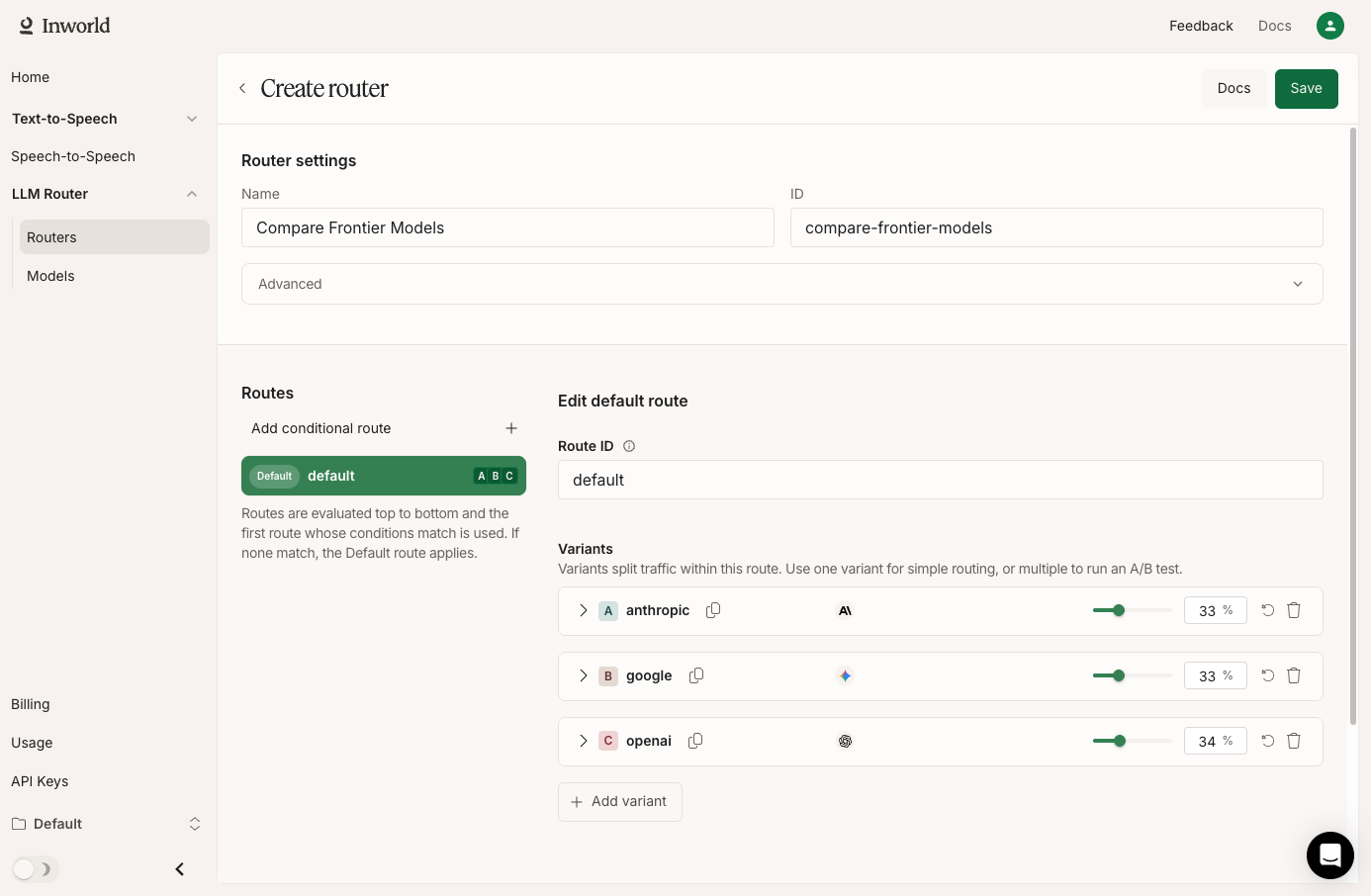
Click Save to create this router, which splits your traffic between Anthropic’s Opus 4.6, Google’s Gemini 3.1 Pro, and OpenAI’s GPT-5.2.
3

Get your API Key

Go to API Keys and click Generate new key. Copy the Base64 credentials.
4

Make your first request

Now run the following code to make your first request to your router.
curl --request POST \
  --url https://api.inworld.ai/v1/chat/completions \
  --header 'Authorization: Basic <your-api-key>' \
  --header 'Content-Type: application/json' \
  --data '{
    "model": "inworld/compare-frontier-models",
    "messages": [
      {"role": "user", "content": "Who created you?"}
    ]
  }'
If you run the request multiple times, you should see traffic split across Anthropic’s Opus 4.6, Google’s Gemini 3.1 Pro, and OpenAI’s GPT-5.2.

Create your first Router via API

1

Get your API Key

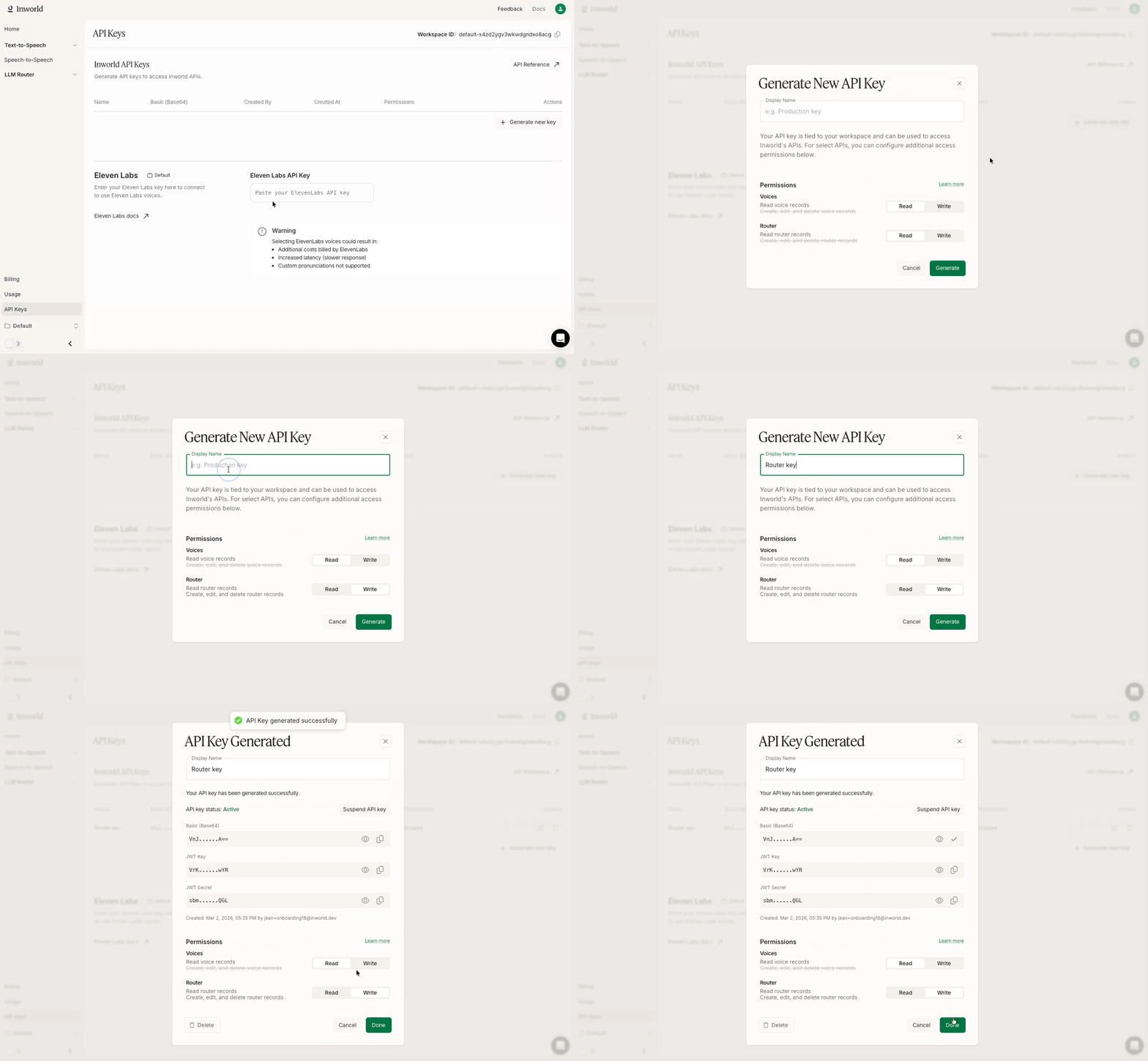
In Inworld Portal, go to API Keys and click Generate new key. Enable Write permissions for the Router API, and click Generate.Copy the Base64 credentials.
2

Create a router

Now let’s create a router that splits your traffic between Anthropic’s Opus 4.6, Google’s Gemini 3.1 Pro, and OpenAI’s GPT-5.2.
curl --location 'https://api.inworld.ai/router/v1/routers' \
--header 'Content-Type: application/json' \
--header 'Authorization: Basic <your-api-key>' \
--data '{
    "name": "compare-frontier-models",
    "default_route": {
        "route_id": "default",
        "variants": [
            {
                "variant": {
                    "variant_id": "anthropic",
                    "model_id": "anthropic/claude-opus-4-6"
                },
                "weight": 33
            },
            {
                "variant": {
                    "variant_id": "google",
                    "model_id": "google-ai-studio/gemini-3.1-pro-preview"
                },
                "weight": 33
            },
            {
                "variant": {
                    "variant_id": "openai",
                    "model_id": "openai/gpt-5.2"
                },
                "weight": 34
            }
        ]
    }
}'
3

Make your first request

Now run the following code to make your first request to your router.
curl --request POST \
  --url https://api.inworld.ai/v1/chat/completions \
  --header 'Authorization: Basic <your-api-key>' \
  --header 'Content-Type: application/json' \
  --data '{
    "model": "inworld/compare-frontier-models",
    "messages": [
      {"role": "user", "content": "Who created you?"}
    ]
  }'
If you run the request multiple times, you should see traffic split across Anthropic’s Opus 4.6, Google’s Gemini 3.1 Pro, and OpenAI’s GPT-5.2.

Next Steps

Now that you’ve made your first request, you can explore more of Inworld Router’s capabilities.