

- Configure multiple named instances of each primitive type (LLM, STT, TTS, Text Embedder)
- Set up provider-specific configurations (Inworld, OpenAI, Anthropic, Google, etc.)
- Define reusable configurations that can be referenced by nodes in your graphs
- Easily access and modify your primitives across your project
Accessing Primitives Configuration
To configure primitives in your project:- Open Edit > Project Settings from the main menu
- Navigate to Plugins > Inworld in the left sidebar
- Scroll down to the Primitives section
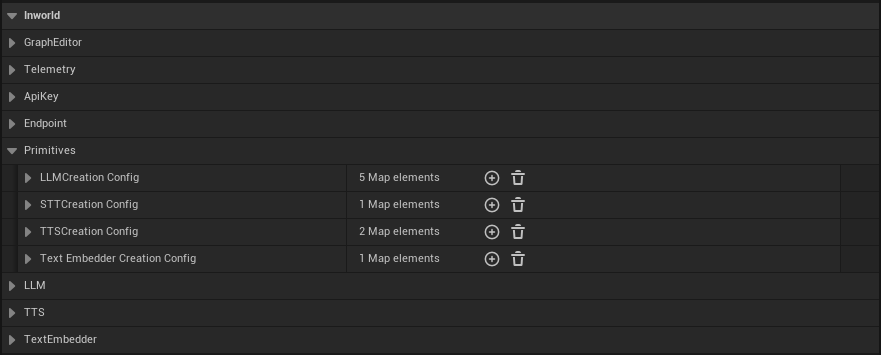
- LLM Creation Config - Configure Large Language Models
- STT Creation Config - Configure Speech-to-Text models
- TTS Creation Config - Configure Text-to-Speech models
- Text Embedder Creation Config - Configure text embedding models
LLM
LLMs are powerful models that can be used to understand and generate text and other content. To configure an LLM: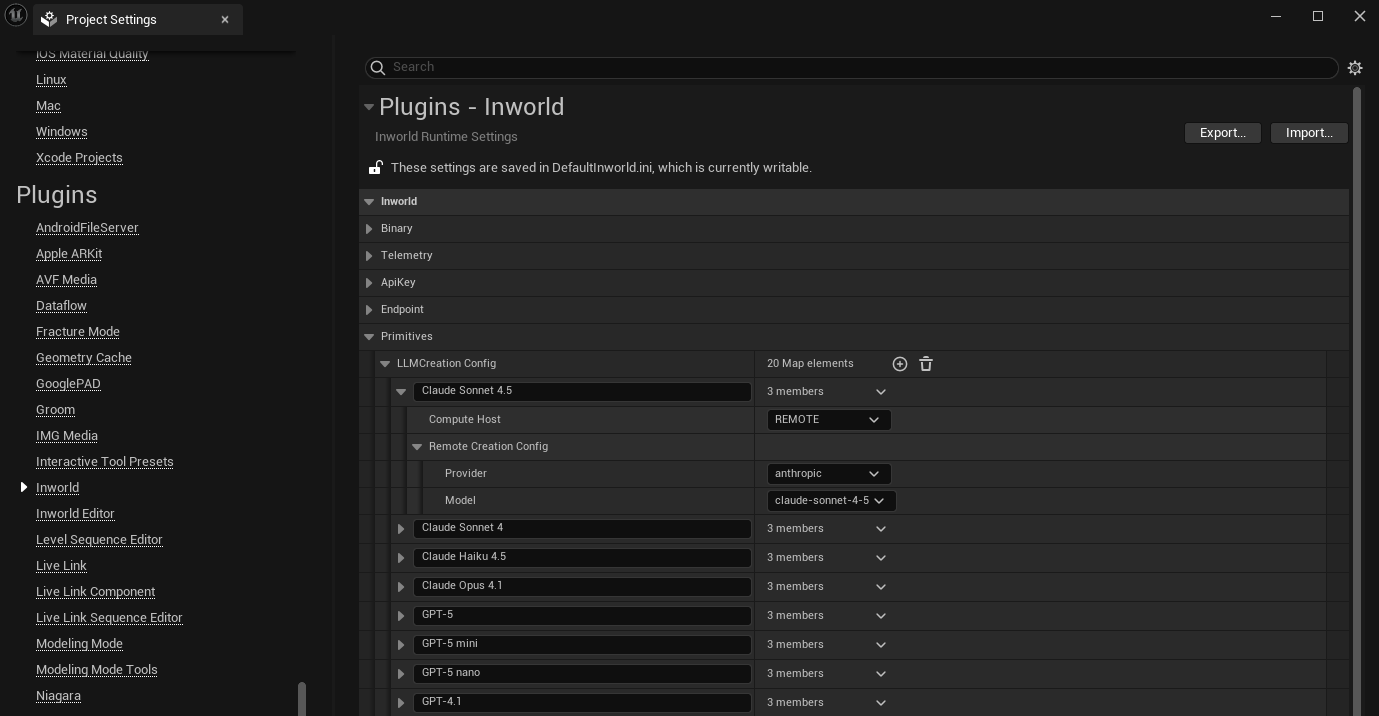
- In the LLM Creation Config map, click the + button to add a new entry
- Set a descriptive name for this configuration. This name will be used for selecting this configuration in your graph.
-
Select either
LocalorRemotefor the Compute Host- Remote: this means that the models will be run by cloud servers.
- Provider: Select from available service providers.
- Model: Choose the specific model. Make sure you specify a model that is provided by the selected provider. See Adding models or providers.
- Local: this means that the models will run locally
- Local Compute Host: Choose
CPUorGPU - Model: Path to the local model.
- Local Compute Host: Choose
- Remote: this means that the models will be run by cloud servers.
- Your configuration will now be available for selection in LLM powered nodes throughout your graphs.
Adding models or providers
All service providers and models listed under Chat Completion are supported. If a model or service provider is not available in the Remote LLM Creation Config dropdown, you can add additional options under the LLM section of the Inworld Agent Runtime Settings.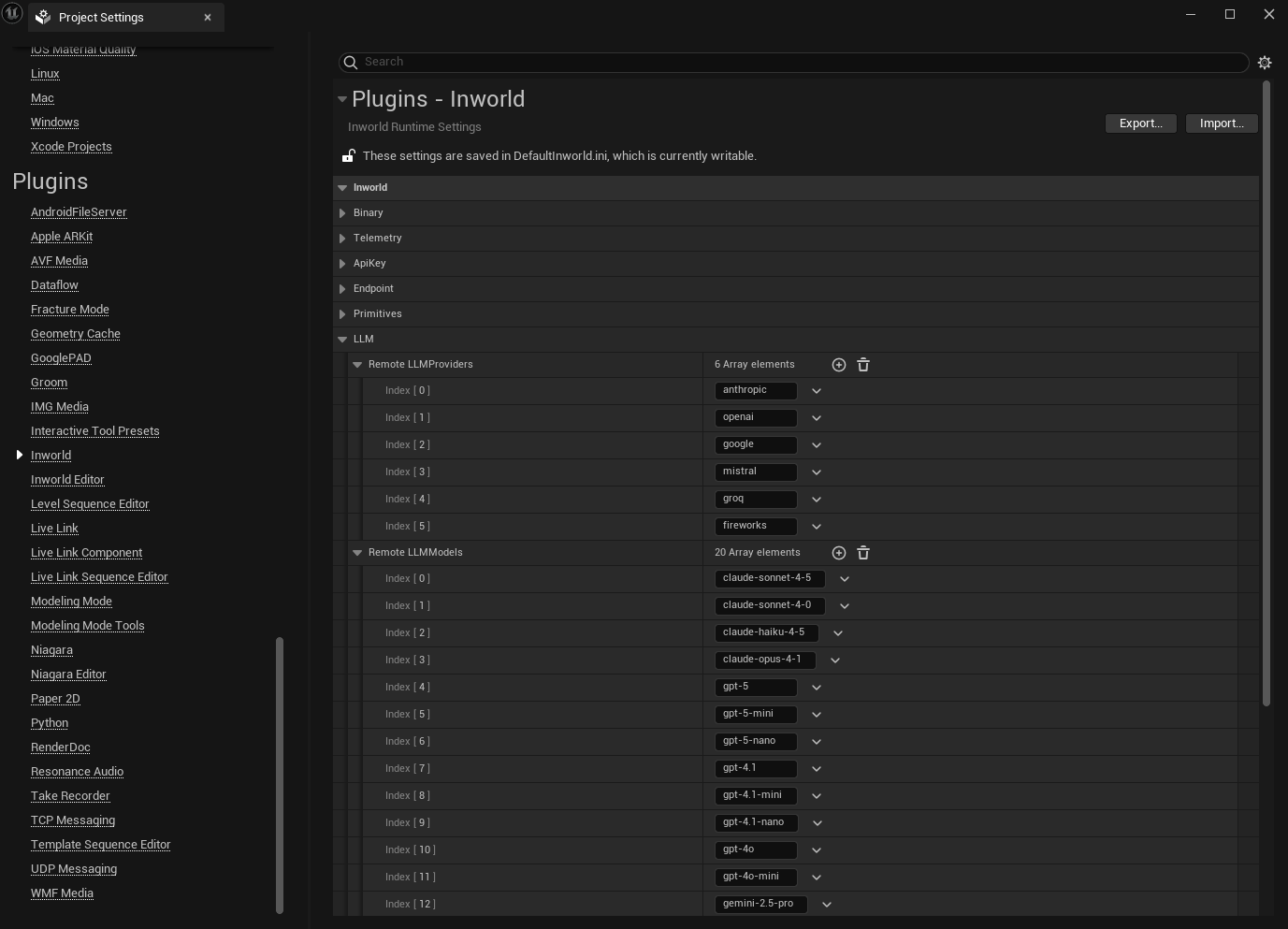
- In the Remote LLMProviders list, click the + button to add any additional service providers you want to use.
- In the Remote LLMModels list, click the + button to add any additional models you want to use.
TTS
Text-to-Speech converts text into audio. To configure TTS:- In the TTS Creation Config map, click the + button to add a new entry
- Set a descriptive name for this configuration. This name will be used for selecting this configuration in your graph.
- Select either
LocalorRemotefor the Compute Host-
Remote: this means that the models will be run by cloud servers.
- Provider: Select
INWORLD - Configure provider-specific settings like model selection and voice parameters.
- Provider: Select
-
Local: this means that the models will run locally
- Local Compute Host: Choose
CPUorGPU - Model: Path to the local model.
- Speech Synthesis Config: Adjust parameters like sample rate, temperature, and speaking rate.
- Local Compute Host: Choose
-
Remote: this means that the models will be run by cloud servers.
- Your configuration will now be available for selection in TTS nodes throughout your graphs.
STT
Speech-to-Text converts audio into text. To configure STT:- In the STT Creation Config map, click the + button to add a new entry
- Set a descriptive name for this configuration. This name will be used for selecting this configuration in your graph.
- Select either
LocalorRemotefor the Compute Host- Remote: this means that the models will be run by cloud servers.
- Local: this means that the models will run locally
- Local Compute Host: Choose
CPUorGPU - Model: Path to the local model.
- Local Compute Host: Choose
- Your configuration will now be available for selection in STT nodes throughout your graphs.
Text Embedder
Text Embedders convert text into numerical vectors for semantic operations, and powers features like intent detection and knowledge retrieval. To configure embedders:- In the Text Embedder Creation Config map, click the + button to add a new entry
- Set a descriptive name for this configuration. This name will be used for selecting this configuration in your graph.
- Select either
LocalorRemotefor the Compute Host- Remote: this means that the models will be run by cloud servers.
- Provider: Select from available providers
- Model: Choose the embedding model
- Local: this means that the models will run locally
- Local Compute Host: Choose
CPUorGPU - Model: Path to the local model.
- Local Compute Host: Choose
- Remote: this means that the models will be run by cloud servers.
- Your configuration will now be available for selection in embeddings powered nodes throughout your graphs.