

Upgrading to 1.0? See the Migration Guide for a summary of breaking changes.
Supported Platforms
Windows · Mac · Linux · Android · iOSPrerequisites
- Windows
- Mac
- Linux
Install Unreal Agent Runtime
1
Download Unreal Agent Runtime
Download Inworld Agent Runtime, which contains the core Inworld Agent Runtime functionality.We also recommend downloading our template plugins, which are pre-built implementations of common use cases that can be immediately plugged into your game. See Templates for a description of each of the template plugins.
2
Create a new Unreal project
Create a new C++ game project in Unreal (5.4+). Any of the games templates will work, but we recommend the Blank Template.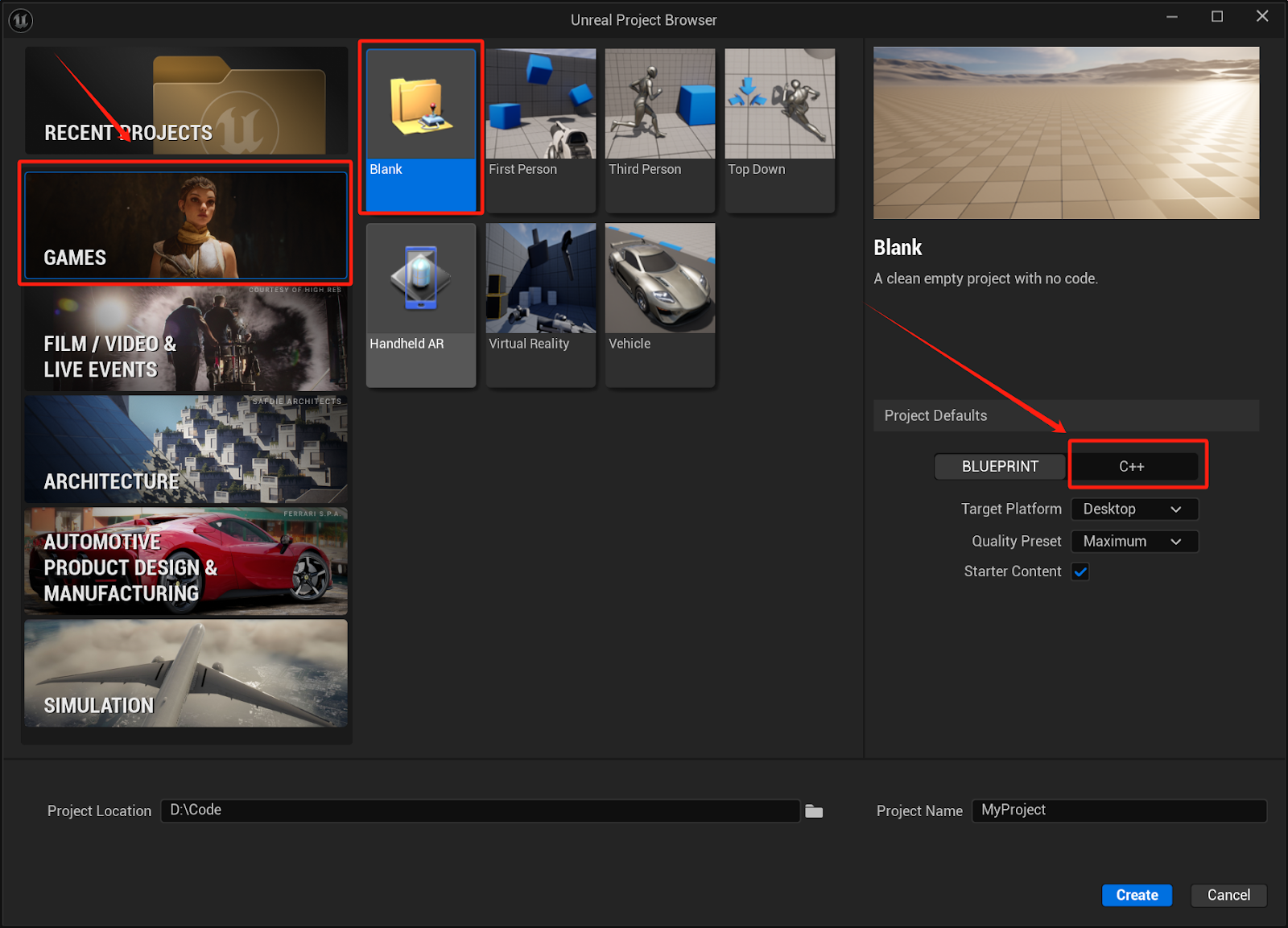
3
Add to Plugins
Close Unreal. Create a Plugins folder in your project’s root directory. Extract the contents of each of the zip files you downloaded in step 1, and place them into this new folder.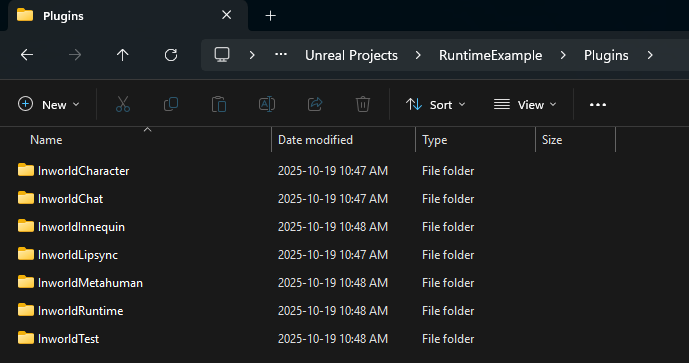
4
Launch your project
In the root folder of your project, click on the .uproject file to launch your project. You will be prompted to rebuild the newly added plugin modules.
5
Set up the Inworld API key
To use the Inworld Agent Runtime SDK with cloud APIs, open the Unreal Editor and, in the top menu bar, go to Edit > Project Settings > Plugins > Inworld > ApiKey and paste your Base64 Runtime API key into the Runtime API Key field.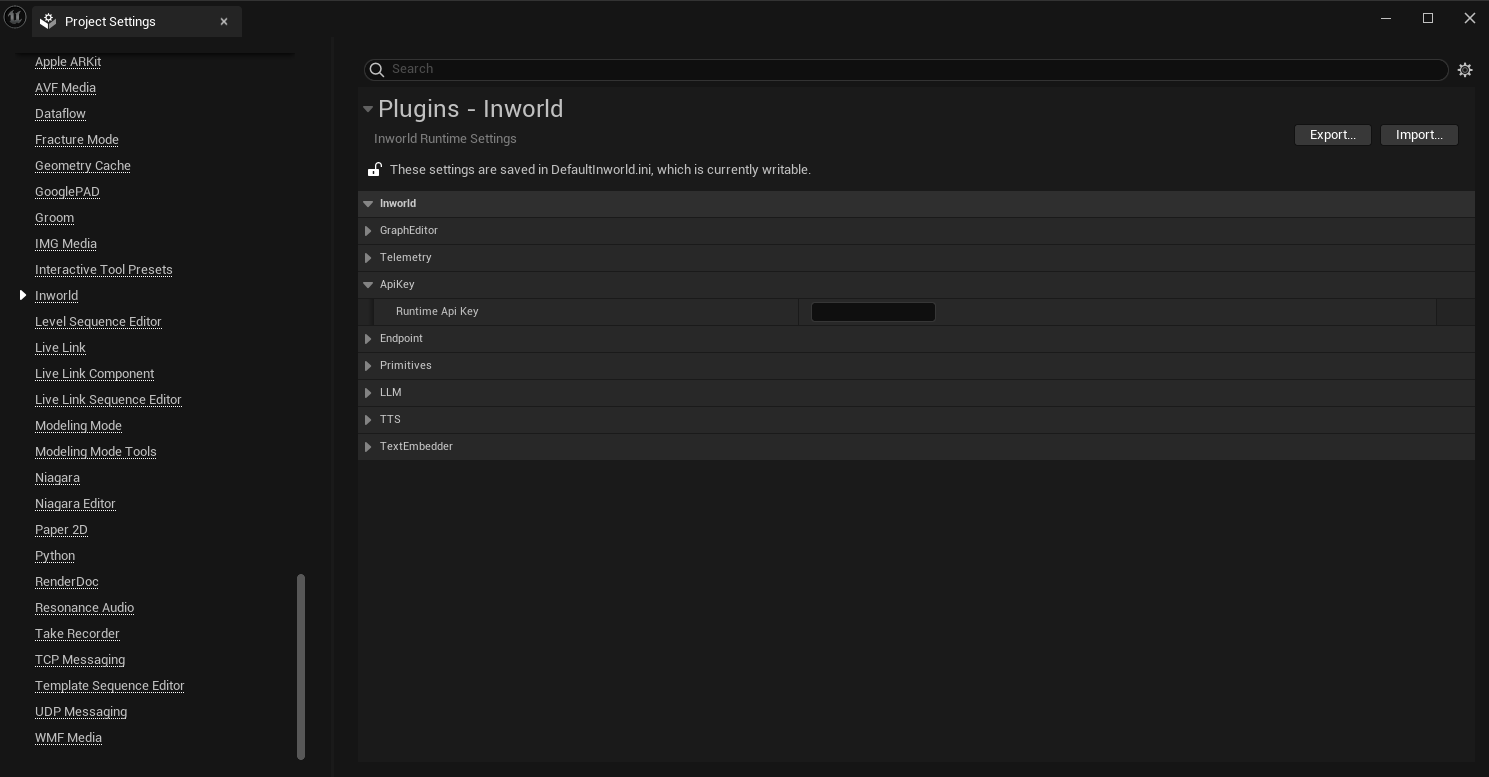
6
Play a template
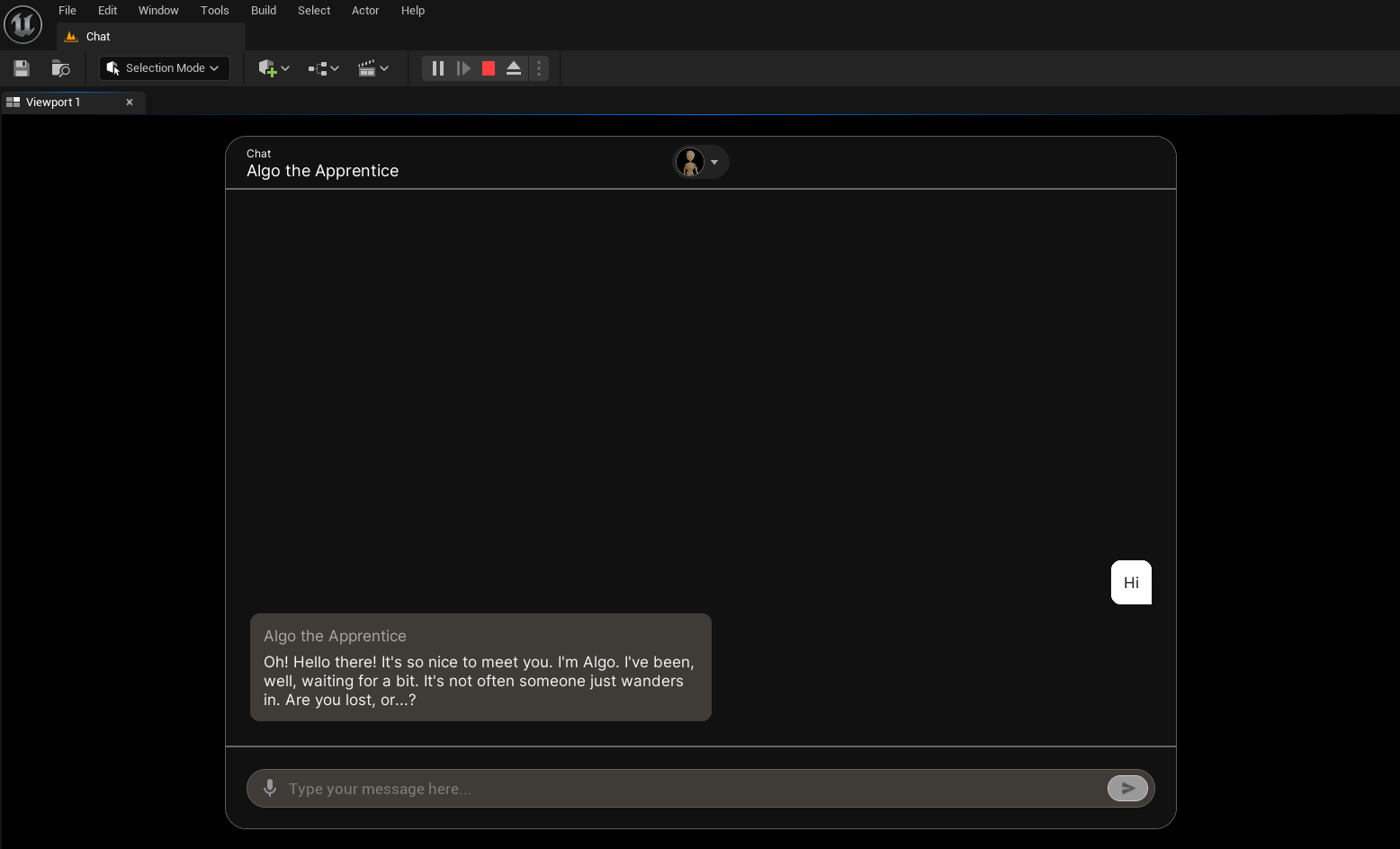
Play the Chat template which illustrates how to have a simple audio to audio conversation using the Inworld Agent Runtime & Character.
- Open the settings menu in the Content Browser within Unreal.
- Enable the option for “Show Plugin Content”.
-
In the Content Browser, navigate to:
/Plugins/InworldChat - Double-click on the Chat.umap.
-
Click the Play-in-Editor button (alt+p) to launch your level.
7
Explore your traces in Portal
Go to your workspace in Portal and explore the traces that were generated while you were playing the Chat Template.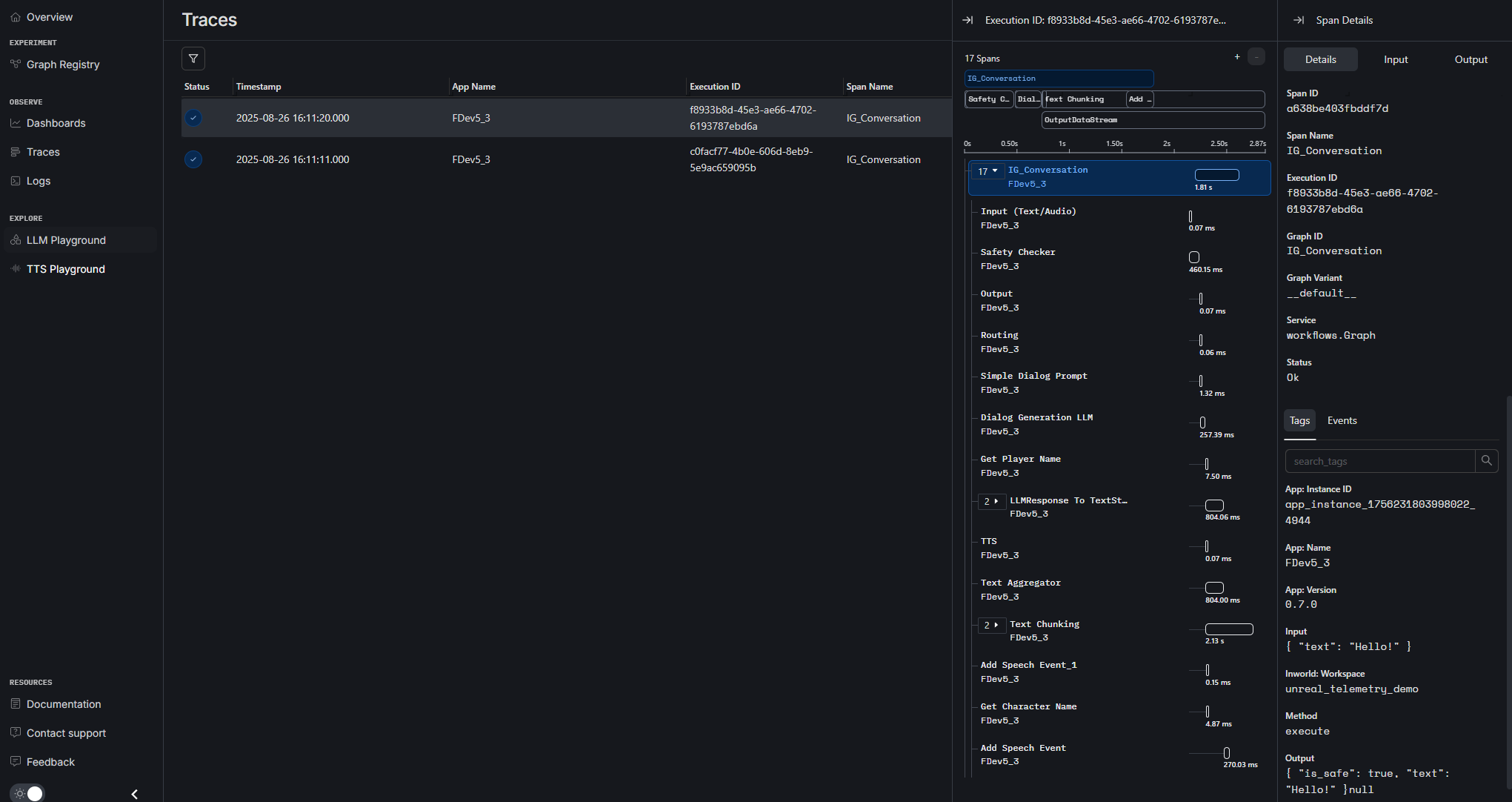
Next steps
For more advanced explorations, check out:- Understand how the Chat template works
- Runtime reference - Class definitions and functions
- Learn how to use the Graph Editor