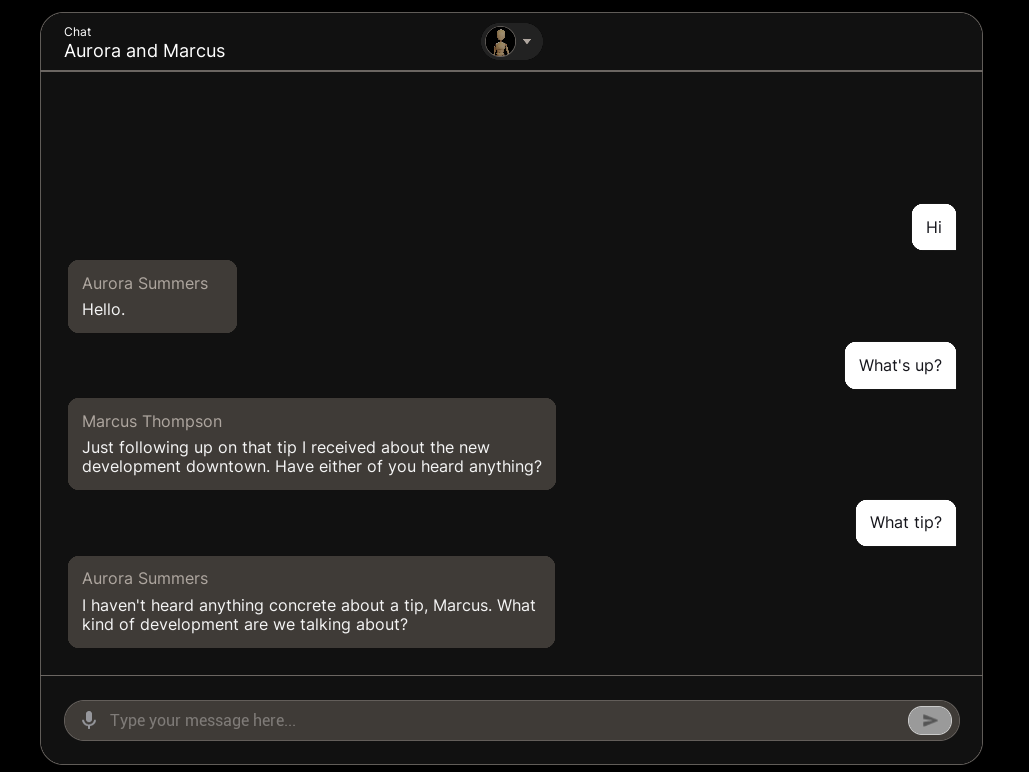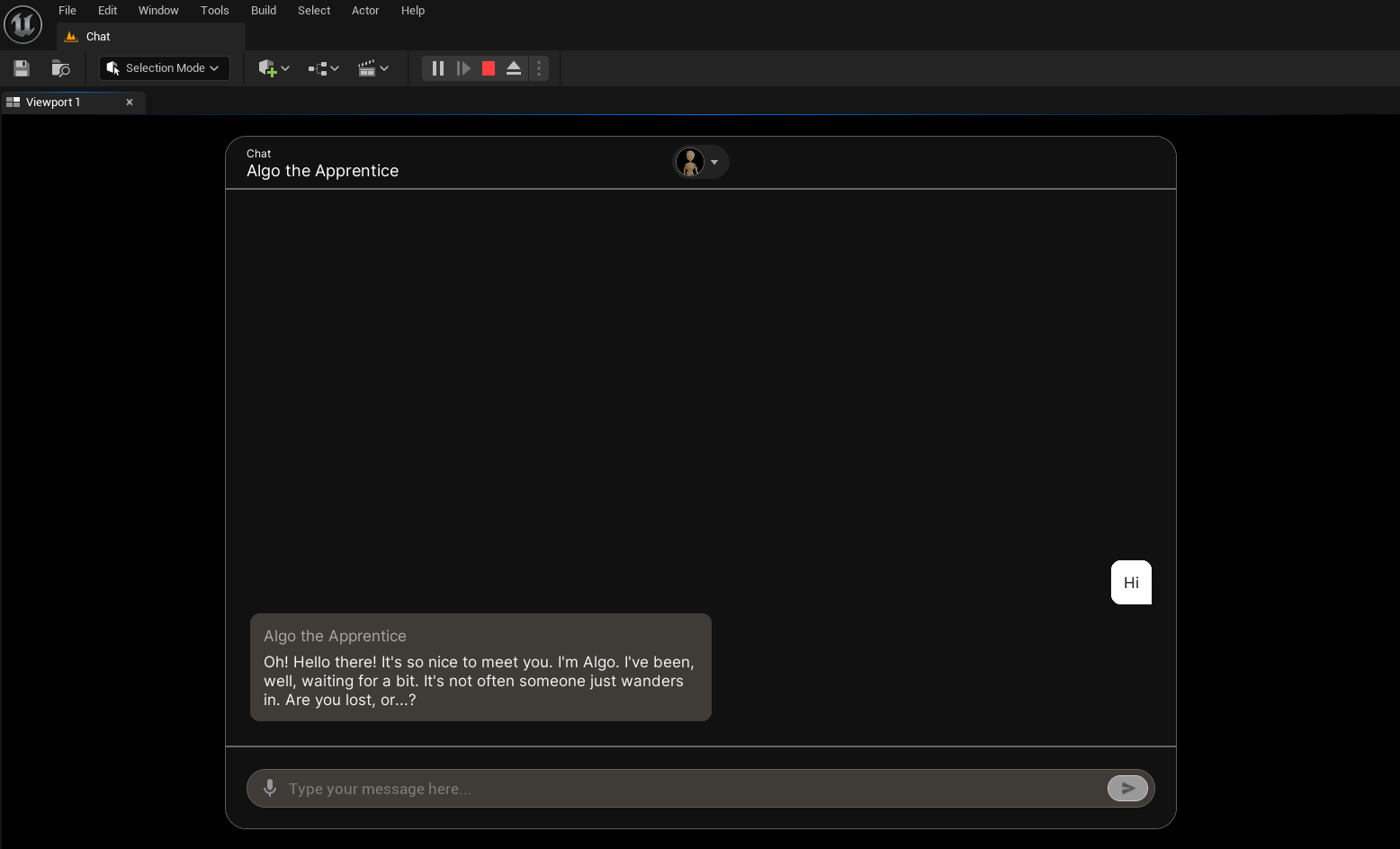
Run the Chat Example Level
- Open the settings menu in the Content Browser within Unreal.
- Enable the option for “Show Plugin Content”.
- In the Content Browser, navigate to
/Plugins/InworldChat. - Double-click on the Chat map.
- Click the Play-in-Editor button (alt+p) to launch your level.
- Have a conversation! You can uncheck the microphone to speak or type directly in the text box.
Template Overview
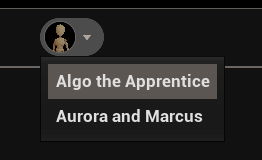
The Chat template provides a sample chat interface in the form of a widgetWBP_Chat2D. When this widget is added to a level, it display a messaging interface with a dropdown menu for selecting the conversation target to chat with.
The widget will automatically detect any characters or conversation groups that are added to the level and display them in the dropdown menu.
The sample Chat level has two conversation targets:
- Algo the Apprentice: A single character conversation target.
- Aurora and Marcus: A group conversation target.
-
Type your message in the text box and press enter (or click the send button).

-
Talk to the character or group using your microphone. Simply click the microphone icon at the left end of the text box to toggle the microphone on or off.
The audio capture component will automatically detect when you have completed your message and send the message to the conversation target.
Microphone Off Microphone On