STT
STT Playground
Record live or upload audio to transcribe with Inworld STT
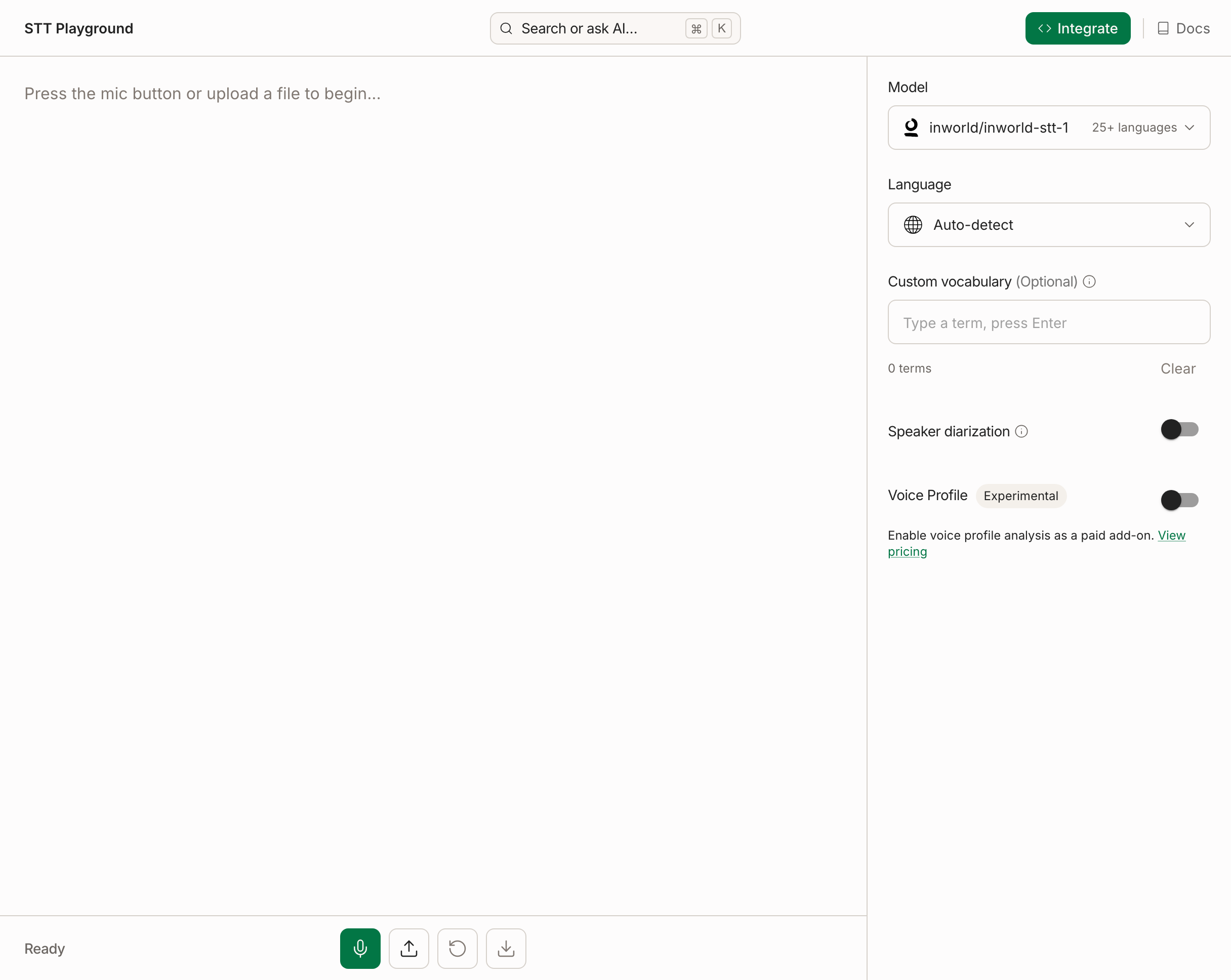
Try Inworld STT in the STT Playground before writing code. Test language hints and custom vocabulary, and watch Voice Profile analyze the speaker in real time.
Get Started
Go to Inworld Portal
In Portal, select Speech-to-Text from the left-hand side panel.
Choose a model
Open Model in the right-hand panel to select inworld/inworld-stt-1. See Supported models for its endpoints and language coverage.
Advanced Features
To control transcription, try these settings:
- Language hint — The Language dropdown defaults to Auto-detect, which recognizes the spoken language automatically. Select a specific language to give the model a hint when you know the audio's language in advance — this generally improves accuracy, especially for short utterances. See Language Support for how hints behave.
- Custom vocabulary — To bias recognition toward names, jargon, or acronyms, enter them in Custom vocabulary and press Enter. Terms appear as chips, with the active term count below the input. This is a soft bias rather than a hard keyword lock — test it on the terms the baseline actually misses. Up to 100 terms, using letters, digits, spaces, and
. , ' ( ) : ! ? ; -only — a term with any other character (such as&,_, or a curly quote) makes the request fail. The equivalent API field isprompts. - Speaker diarization — Turn on the Speaker diarization toggle to label who said what in multi-speaker audio. The transcript prefixes each turn with a speaker label (
[Speaker 1],[Speaker 2], …). The equivalent API fields areenableSpeakerDiarizationtogether withincludeWordTimestamps— speaker labels are returned on the word timestamps, so both must be enabled. See Speaker Diarization for how labels are assigned and its current experimental status oninworld/inworld-stt-1. - Voice Profile — The panel on the right analyzes the speaker alongside transcription, showing Age, Accent, Voice Pitch, Vocal Style, and Emotion, each with a confidence score. It populates after transcription begins. See Voice Profiles for the full category reference.
From Playground to Code
Click Integrate at the top of the playground to generate an API request matching your current playground configuration: model, language hint, vocabulary, speaker diarization, and Voice Profile settings.
Next Steps
Ready to build? Here's where to go next.