TTS
Audio Studio
Turn a book, podcast script or screenplay into fully voiced audio in Portal, with a narrator or a cast of character voices.
Audio Studio turns a manuscript or script into a fully voiced audiobook, podcast episode or drama. Upload a file, and Audio Studio splits it into chapters, segments or scenes. Read it with one narrator, or choose Character voices to have Audio Studio find who speaks each line and cast a voice for every character. You then listen, direct and fix individual paragraphs in the editor, and download the finished audio. Speech is generated with Inworld TTS-2.
Use Audio Studio when you want to produce long-form audio without writing code. To build the same thing into your own app, use the TTS API with steering instead.
What you can make
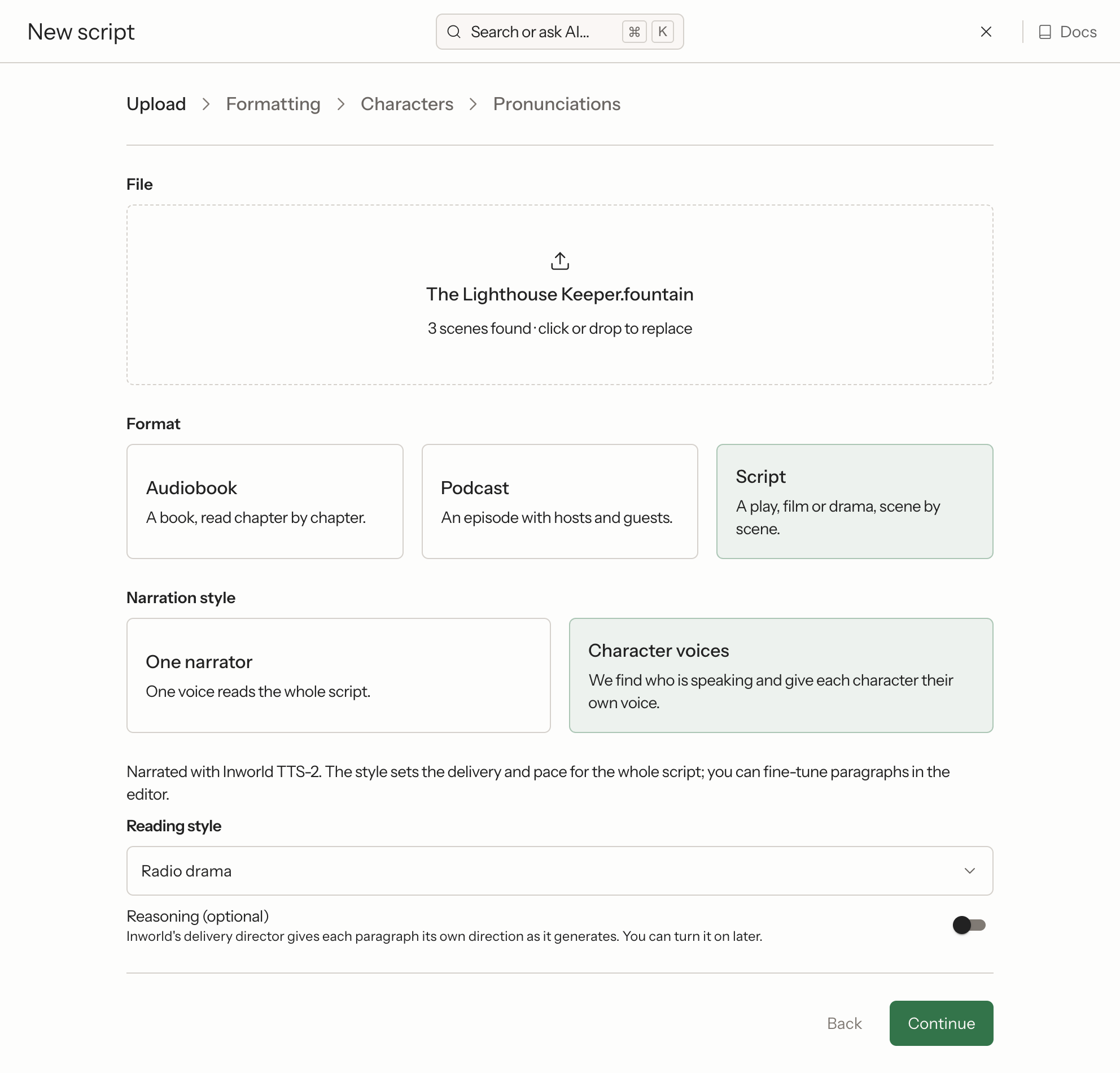
When you upload a file, choose one of three formats. Audio Studio guesses the format from the file, and you can change it.
| Format | Use it for | Parts are called |
|---|---|---|
| Audiobook | A book, read chapter by chapter | Chapters |
| Podcast | An episode with hosts and guests | Segments |
| Script | A play, film or audio drama, scene by scene | Scenes |
Only an audiobook reads its part titles aloud. A podcast's segment titles and a script's scene titles are labels in the editor.
Each format can use one of two narration styles:
- One narrator: one voice reads the whole work. You can still give single paragraphs a different voice in the editor.
- Character voices: Audio Studio finds who is speaking and gives each character their own voice. A file that is detected as a script uses this style by default.
Create a project
Open Audio Studio
In Portal, select Audio Studio in the sidebar, then click New project.
Upload a file
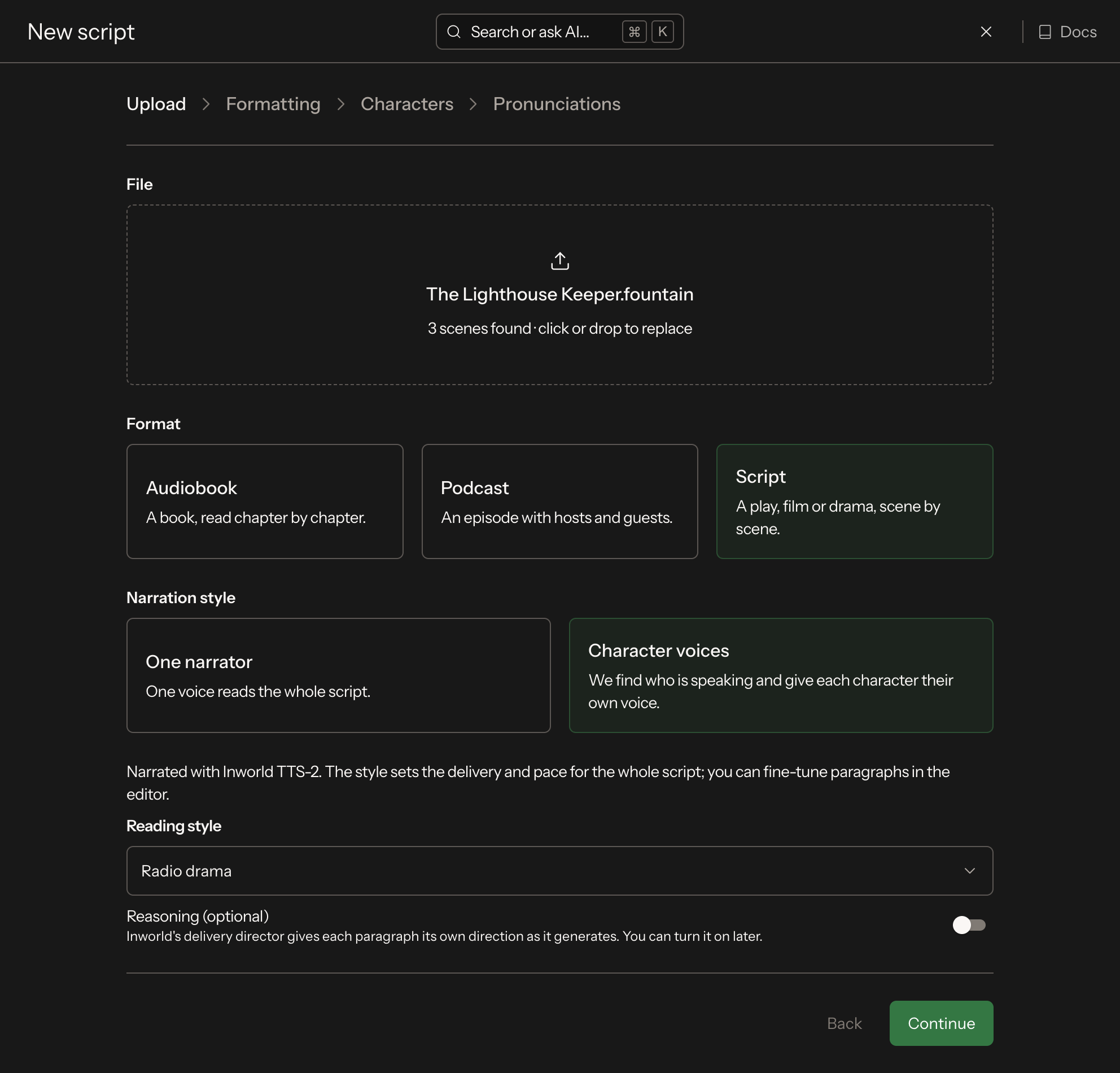
Drop in a manuscript or script. See Supported files for the formats and size limits. Then check the Format and the narration style, and pick a Reading style for the whole work. You can turn on Reasoning here or later in the editor.
Check the formatting
Set the title and, if you like, a cover image (JPEG, PNG or WebP, up to 5 MB). Reorder the chapters, segments or scenes, or clear the checkbox on any you want to leave out. Set Language if the work isn't in English. On Auto, the model determines the language from the text. Pick it explicitly for consistent native speech and for pronunciations to apply. Scene break length sets the silence at each break such as * * * (0 to 5 seconds, 1.5 by default).
Choose the voices
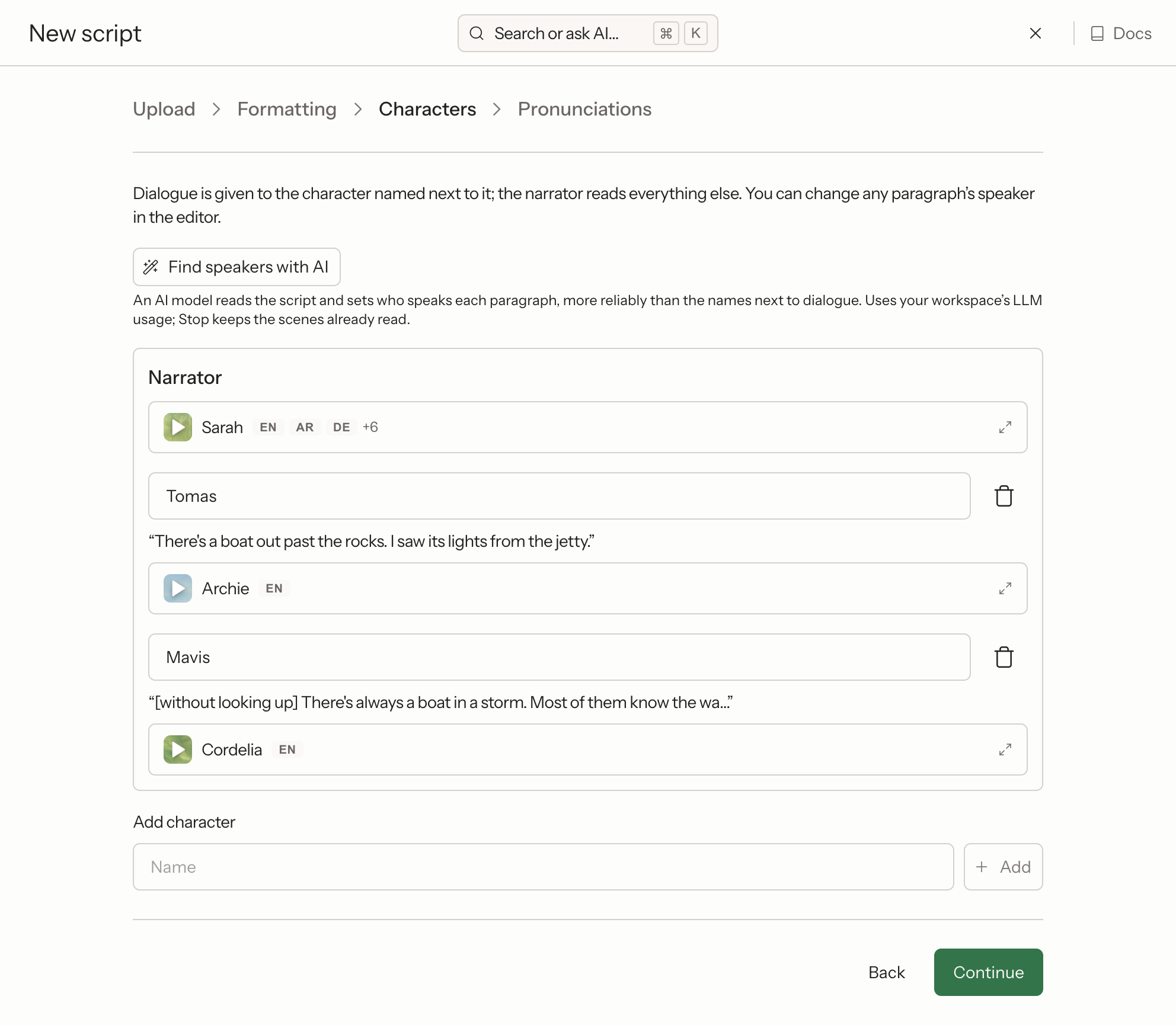
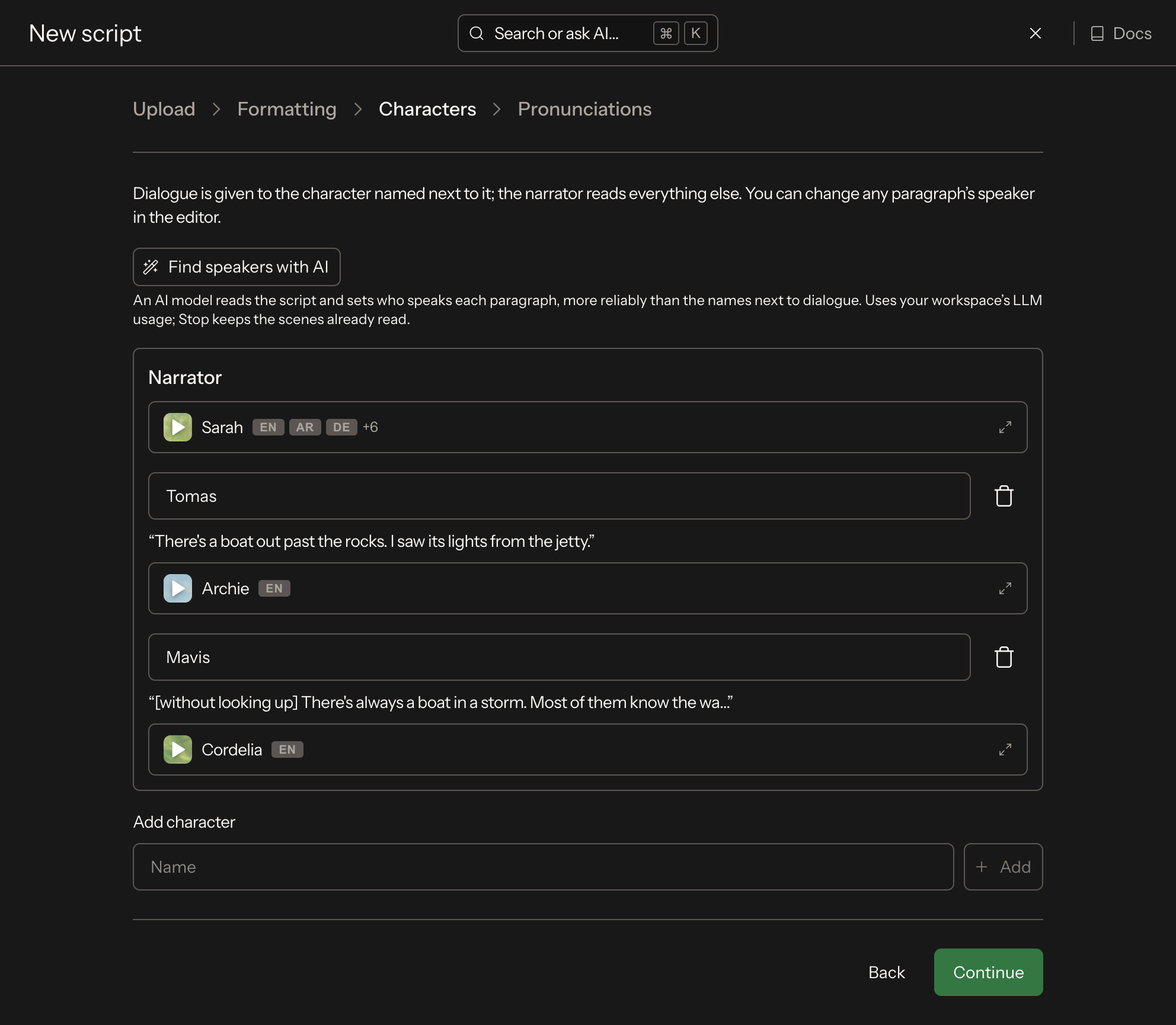
With One narrator, choose the narrator voice. With Character voices, this step is called Characters: review the cast that Audio Studio found and the voice cast for each character. See Cast characters.
Supported files
| File | Size limit | How parts are found |
|---|---|---|
EPUB (.epub) | 50 MB | The book's own chapter order, with each file's first heading as its title. The cover comes from the EPUB. |
PDF (.pdf) | 50 MB | Large-font lines and lines that start with "Chapter" or "Part" become chapter titles. |
Word (.docx) | 10 MB | Lines such as "Chapter 1", "Part II", "IV." or "1. Title", and Markdown-style # headings |
Plain text (.txt) | 10 MB | Same as Word |
Markdown (.md) | 10 MB | #, ## and ### headings only, so numbered lists stay as text |
Fountain (.fountain) | 10 MB | Scene headings. See Scripts and screenplays. |
A file with no headings becomes a single part. Text before the first heading becomes its own part.
Audio Studio needs text it can read:
- Scanned or image-only PDF and EPUB files aren't supported. Export the text, or run OCR, and upload it as
.txt,.mdor.docx. - Legacy Word
.docfiles aren't supported. Save the file as.docxfirst. - Chapter titles are found by the English words "Chapter" and "Part". In other languages, mark chapters with Markdown
#headings or numbered titles such as "1. Title".
Reading styles
The reading style sets the delivery and pace for the whole work. You can direct single paragraphs in the editor.
| Reading style | Description |
|---|---|
| Audiobook narration | Polished, even-tempered, like a professional narrator. The default for audiobooks. |
| Bedtime | Warm, slow and soothing |
| Documentary | Calm, authoritative and informative |
| Dramatic | Emphatic and expressive |
| Podcast conversation | Relaxed and natural, like hosts talking. The default for podcasts. |
| Radio drama | Performed in character, like a full-cast drama. The default for scripts. |
| Custom | Set Delivery (Stable, Balanced or Creative) and Talking speed (0.5 to 1.5) yourself |
Each preset sets the TTS-2 delivery mode, a talking speed and, for every preset except Audiobook narration, a short steering instruction that is sent before each paragraph. A paragraph that starts with its own cue or direction is sent with that instead of the reading style's instruction.
Cast characters
With Character voices, Audio Studio finds the speakers and casts a voice for each one.
Who speaks each line. In a podcast or script, a speaker label such as ASHLEY: or a screenplay character cue sets the speaker, and the label isn't read aloud. In a book, a quote goes to the name next to it, as in "Run," Tessa said or said the boy. Lines Audio Studio can't place go to Unnamed speaker, and the narrator reads everything else. For a more reliable result, click Find speakers with AI. An AI model reads the work and sets who speaks each paragraph. It never overrules a script's speaker labels, and Stop keeps the parts already read.
Which voice each character gets. Once the cast is found, Audio Studio casts the voices with AI. A progress bar shows Casting voices while it works, which can take up to a minute for a long cast. For each character, it reads their lines and how the text describes them, including ages in script introductions such as MAVIS (60s), and picks a voice that fits from the voice library. Click Keep these voices to stop waiting and keep the voices shown. If AI casting can't finish, Audio Studio suggests voices from what the text says about each character instead.
Change any voice. Click a character's voice to open the voice picker. Choose from the Inworld voices or from My voices, which holds your workspace's own cloned and designed voices. Click play on a character's voice to hear it speak that character's first line. A voice you pick yourself is never replaced by AI casting.
You can also rename characters, remove one so that the narrator reads their lines, and add a character by name. In the editor, the Characters panel does the same, and Find speakers with AI works on the open chapter, with Undo speakers to revert it.
Find speakers with AI and AI casting use your workspace's LLM usage. AI casting runs on its own whenever Character voices finds characters.
Scripts and screenplays
Audio Studio reads screenplays in plain text, Fountain, Word and PDF layouts:
- Scene headings such as
INT. ENGINE ROOM - NIGHTstart a new scene. Scene numbers from shooting scripts are removed. - Character cues set the speaker. Extensions such as
(V.O.),(O.S.)and(CONT'D)are dropped from the name. - Parentheticals become delivery cues.
(whispering)or(catching her breath)changes how the line is read and isn't spoken. A line's own cue takes the place of the reading style for that line, and the next line goes back to the reading style. - Transitions such as
CUT TO:andFADE OUT.and page furniture such as(MORE)are left out. - Action lines are read by the narrator.
A podcast script with speaker labels such as ASHLEY: works the same way. Choose Character voices for a script. With One narrator, the speaker labels are read aloud.
Edit and direct in the editor
The editor shows the work one chapter, segment or scene at a time. Audio is generated in your browser, paragraph by paragraph.
- Listen. Click play on any paragraph. A paragraph that has no audio yet is generated first. In the Read view, words are highlighted as they are spoken, and playback continues into the next part that has audio.
- Generate. Click Generate to make the audio for the open part, or Generate all for the whole work. Before Generate all runs, a dialog shows the characters to be sent and an estimate of the audio length and cost. Audio that is still up to date is reused, so only new and changed paragraphs are sent to TTS. If your credits run out partway, the paragraphs that couldn't be generated are marked as failed and the audio already made is kept. Add credits and run Generate all again to finish them.
- Edit the text. Click the pencil to switch to the Edit view. Each paragraph shows whether its audio is up to date or has changed since it was made.
- Undo. Use Undo and Redo, or Ctrl+Z and Shift+Ctrl+Z (Cmd on Mac), for paragraph settings, text edits and renames.
Select a paragraph to open the Edit paragraph panel.
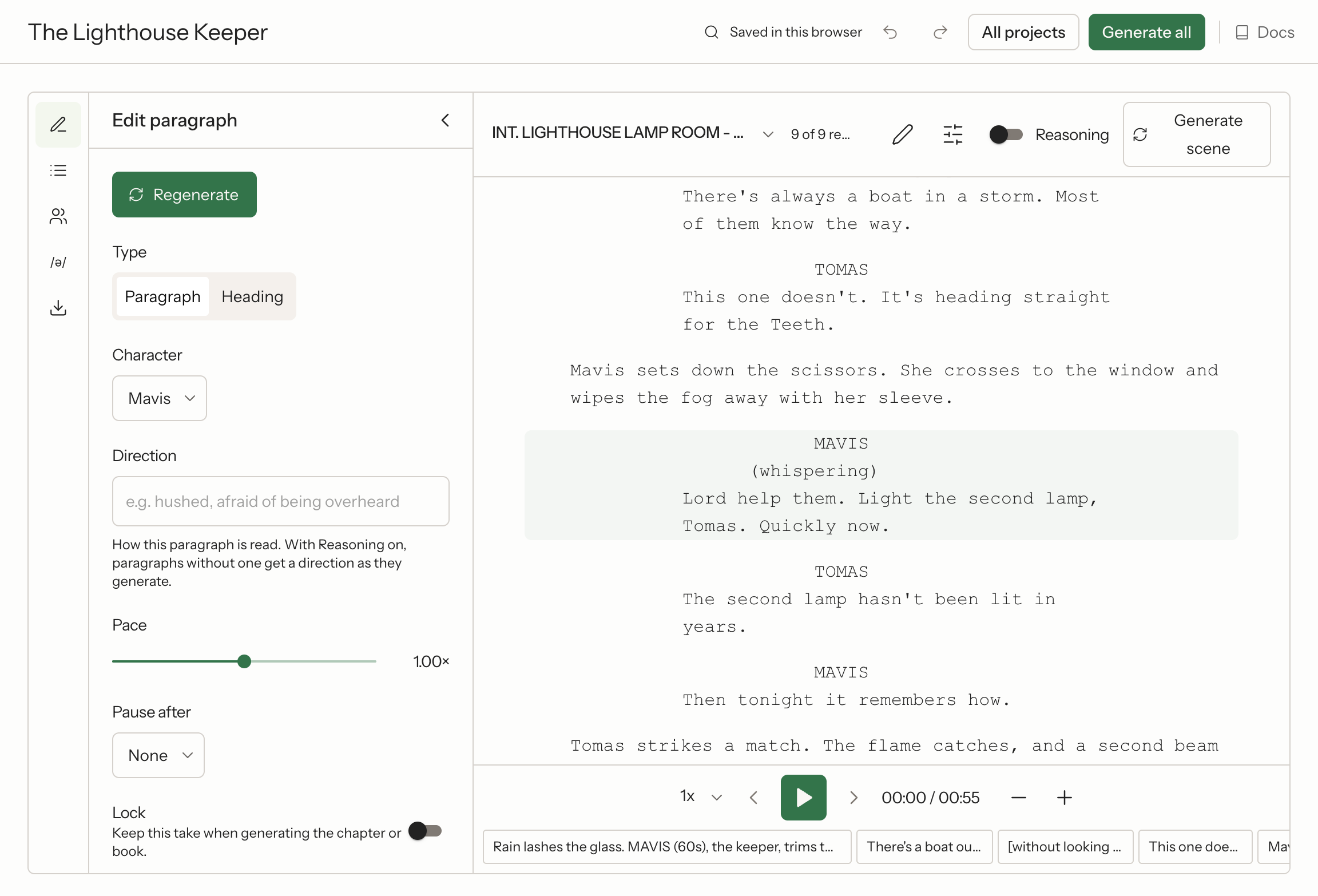
The panel has these controls:
| Control | What it does |
|---|---|
| Generate or Regenerate | Makes the audio for this paragraph again |
| Type | Paragraph or Heading. A heading has a pause before and after it. |
| Voice or Character | Gives the paragraph another voice or speaker. Quotes in other voices recasts each quote inside a paragraph. |
| Direction | How the paragraph is read, such as hushed, afraid of being overheard. It is sent as a steering instruction. |
| Pace | Reads this paragraph slower or faster than the reading style's talking speed, from 0.85× to 1.15× |
| Pause after | Silence after the paragraph: none, 250 ms, 500 ms, 1 s or 2 s |
| Lock | Keeps this take when you generate the part or the whole work |
| Generation history | Up to 8 earlier takes of this paragraph. Click Use this take to restore one. |
Reasoning
Turn on Reasoning to have Inworld's delivery director write a direction for each paragraph as it generates. It reads the text before the paragraph and notes on the work, the reading style and the speaker. A direction you wrote is kept as it is. The directions Reasoning writes are saved on each paragraph, so you can see and change them in the Edit paragraph panel. Turning Reasoning on marks paragraphs generated without it as out of date. For how reasoning works in the API, see Reasoning.
Pronunciations
Audio Studio uses two kinds of pronunciation:
- The workspace pronunciation dictionary. The Pronunciations step in the wizard lists the dictionary entries that appear in your work and suggests Words to check, such as names a voice may not know. Entries you add are saved for the whole workspace and apply to every generation in their language. They apply only when Language is set, not on Auto. See Custom pronunciations.
- This book. In the editor's Pronunciations panel, enter a Word and how to Say it as, such as "Her-my-oh-nee". These whole-word replacements apply to this project only, before the workspace dictionary. After a change, the panel shows how many parts were made with the old spelling and offers to regenerate them.
Download or render
Open the Export panel to take your audio with you.
Download from the editor joins the audio generated in the editor into one file, MP3 or WAV. Every paragraph needs audio first. A WAV made in the browser is limited to 60 minutes, so download an MP3 for longer works. The MP3 carries the title and cover image.
Render on the server renders the whole work in the background with the narrator voice, so you can close the tab while it runs. Click Render audiobook, then listen to chapters as they finish and click Download rendered audiobook for the MP3. Server rendering currently has these limits:
- It reads every paragraph in the narrator voice. Projects that use character voices download from the editor instead: use Generate all, then download.
- It is available for audiobooks. Podcasts and scripts download from the editor.
- It doesn't run Reasoning. Directions already on paragraphs, including ones Reasoning wrote in the editor, are kept.
Server rendering runs under a workspace API key. In some workspaces, Audio Studio first asks to be enabled: someone who can create API keys clicks Enable Audio Studio once, which creates a key named "Audiobooks service key" in the workspace. Deleting that key turns server rendering off until it is enabled again.
Projects and billing
Projects are saved in your browser, per workspace. A project you create in one browser doesn't appear in another browser or on another device. Your projects are listed under Recent projects on the Audio Studio page.
Audio Studio bills your workspace like any other use of these services:
- Generated speech, including character previews, is billed as TTS usage on your workspace's credits. The editor shows your credit balance.
- Find speakers with AI and AI casting use your workspace's LLM usage.
- A server render is billed to the workspace as TTS usage.
For current TTS-2 rates, see inworld.ai/models.