TTS Playground
Explore TTS models and test voices
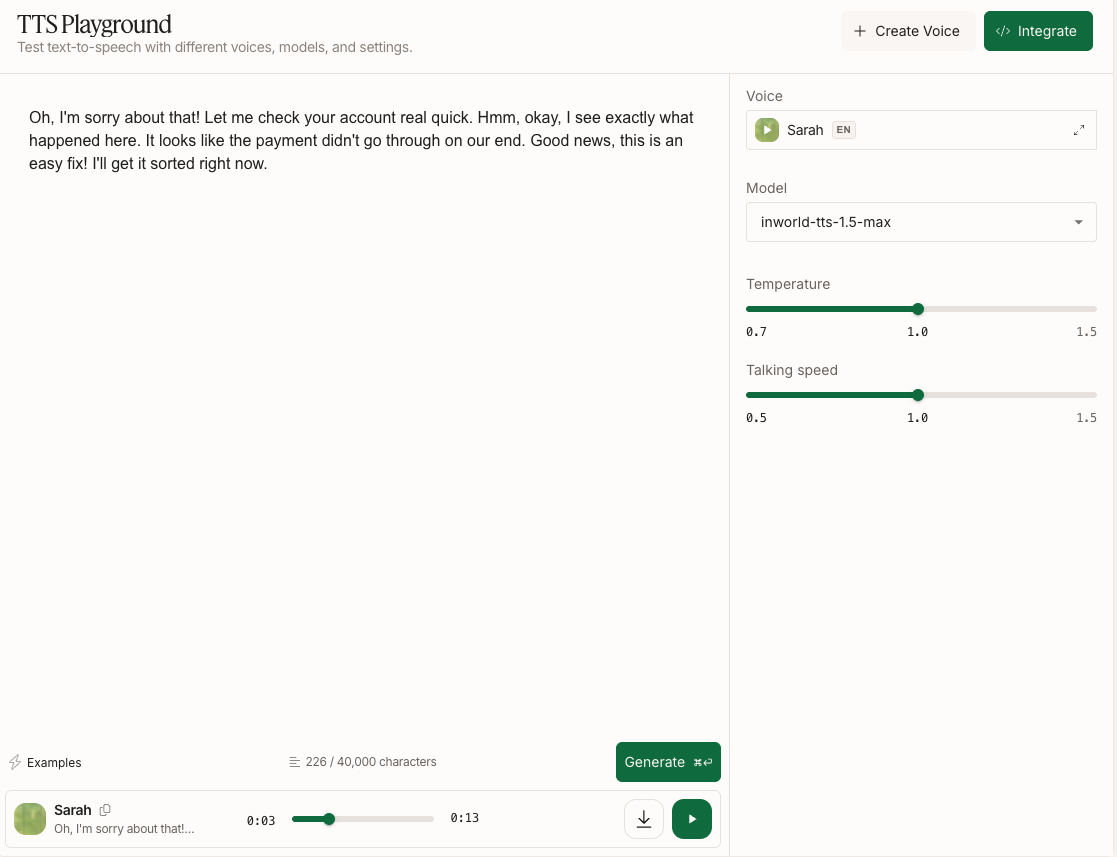
The TTS Playground makes it easy to try out Inworld's TTS capabilities through an interactive playground. It can be used to find the perfect voice for your project, test different text inputs, adjust voice settings, and experiment with audio markup tags.
Get Started
Go to Inworld Portal
In Portal, select TTS Playground from the left-hand side panel.
Enter text
Enter the text you want to convert to speech. If you need some ideas, you can select one of the suggestion chips at the bottom of the screen. Note that character limits in TTS playground depend on your plan, see the Pricing page for details. You can also use our API to generate longer content, see Long Text Input.
Advanced Features
For greater control over the generated audio, you can try out the following:
- Try a different model - Select a different model from the right-hand side panel to see how it compares. See Models for more information about each model.
- Adjust configurations - Use the sliders on the right-hand side panel to adjust Temperature and Talking Speed. See here for more information.
- Add pauses - Try adding SSML break tags like
<break time="1s" />to insert pauses in your speech. See Pause Controls for more information.
Create a Voice
In the TTS Playground, click + Create a Voice to design a new voice from a text description or clone one from audio:
- Voice Design — Describe the voice you want in text (age, accent, tone, etc.) and get AI-generated voice candidates
- Voice Cloning — Clone a voice from as little as 3 seconds of audio (up to 30 seconds — longer samples improve similarity)
Multi-Voice Generation
Create a multi-speaker composition — a dialogue, scene, or podcast — with a different voice per line, generated as a single stitched track.
Audio Generation History
Open the History panel using the button next to Generate at the bottom of the playground. Every clip you generate is automatically saved there, capturing the voice, model, and text used. From the History panel you can:
- Replay any past generation instantly — cached audio plays without re-running the model
- Reload settings into the playground — send a past entry back to populate the text, voice, model, and all generation parameters in one click
- Search and filter by text content, voice, model, or date
- Bulk manage entries — enter Manage mode to multi-select for download or deletion
- Download individual takes as MP3 with one click
History is stored locally per device and per workspace — it isn't synced across browsers or shared between teammates. Clearing browser storage will reset it.
Next Steps
Ready for more? Whether you're looking to clone a voice, design one from text, or start building with our API, we've got you covered.