Decisions
Get typed answers your code can branch on (yes/no probabilities, picks from your options, and scores) in one request
Preview. The /alpha path and the request and response shape may change before this API is marked stable. See release stages.
The Decisions API runs a decision model that gives your code a structured answer instead of generated text. You send a state (the content to evaluate) and a map of named, typed questions. You get back one typed answer per question: a probability of yes for a noul question, one of your options for a choice question, or a position on your scale for a score question. Answers are never free text, so there is no output to parse or validate.
Use it when your code needs to branch on a judgment: classify or route a request, check a message against a policy, score a passage for relevance, or gate an action on the model's certainty. For free-form text, use chat completions or the Responses API instead.
Requests use your Inworld API key and are billed to your Inworld account.
| Endpoint | POST https://api.inworld.ai/alpha/decisions |
| Models | Browse Decision models in the public catalog |
| Streaming | Not supported: the whole answer set comes back in one response |
| Pricing | See the selected model in the model catalog |
Choose a model
Browse inworld.ai/models and select Decisions for model IDs and pricing. Choose a decision model for typed judgments; a chat model that supports JSON output is not interchangeable with a Decisions API model. For images, choose a decision model with image input support. In the Decisions playground, compatible models have an Images label; the text-only typesafe/jev-latest example below cannot evaluate images.
How it works
- Select a decision model and set
modelto its API model ID. - Send the content to evaluate in
stateand your named questions inquestions. - Read each answer under the same question ID and use it in your application logic.
Question types
Each entry in questions is keyed by an id you choose, and its answer comes back under the same id. Every question has a type and instructions. Each type defines its own criteria.
type | Asks | criteria | Answer fields |
|---|---|---|---|
noul | A yes/no question | Optional. {"true": "...", "false": "..."} describes what yes and no mean | noul: the probability of yes, from 0 to 1 |
choice | Pick one option from a set | Required. An object mapping each option to its description, or to null | choice, probabilities (sums to 1), confidence |
score | Rate on ordered levels | Required. An array of level descriptions, lowest first | score (probability-weighted level index from 0, which can land between levels), legend, probabilities, confidence |
All questions in a request are evaluated against the same state.
Quickstart
This example uses typesafe/jev-latest.
Run these examples on your server. Set INWORLD_API_KEY to the Base64 credentials copied from Portal or the CLI; see authentication.
curl -X POST https://api.inworld.ai/alpha/decisions \
  -H "Authorization: Basic $INWORLD_API_KEY" \
  -H "Content-Type: application/json" \
  -d '{
    "model": "typesafe/jev-latest",
    "state": "Help! My payouts have been failing for 3 days.",
    "questions": {
      "is_urgent": {
        "type": "noul",
        "instructions": "Does this convey urgency?"
      },
      "department": {
        "type": "choice",
        "instructions": "Which team should handle this?",
        "criteria": {
          "billing": "Payments, invoicing, refunds",
          "technical": "Bugs, outages, integrations",
          "sales": "Pricing, upgrades, new accounts"
        }
      }
    }
}'import os
import requests
response = requests.post(
"https://api.inworld.ai/alpha/decisions",
headers={"Authorization": f"Basic {os.environ['INWORLD_API_KEY']}"},
json={
"model": "typesafe/jev-latest",
"state": "Help! My payouts have been failing for 3 days.",
"questions": {
"is_urgent": {"type": "noul", "instructions": "Does this convey urgency?"},
"department": {
"type": "choice",
"instructions": "Which team should handle this?",
"criteria": {
"billing": "Payments, invoicing, refunds",
"technical": "Bugs, outages, integrations",
"sales": "Pricing, upgrades, new accounts",
},
},
},
},
timeout=60,
)
response.raise_for_status()
answers = response.json()["answers"]
print(answers["is_urgent"]["noul"], answers["department"]["choice"])const response = await fetch('https://api.inworld.ai/alpha/decisions', {
method: 'POST',
headers: {
Authorization: `Basic ${process.env.INWORLD_API_KEY}`,
'Content-Type': 'application/json',
},
body: JSON.stringify({
model: 'typesafe/jev-latest',
state: 'Help! My payouts have been failing for 3 days.',
questions: {
is_urgent: { type: 'noul', instructions: 'Does this convey urgency?' },
department: {
type: 'choice',
instructions: 'Which team should handle this?',
criteria: {
billing: 'Payments, invoicing, refunds',
technical: 'Bugs, outages, integrations',
sales: 'Pricing, upgrades, new accounts',
},
},
},
}),
});
if (!response.ok) throw new Error(`${response.status}: ${await response.text()}`);
const { answers } = await response.json();
console.log(answers.is_urgent.noul, answers.department.choice);Response:
{
  "model": "typesafe/jev-1.13.0",
  "answers": {
    "is_urgent": { "type": "noul", "noul": 0.95 },
    "department": {
      "type": "choice",
      "choice": "billing",
      "probabilities": { "billing": 0.88, "technical": 0.12, "sales": 0.0 },
      "confidence": 0.81
    }
  },
  "usage": { "input_tokens": 318, "output_tokens": 34 },
  "metadata": {
    "attempts": [
      { "model": "typesafe/jev-1.13.0", "status_code": 200, "duration_ms": 212.4, "success": true }
    ],
    "generation_id": "0f5d3c4e-8f0b-4a53-9a55-2f3a6f0d8a1b",
    "total_duration_ms": 212
  }
}
Evaluate an image
Use image input to check a screenshot, classify a photo, or score visible evidence. The image is part of the shared state, so every question evaluates the same text and image.
In Portal's Decisions playground, select a model labeled Images, then load Screenshot check. Add, paste or drop a screenshot into the content area and run the example. It asks whether the checkout shows an error and which next step the application should consider.
For an API integration, encode the image as a data URL and include it directly in the state array beside the text, as in the example below. Remote image URLs are not accepted. See the image input contract for supported formats and fields.
Check a checkout screenshot
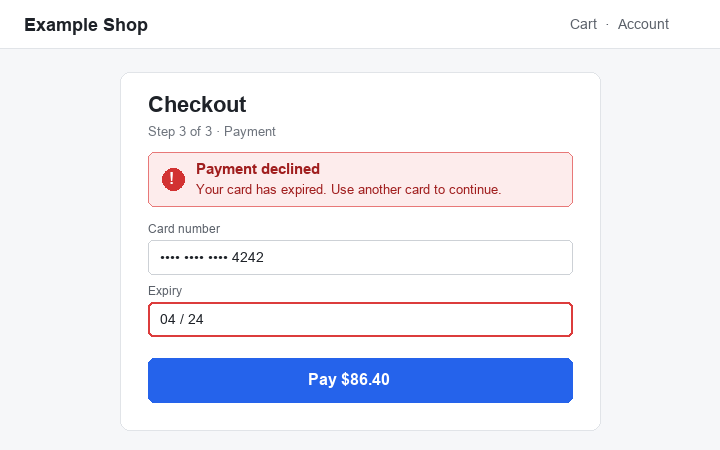
Save the screenshot above as checkout-declined.png. In the same directory, install the Python dependency and set your API key:
python -m pip install requests
export INWORLD_API_KEY="<your Base64 API key>"
Save the following as check_screenshot.py. It uses inworld/clef, an image-capable decision model; replace it only with another model that supports image input.
import base64
import os
from pathlib import Path
import requests

image = base64.b64encode(Path("checkout-declined.png").read_bytes()).decode("ascii")
response = requests.post(
    "https://api.inworld.ai/alpha/decisions",
    headers={"Authorization": f"Basic {os.environ['INWORLD_API_KEY']}"},
    json={
        "model": "inworld/clef",
        "state": [
            "A shopping agent took this screenshot right after it clicked Pay.",
            {"type": "image_url", "image_url": {"url": f"data:image/png;base64,{image}"}},
        ],
        "questions": {
            "error_shown": {
                "type": "noul",
                "instructions": "Does the screenshot show an error that must be fixed before continuing?",
            },
            "next_step": {
                "type": "choice",
                "instructions": "What should the agent do next?",
                "criteria": {
                    "continue": "The step succeeded: go on",
                    "retry": "A temporary problem: try again",
                    "change_payment": "The payment method was refused: use another",
                    "ask_user": "Needs information only the user knows",
                },
            },
        },
    },
    timeout=60,
)
response.raise_for_status()
answers = response.json()["answers"]
print(answers["error_shown"]["noul"])
print(answers["next_step"]["choice"])
Run it from the directory containing both files:
python check_screenshot.pyThe script prints a probability between 0 and 1, then one of the four next_step options. This screenshot shows a payment declined because the card expired: a useful answer should recognize the error and select change_payment. The exact probability can vary; evaluate the model on your own screenshots before choosing a threshold.
error_shown.noul is a probability, and next_step.choice is one of your supplied options. Your application defines thresholds and decides what action to take; the API does not execute the selected action.
Before sending larger images, resize or compress them: base64 increases request size, and accepted image counts and request sizes depend on the selected model. The playground accepts up to four images and may resize large photos. When copying its generated code, replace the <BASE64_IMAGE_n> placeholders with your encoded image bytes.
Use the answers in your application
The response's model is the provider-qualified model that answered: a specific version such as typesafe/jev-1.13.0, or the model family such as typesafe/jev when no version is reported. metadata reports attempts, generation_id and total_duration_ms.
The example returns answers.is_urgent.noul as a probability and answers.department.choice as one of the options you supplied. Your application decides what action to take: for example, send a request classified as billing to the billing queue, and flag it for priority review when the urgency probability exceeds your chosen threshold.
Choose thresholds using examples from your own workload. The model supplies the judgment; your code defines the action and any review or escalation rules.
Errors
Check the HTTP status and response content type before parsing the body. Decisions errors use {"error": {"message": "...", "type": "..."}}. Request validation returns 400 before sending the request to a model; these errors can also include error.param, which names the field to fix. See the error example.
Model errors relayed to your application keep their HTTP status, including 422, and use the same error format. Rate-limit and server errors use generic messages. Authentication, account, and API-key rate-limit errors can use a different body, so check the content type and preserve the status and body when reporting a failure.
The following describes error handling for the model used in the quickstart:
| Status | Meaning | What to do |
|---|---|---|
400 | Invalid request, such as invalid JSON, a missing state or questions, an unknown question type, missing criteria, too many options, or an image the model cannot accept. Also returned when the workspace has zero data retention and the model cannot serve it | Fix the request as the error describes. For zero data retention, choose another model or use a workspace without it |
401 | Missing or invalid Inworld API key | Check the Authorization header |
413 | Request body exceeds the accepted size | Send less state, or split the questions across requests |
422 | The model rejected input that passed request validation | Fix the request as the error describes |
429, 503, 529 | Rate limited, at capacity or overloaded | Retry with exponential backoff and honor Retry-After when present |
502 | The model could not be reached or is unavailable | Retry with exponential backoff |
504 | No answer within the request timeout | Retry, or send fewer or smaller questions |
Billing
Check the model catalog for the selected model's rates and billing units. The response reports usage.input_tokens and usage.output_tokens; reported usage does not mean every token category is billed. The documented billing units for the example model are listed below.
Model capabilities and limits
Use the catalog to discover models. The table records documented limits for the example model; these limits do not define the contract for every decision model.
| Model | Question types | Input formats | Question limits | Request limits | Billing |
|---|---|---|---|---|---|
typesafe/jev-latest | noul, choice, score | state, instructions and criteria accept strings, objects or arrays | Up to 255 choice options; 2 to 10 score levels | 10 MiB body; 60-second timeout | Input tokens only; failed or cut-off answers are not billed |