

Run the Template
- Go to
Assets/InworldRuntime/Scenes/Nodesand play theCharacterInteractionNodescene.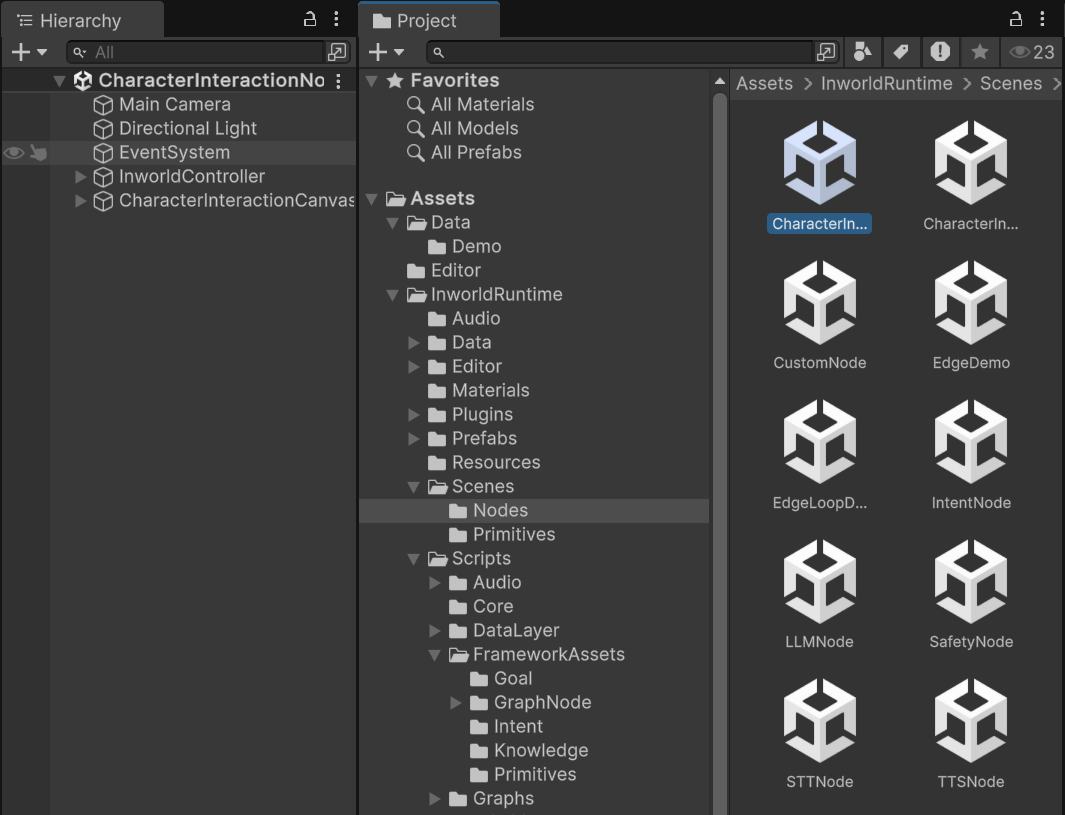
- After the scene loads, you can enter text and press Enter or click the
SENDbutton to submit. - You can also hold the
Recordbutton to record audio, then release it to send. - The AI agent responds with both audio and text. If you send audio, it will be transcribed to text first.
Understanding the Graph
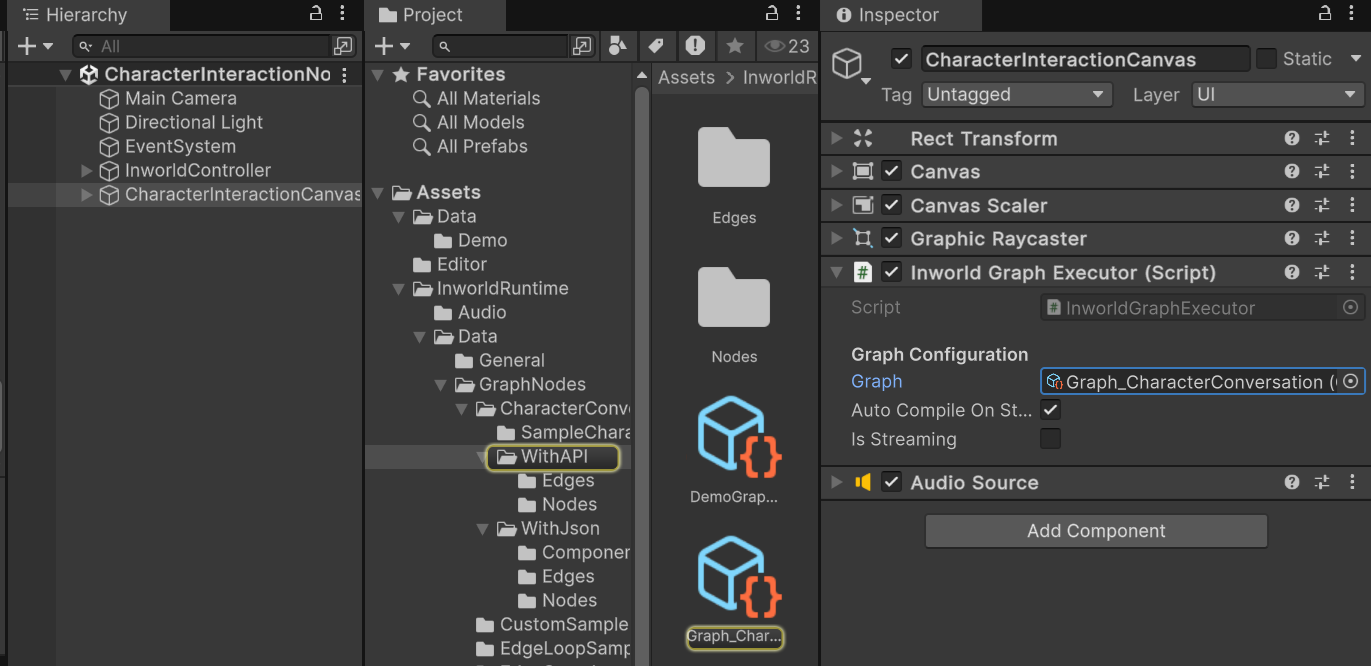
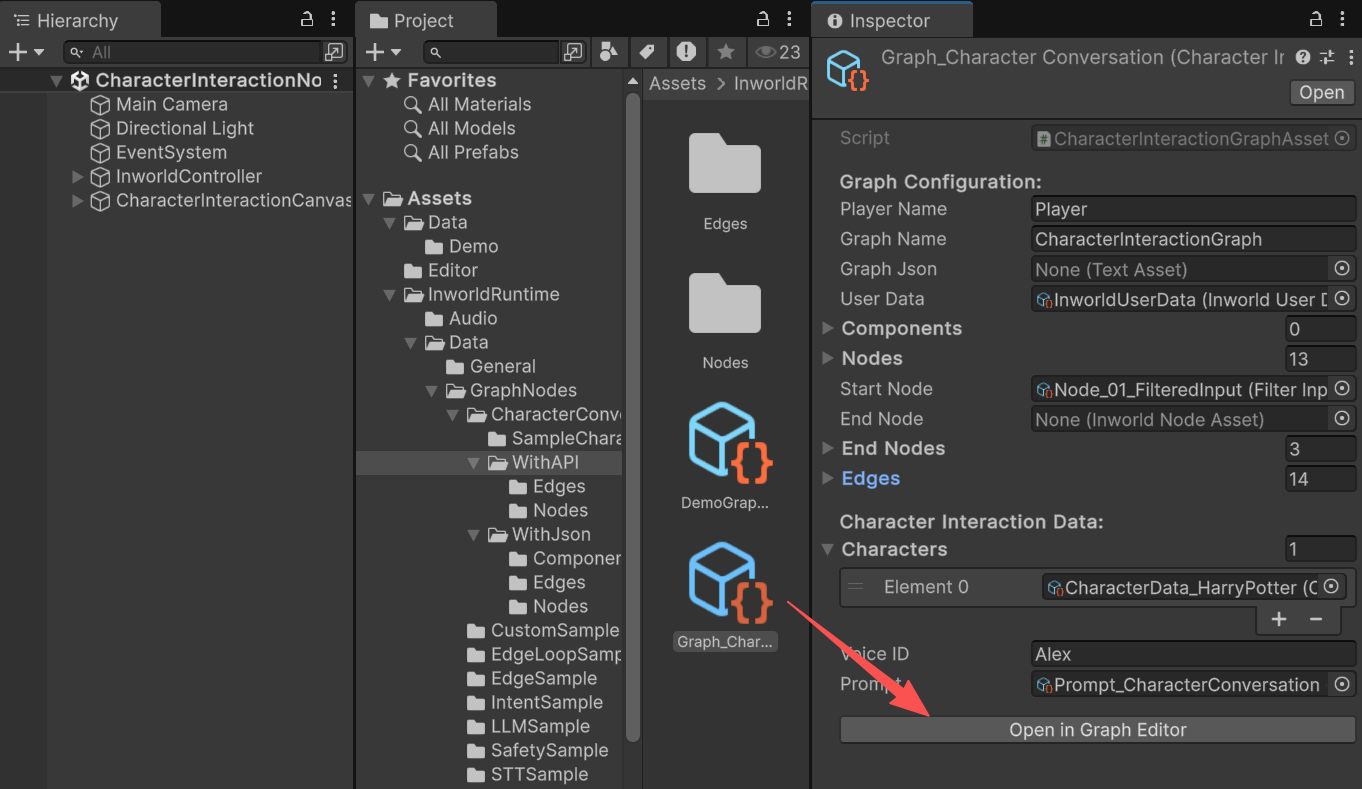
You can find the graph on theInworldGraphExecutor of CharacterInteractionCanvas.
1
FilterInputNode
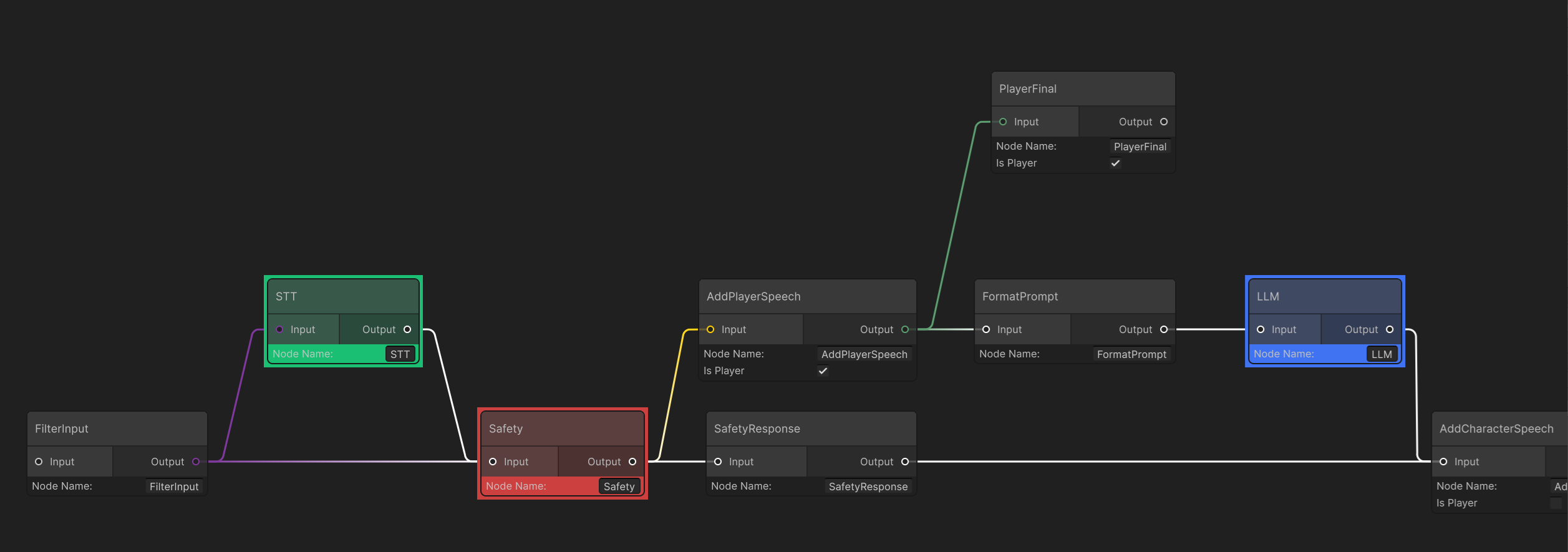
FilterInputNode acts as the StartNode and processes user input.If the data is InworldText or InworldAudio, it passes downstream; otherwise, it returns an error and stops.If the input is InworldAudio, it first goes through STTNode for transcription to text, then into SafetyNode. If it is text, it goes directly into SafetyNode.Note that the two outgoing edges from FilterInput are not default edges. One is TextEdge and the other is AudioEdge. Their MeetsCondition checks are simple: for InworldText, TextEdge passes; for InworldAudio, AudioEdge passes. Otherwise they block.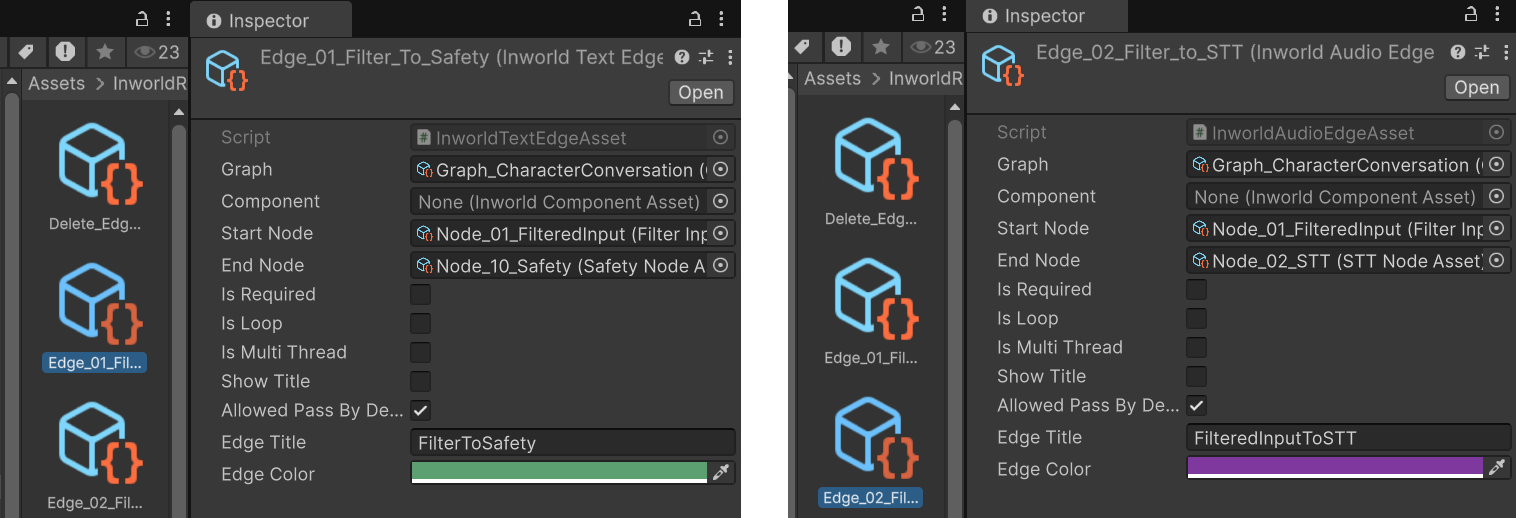
2
SafetyNode
SafetyNode checks input text against its SafetyData categories and thresholds.If the input is safe, it proceeds to AddPlayerSpeech, then on through LLM into AddCharacterSpeech.Otherwise, the user’s input is ignored and the flow goes to a SafetyResponse, which is a RandomCannedText node that randomly selects one predefined message and sends it directly to AddCharacterSpeech.In this demo, no 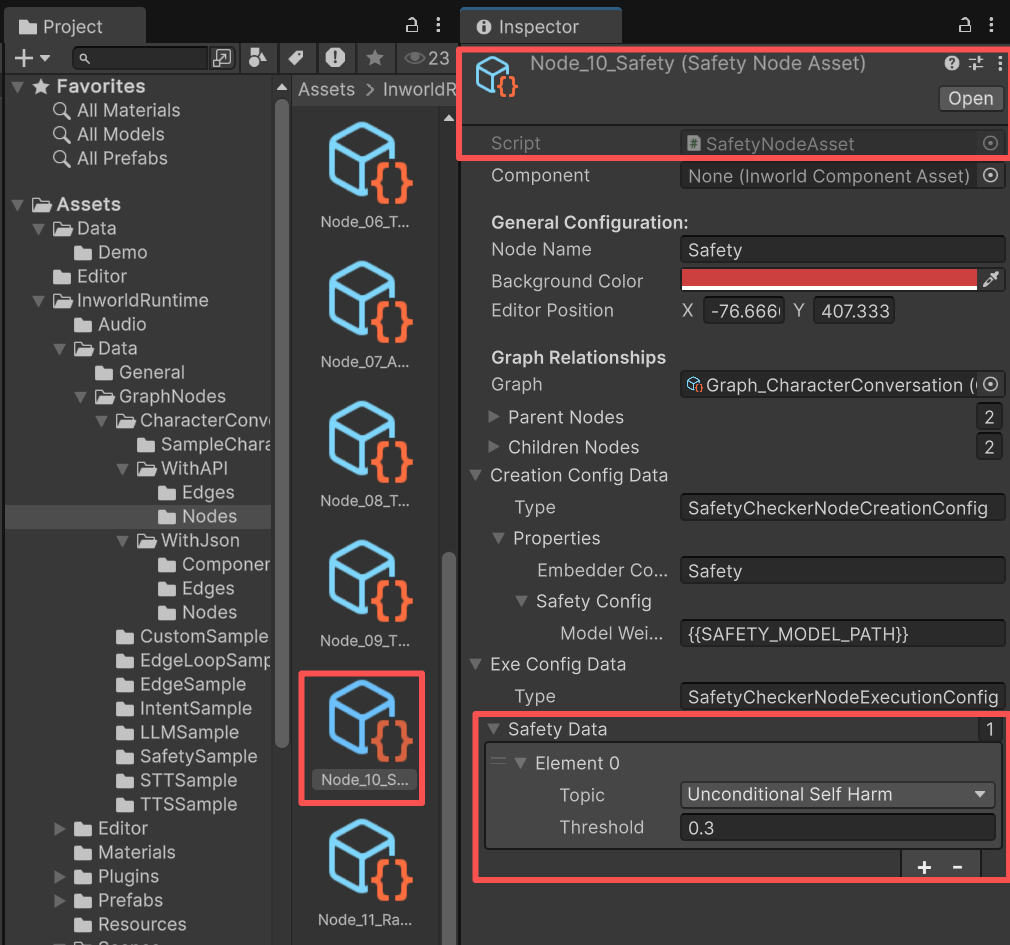
SafetyData is configured, which means all inputs are allowed.To change this, click SafetyNode.The Inspector will highlight the node, and you can adjust SafetyData in the panel below.SafetyNode has two outgoing edges.The upper edge is a special SafetyEdge whose MeetsCondition simply checks whether the input is safe.If safe, it proceeds to AddCharacterSpeech; otherwise, it goes to RandomCannedText.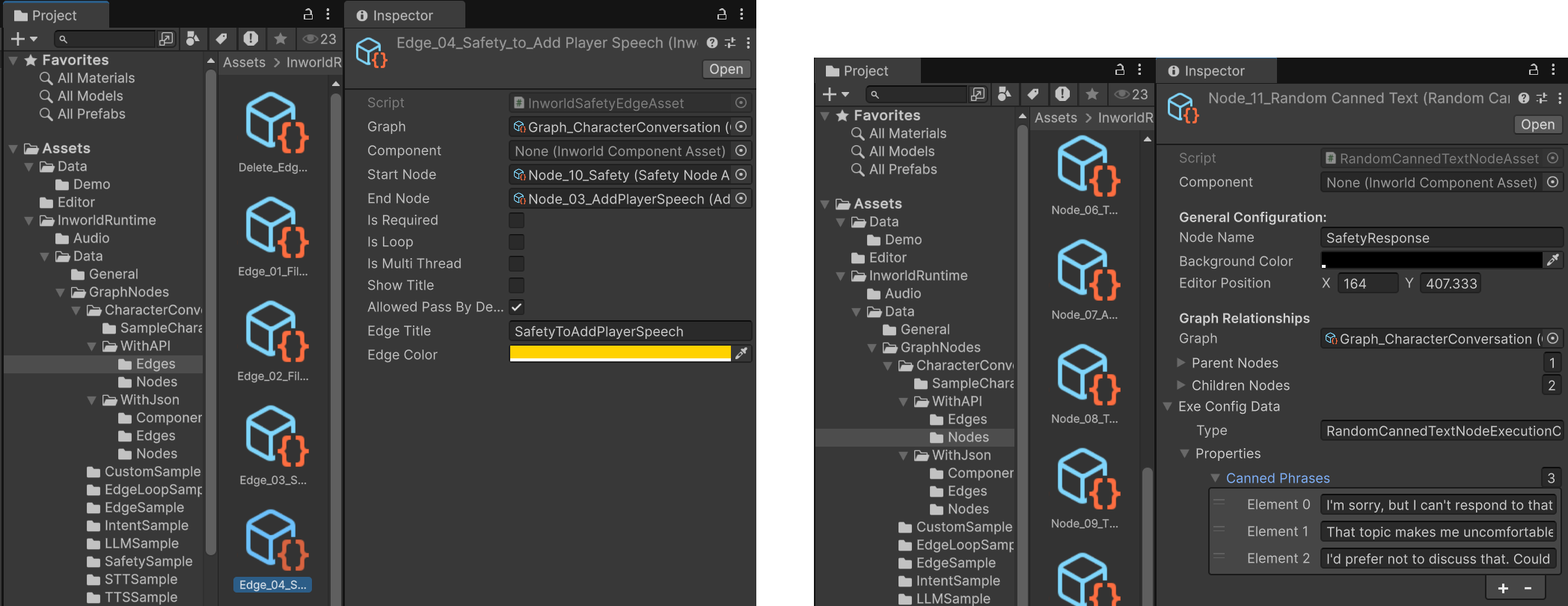
3
AddPlayerSpeech
AddPlayerSpeech is an AddSpeechEventNode that inherits from CustomNode.It converts various upstream types into text when possible.During creation, it uses the boolean m_IsPlayer to obtain the player or agent name, so the final output can be tagged with the correct speaker.In this demo, AddPlayerSpeech connects to an early exit PlayerFinal to notify Unity that the graph has the player’s input portion available.AddSpeechEventNodeAsset.cs
FormatPrompt, then on to LLM and AddCharacterSpeech.4
PlayerFinal
This is an
EndNode.It emits the PlayerSpeech output, because sometimes we need an early return while the rest of the graph continues.In this demo, this node lets the handler registered to the graph executor’s OnGraphResult capture the user’s own message (especially STT‑transcribed text) to render a UI bubble, etc.5
FormatPrompt
This is also a 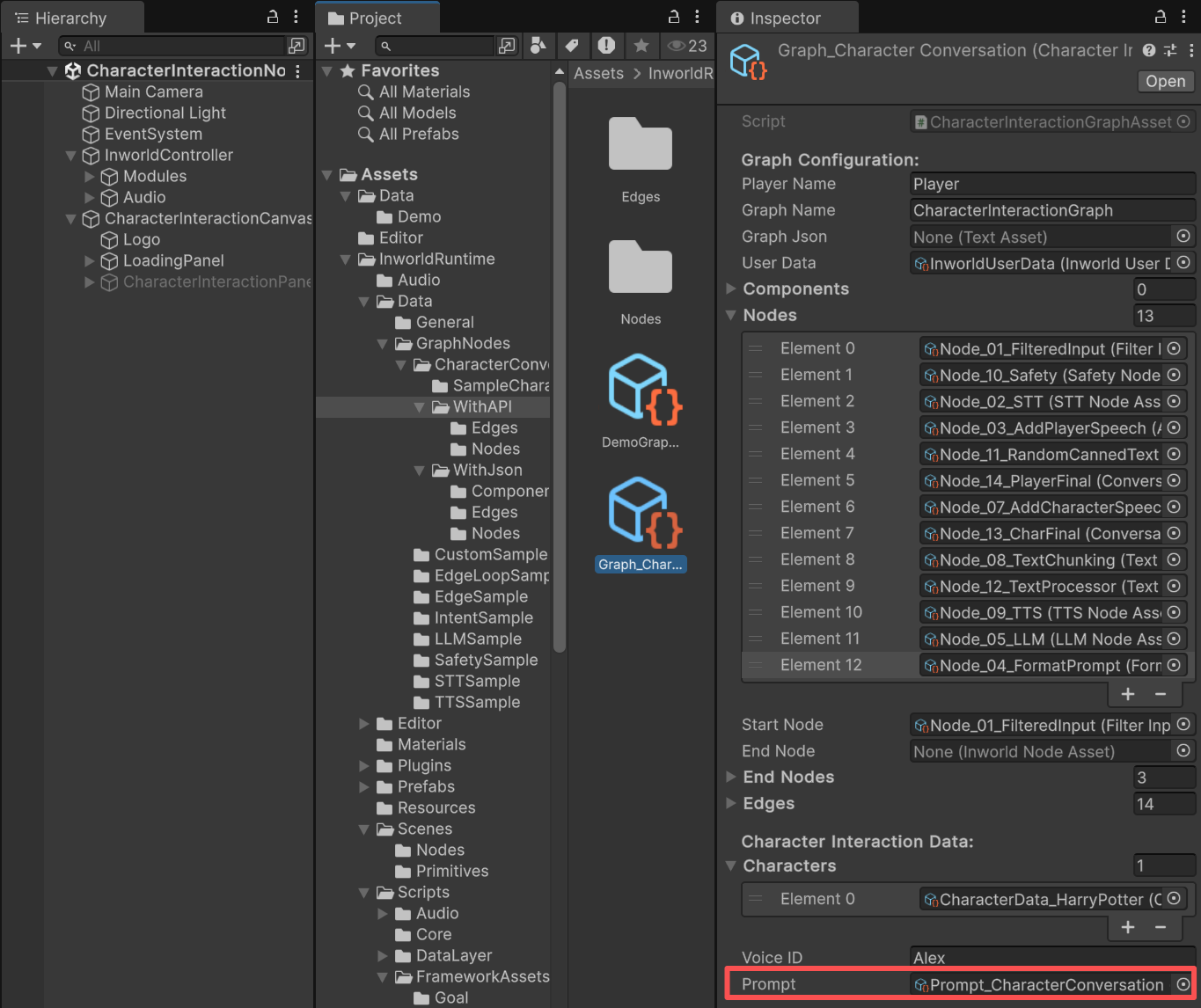
CustomNode.It stores the AddSpeechEvent result into the runtime DialogHistory, renders the prompt from the Jinja template, then wraps it into an LLMChatRequest and sends it to LLMNode.Prompt Template used in this demo.Prompt Template
CharacterData, DialogHistory, PlayerData, etc.Jinja Prompt
6
AddCharacterSpeech
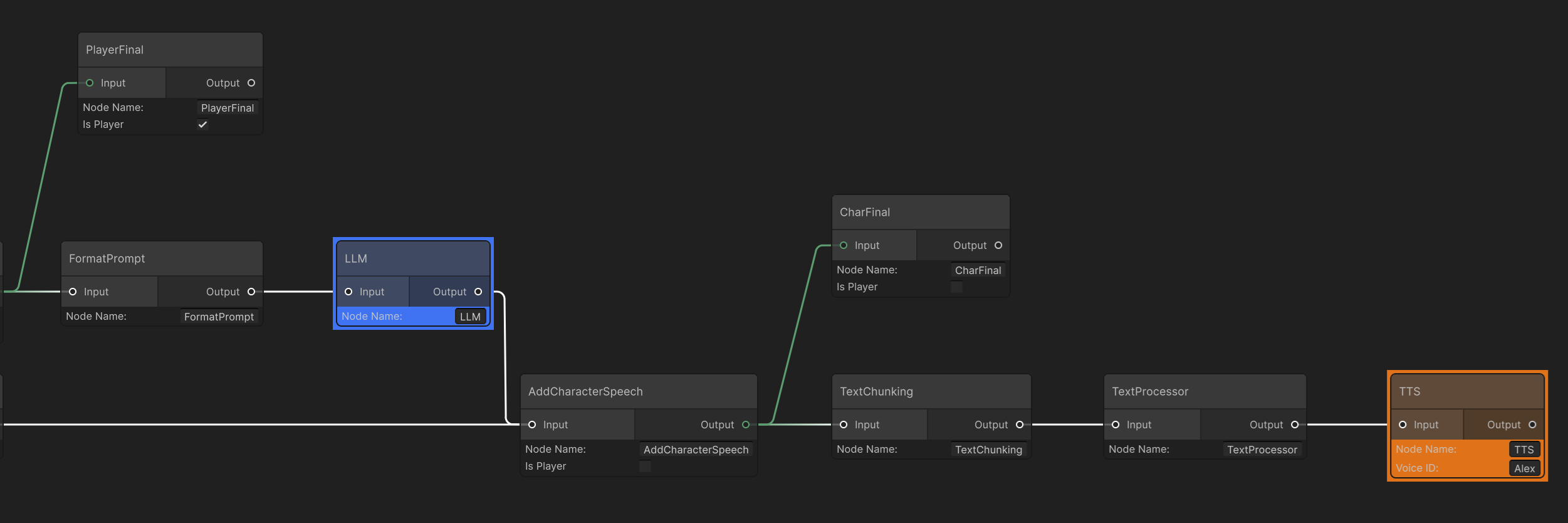
AddPlayerSpeech, AddCharacterSpeech is an AddSpeechEventNode that inherits from CustomNode and converts upstream types to text when possible.During creation, it uses m_IsPlayer to obtain either the player’s or the agent’s name so the final output is tagged with the speaker.In this demo, AddCharacterSpeech receives the value returned from the LLM and prefixes it with the character’s name.AddCharacterSpeech also connects to an early exit CharFinal to notify Unity that the character’s output portion is available.7
TextChunking & TextProcessor
These two nodes trim the text generated by the LLM, because some models stream segmented output.
TextChunking merges those segments into a single string.TextProcessor is a CustomNode that removes undesirable content before sending to TTS (e.g., brackets, emojis).Some TTS models will literally read those symbols.8
TTSNode
This is the third and final
EndNode.It takes text produced by either RandomCannedText or the LLM, processes it through the two text nodes above, and then synthesizes speech in TTSNode.InworldController
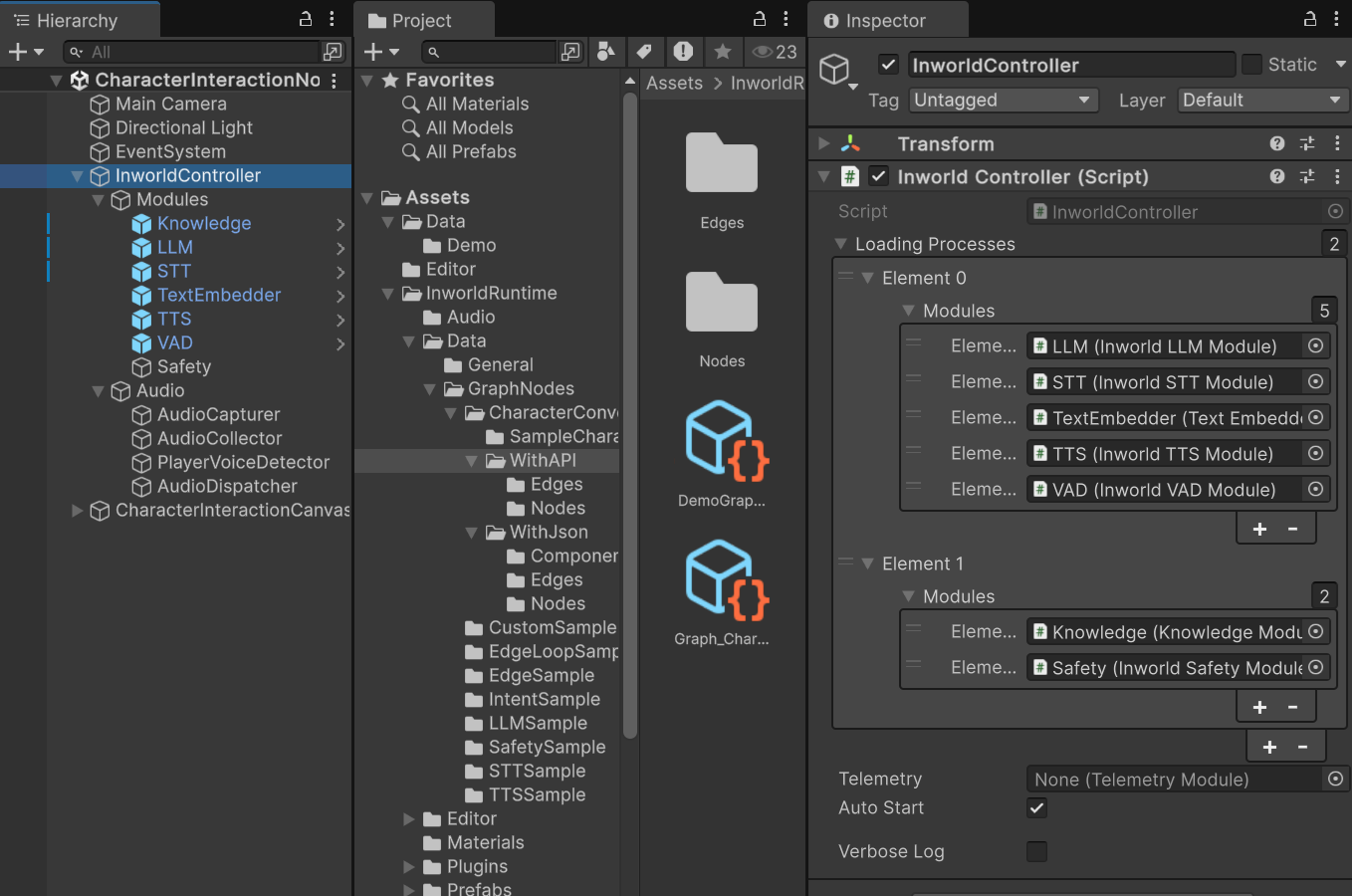
TheInworldController contains all the primitive modules and an InworldAudioManager, which also contains all the audio modules.
Workflow
- When the game starts,
InworldControllerinitializes all its primitive modules.
- Next,
InworldGraphExecutorinitializes its graph asset by calling each component’sCreateRuntime(). - After initialization, the graph calls
Compile()and returns the executor handle. - After compilation, the
OnGraphCompiledevent is invoked. In this demo, theCharacterInteractionNodeTemplateof theCharacterInteractionPanelsubscribes to it and configures the prompt. Users can then interact with the graph system.
CharacterInteractionNodeTemplate.cs
- If the user sends text, it reaches the
Submit()function, which converts the input intoInworldText.
CharacterInteractionNodeTemplate.cs
- If the user sends audio, the
AudioDispatchModuleofInworldAudioManagerraises theonAudioSentevent.
CharacterInteractionNodeTemplate subscribes to this event and handles it in SendAudio().
CharacterInteractionNodeTemplate.cs
- Calling
ExecuteGraphAsync()eventually produces a result and invokesOnGraphResult(), whichCharacterInteractionNodeTemplatesubscribes to in order to receive the data.
AudioClip and played.
CharacterInteractionNodeTemplate.cs