

LLMNode.
Run the Template
- Go to
Assets/InworldRuntime/Scenes/Nodesand play theLLMNodescene.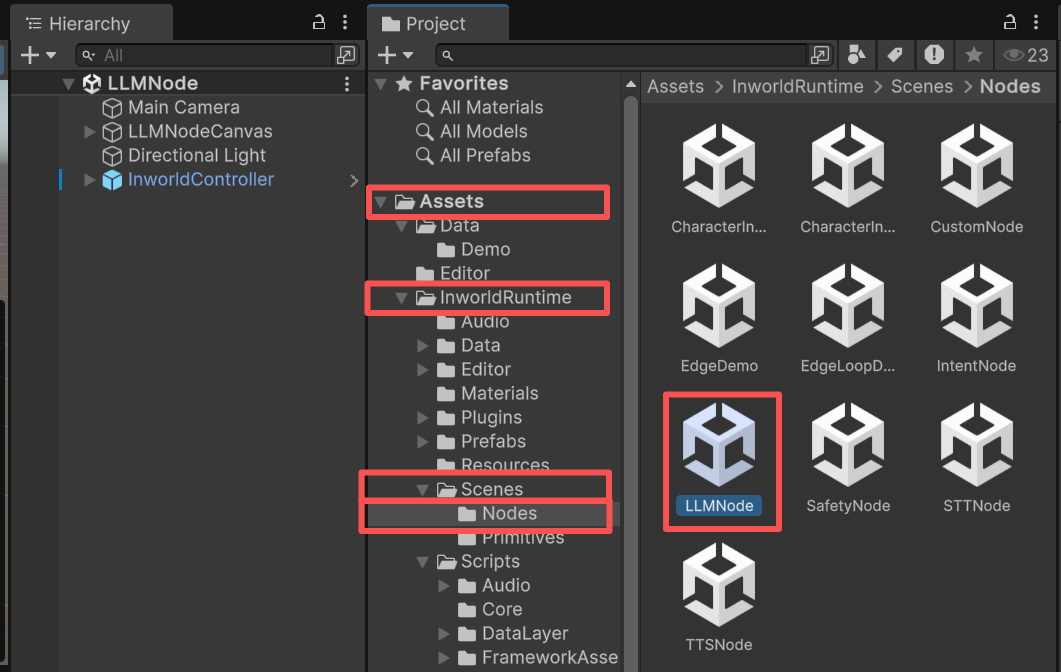
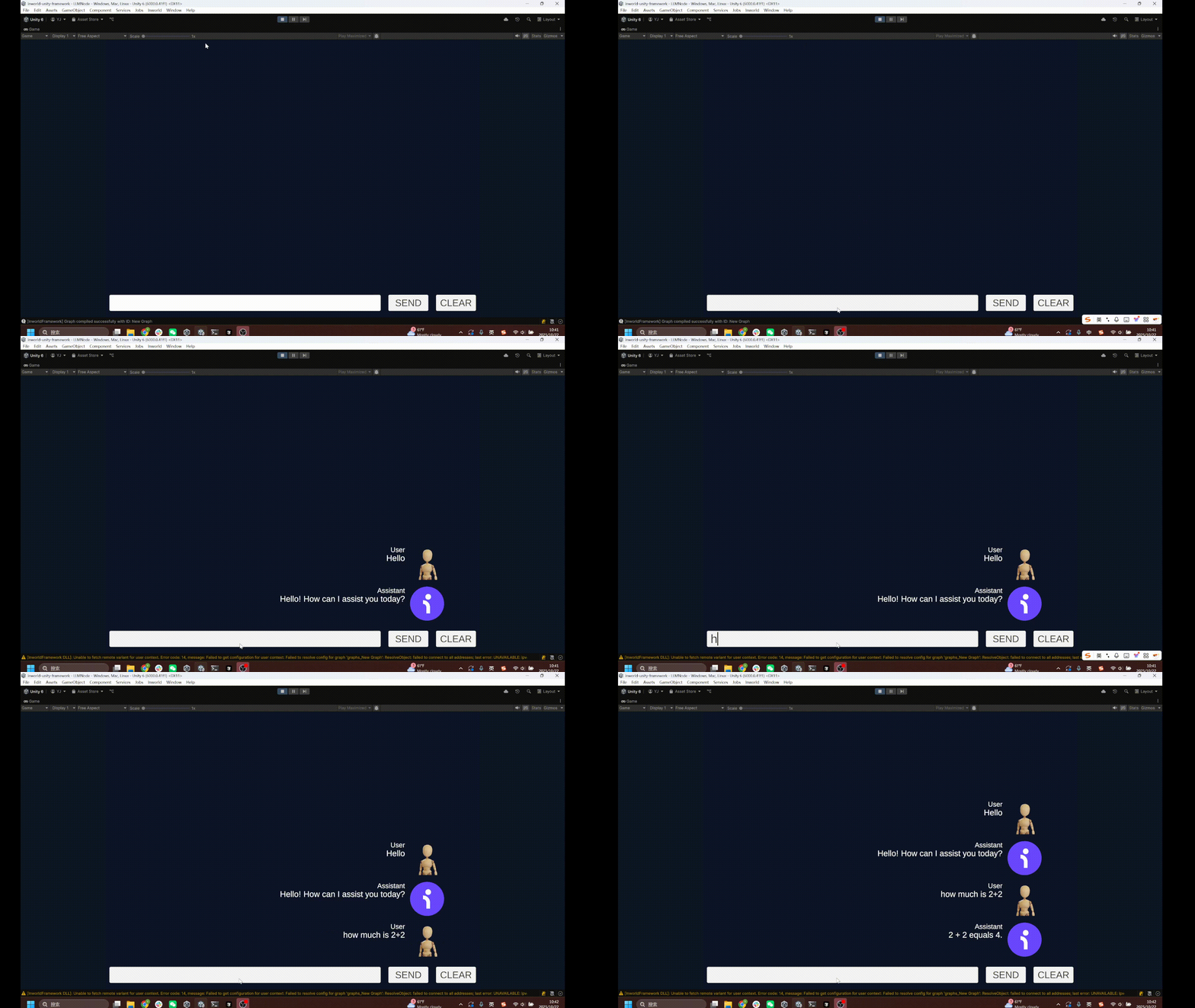
- Enter your request. The AI agent will respond.
Understanding the Graph
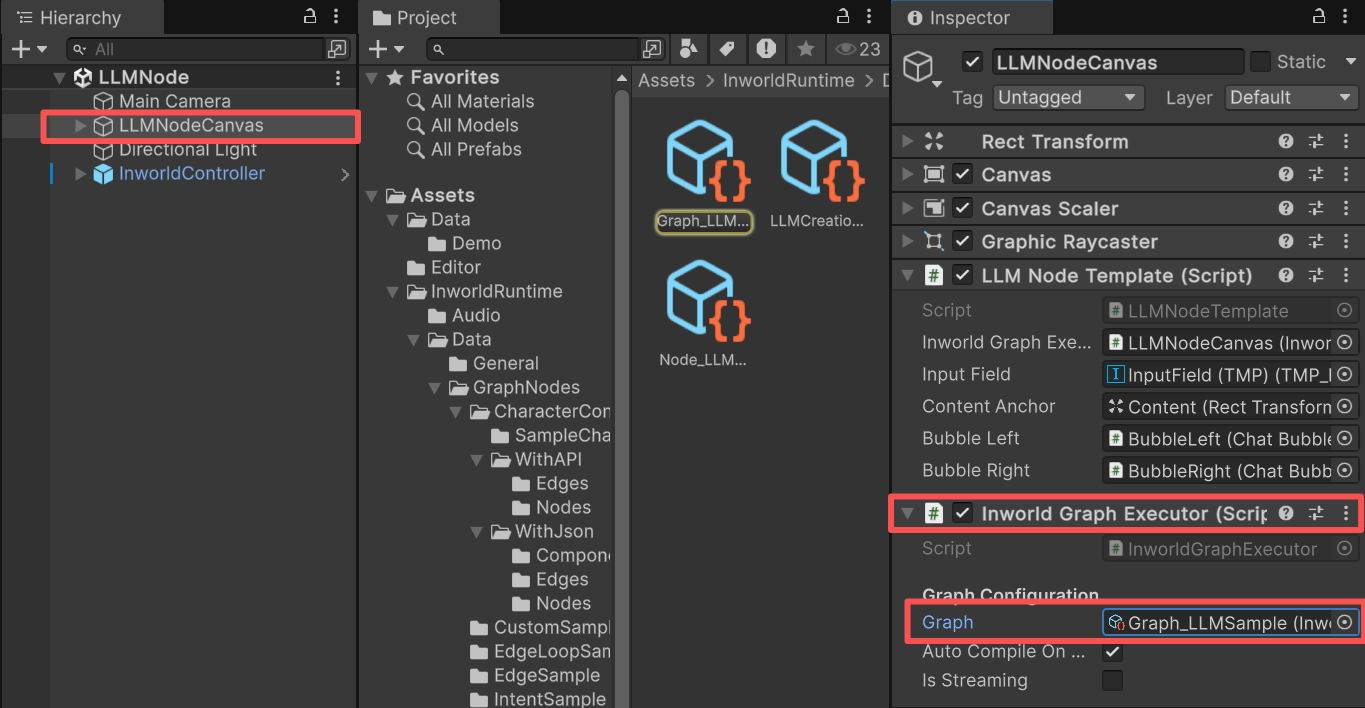
You can find the graph on theInworldGraphExecutor of LLMNodeCanvas.
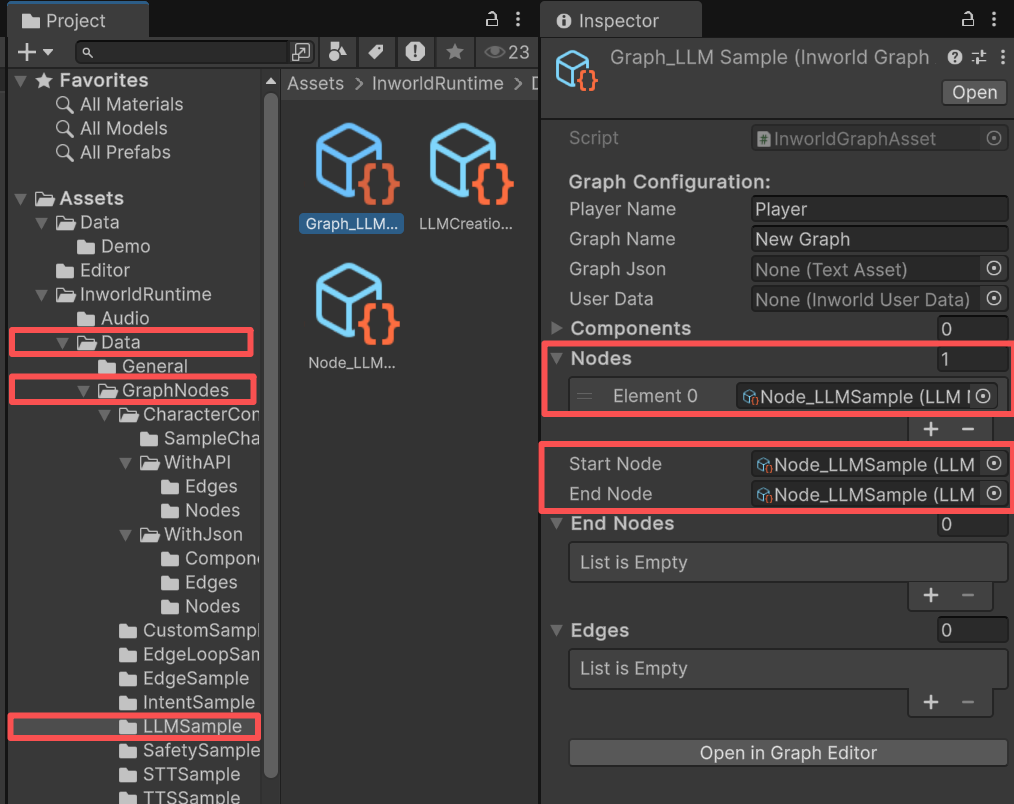
LLMNode, with no edges.
LLMNode is both the StartNode and the EndNode.
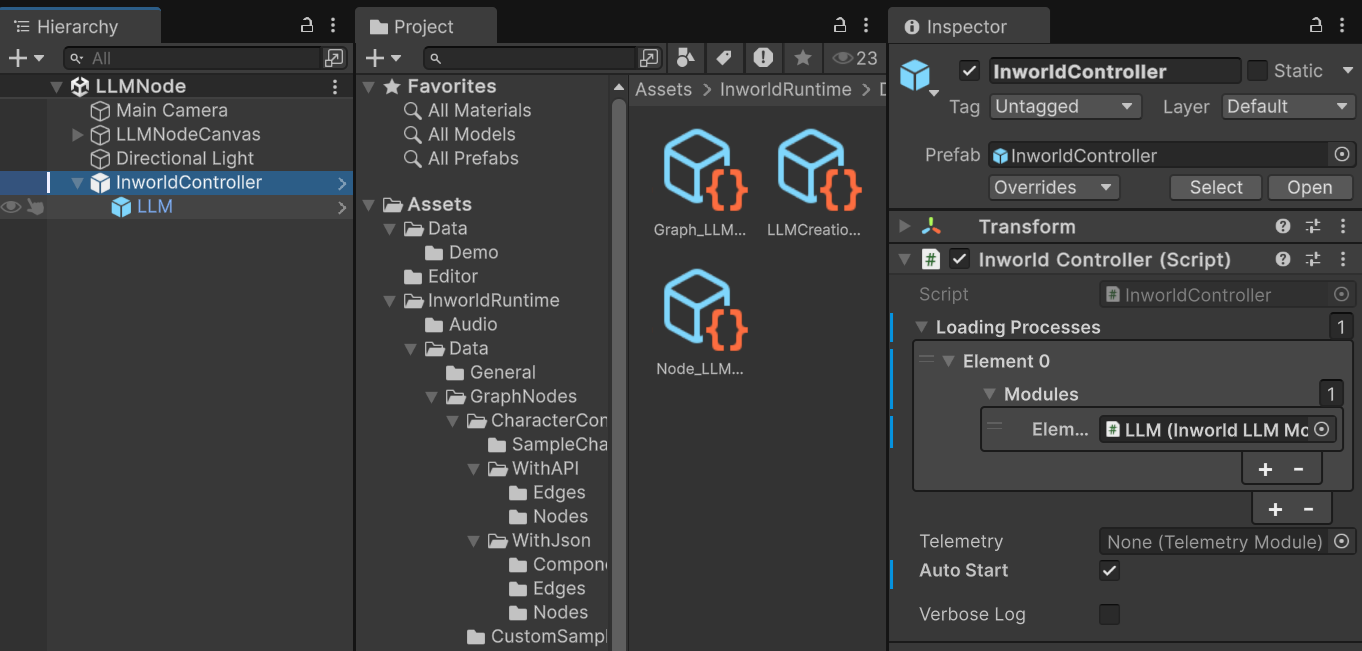
InworldController
TheInworldController is also simple; it contains only one primitive module: LLM.
Workflow
- When the game starts,
InworldControllerinitializes its only module,LLMModule, which creates theLLMInterface. - Next,
InworldGraphExecutorinitializes its graph asset by calling each component’sCreateRuntime(). In this case, onlyLLMNode.CreateRuntime()is called, using the createdLLMInterfaceas input. - After initialization, the graph calls
Compile()and returns the executor handle. - After compilation, the
OnGraphCompiledevent is invoked. In this demo,LLMNodeTemplatesubscribes to it and enables the UI components. Users can then interact with the graph system.
LLMNodeTemplate.cs
- When the user sends text, this demo wraps the message into an
LLMChatRequestand sends it to the LLM as raw input.
LLMNodeTemplate.cs
- Calling
ExecuteGraphAsync()eventually produces a result and invokesOnGraphResult(), whichLLMCanvassubscribes to in order to receive the data.