Get Started
Developer Quickstart
Learn how to make your first Realtime TTS API request
The TTS Playground is the easiest way to experiment with Inworld’s Text-to-Speech models—try out different voices, adjust parameters, and preview instant voice clones. Once you’re ready to go beyond testing and build into a real-time application, the API gives you full access to advanced features and integration options.
In this quickstart, we’ll focus on the Text-to-Speech API, guiding you through your first request to generate high-quality, ultra-realistic speech from text.
These examples run locally or on your server. INWORLD_API_KEY contains the complete copied Base64 credential. Direct HTTP requests use Basic; browser/mobile apps should use the backend token flow. For auth errors, see recovery steps.
Make your first streaming TTS API request
This quickstart walks through making your first streaming API request, which we recommend for realtime, low-latency applications.
For batch audio generation, pre-rendered content, and anywhere latency isn't critical, see Make a non-streaming request below.
Create an API key
Create an Inworld account.
In Inworld Portal, generate an API key by going to Settings > API Keys. Copy the Base64 credentials as-is; do not encode them again. Use a Standard key for direct TTS calls; Voice and Router write permissions are not needed for synthesis.
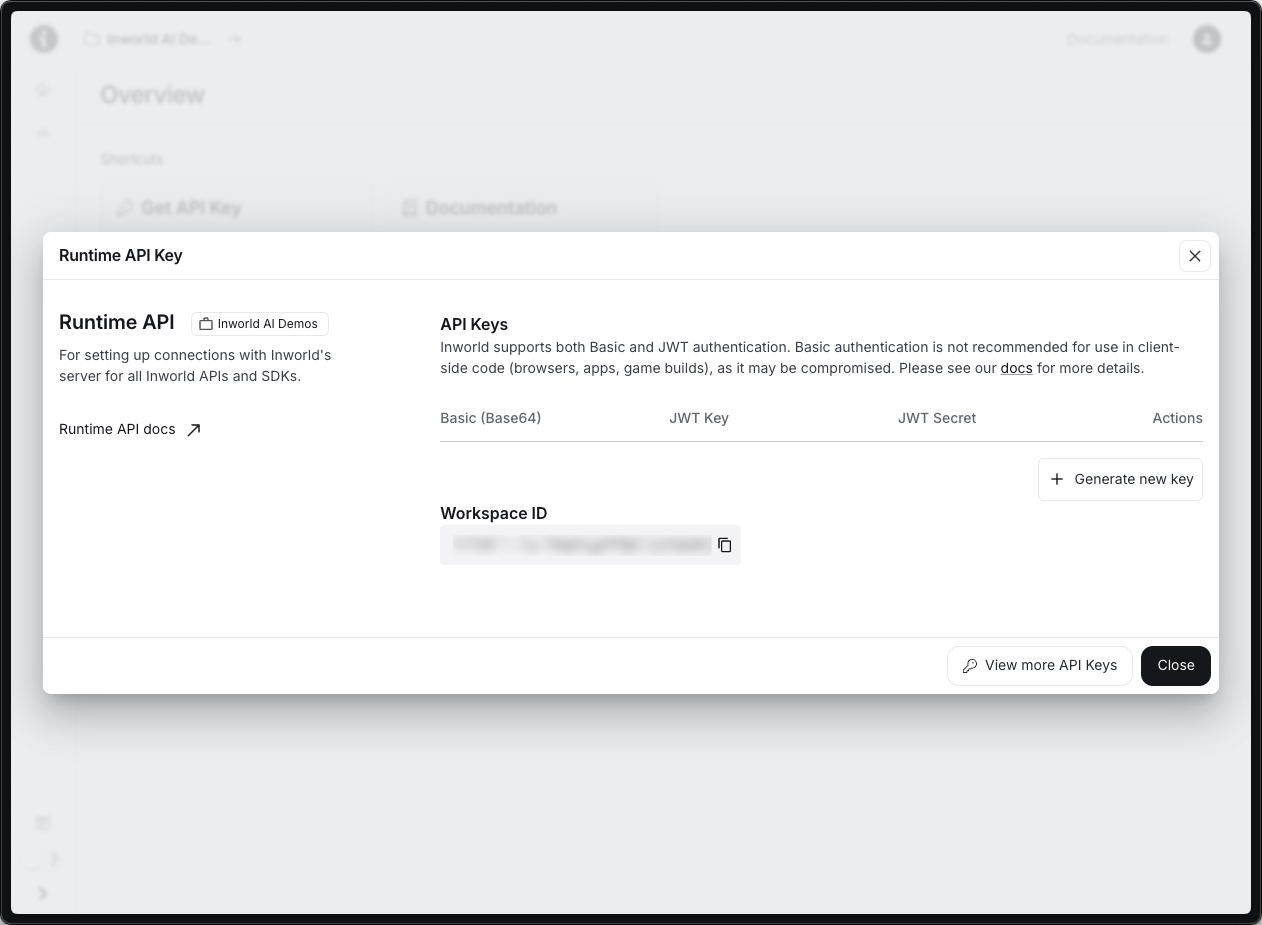
Set your API key as an environment variable.
export INWORLD_API_KEY='your-base64-api-key-here'setx INWORLD_API_KEY "your-base64-api-key-here"Prepare your first streaming request
Create a new file called inworld_stream_quickstart.py or inworld_stream_quickstart.js, confirm INWORLD_API_KEY is set in your environment, and copy the code below into the file. This example uses the WAV encoding so the streamed chunks can be written directly into a single .wav file — the WAV header arrives on the first chunk and the rest are raw PCM samples.
import { InworldTTS } from '@inworld/tts';
import fs from 'fs';

const tts = InworldTTS();
const chunks = [];

for await (const chunk of tts.stream({
    text: "What a wonderful day to be a text-to-speech model! I'm super excited to show you how streaming works.",
    voice: 'Ashley',
    encoding: 'WAV',
    sampleRate: 48000,
})) {
    chunks.push(chunk);
    console.log(`Received ${chunk.length} bytes`);
}

fs.writeFileSync('output_stream.wav', Buffer.concat(chunks));
console.log('Audio saved to output_stream.wav');import asyncio
from inworld_tts import InworldTTS
async def main():
tts = InworldTTS()
chunks = []
async for chunk in tts.stream(
text="What a wonderful day to be a text-to-speech model! I'm super excited to show you how streaming works.",
voice="Ashley",
encoding="WAV",
sample_rate=48000,
):
chunks.append(chunk)
print(f"Received {len(chunk)} bytes")
with open("output_stream.wav", "wb") as f:
f.write(b"".join(chunks))
print("Audio saved to output_stream.wav")
asyncio.run(main())This example uses WAV, where the streaming response carries one WAV header on the first chunk and raw PCM samples on the rest — so naive concatenation produces a valid .wav file. If you instead use LINEAR16, every chunk is a complete WAV file on its own and concatenating them directly will produce audible clicks at chunk boundaries; you'll need to strip the per-chunk RIFF headers yourself, or use WAV instead for direct .wav output. PCM is raw headerless sample data, so only use it if your client will handle containerization or playback itself, such as by adding a WAV header or feeding the samples to an audio API. See Generating Audio for the full format reference.
Run the code
Run the code for Python or JavaScript. The console will print out as streamed bytes are written to the audio file.
node inworld_stream_quickstart.jspython inworld_stream_quickstart.pyYou should see a saved file called output_stream.wav. You can play this file with any audio player.
Make a non-streaming request
The synchronous endpoint is the simplest way to try Realtime TTS and works well for batch audio generation, pre-rendered content, and anywhere latency isn't critical. Assuming you've already set up your API key and installed the SDK:
Prepare your first request
For Python or JavaScript, create a new file called inworld_quickstart.py or inworld_quickstart.js. Copy the corresponding code into the file.
import { InworldTTS } from '@inworld/tts';
import fs from 'fs';

const tts = InworldTTS();

const audio = await tts.generate({
    text: 'What a wonderful day to be a text-to-speech model!',
    voice: 'Ashley',
});

fs.writeFileSync('output.mp3', audio);
console.log('Audio saved to output.mp3');from inworld_tts import InworldTTS
tts = InworldTTS()
tts.generate(
text="What a wonderful day to be a text-to-speech model!",
voice="Ashley",
output_file="output.mp3",
)
print("Audio saved to output.mp3")Next Steps
Now that you've tried out the Realtime TTS API, you can explore more Realtime TTS capabilities.