Capabilities
Voice Design
Create a custom voice from a text description
Inworld's Voice Design lets you create a completely new voice from a text description. It is perfect for when you need a unique voice but can't find the right voice in our Voice Library and don't have existing audio recordings for voice cloning.
Voice Design uses a model to generate a voice based on the following two inputs:
- Voice description - A text description of the voice you have in mind (e.g., age, gender, accent, tone, pitch).
- Script - The text the voice will speak. This shapes the generated voice, so using a script that matches the intended voice produces the best results.
Each time you generate, we'll return up to three voice previews so you can listen, compare, and select the ones that work best for your project.
You can also design a voice from your terminal with the Inworld CLI: inworld tts design "A warm, deep narrator voice" runs an interactive wizard that generates previews, lets you listen and pick, then publishes.
To get started, there are two ways to use voice design:
- Through Inworld Portal - Go to TTS Playground > Create Voice > Design and follow the guided flow.
- Via API or SDK - Useful if you want to generate a lot of voices or expose this capability to your users.
Design a Voice in Portal
Go to Inworld Portal
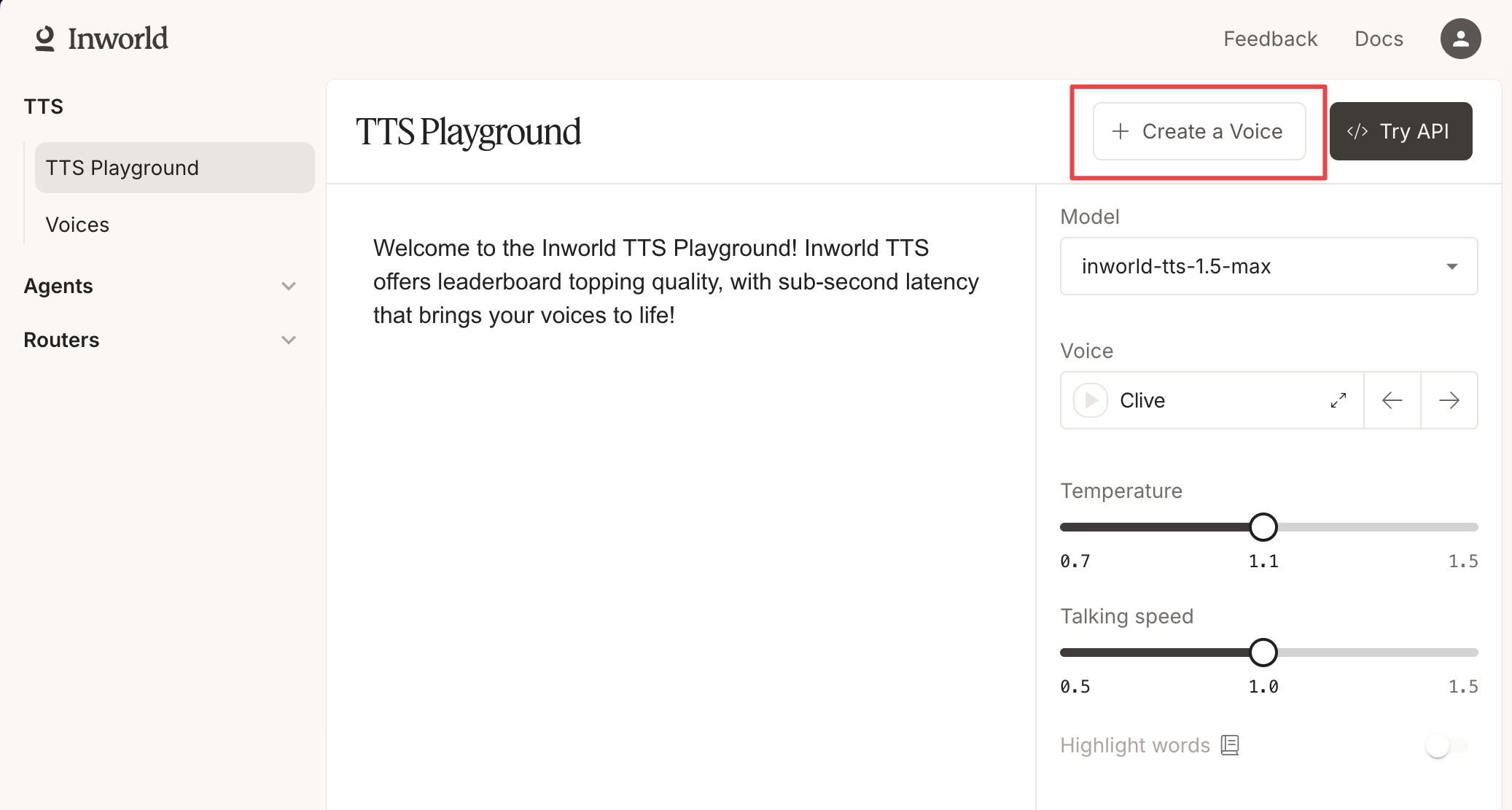
In Portal, select TTS Playground from the left-hand side panel. Click Create Voice and select Design.
Choose a mode
Voice Design has two modes, switchable with the tabs at the top:
- Freeform - Describe the voice in plain English and let us build the voice profile for you. The easiest option and the best starting point.
- Structured - Work on the structured voice profile itself — the exact prompt the model receives, one attribute per line.
Freeform: describe the voice
Describe the voice you want to create, in English, up to 1,000 characters — including the character, if you have one in mind. Descriptions under 30 characters rarely produce a useful voice. The preset chips (e.g. Agent, Narrator, Companion) give you a starting point to edit.
Keep your description concise but specific, so the model can most accurately produce what you have in mind. A good voice description should include:
- Gender and age range (e.g., "a mid-20s to early 30s female voice", "a middle-aged male voice")
- Pitch and pace (e.g., "low-pitched", "fast-paced", "steady pace")
- Tone and emotion (e.g., "warm and friendly", "authoritative and composed")
- Timbre (e.g., "rich and smooth", "slightly raspy", "clear and bright")
Example: "A middle-aged male voice with a clear British accent speaking at a steady pace and with a neutral tone."
Select a Language and Accent below the description — they apply to the generated voice and its preview script.
You can generate directly from your description, or click Review structured profile to see the full voice profile we build from it and fine-tune any attribute before generating.
Structured: edit the voice profile directly
In the Structured tab you edit the exact voice profile the model receives, one attribute per line: dialect, gender, age, emotion, tone, pitch, volume, speed, clarity, fluency, personality, texture, and environment. Edit any value, add your own lines, or start from a preset.
The dialect line carries the language and accent. Clear resets the profile to the blank template.
This mode is built for speed and repeatability: once you have a voice profile that works, you can tweak individual attributes or paste in profiles generated elsewhere.
Generate and preview voices
Click Generate voice, which will create up to 3 voice previews. Listen to each preview by clicking the play button, then select the voice(s) you want to keep.
Each generation produces slightly different results. If the first set of voices doesn't sound right, click Generate voice again to regenerate, or adjust your description or voice profile to better match what you have in mind before regenerating.
Check out our Voice Design Best Practices guide for helpful tips and tricks to improve your designed voices.
Use your voice via API
To use your designed voice via API, copy the voice ID from the TTS Playground. Use that value for the voiceId when making an API call. See our Quickstart to learn how to make your first API call.
Design a Voice with the SDK
You can also design voices programmatically using designVoice() / design_voice() and publishVoice() / publish_voice() from the Inworld TTS SDK.
import { InworldTTS } from '@inworld/tts';

const tts = InworldTTS(); // reads INWORLD_API_KEY from env

const result = await tts.designVoice({
  designPrompt: 'A warm, friendly female voice with a slight British accent',
  previewText: 'Hello! Welcome to our application.',
  numberOfSamples: 3,
});

// Listen to previews, then publish
const voice = await tts.publishVoice({
  voice: result.previewVoices[0].voiceId,
  displayName: 'My Designed Voice',
});from inworld_tts import InworldTTS
tts = InworldTTS() # reads INWORLD_API_KEY from env
result = tts.design_voice(
design_prompt="A warm, friendly female voice with a slight British accent",
preview_text="Hello! Welcome to our application.",
number_of_samples=3,
)
# Listen to previews, then publish
voice = tts.publish_voice(
voice=result.preview_voices[0].voice_id,
display_name="My Designed Voice",
)Voice Design API Reference And Examples
If you want to automate voice design (for example, to support creator onboarding at scale), use the Voice Design API.
- Design a voice API reference: Design a voice
- Publish a voice API reference: Publish a voice
- Python example: example_voice_design_publish.py
- JavaScript example: example_voice_design_publish.js