The Runtime SDK uses API keys to authenticate requests to Inworld’s server.
Getting an API key
The fastest way to get an API key is the Inworld CLI:
--write only affects write endpoints of the Voice API and Router API — other APIs (such as Text-to-Speech and LLM) are not impacted.
This also works for AI coding agents — they can mint a key without leaving the terminal.
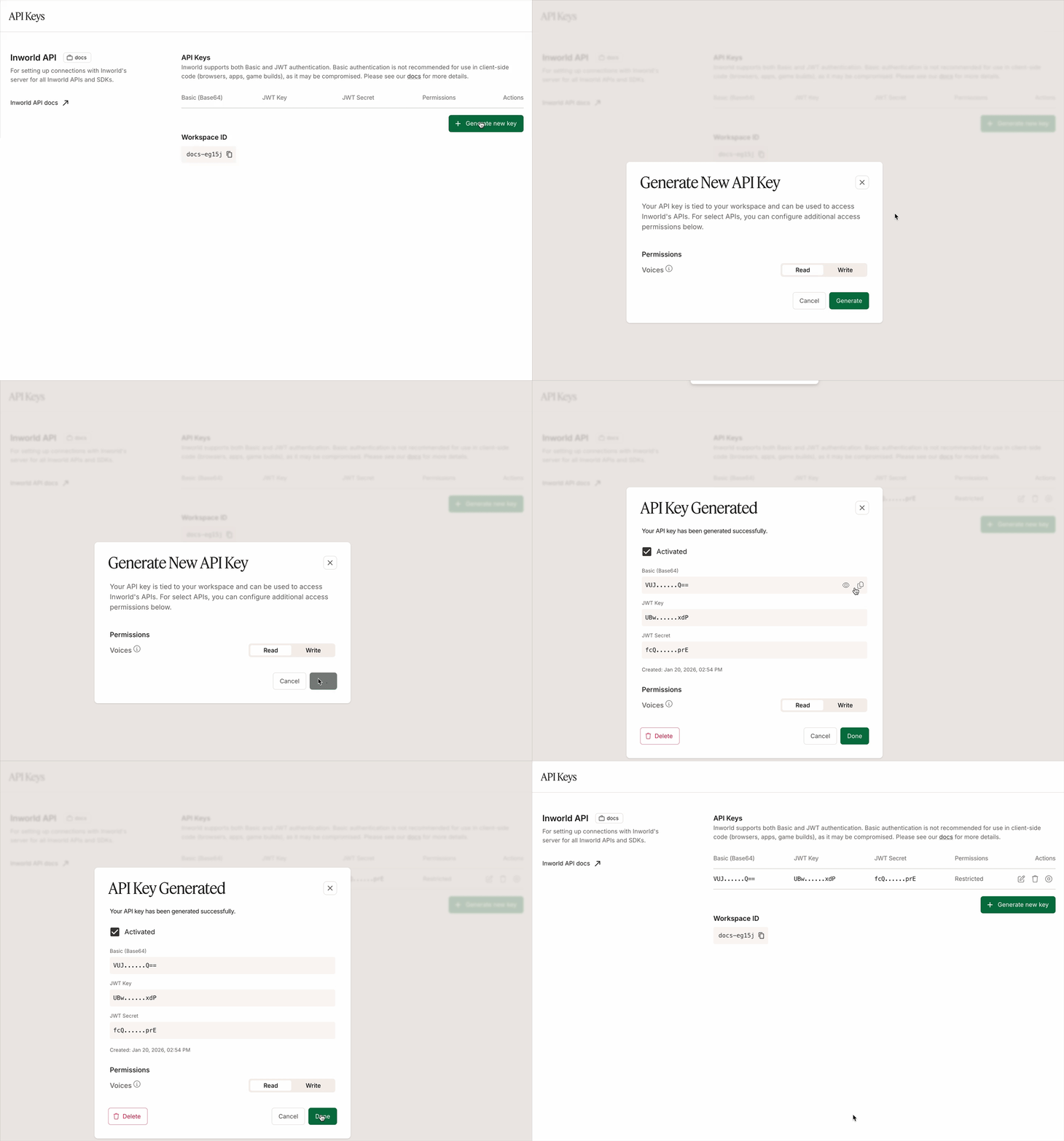
Alternatively, to get an API key from the Portal:
- Log in to Inworld Portal.
- Click API Keys on the bottom left sidebar.
- Click Generate new key to generate a new API key.
- Copy the Basic (Base64) authorization signature.
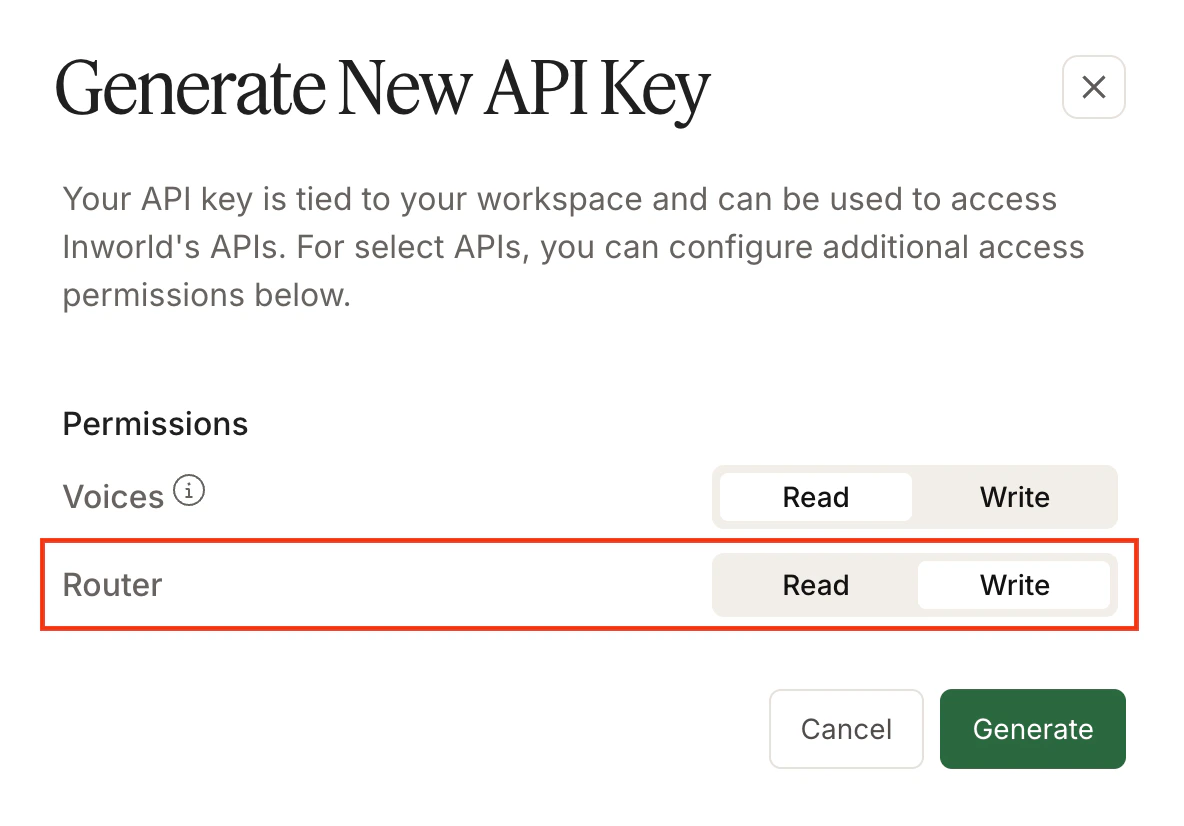
 You can also specify for each API key whether it has write permissions to:
- Voice API, which enables the API key to be used for POST, PATCH, and DELETE endpoints (clone voice, update voice, delete voice). GET endpoints only require read permissions.
- Router API, which enables the API key to be used for POST, PATCH, and DELETE endpoints (create router, update router, delete router). GET endpoints only require read permissions.
 These permissions do not impact other APIs (such as Text-to-Speech and LLM).
The Runtime SDK currently only supports Basic authorization, although you can use JWT authentication with our standalone Model APIs.
Make sure to keep your Base64 credentials safe, as anyone with your credentials can make requests on your behalf. It is recommended that credentials are stored as environment variables and read at run time.
These permissions do not impact other APIs (such as Text-to-Speech and LLM).
The Runtime SDK currently only supports Basic authorization, although you can use JWT authentication with our standalone Model APIs.
Make sure to keep your Base64 credentials safe, as anyone with your credentials can make requests on your behalf. It is recommended that credentials are stored as environment variables and read at run time.
Do not expose your Base64 API credentials in client-side code (browsers, apps, game builds), as it may be compromised. Runtime SDK support for JWT authentication is coming soon.

