Data integrations
BigQuery
Export router data to BigQuery and import your product events
Connect your BigQuery project to export router exposure data for analysis and import your product events to define custom metrics in Portal.
Prerequisites
CLI setup generator
Use the generator below to produce the gcloud and bq commands for your setup. It defaults to dataset ID inworld_router_dataset, location US, service account name inworld-sync, and generates only the roles required for the mode you select.
Install and authenticate the Google Cloud CLI and bq before running these commands. If you prefer the Google Cloud console, use the manual flow in the next section.
BigQuery dataset IDs can contain only letters, numbers, and underscores. For dataset location, use a valid BigQuery region or multi-region such as US, EU, or us-central1.
IAM changes can take a few minutes to take effect across Google Cloud. If Portal's initial validation fails just after you grant permissions, wait a few minutes and try again before changing the setup.
Console setup (alternative)
Create a service account
Go to the Service Accounts page in your GCP project and create a new service account for the Inworld sync job. On the permissions page, grant it the following project-level roles:
- BigQuery Job User (
roles/bigquery.jobUser) — allows the account to run BigQuery jobs - BigQuery Read Session User (
roles/bigquery.readSessionUser) — required for importing events via the BigQuery Storage Read API. You can skip this role if you only plan to export data.
Grant Inworld impersonation access
Navigate to your newly created service account and open the Principals with access tab. Click Grant access and add the following principal:
inworld-sync@inworld-ai-prod.iam.gserviceaccount.comAssign it the Service Account Token Creator role (roles/iam.serviceAccountTokenCreator). This allows the Inworld sync service to impersonate your service account for BigQuery operations.
Grant BigQuery dataset permissions
Go to BigQuery and select the dataset you want to use with Inworld. On the dataset page, go to Share → Manage Permissions and click Add principal. Enter the email of the service account you created in Step 2 and assign the appropriate role:
- BigQuery Data Editor — required for exporting router exposure data to your dataset
- BigQuery Data Viewer — required for importing events from your source tables
If you plan to use both export and import on the same dataset, BigQuery Data Editor is sufficient (it includes viewer permissions). Repeat this step for each dataset you plan to use. The CLI generator applies the same rule and only emits BigQuery Data Editor for the Both mode.
Configure the integration in Portal
In Portal, open Routers > Metrics, then click Set up data integration and select BigQuery.
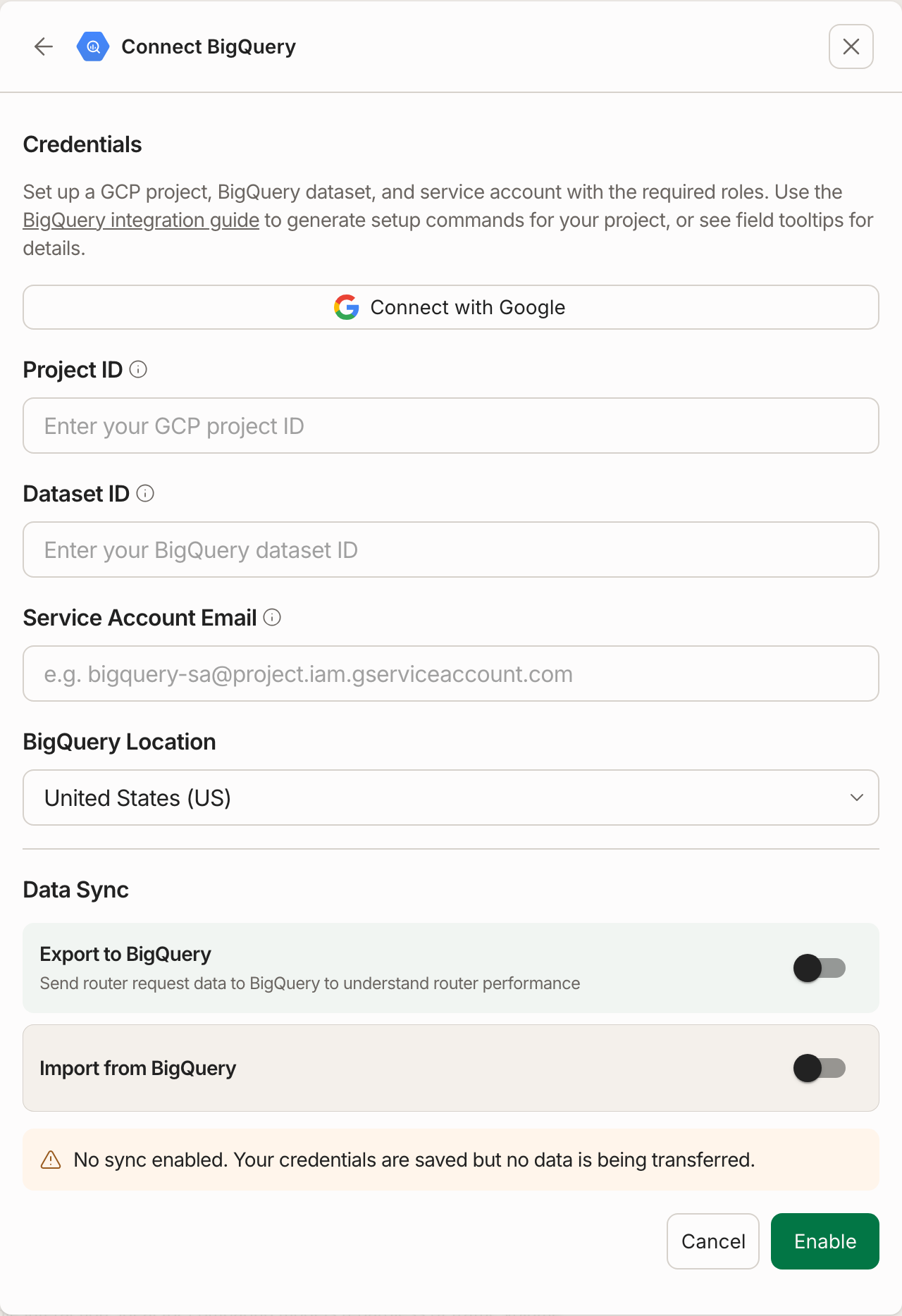
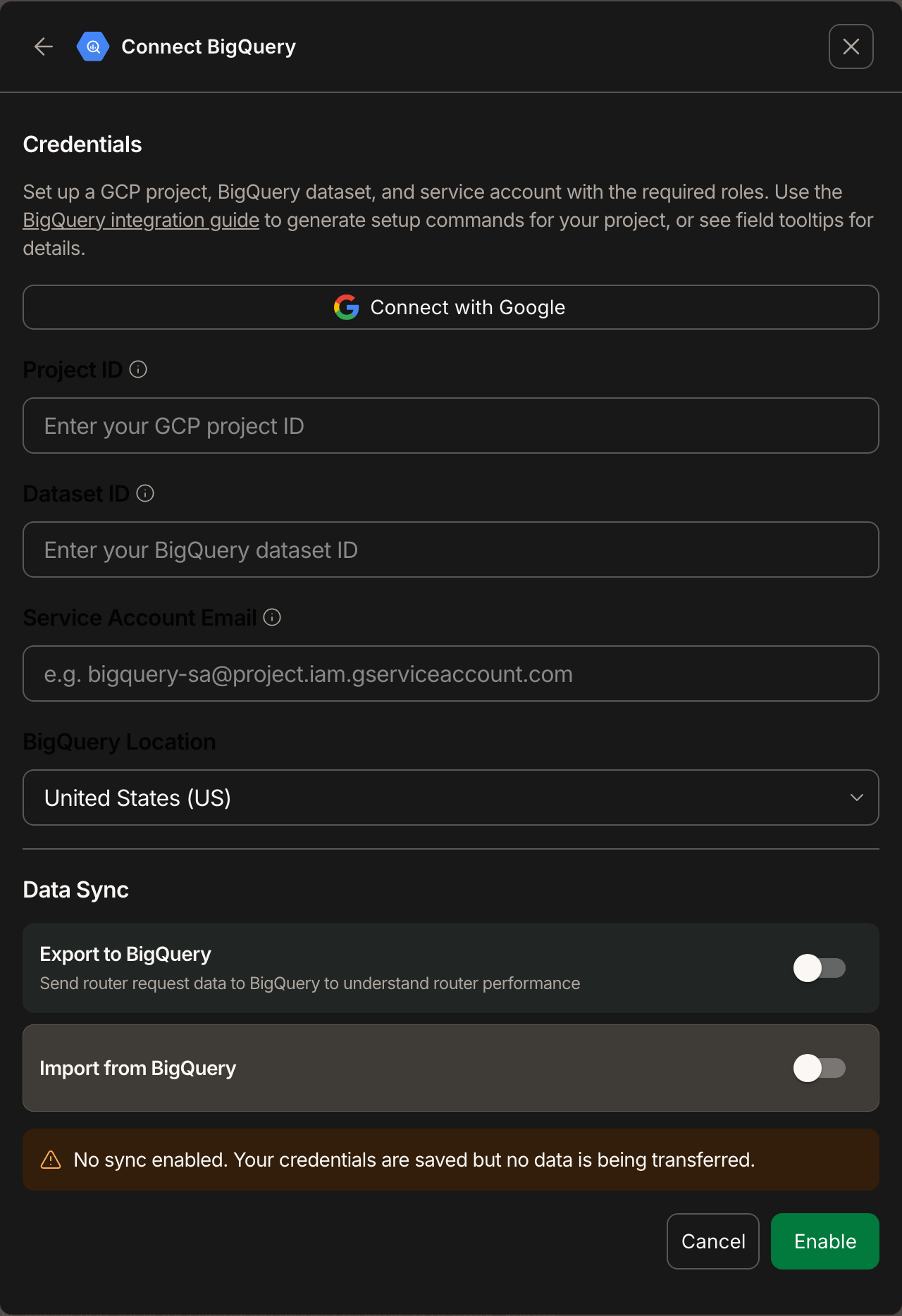
Enter the following:
| Field | Value |
|---|---|
| Project ID | Your GCP project ID |
| Dataset ID | Your BigQuery dataset ID from Step 1 (used for export) |
| Service Account Email | The service account email from Step 2 |
| BigQuery Location | The region where your dataset is located |
Click Enable to save your credentials. You can then toggle export and import independently in the Data Sync section.
Exporting to BigQuery
Toggle Export to BigQuery on in the Data Sync section of your integration settings. When enabled, router exposure data is automatically written to your BigQuery dataset.
Make a request to your router
Call the Chat Completions API with your router and set user to a unique user ID:
curl --request POST \
  --url https://api.inworld.ai/v1/chat/completions \
  --header 'Authorization: Basic <your-api-key>' \
  --header 'Content-Type: application/json' \
  --data '{
    "model": "inworld/my-router",
    "messages": [{"role": "user", "content": "Hello"}],
    "user": "<your-user-id>"
  }'
The router exposure data will include the user in the data export, so you can tie the specific request to the right user.
Analyze your data
The router exposure data will flow to your BigQuery dataset automatically (data syncs every ~8 hours). You will see a row for each router, route, and variant that a user was exposed to every hour.
Each row will include:
alias_id— Your router's IDroute_id— The route that the user was routed tovariant_id— The variant that the user was exposed touser_id— The user that was exposed to this router, route, and varianttimestamp— The time of the most recent event in the hourly bucket in which the user was exposed to this router, route, and variant
Combine this data with your existing metrics to compare trends by the router, route, or variant each user was exposed to.
Importing from BigQuery
Toggle Import from BigQuery on in the Data Sync section to start pulling your product events into Portal.
Define events to import
In the Events to import section that appears after enabling import, click Add Event. For each event, you map columns from a BigQuery table to the fields Inworld expects:
| Field | Description | Example |
|---|---|---|
| Event Name | A logical name for this event in Portal. | user_donation |
| Description | Optional description of when this event is triggered. | Fires when a user completes a donation |
| Dataset | The BigQuery dataset containing the source table. | user_data |
| Table Name | The BigQuery table to read events from. | donations |
| Event Field Name | The column that identifies the event type. | event_name |
| User ID Field Name | The column containing the user identifier. | user_id |
| Timestamp Field Name | The column with the event timestamp. | created_at |
| Event UUID Field Name | The column with a unique identifier per event row. | event_uuid |
Event names can only contain letters, numbers, underscores, and hyphens.
You can add multiple events, each pointing to a different table or filtering on a different event type within the same table.
Schema requirements
Your BigQuery source table must meet these requirements:
| Column | Type | Notes |
|---|---|---|
| Timestamp field | TIMESTAMP or DATETIME | Used to determine sync boundaries and event ordering |
| User ID field | STRING | Must match the user value passed in Chat Completions API requests for correlation with router exposures |
| Event UUID field | STRING | Must be unique per row to ensure idempotent imports |
Any additional columns in the table are treated as event properties. Each property must be its own column with a native BigQuery type — for example, user_message_count INT64, session_duration FLOAT64, or plan_name STRING. Properties are automatically classified by type (string, number, boolean) during import so they can be used in metric definitions.
Storing properties as JSON-encoded maps (e.g., a single STRING column containing {"amount": 29.99, "count": 3}) is not supported. The import pipeline reads each column value as-is, so JSON strings will be imported as plain strings rather than being parsed into individual properties.
The service account configured in Prerequisites must have BigQuery Data Viewer access to the specified dataset and table.
How import works
- Inworld reads from your BigQuery tables using the BigQuery Storage Read API for efficient data transfer.
- Events are synced approximately every 8 hours. Imports are incremental — only new rows since the last sync are fetched.
- User identity is matched using the User ID field. To correlate imported events with router exposures, ensure the same user identifier is passed as the
userfield in your Chat Completions API requests and in the User ID column of your BigQuery table. - Once events are imported, their numeric properties are automatically discovered and become available for metric configuration.
Next steps
Once your events are importing, create custom metrics to track how routing decisions impact your KPIs.