Data integrations
Mixpanel
Export router data to Mixpanel and import your product events
Connect your Mixpanel project to export router exposure data for analysis and import your product events to define custom metrics in Portal.
Prerequisites
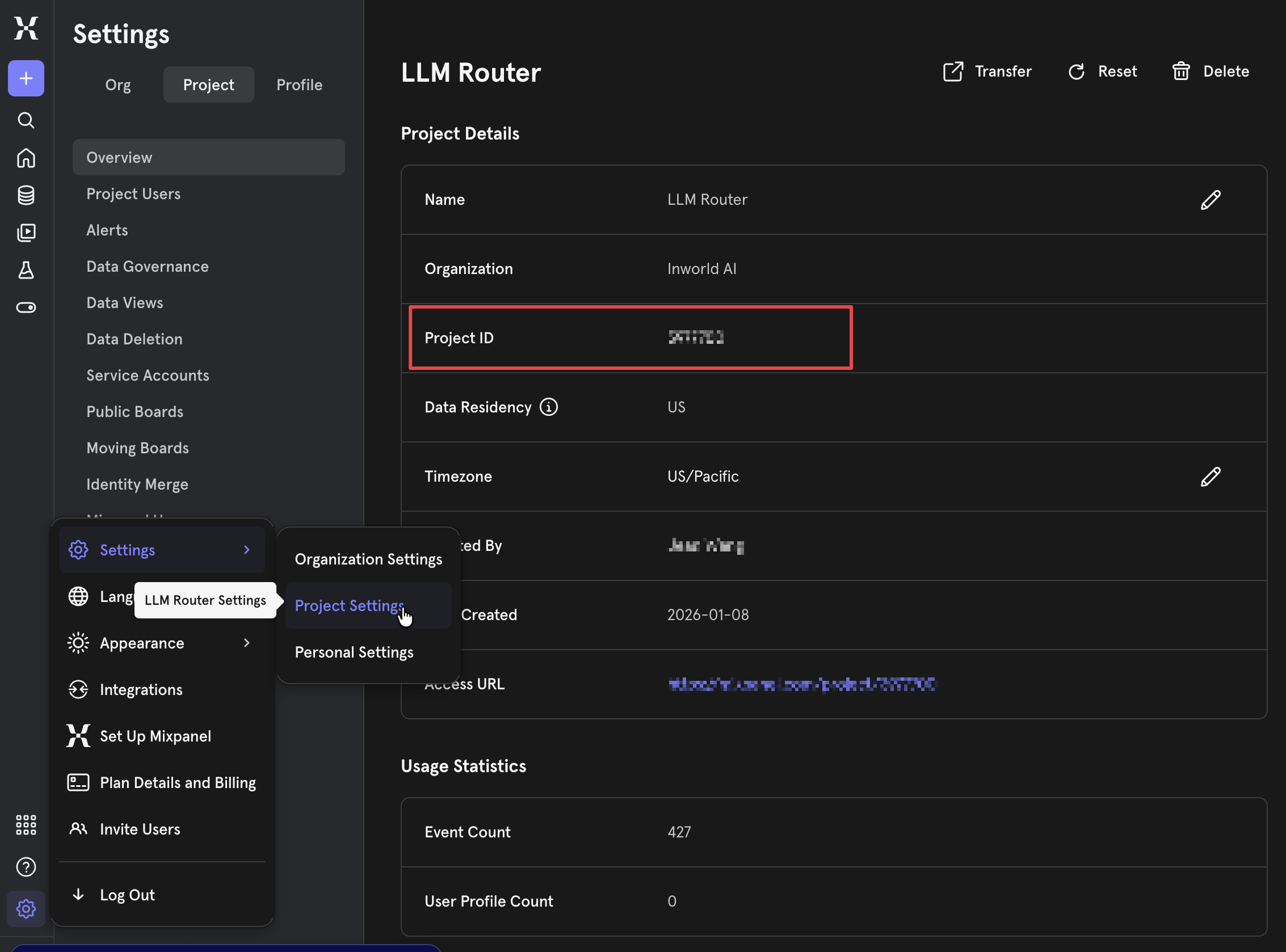 In Mixpanel, navigate to Settings > Project Settings. In the Overview tab, find and copy your Project ID.
Create a service account
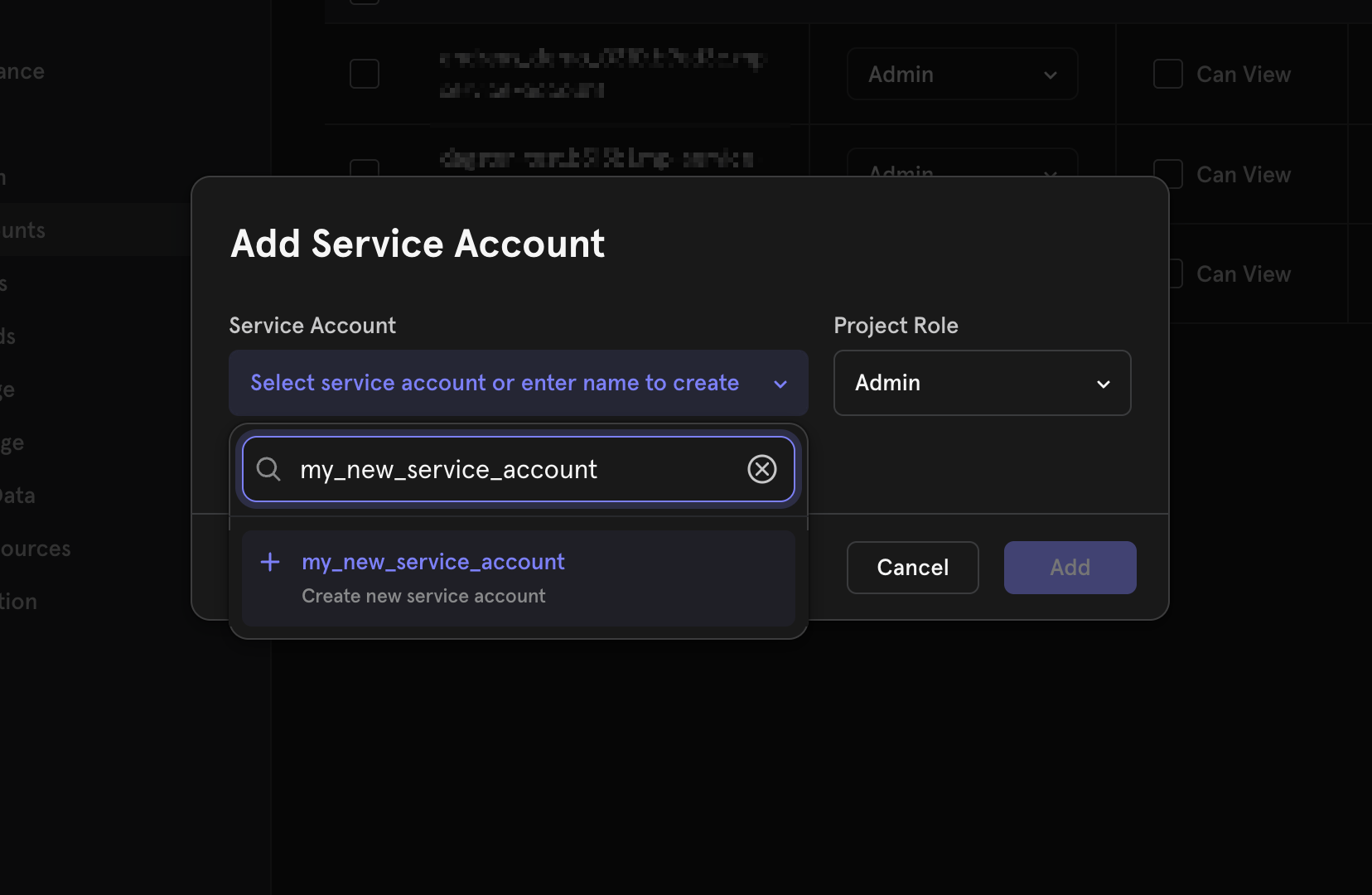 In Project Settings, go to the Service Accounts tab. Click Add Service Account.
Type in the name of your new service account. Click the + button to create your new service account. Set the Project Role to Admin or Owner. Set Expires to Never.
Click Add and copy the username and secret — you will not be able to view the secret again.
Configure the integration in Portal
In Portal, open Routers > Metrics, then click Set up data integration and select Mixpanel.
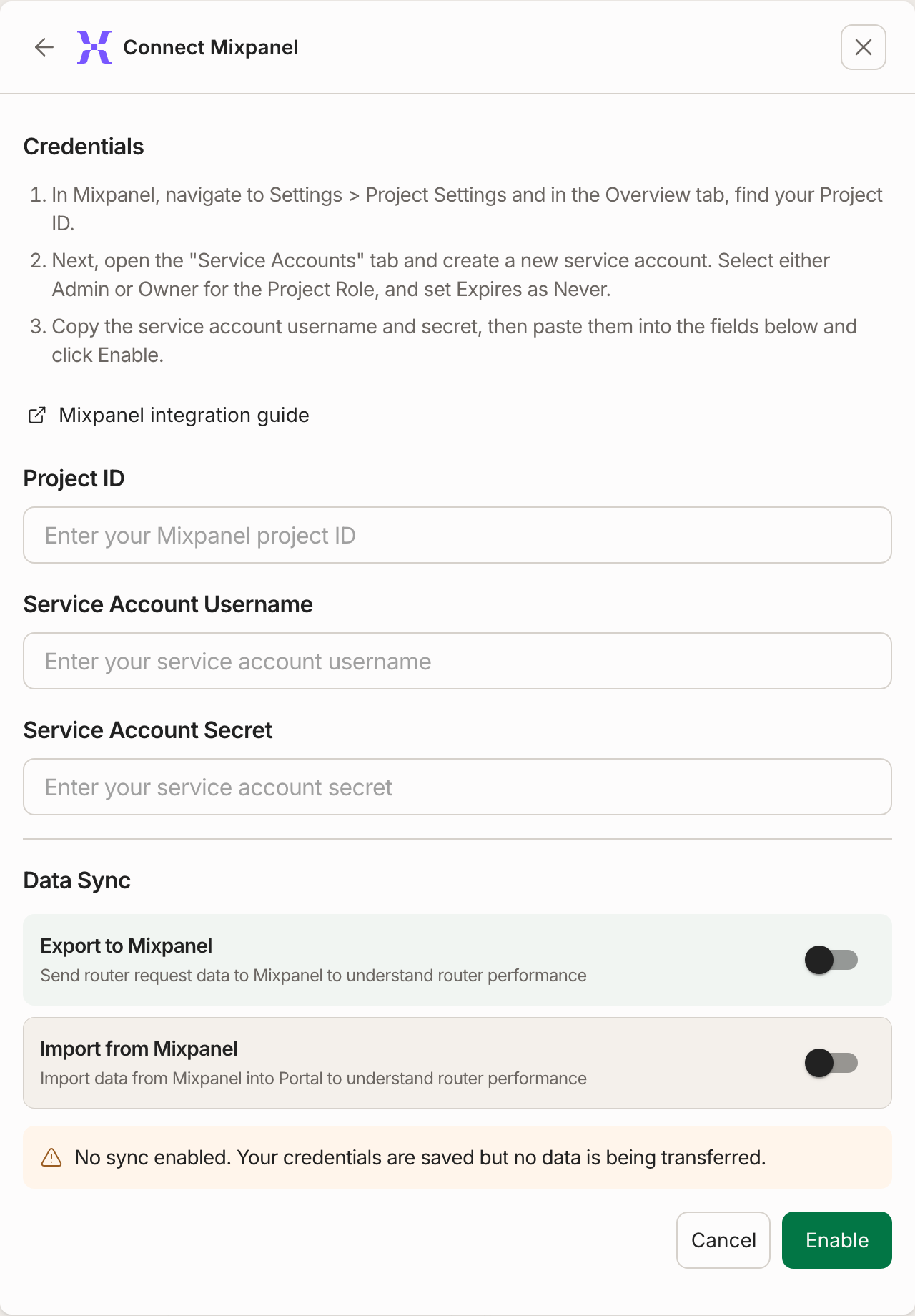
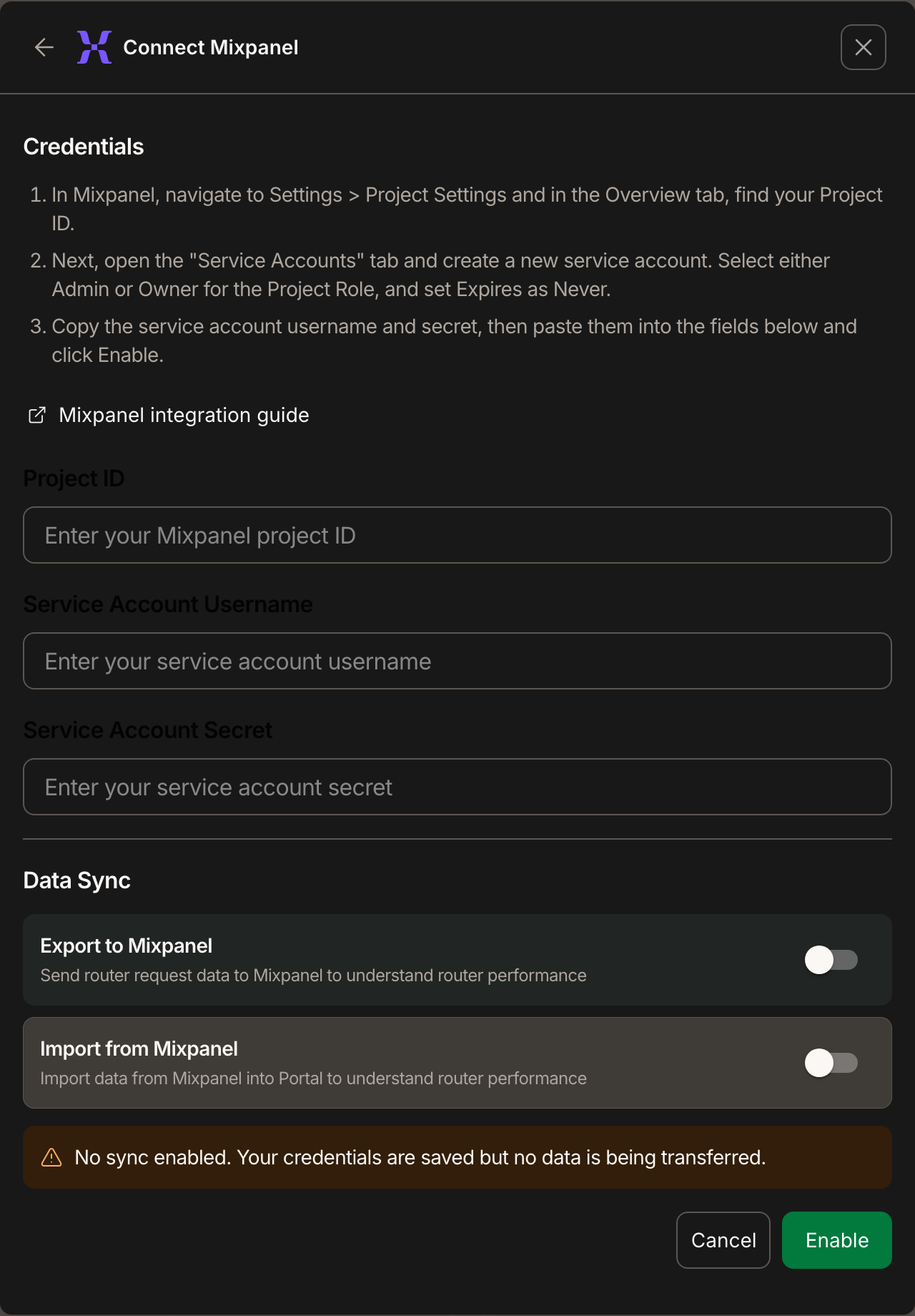
Enter the following:
| Field | Value |
|---|---|
| Project ID | Your Mixpanel project ID from Step 1 |
| Service Account Username | The service account username from Step 2 |
| Service Account Secret | The service account secret from Step 2 |
Click Enable to save your credentials. You can then toggle export and import independently in the Data Sync section.
Exporting to Mixpanel
Toggle Export to Mixpanel on in the Data Sync section of your integration settings. When enabled, router exposure data is automatically sent to your Mixpanel project.
Make a request to your router
Call the Chat Completions API with your router and set user to the user's Mixpanel Distinct ID:
curl --request POST \
  --url https://api.inworld.ai/v1/chat/completions \
  --header 'Authorization: Basic <your-api-key>' \
  --header 'Content-Type: application/json' \
  --data '{
    "model": "inworld/my-router",
    "messages": [{"role": "user", "content": "Hello"}],
    "user": "<mixpanel-distinct-id>"
  }'
The router exposure data will match the user to the Mixpanel Distinct ID when creating events in Mixpanel, so you can tie the specific request to the right user.
View events in Mixpanel
The router exposure data will flow to your Mixpanel project automatically (data syncs every ~8 hours). You will see an event for each router, route, and variant that a user was exposed to every hour.
Each event will include:
alias_id— Your router's IDroute_id— The route that the user was routed tovariant_id— The variant that the user was exposed toTime— The time of the most recent event in the hourly bucket in which the user was exposed to this router, route, and variant
The Distinct ID of the event will be what was passed in the user field of the request.

Analyze your data
We recommend creating a Borrowed Event Property. To do so, create a Custom Event Property and select Computed > Borrow Property. Select the Route Exposure event and alias_id, route_id, or variant_id based on what property you want to analyze your data by.

Use the property in any report Breakdown to compare metric trends by the router, route, or variant each user was exposed to.
Importing from Mixpanel
Toggle Import from Mixpanel on in the Data Sync section to start pulling your product events into Portal.
Define events to import
In the Events to import section that appears after enabling import, click Add Event and configure:
| Field | Description | Example |
|---|---|---|
| Event ID | The Mixpanel event name to import. Must exactly match the event name in your Mixpanel project. | purchase |
| Description | Optional description of when this event is emitted. | Fires when a user completes a purchase |
Event IDs can only contain letters, numbers, underscores, and hyphens.
You can add multiple events — each one will be imported separately and will be available as a distinct event when creating custom metrics.
How import works
- Inworld uses the same service account credentials configured in Prerequisites to read events from your Mixpanel project.
- Events are synced approximately every 8 hours.
- User identity is matched using the Mixpanel Distinct ID. To correlate imported events with router exposures, ensure the same user identifier is passed as the
userfield in your Chat Completions API requests and as the Distinct ID in your Mixpanel events. - Once events are imported, their properties are automatically discovered and become available for metric configuration.
Next steps
Once your events are importing, create custom metrics to track how routing decisions impact your KPIs.